

Overview
TippingLink allows Security Officer-level users to enable their staff to receive secure cashless tips from residents through a reliable, easy-to-use platform. Residents can tip securely through the web portal or the Resident App at their convenience.
Resident tips appear instantly for staff in TippingLink. Transfers into TippingLink and out to staff bank accounts can each take up to 1-3 business days to process. Push to card sends staff tip earnings directly to an eligible debit card instead of moving them to a bank account via ACH. Funds typically land within minutes rather than the 1–3 business days of a standard bank transfer. Staff will also have the option to send thank-you notes to residents after receiving tips.
TippingLink can be set up to allow residents to tip employees individually, as a tip pool, or both. A tip pool allows tips to be collected and shared among a group of employees. Funds can be paid out in a single payment to the property or distributed by TippingLink using an allocation list you define.
This article covers TippingLink setup and FAQ's. If you'd like to learn about the TippingLink tipped staff experience, you can see our Using TippingLink article. If you want to learn more about the TippingLink resident experience, see our TippingLink For Residents article. If you are not a current BuildingLink customer and wish to purchase TippingLink for your property, click here.
Note: Click on the images to enlarge them.
Table of Contents
- Quick Overview Video
- Enablement and Overview Webinar
- Enabling TippingLink
- Managing TippingLink Employees
- Adding a Tip Pool
- Managing a Tip Pool
- Inviting Residents to TippingLink
- TippingLink FAQ
Quick Overview Video
Enablement and Overview Webinar
Enabling TippingLink
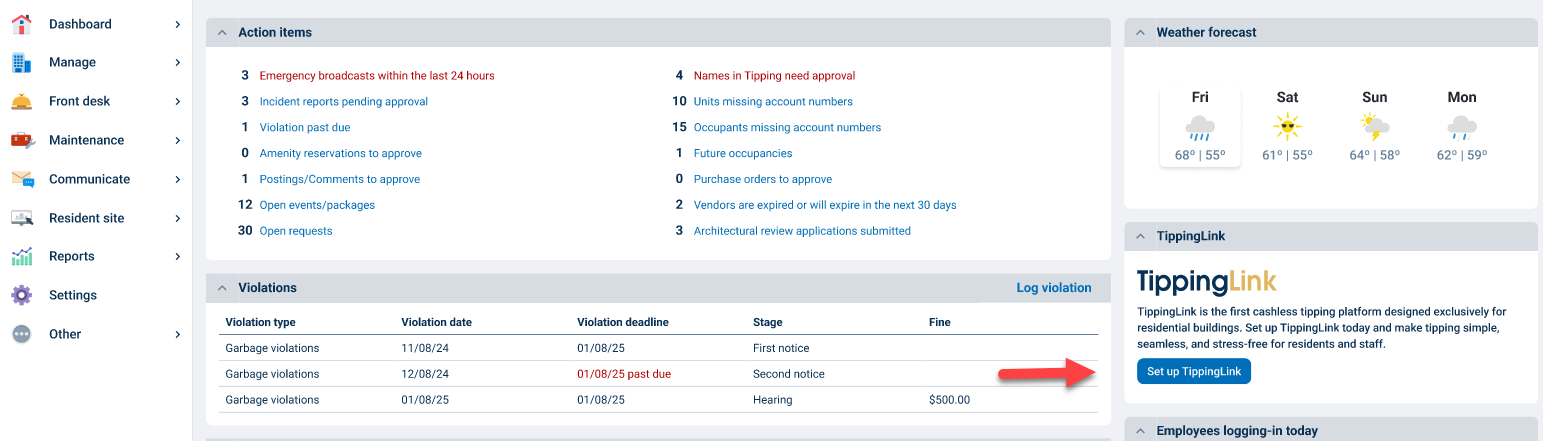
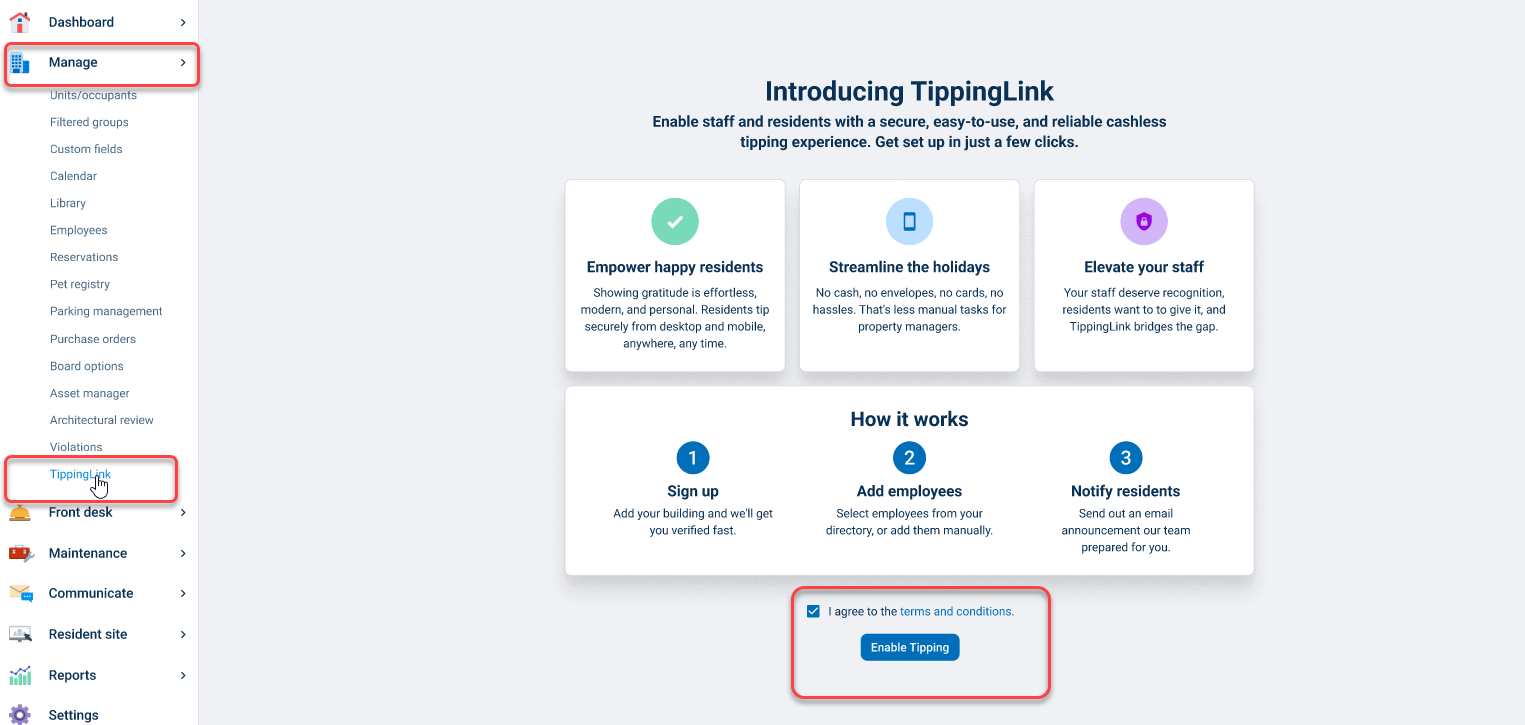
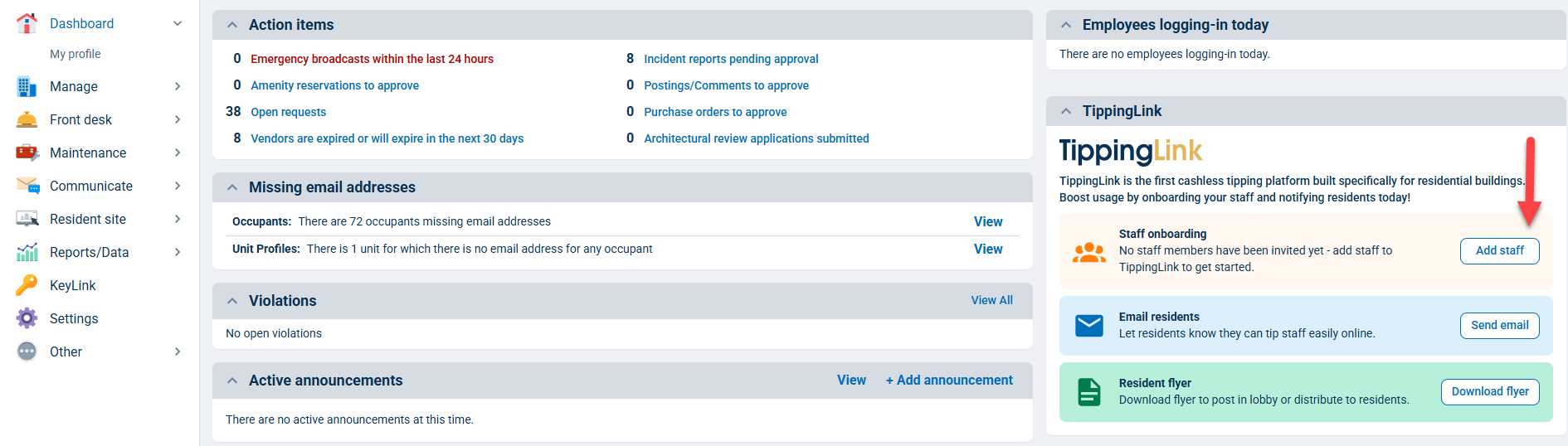
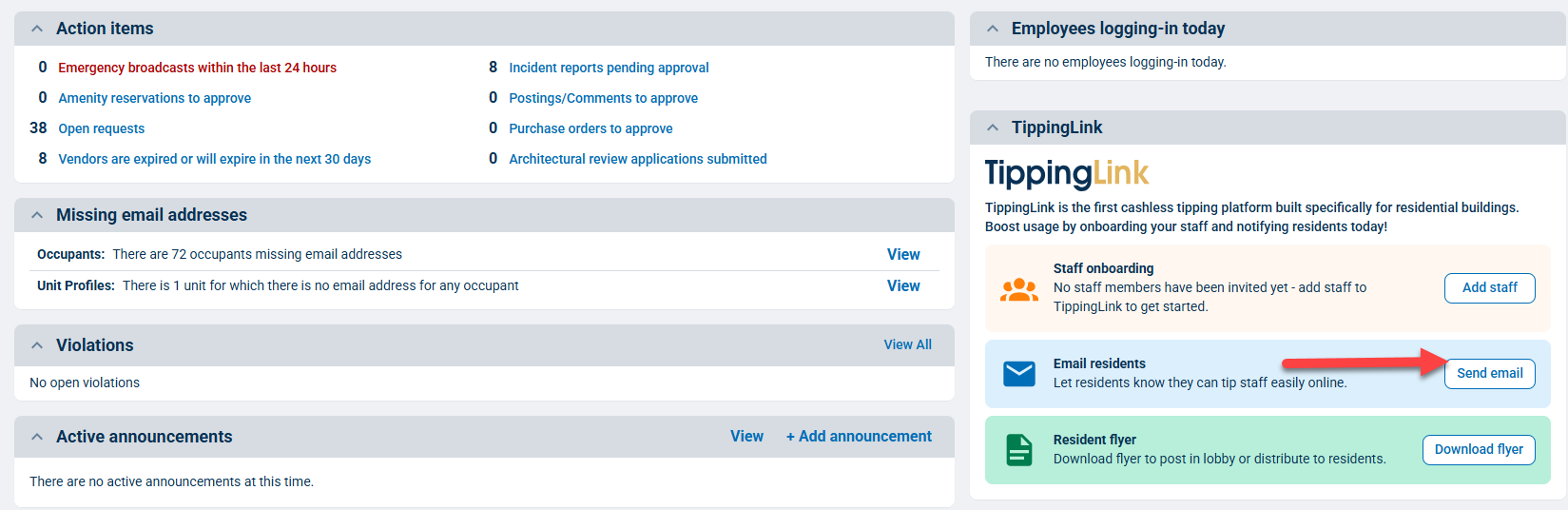
If TippingLink is activated for your building, you can enable it by clicking the Set up TippingLink button on your Manager Dashboard or by going to the Manage tab and selecting TippingLink.
Next, accept the terms and conditions, then click the Enable Tipping button. (If you don't see TippingLink as an option, please contact support@tippinglink.com to have it activated.)
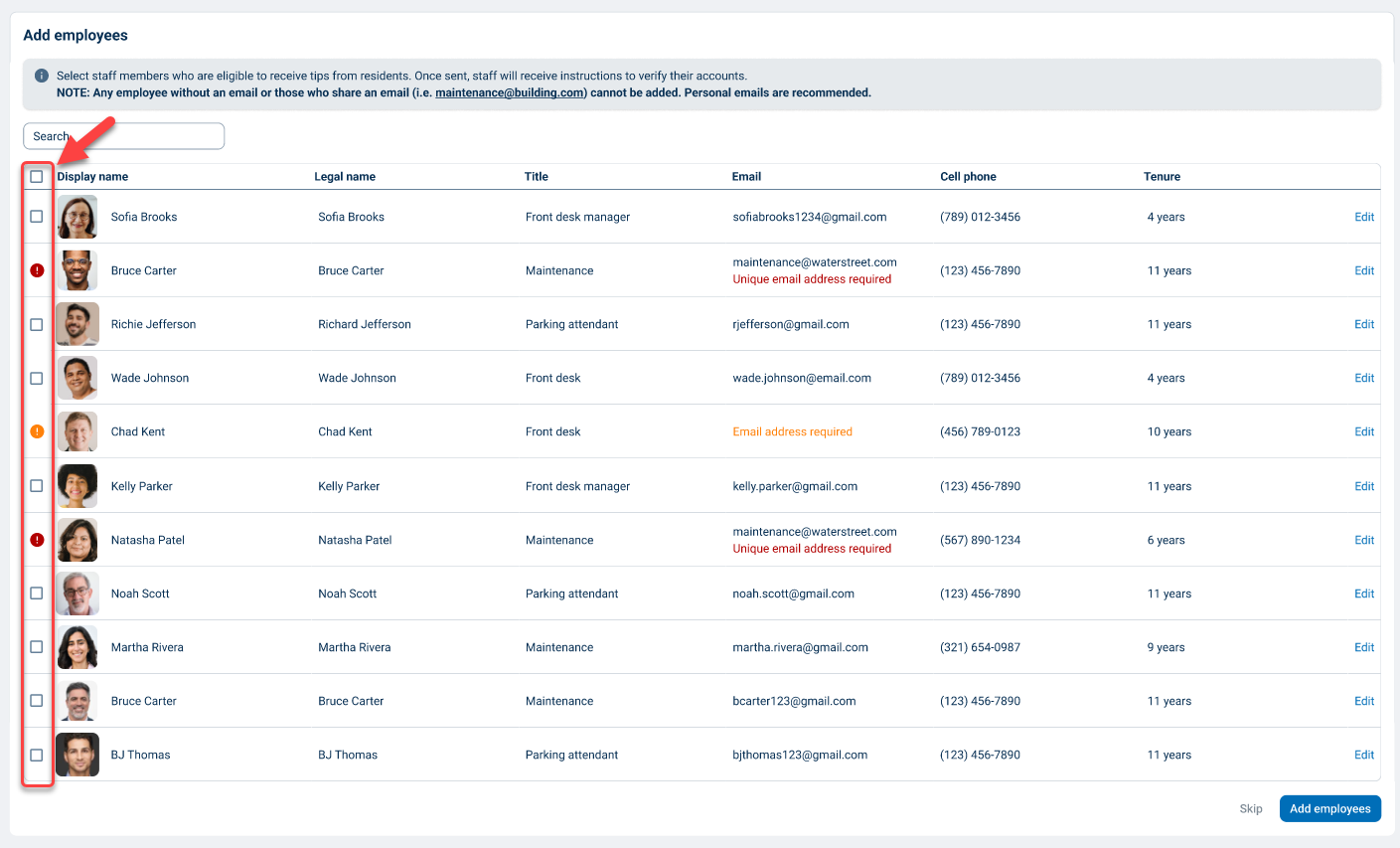
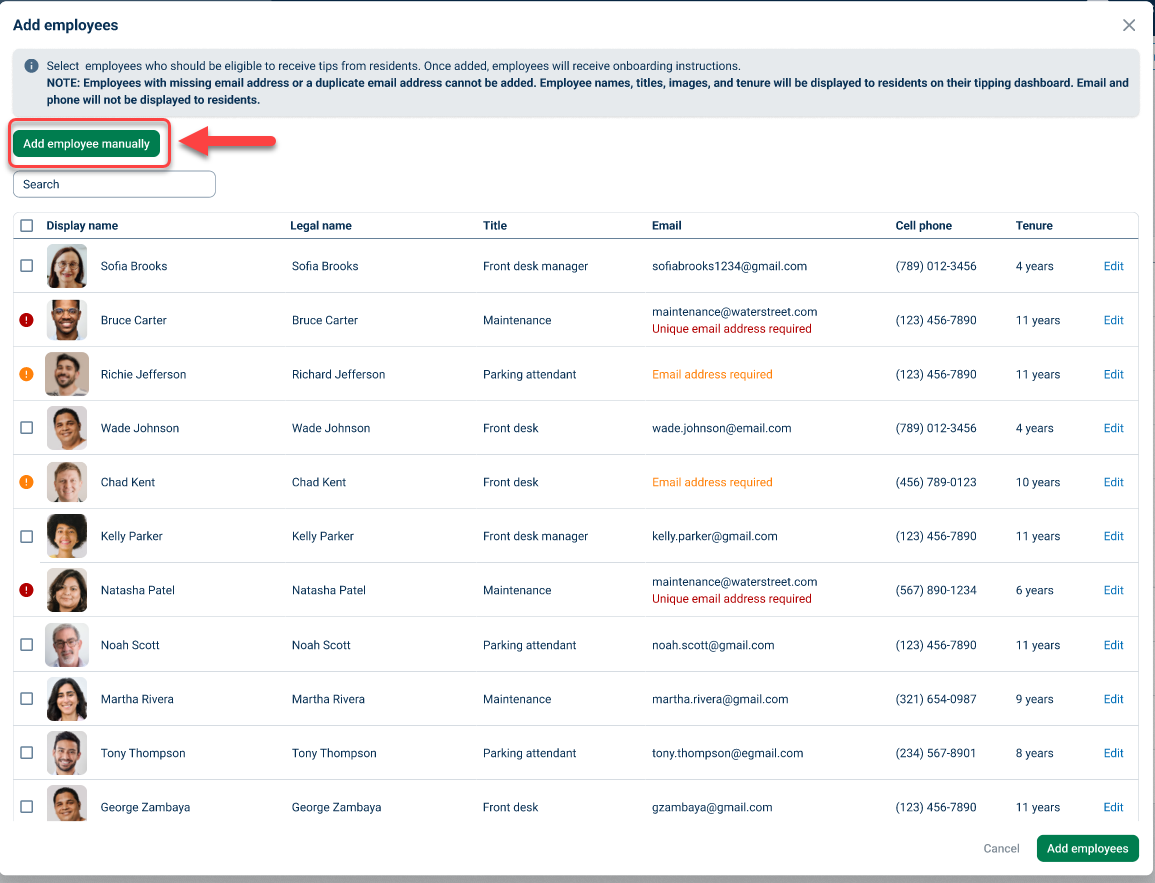
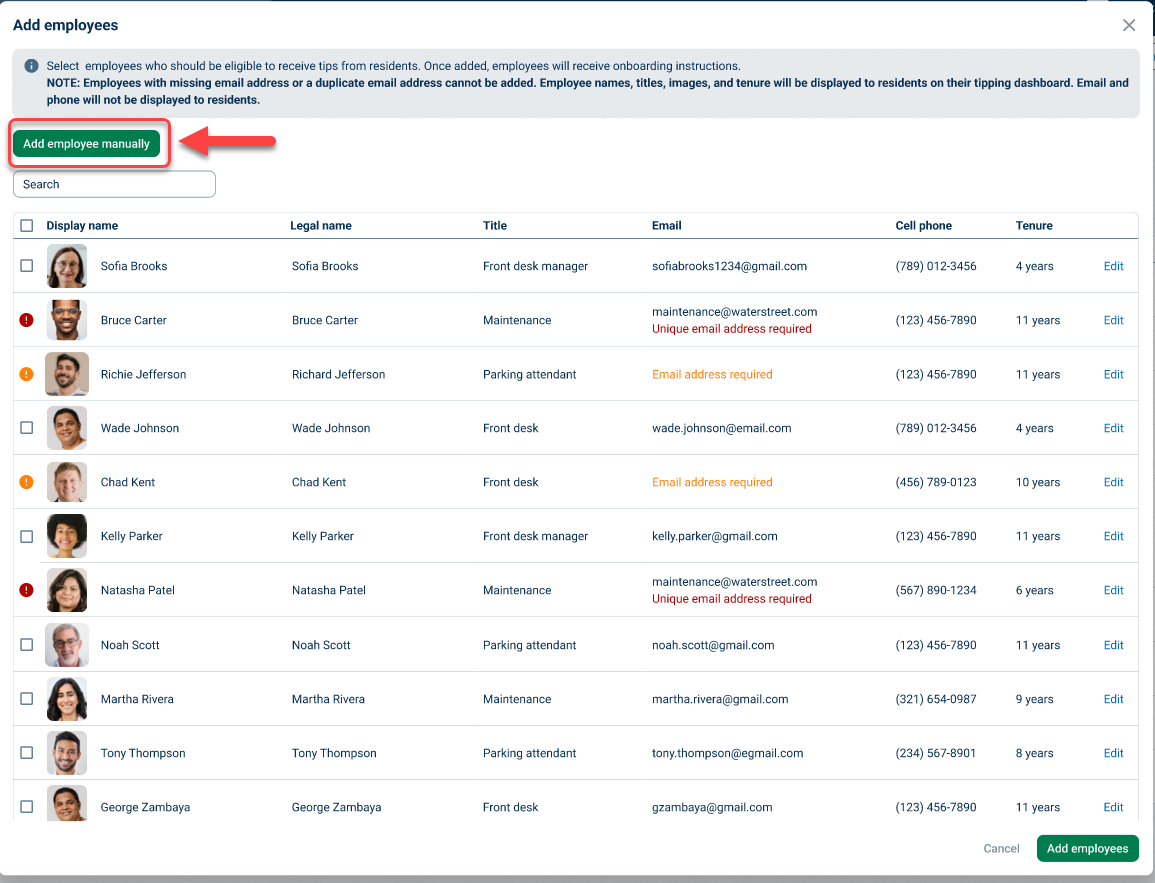
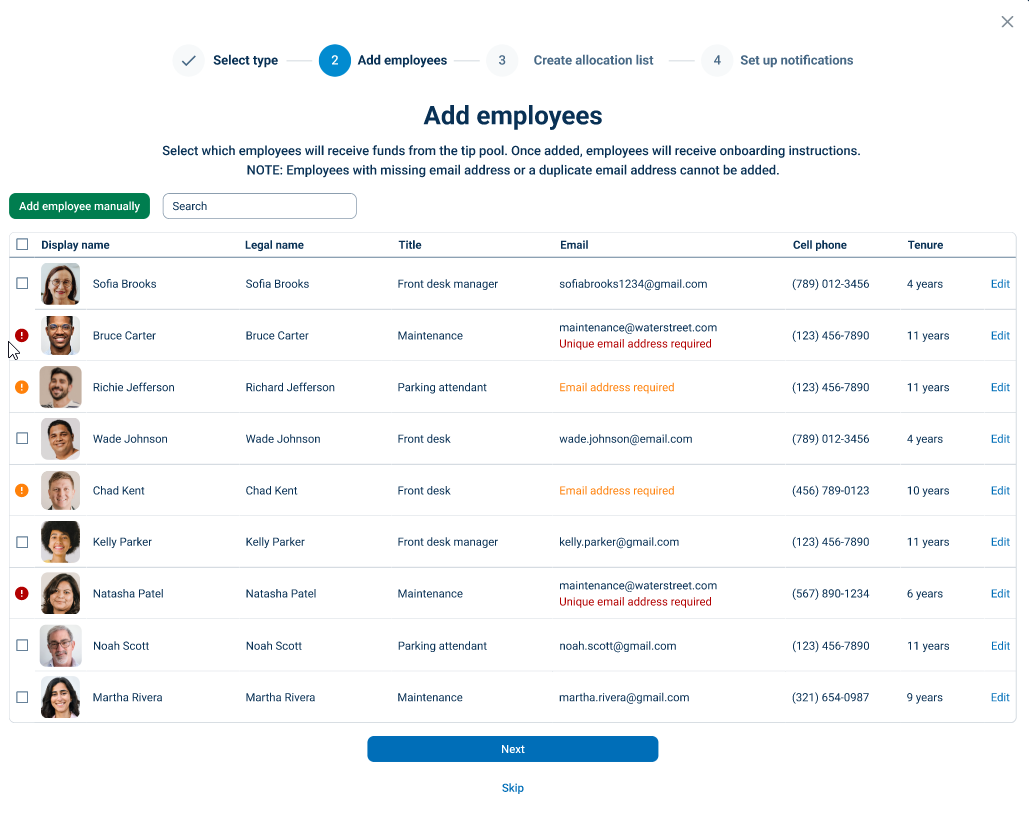
On the next page, you will see a list of employees already added to BuildingLink. Use the check boxes on the left to select the employees you want to receive tips.
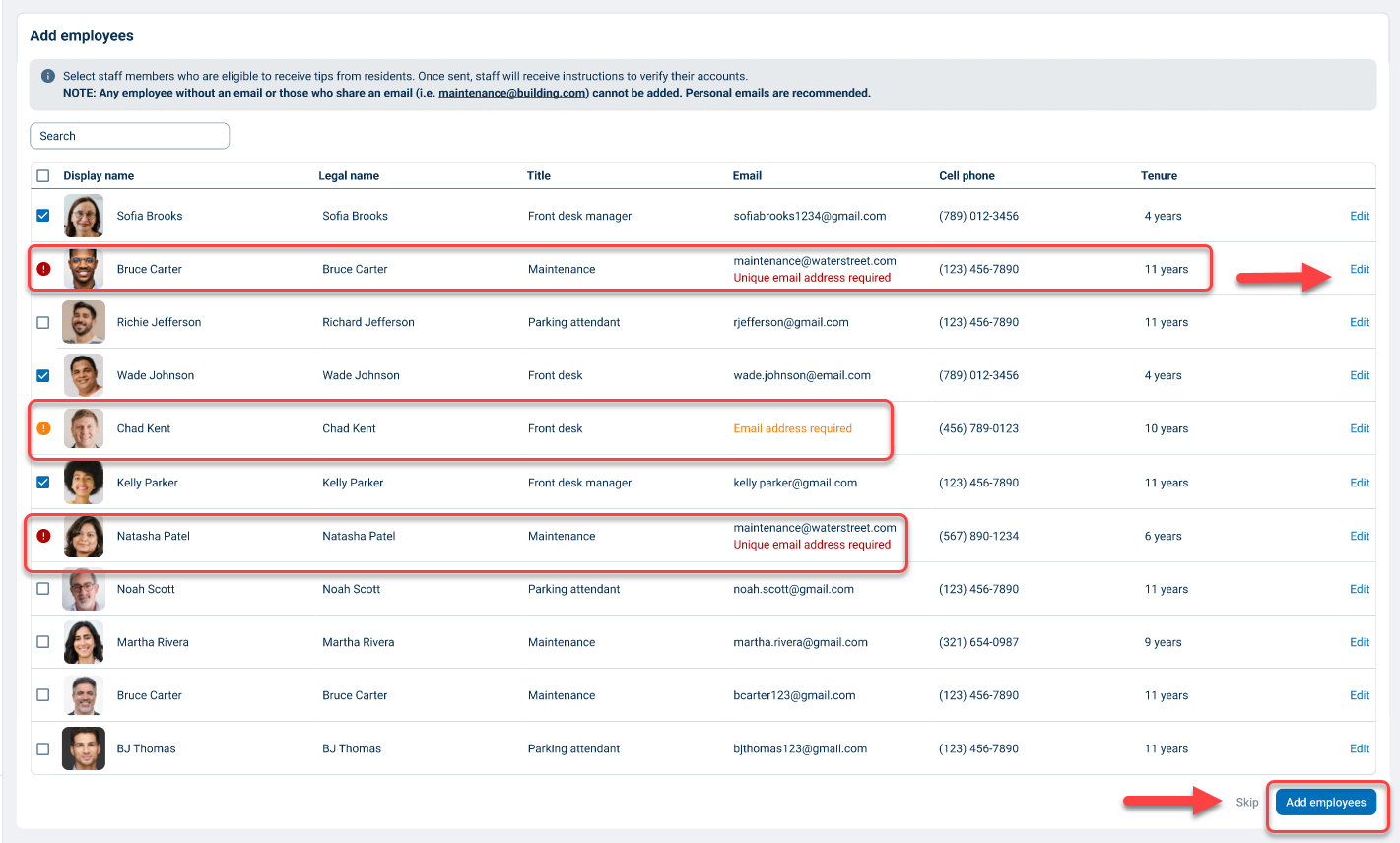
If needed, you can also edit employee information from this page by clicking Edit on the employee's row. Employees without an email address or those who share an email (i.e., maintenance@building.com) cannot be added, so you must provide an email address to add them (we recommend adding a personal email address).
Note: Updating an employee's information in TippingLink will not affect the employee's record in BuildingLink.
When you're done with your selections, click the Add employees button. Invites will automatically be sent to all the employees you add.
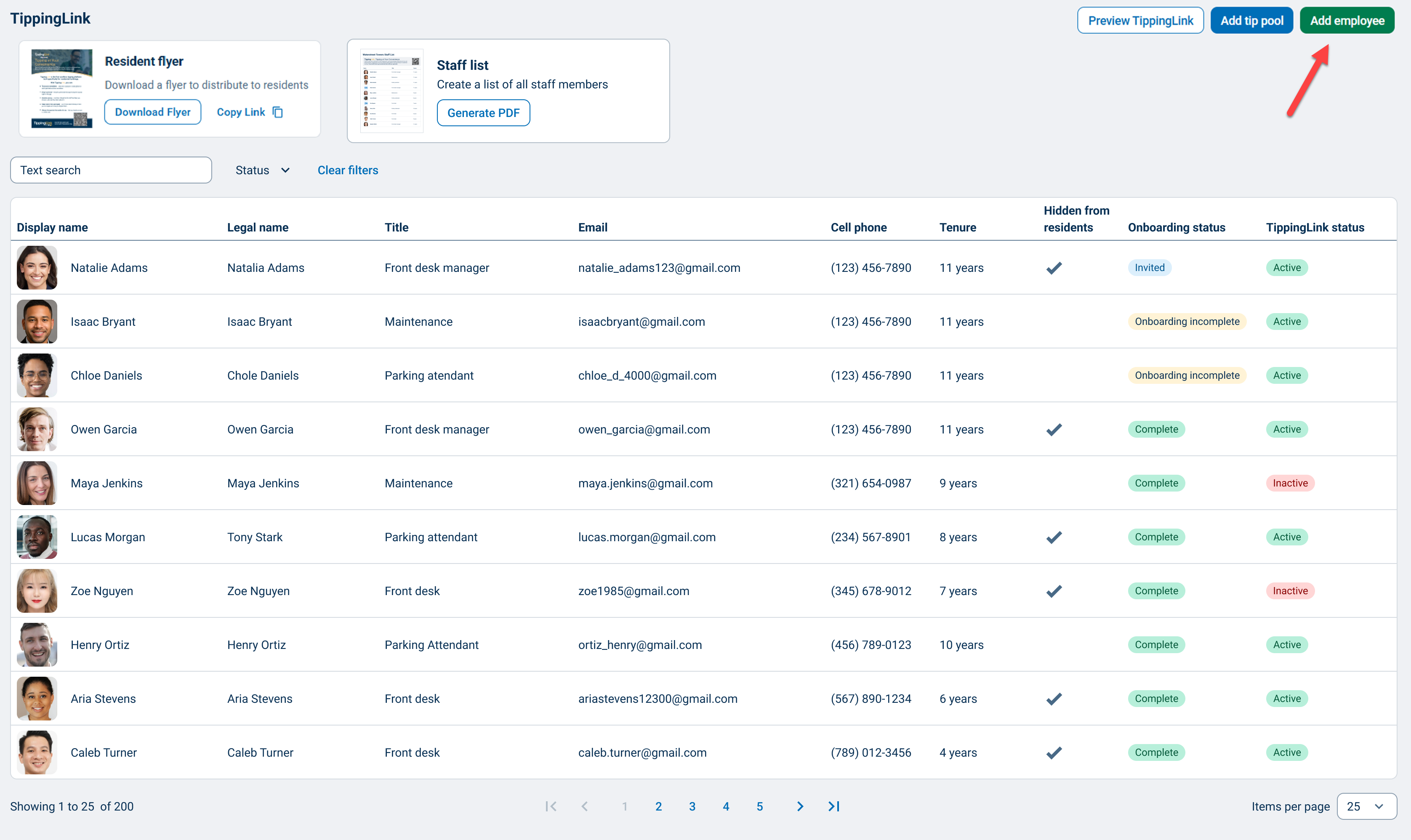
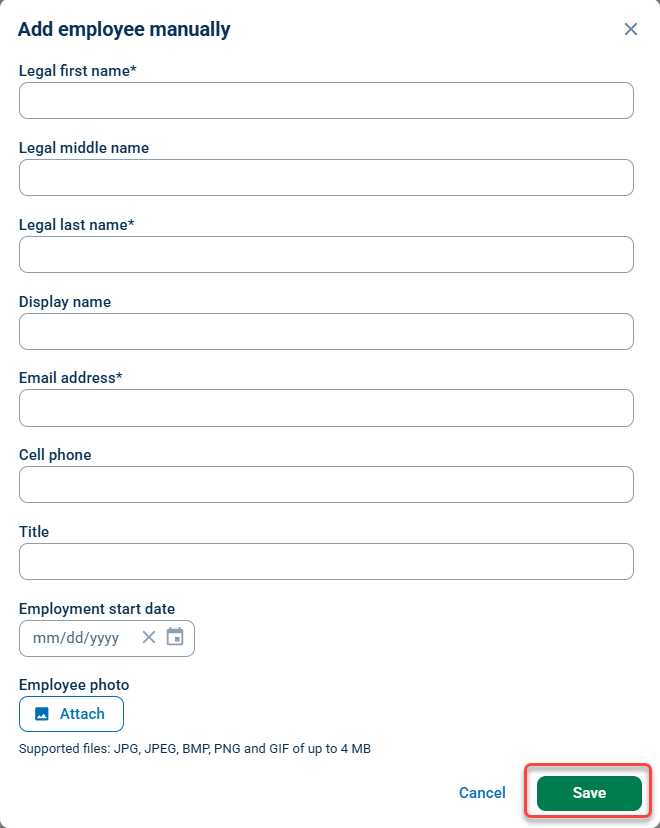
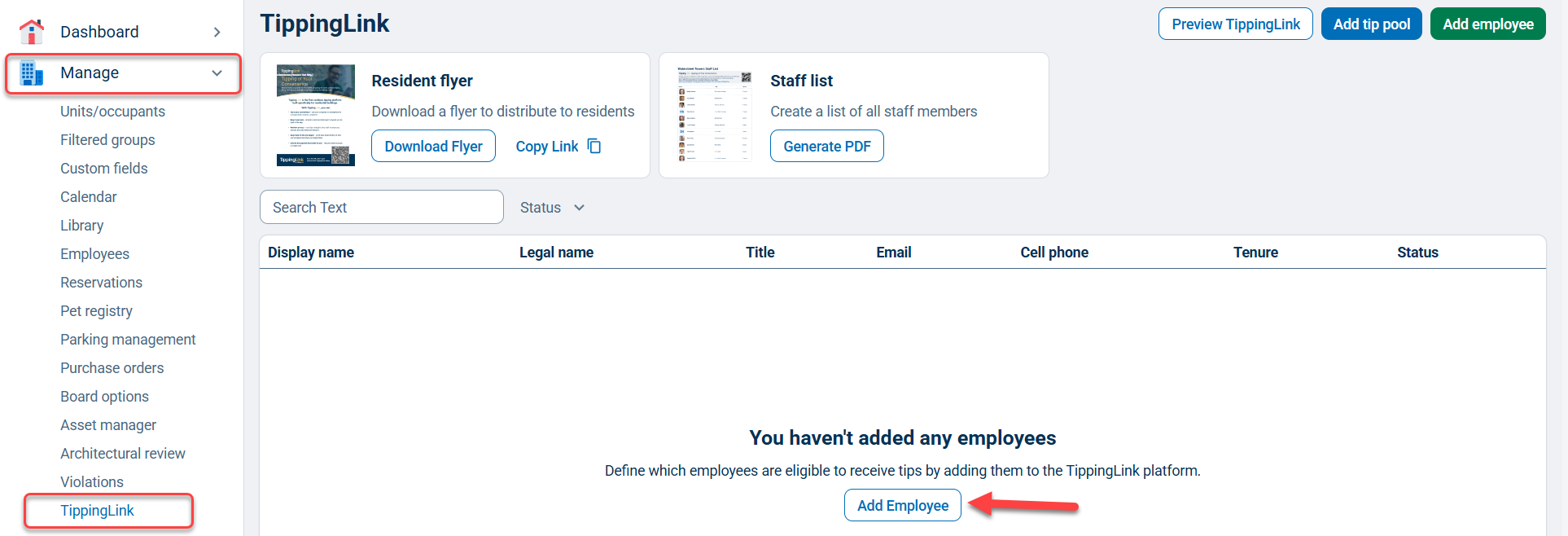
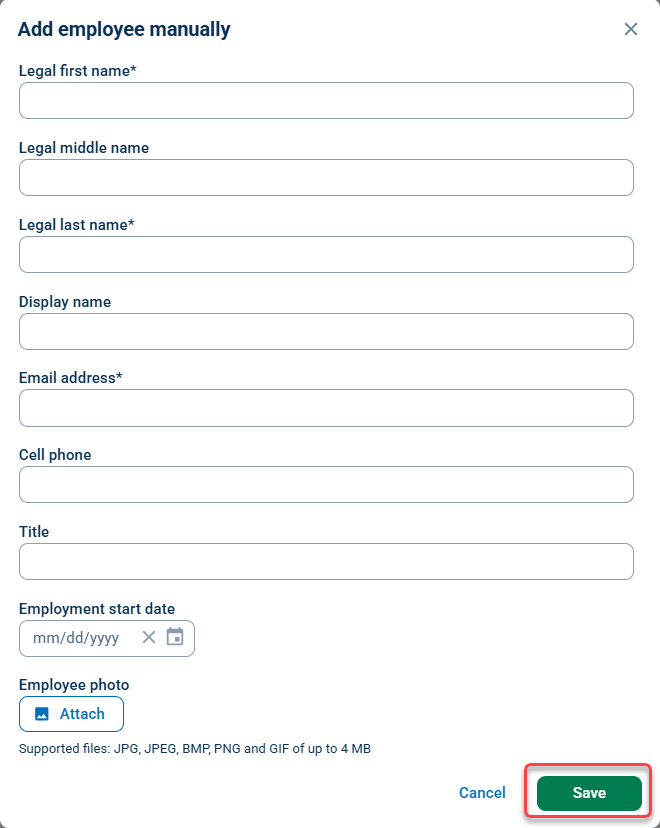
Now, you will see your current list of TippingLink employees and their onboarding status. From here, you can also add an employee not already registered in BuildingLink by clicking the Add employee button, then the Add employee manually button, and filling out the form. Remember to click the Save button at the bottom of the page when you're done.
If you choose to enable TippingLink but skip adding employees, you can do so when you return by clicking the Add staff button in the TippingLink widget on your Manager Dashboard or by going to the Manage tab and selecting TippingLink.
Managing TippingLink Employees
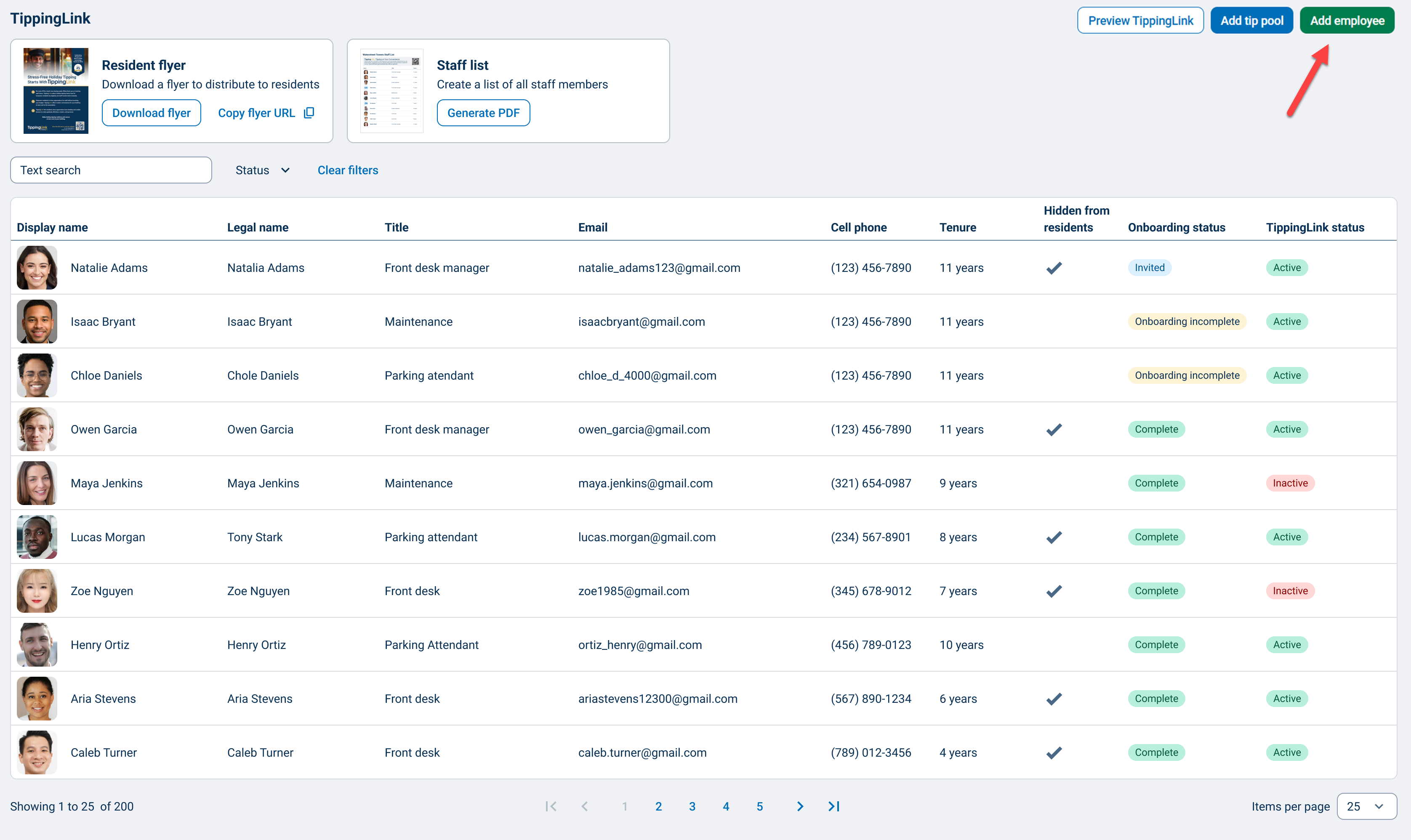
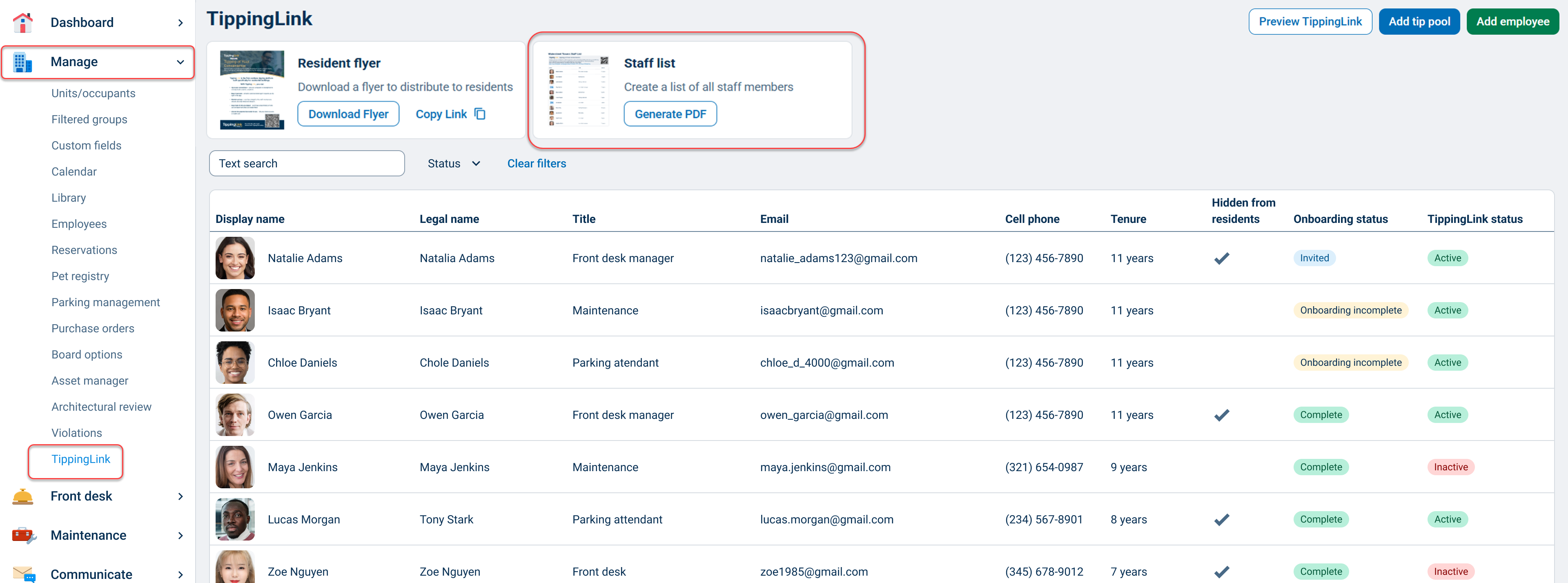
You can view or edit your TippingLink employees by clicking View staff in the TippingLink widget on your Manager Dashboard or by going to the Manage tab and selecting TippingLink.
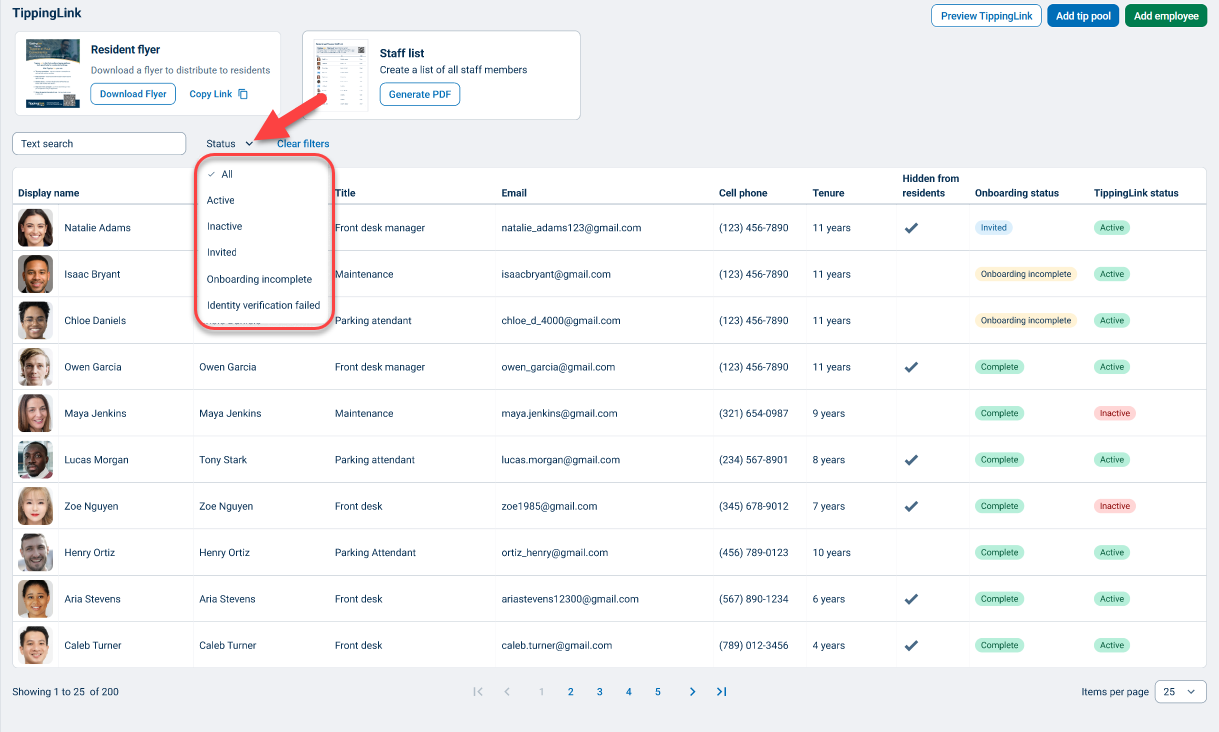
Here you will see a list of TippingLink employees with options to search for employees by text and filter by the following statuses:
- Invited: Staff members who have been invited but have not created a profile or completed identity verification.
- Onboarding incomplete: Staff members who have created a profile but have stopped there.
- Active: Staff members who have completed onboarding and are marked as active so they can receive tips from residents.
- Inactive: Staff members who have completed onboarding but are marked as "inactive" so they will not appear in the resident view and can't receive tips.
- Identify verification failed: Staff who have failed identity verification and are being reviewed by the compliance team.
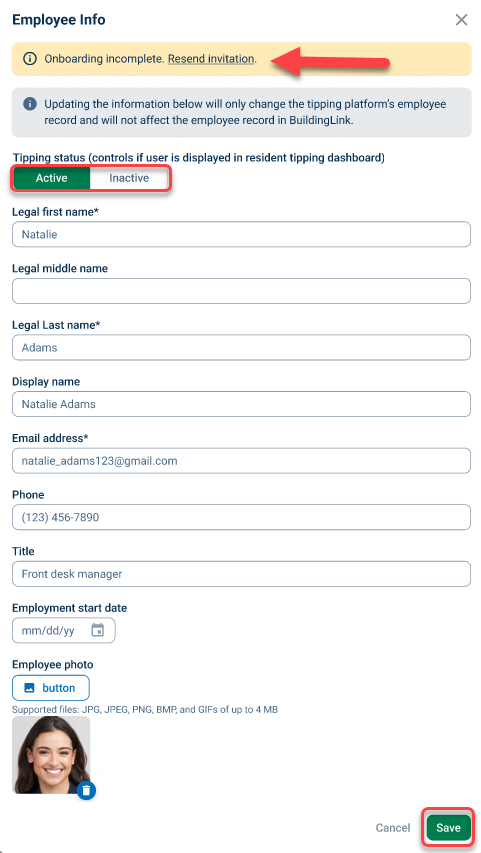
If you have any employees who have not completed onboarding, you will also see an option to send a reminder on their employee profile. You will also have the option to download or copy the flyer to distribute to residents.
To edit an employee, click on their row. To remove an employee from the resident tipping dashboard, set their Tipping status to Inactive. Click the save button when you're done making changes.
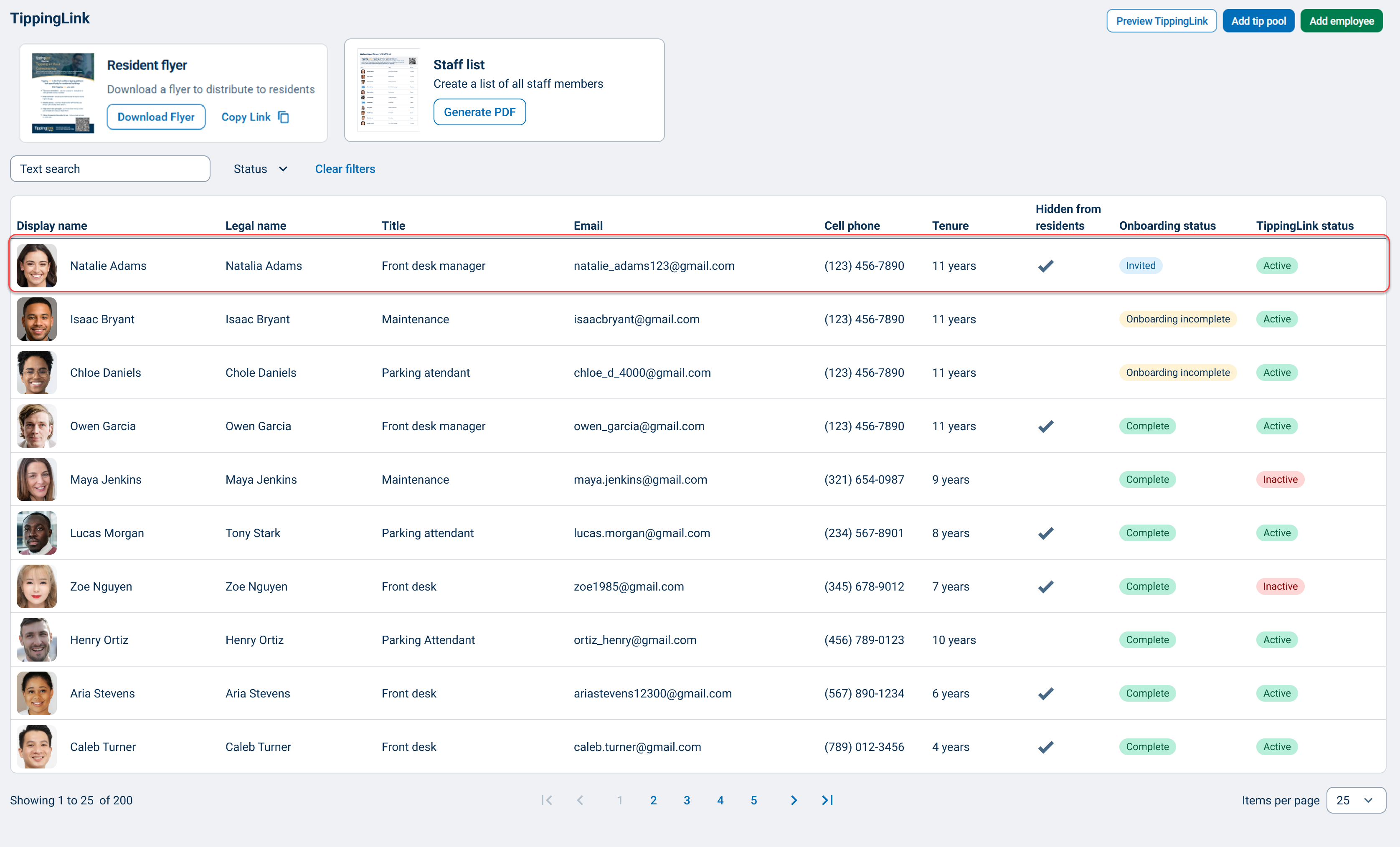
To add more employees, click the Add employees button in the top-right corner. On the next page, you will see your current list of BuildingLink employees. Use the checkboxes on the left to select the employees to receive tips.
You can also add an employee who is not registered in BuildingLink by clicking the Add employee manually button, filling out the form, then clicking the Save button.
Adding a Tip Pool
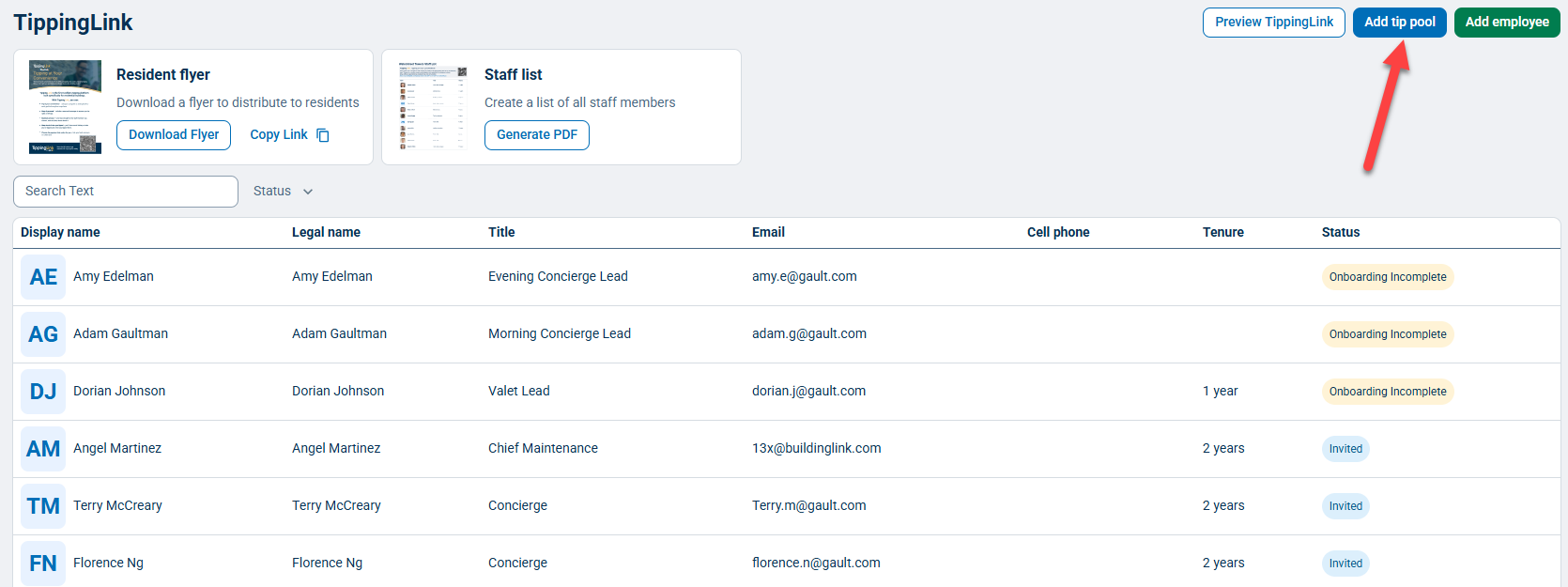
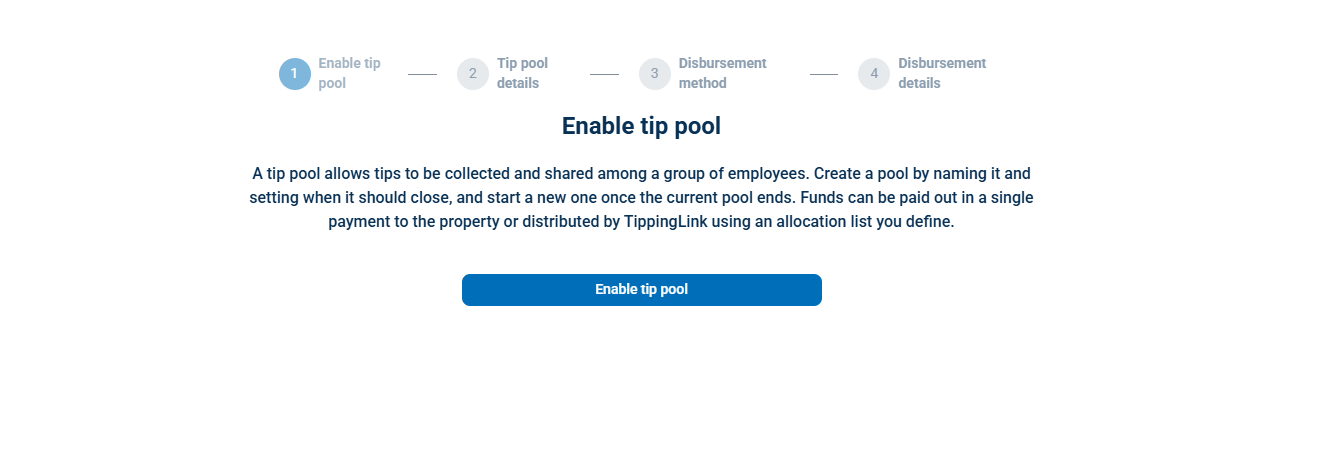
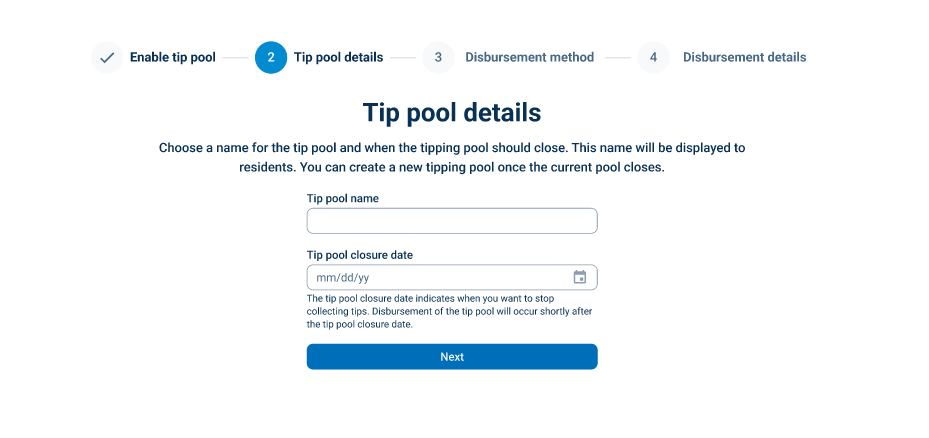
To add a tip pool, from the TiippinkLink page, click the Add tip pool button, and on the next page, click the Enable tip pool button. On the next page, choose a name for your tip pool and a tip pool closure date (the date you want to stop collecting tips) and click Next.
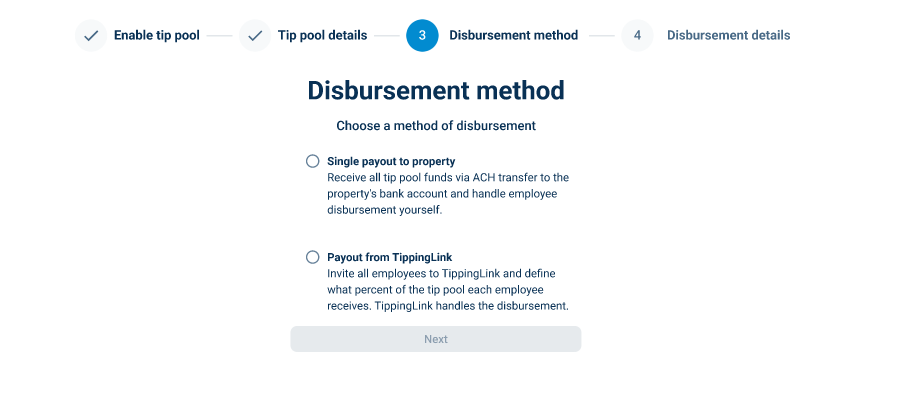
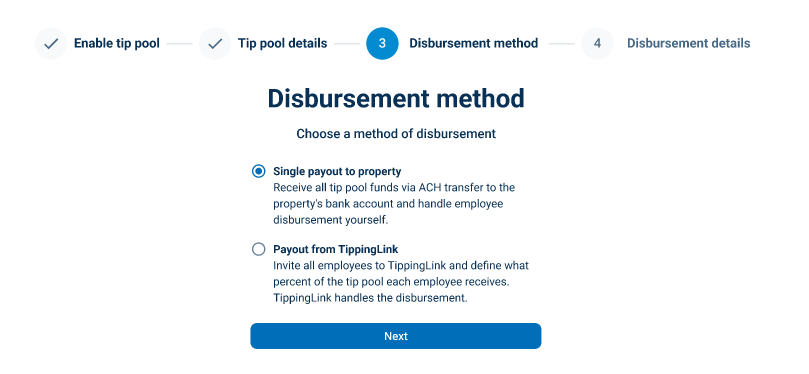
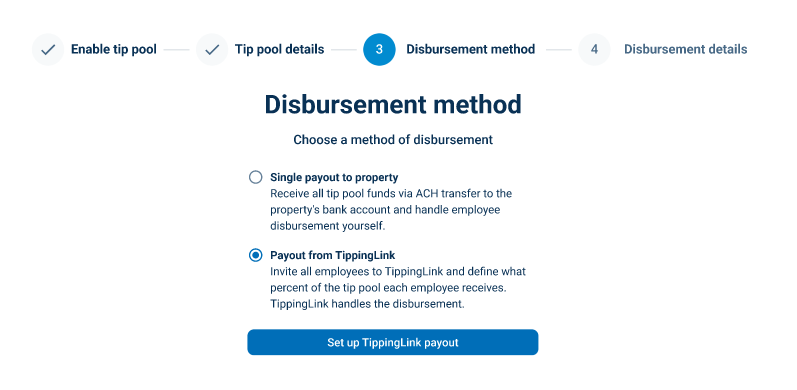
Now select how you want your tip pool to work by choosing your disbursement method. You can choose between two options:
- Single payout to property- allows you to pool funds via ACH transfer to the property's bank account and handle employee disbursement yourself.
- Payout from TippingLink- allows you to invite employees to TippingLink and define what percentage of the tip pool each employee receives. TippingLink handles the disbursement.
Single Payout to Property Method
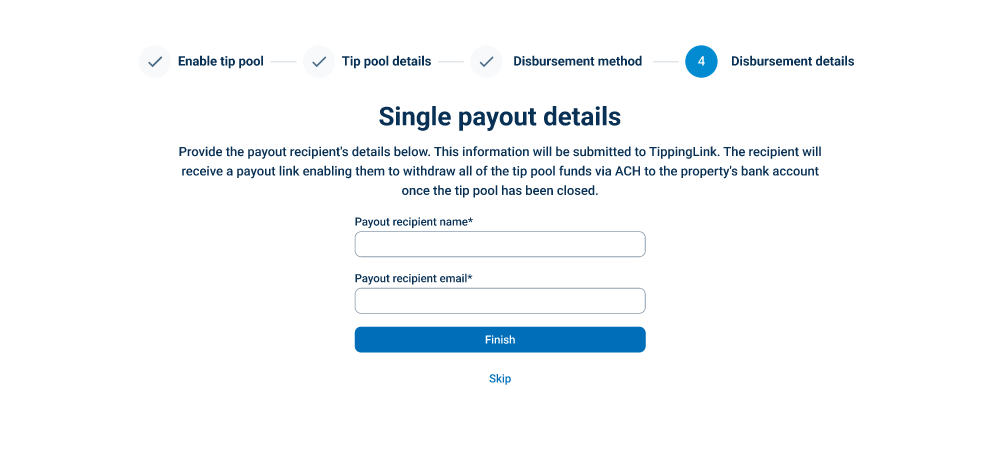
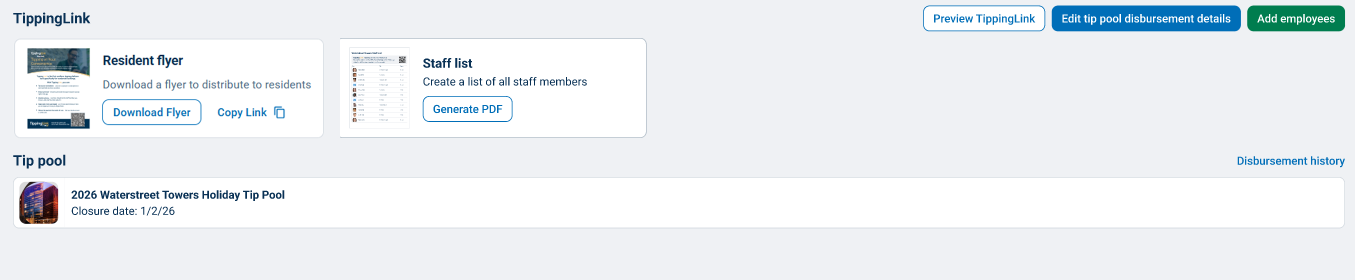
Choose Single payout to property and click Next. On the next page, enter the Payout recipient name and email, then click Finish. You will see your new Tip pool on the TippingLink page.
Payout from TippingLink Method
Choose Payout from TippingLink payout and click Set up TippingLink payout. On the next page, choose whether to allow residents to tip only the tip pool (Fund only) or both the tip pool and individual employees (Fund and employees), then click Next.
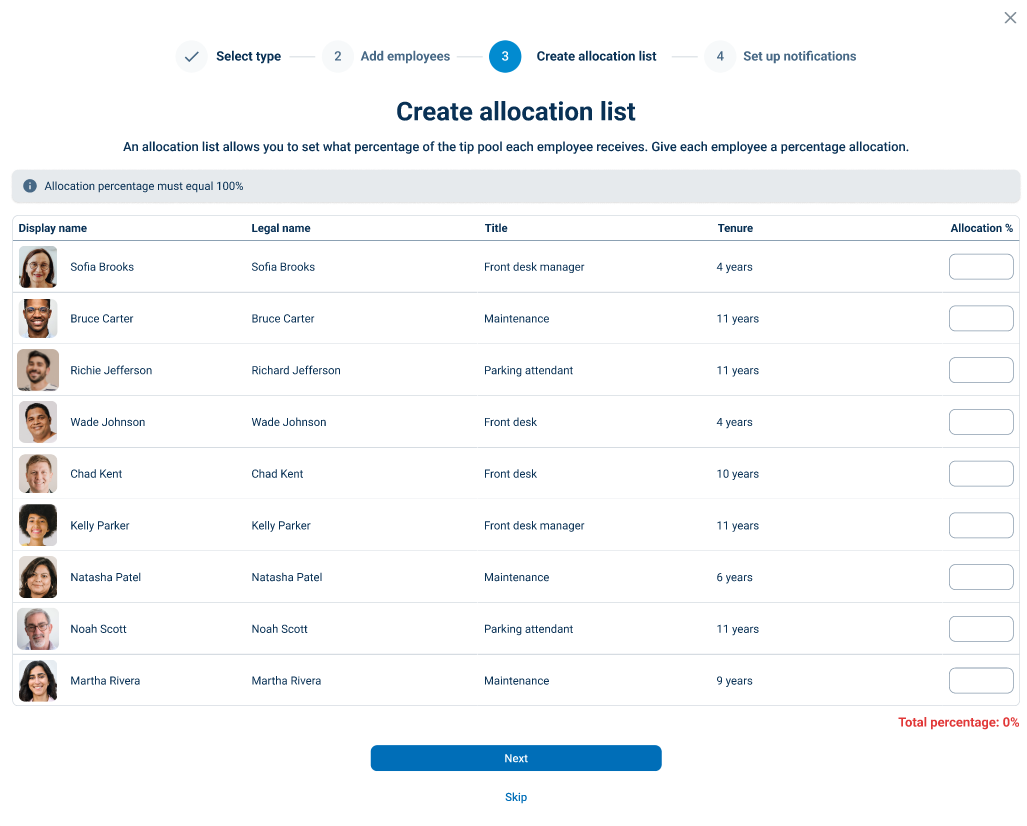
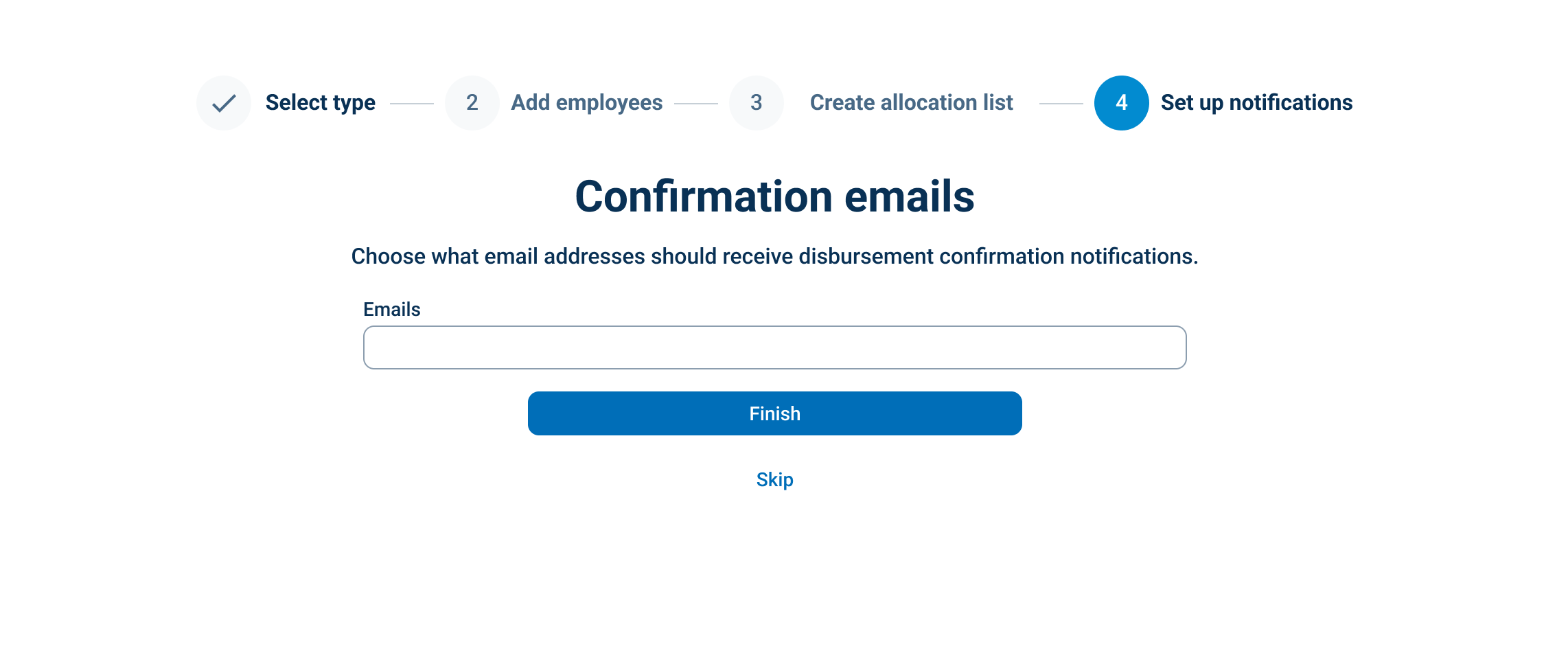
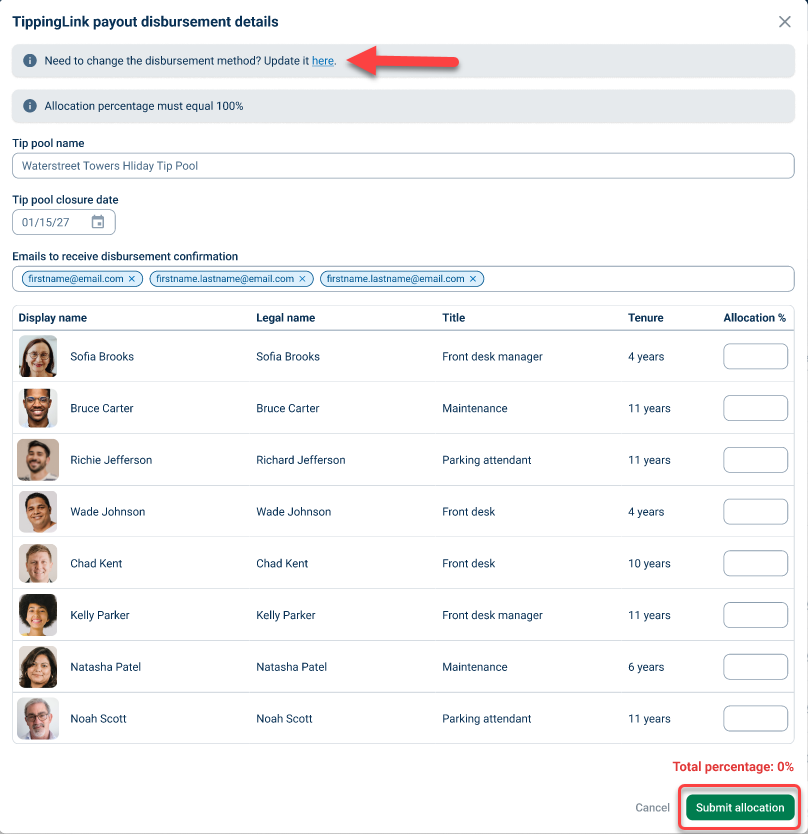
Select which employees will receive funds from the tip pool and click Next. On the next page, set the allocation percentage for each employee and click Next. Finally, enter the email addresses that should receive disburesment confirmation notifications, then click Finish. You will see your new tip pool on the TippingLink page.

Fund Only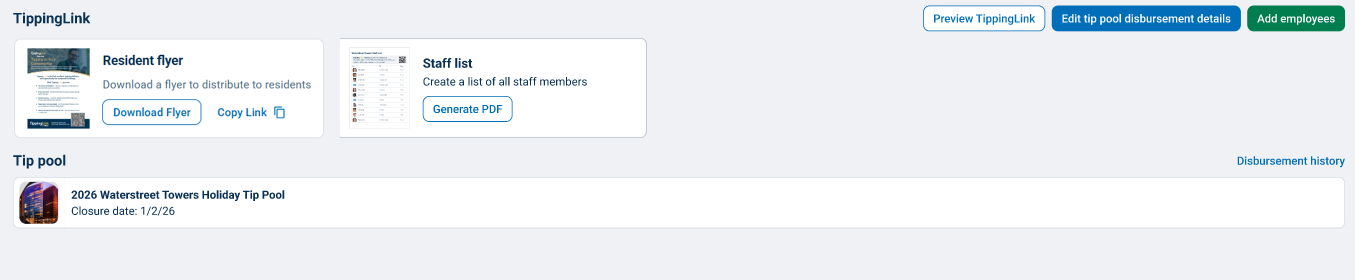
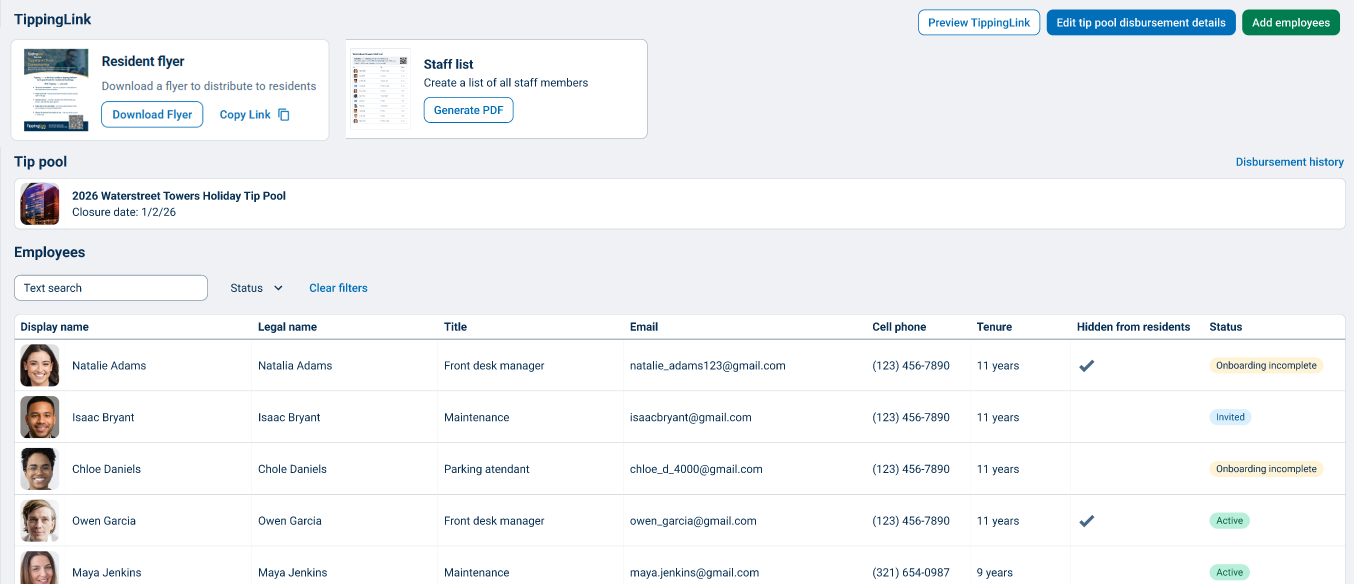
Fund and Employees
Managing a Tip Pool
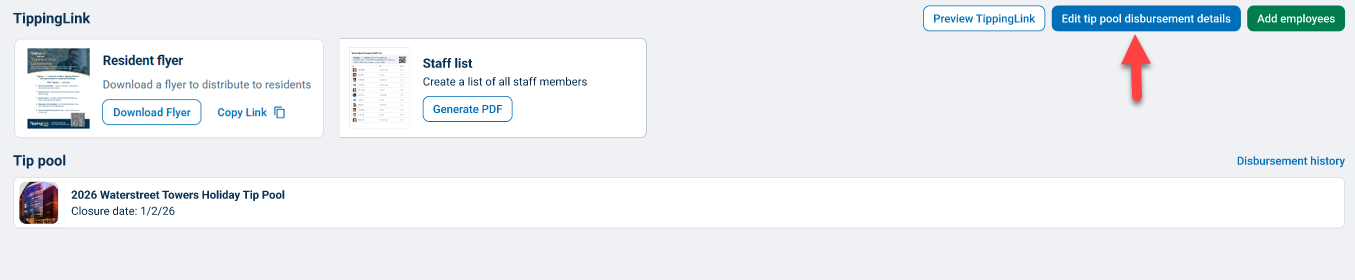
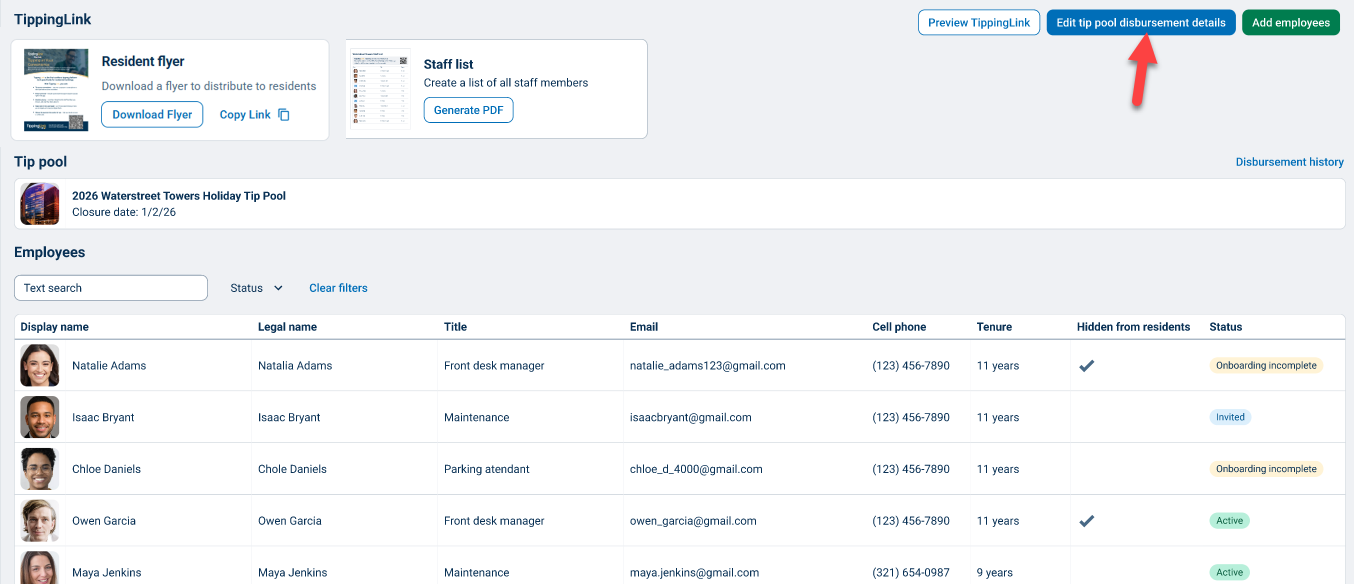
You can view or edit your Tipping pool by going to the Manage tab and selecting TippingLink. Here you will see your current Tipping Pool and a list of TippingLink employees and their statuses, if applicable.
Single Payout to Property
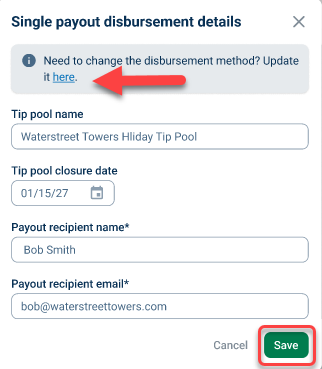
To edit your Tip Pool, click the Edit tip pool disburement details button. From here, you can change your disbursement method, Tip pool name, and closure date, and payout information. Remember to click Save when you're done.
To remove your Tip Pool follow the instructions in the Manage TippingLink Employees section for how to set an employee to inactive.
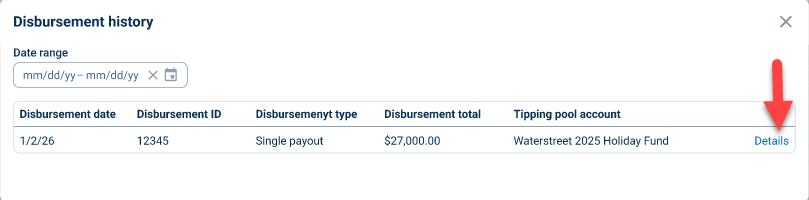
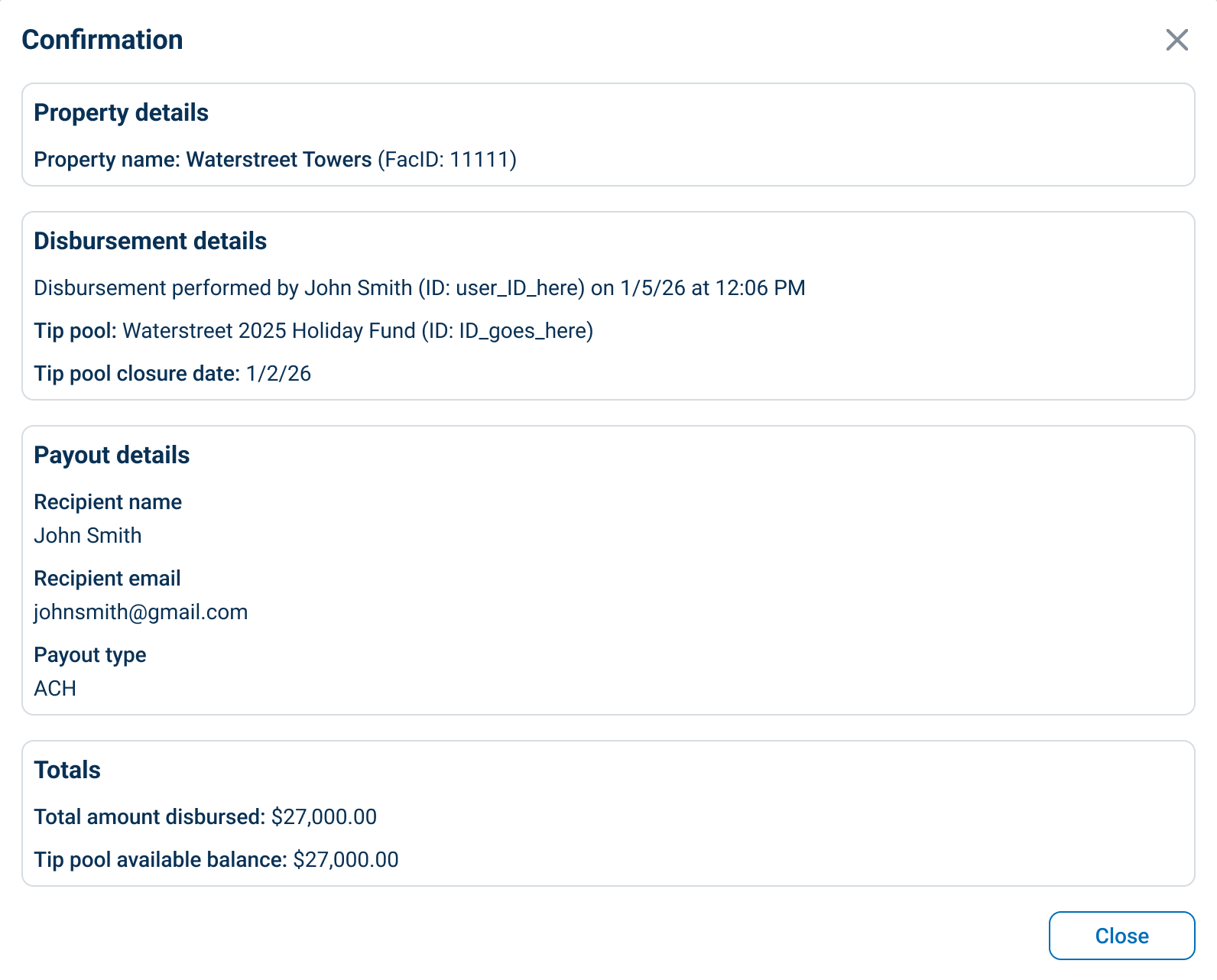
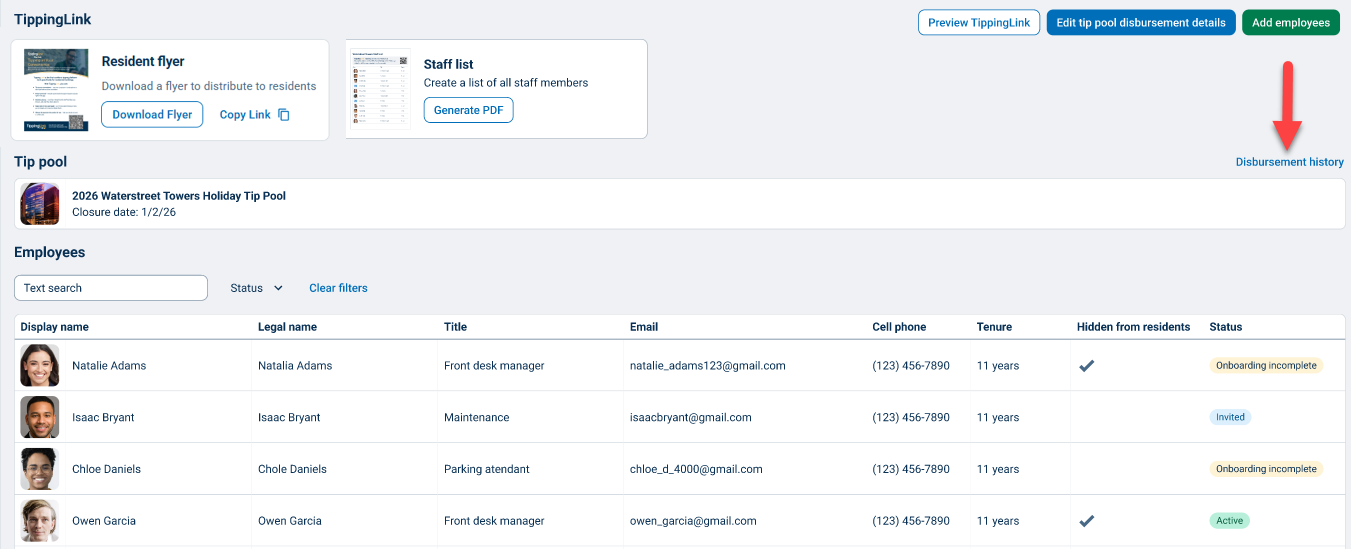
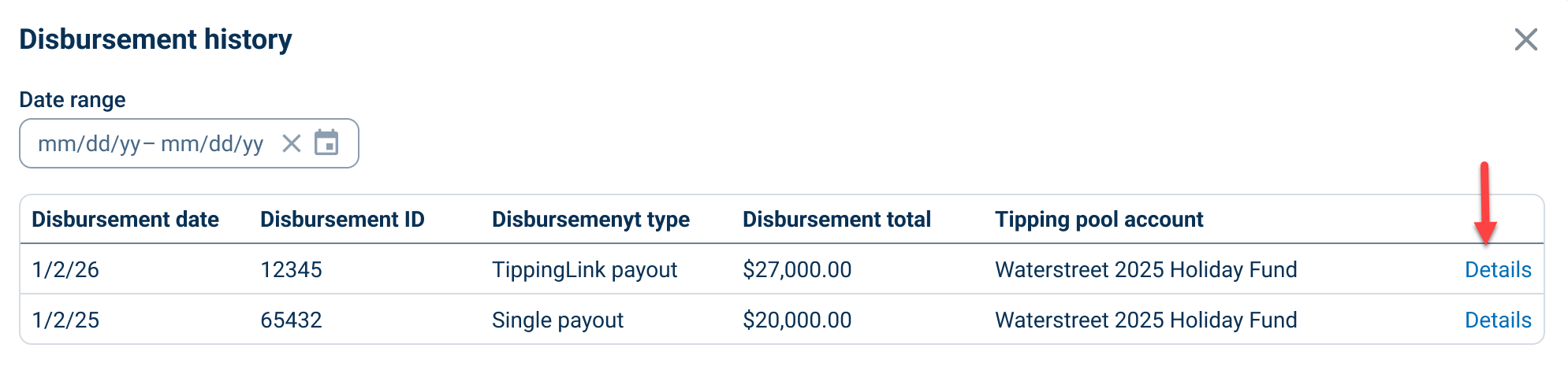
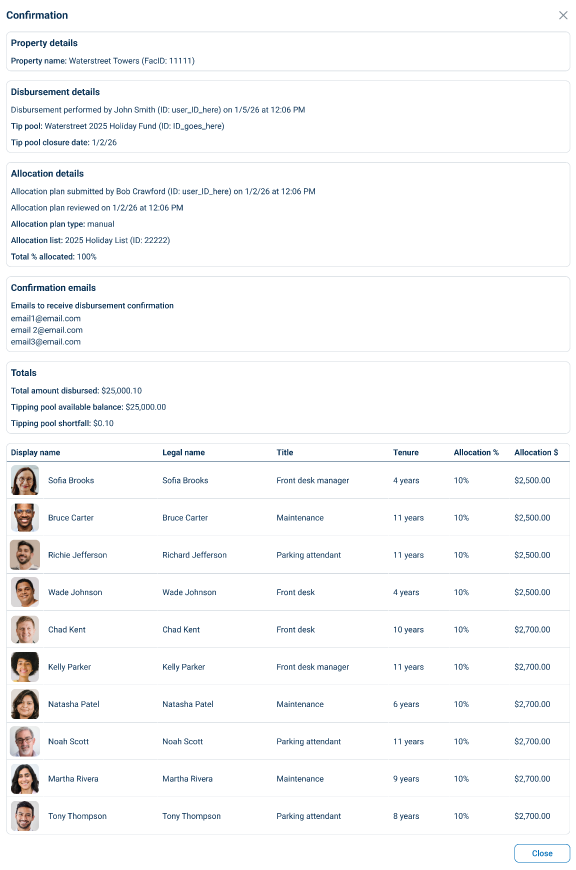
After your tip pool closure date, click Disbursement history, then Details to see in-depth information about your disbursement.

Payout from TippingLink
To edit your Tip Pool, click the Edit tip pool disburement details button. From here, you can change your disbursement method, Tip pool name, and closure date, confirmation emails, and employee allocation percentage. Remember to click Save.
To add an employee to your Tip Pool follow the instructions in the Manage TippingLink Employees section for adding an employee and then update your disburement details. To remove your Tip Pool, see the same section on how to set an employee to inactive.
After your tip pool closure date, click Disbursement history, then Details to see in-depth information about your disbursement.
Inviting Residents to TippingLink
Once you’ve set up your employees, your residents will automatically have access to TippingLink through the BuildingLink Resident Portal and Resident app. We've also created several other tools to help you invite your residents; details are in the section below.
Printable Resident Flyers With QR Codes
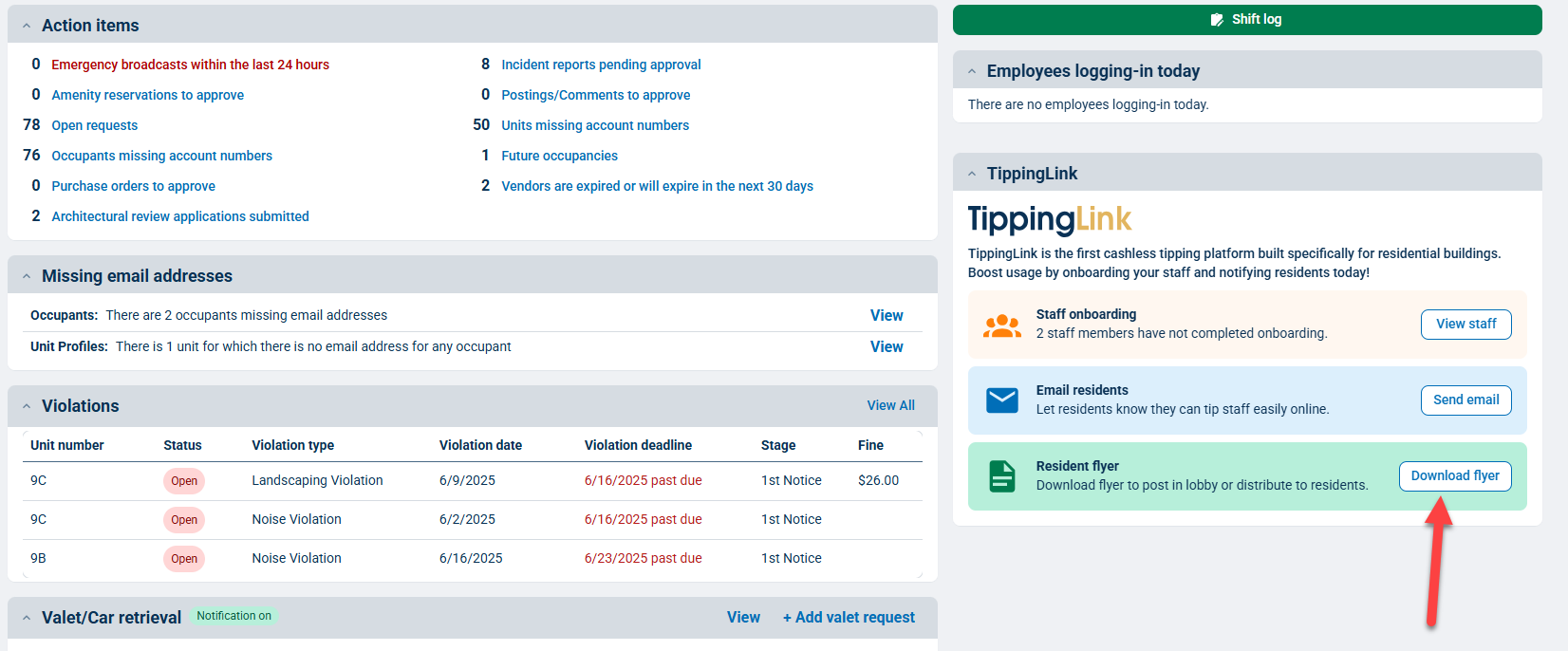
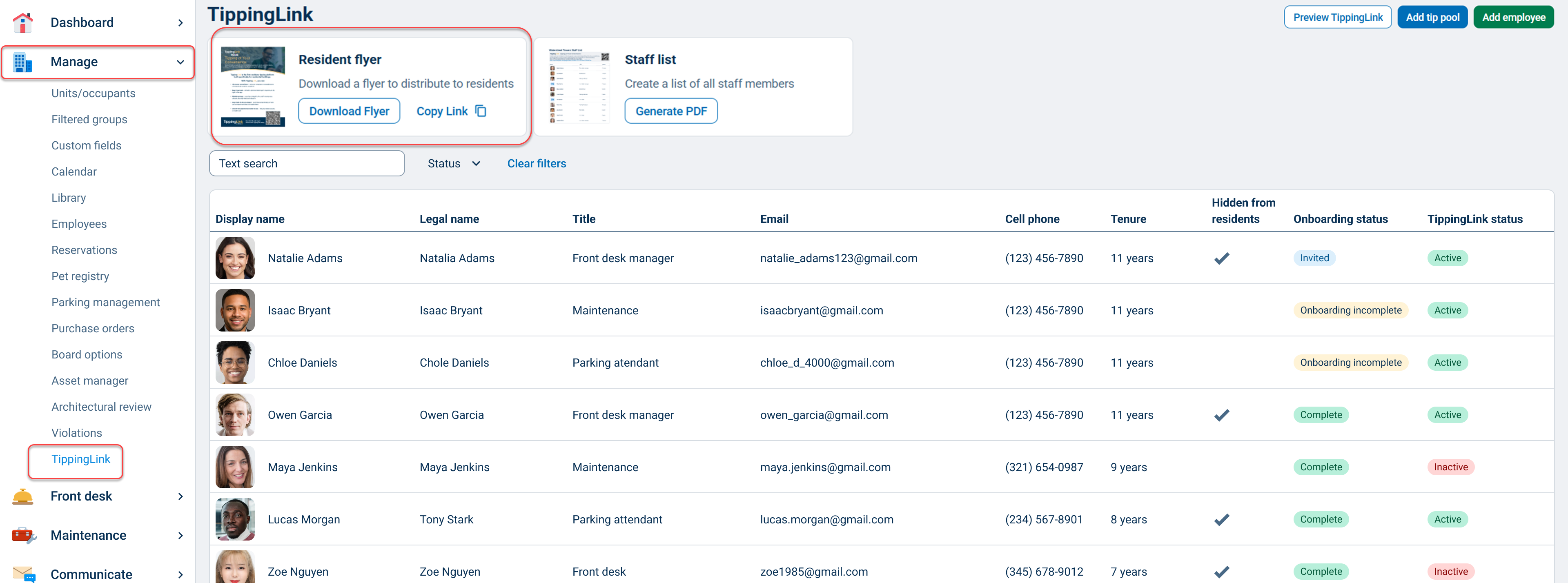
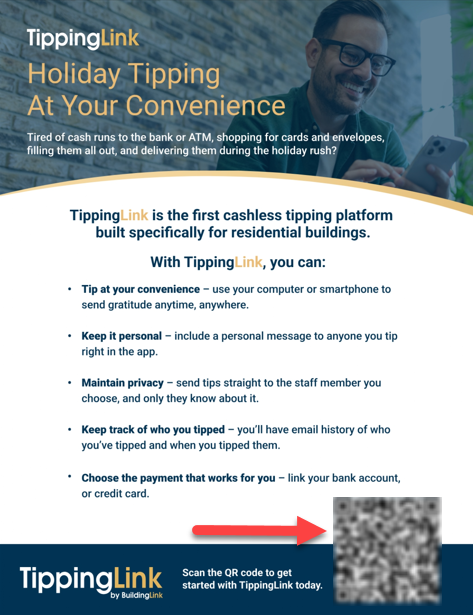
You can access the TippingLink Resident Flyer from your Manager Dashboard by clicking the Download flyer button in the TippingLink widget, or go to the Manage tab, select TippingLink, and click the Download flyer button. Click Copy Link to get a shareable link to send the flyer to someone else to print.
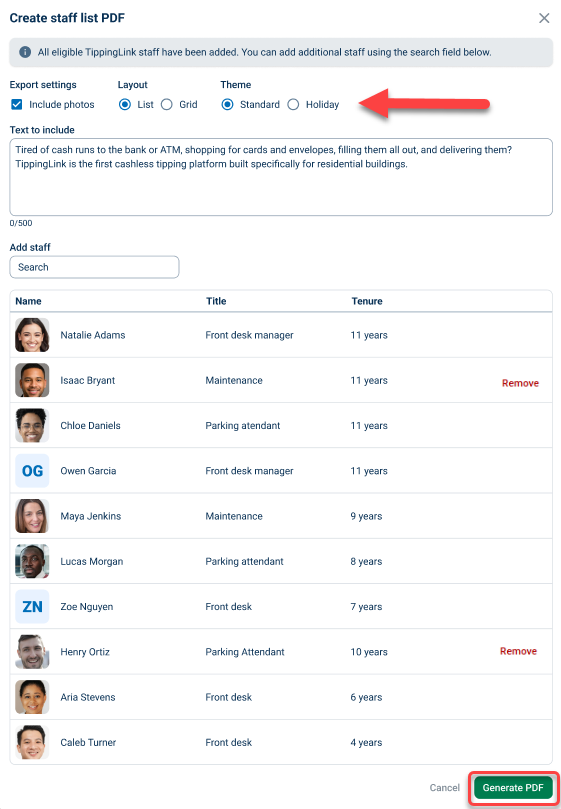
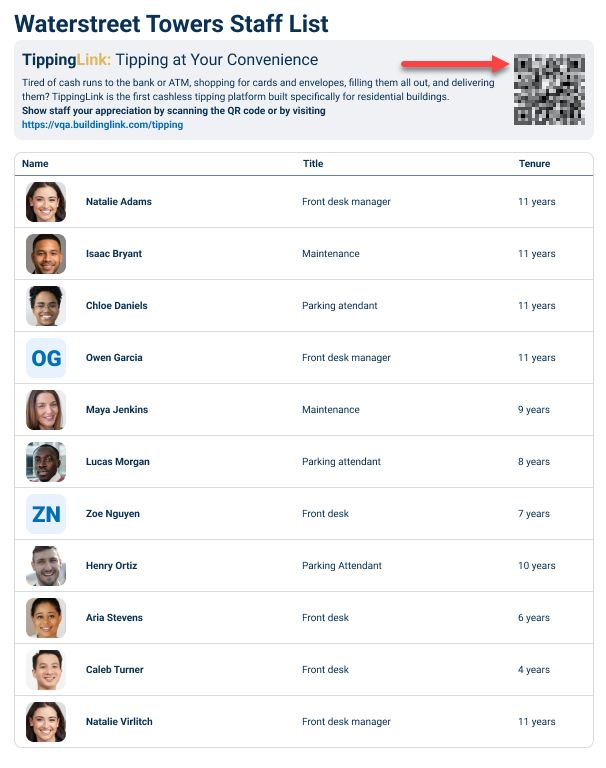
You can also create a custom Staff List Flyer for your residents by clicking the Generate PDF button. Next, choose your flyer settings, adjust the flyer text, add or remove employees, and click the Generate PDF button.
Both flyers include QR codes that residents can scan to get to your TippingLink site.
Email Template (BuildingLink Classic and Fleet)
Send Email Classic
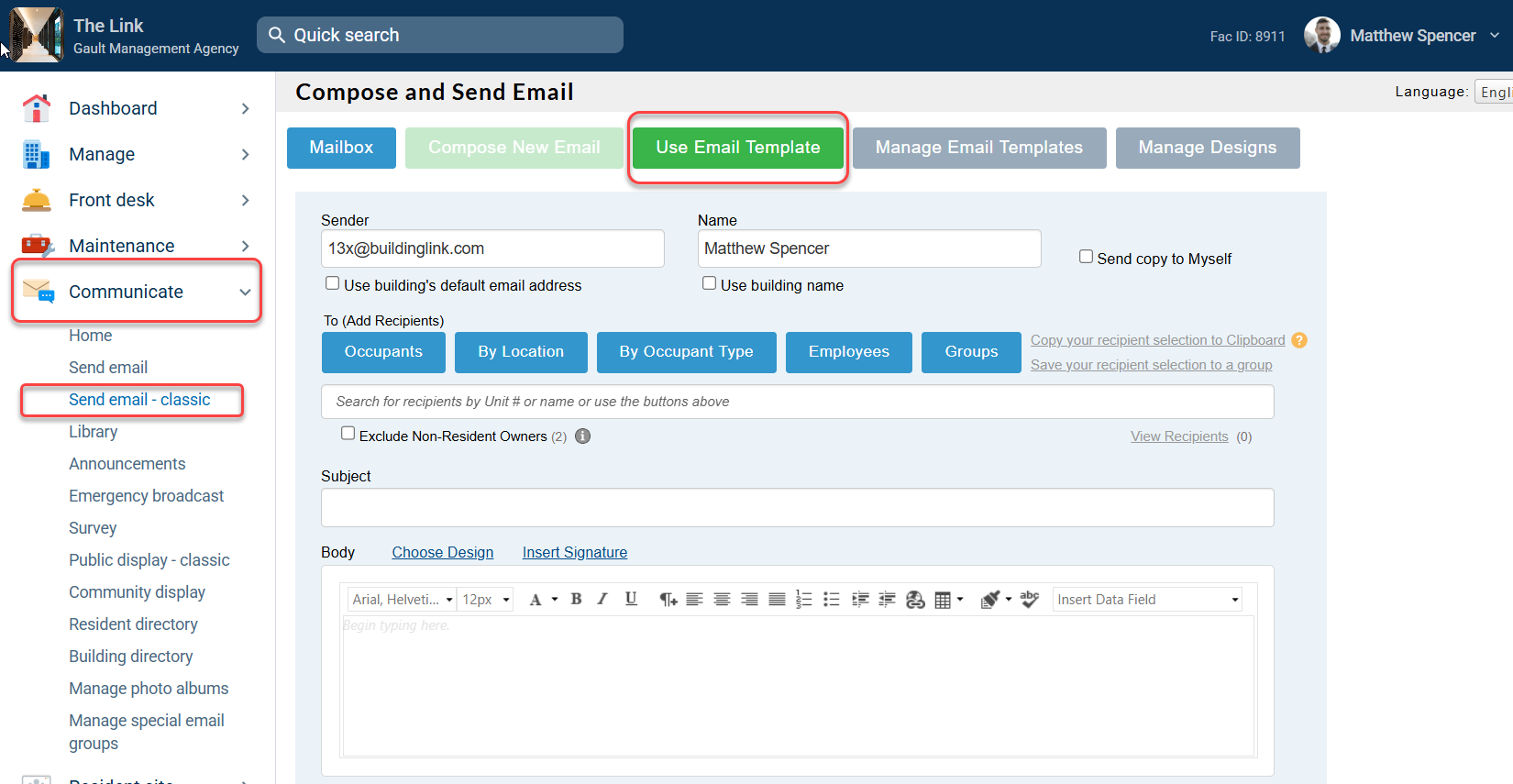
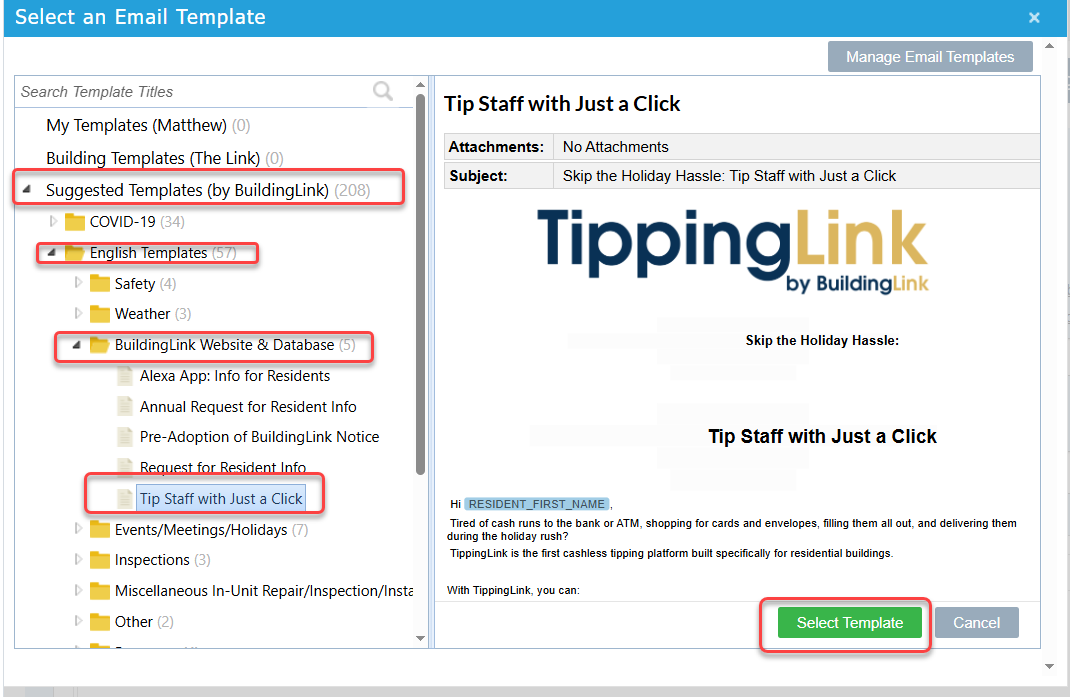
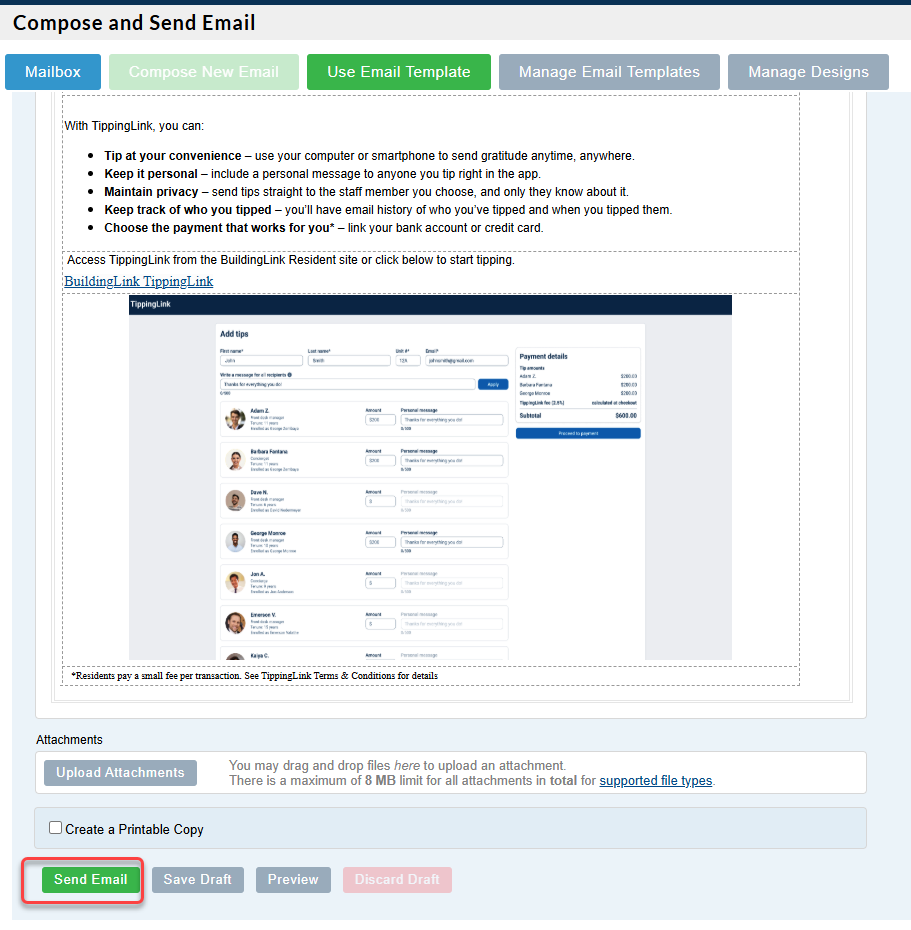
Go to the Communicate tab, select Send email - classic, and click the Use Email Template button. In the Select an Email Template window, select Suggested Templates (by BuildingLink), choose English Templates, select BuildingLink Website & Database, select the Tip Staff with Just a Click, and then click Select Template. Customize the text if desired, select recipients, and click Send Email to invite your residents.
Send Email Fleet
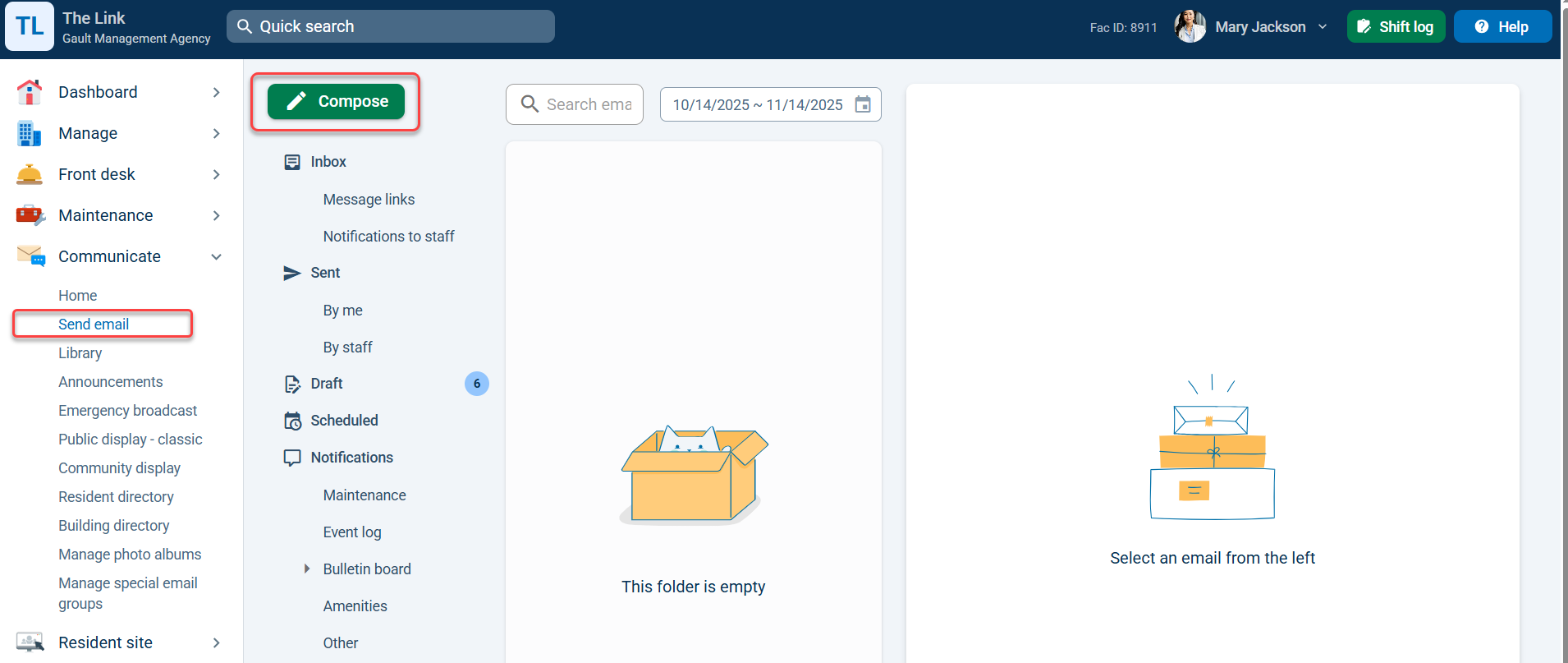
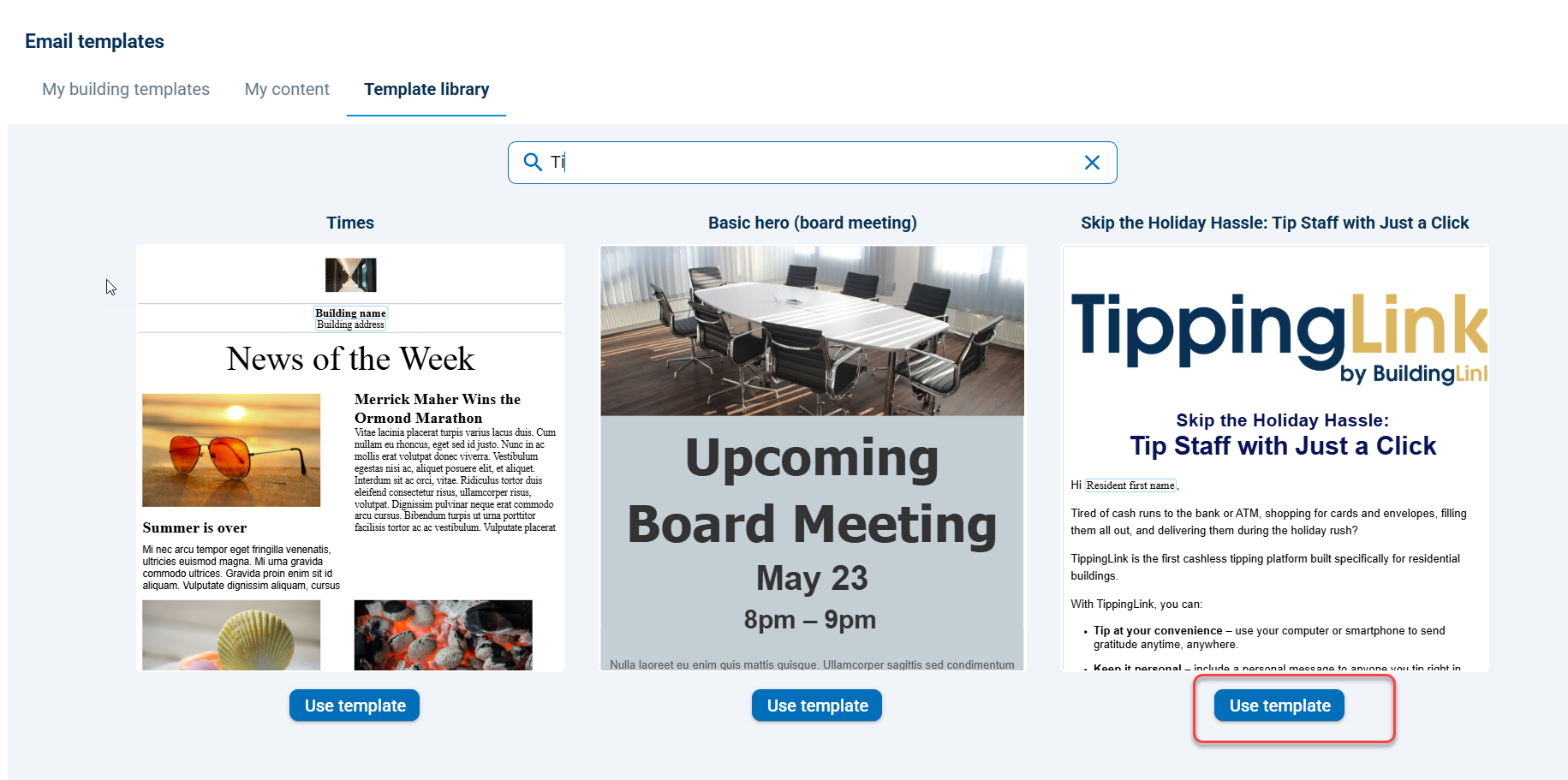
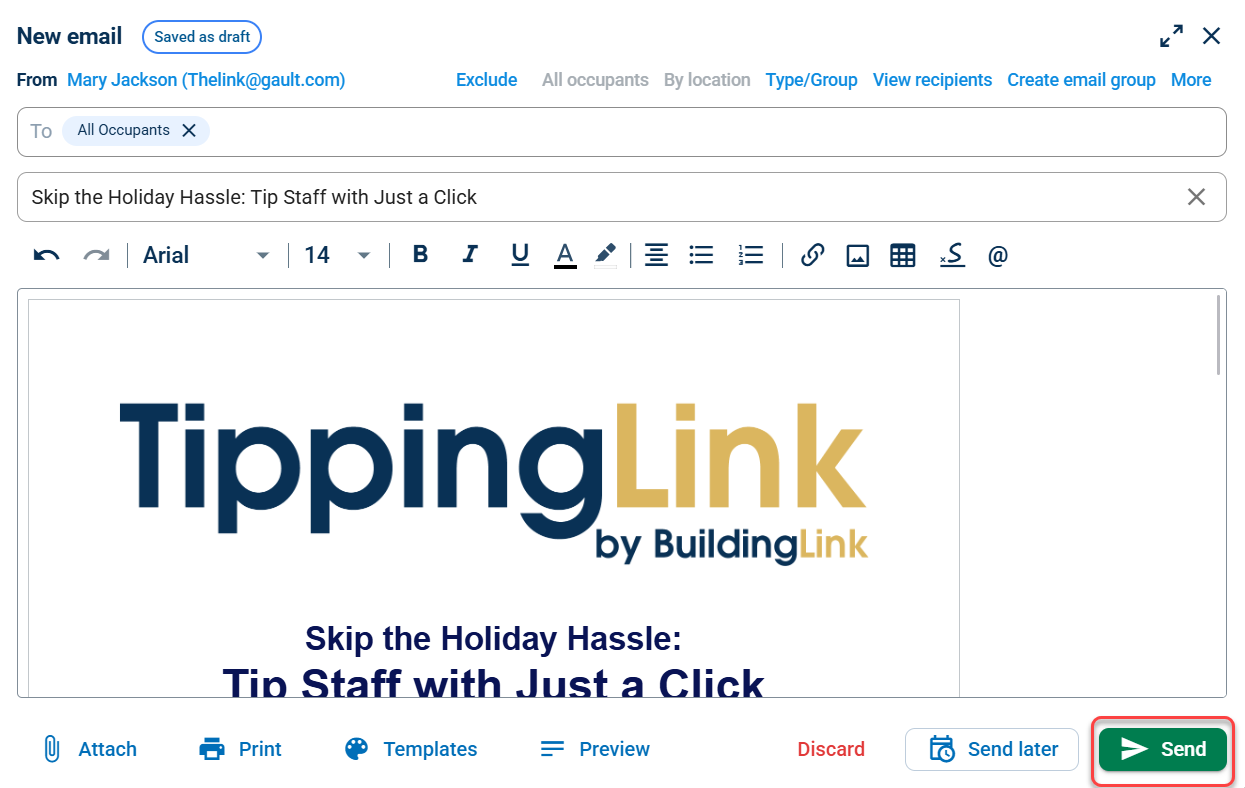
Go to the Communicate tab, select Send email, and click the Compose button. At the bottom of the compose window, click Template, select Use an email template, and then select the TippingLink Template. Customize the text if desired, select recipients, and click Send Email to invite your residents.

Direct URL Invite
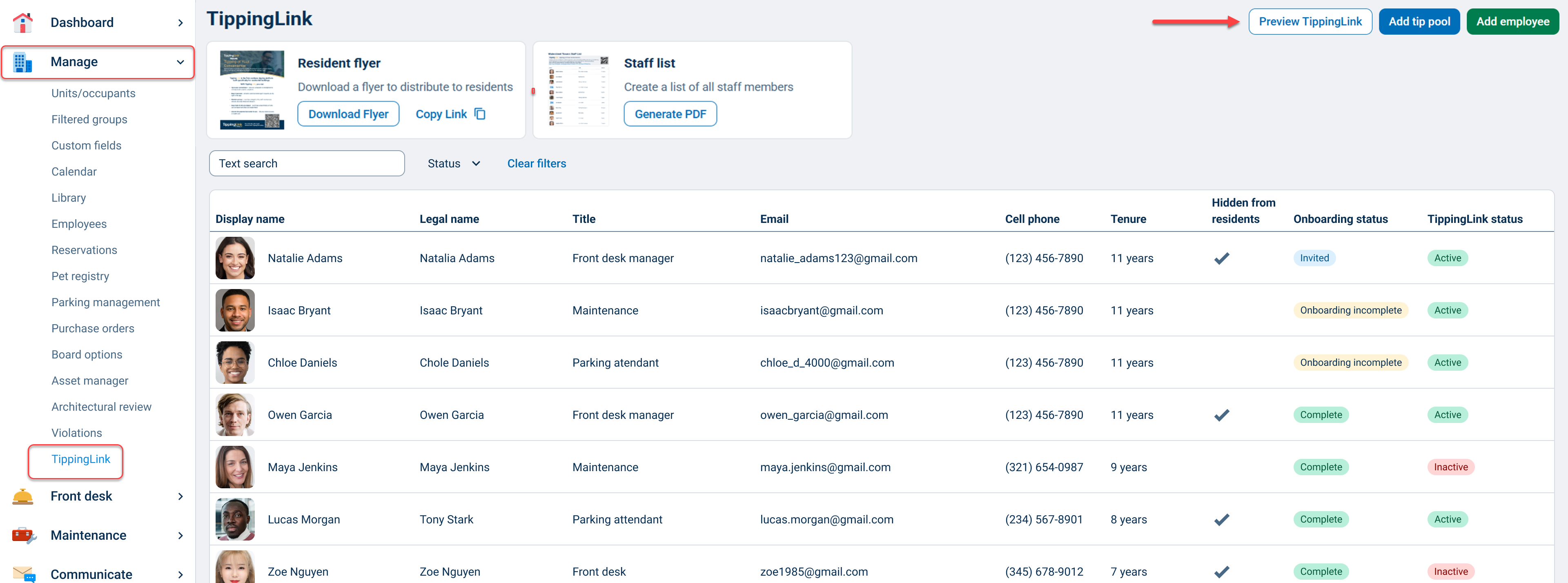
You can copy and share the direct URL for TippingLink by going to the Manage tab, selecting TippingLink, and clicking the Preview TippingLink button.
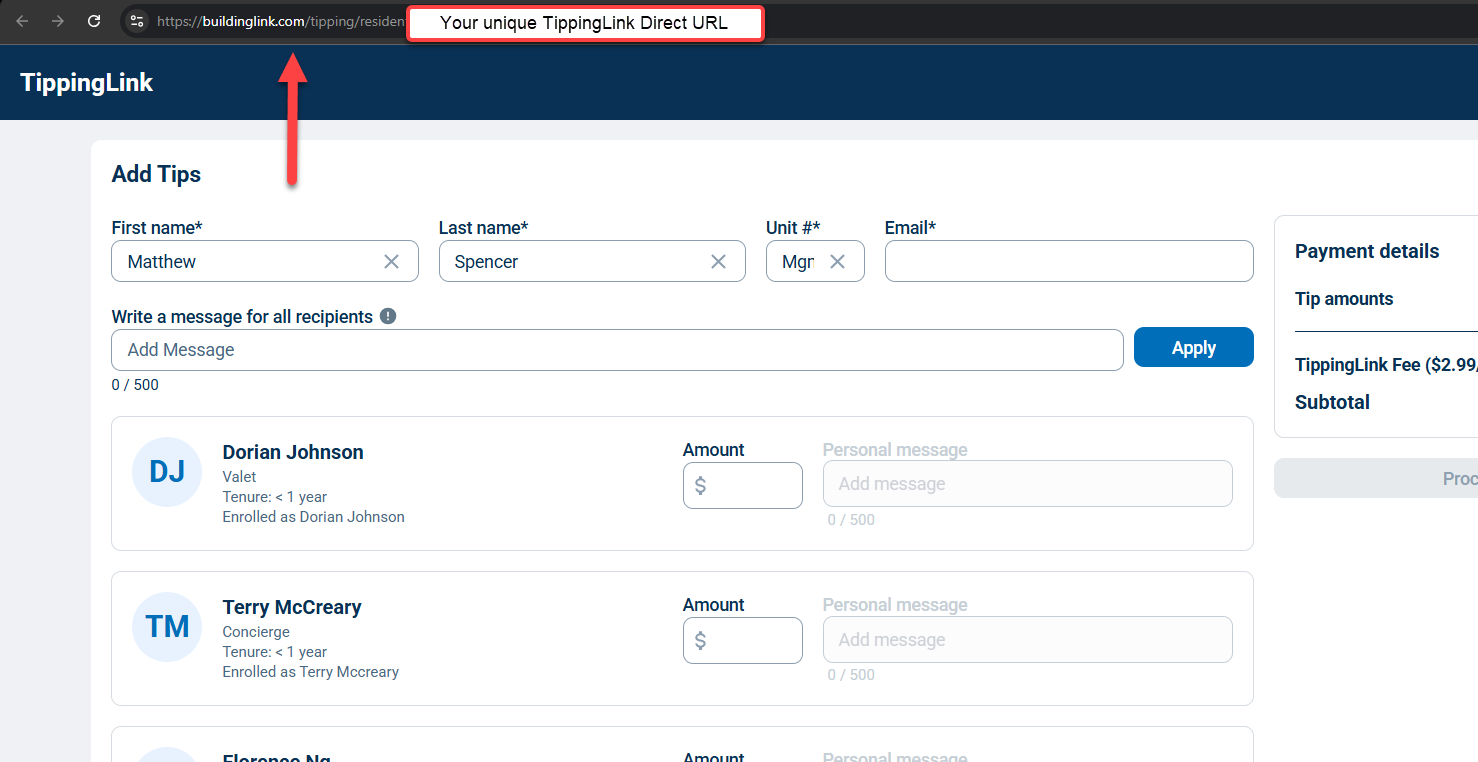
Copy the URL from the web address bar and share it with your residents however you like.
Public Display QR Code (New Public Display and Community Display Only)
New Public Display
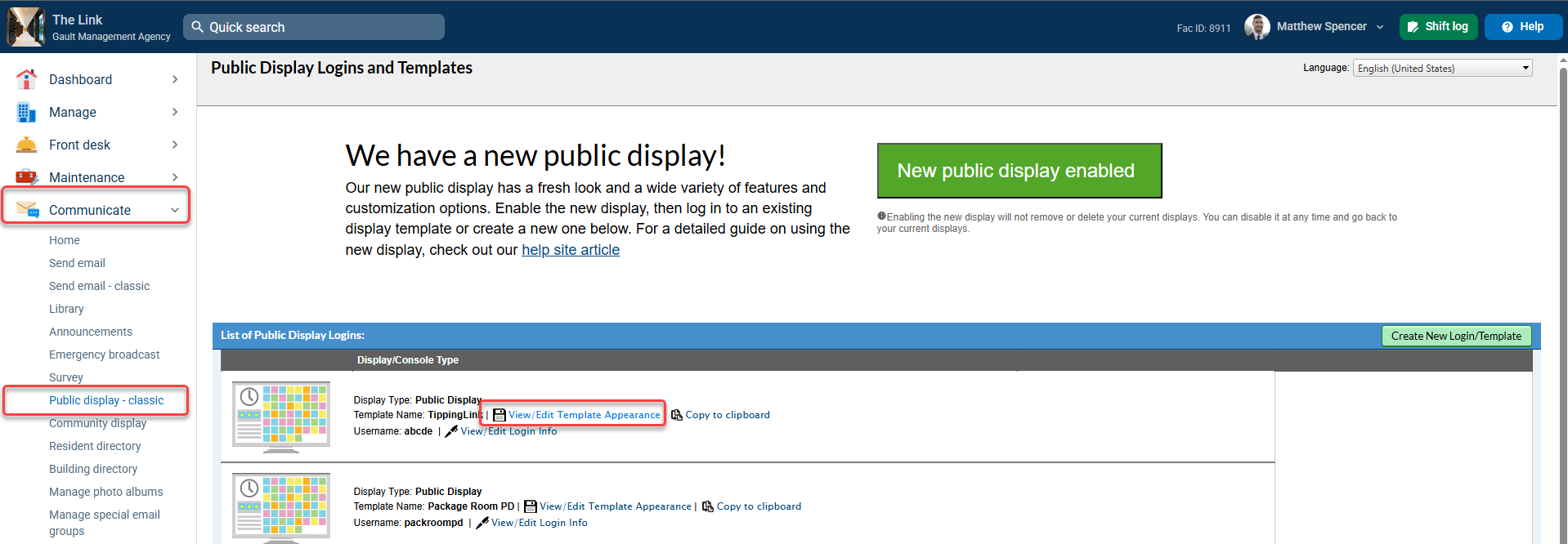
To add the TippingLink QR code widget to your Public Display, go to the Communicate tab and select Public Display. Make sure the new public display is enabled (it will not work on the classic public display) and click View/Edit Template Appearance.
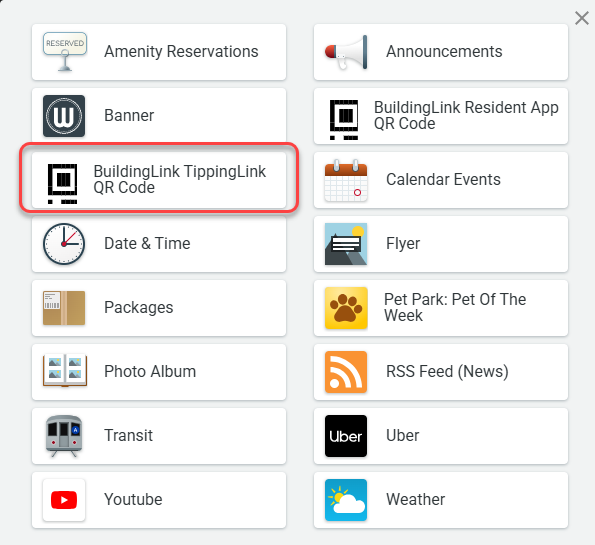
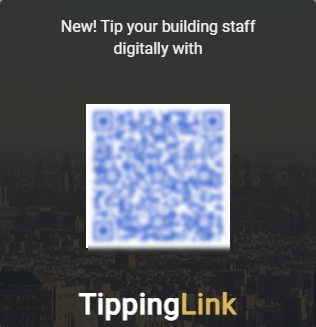
To add a widget, click on the + icon on the control bar and select the BuildingLink TippingLink QR Code widget. The widget will appear in the top left. Click and hold to drag the widget where you’d like to place it. To adjust the size of the widget, click and drag on the bottom right corner.

Community Display
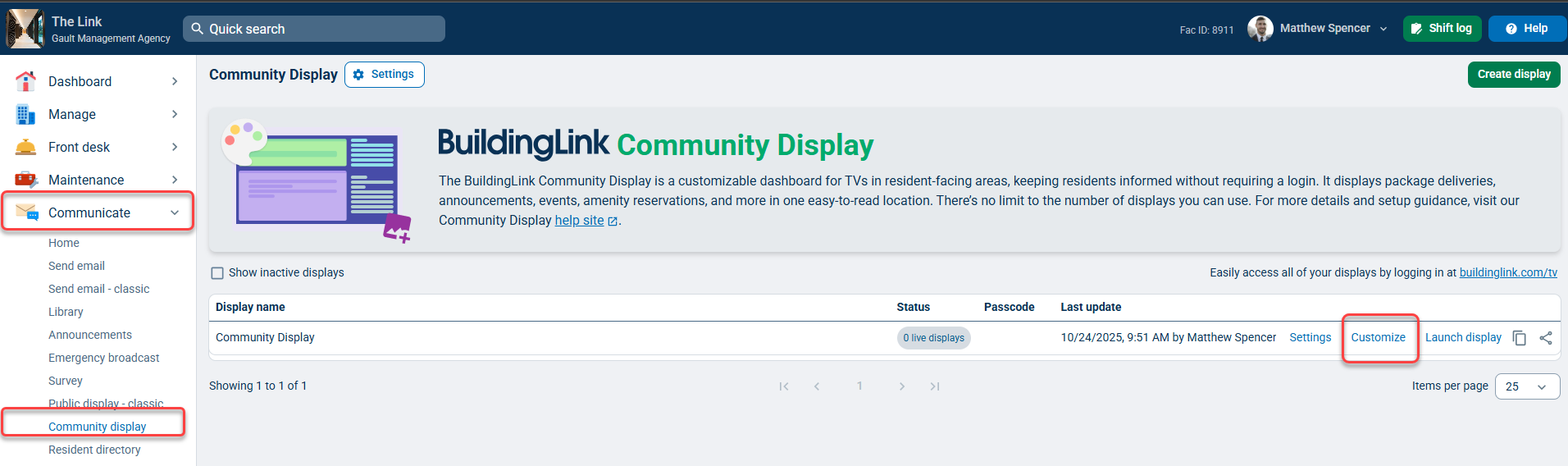
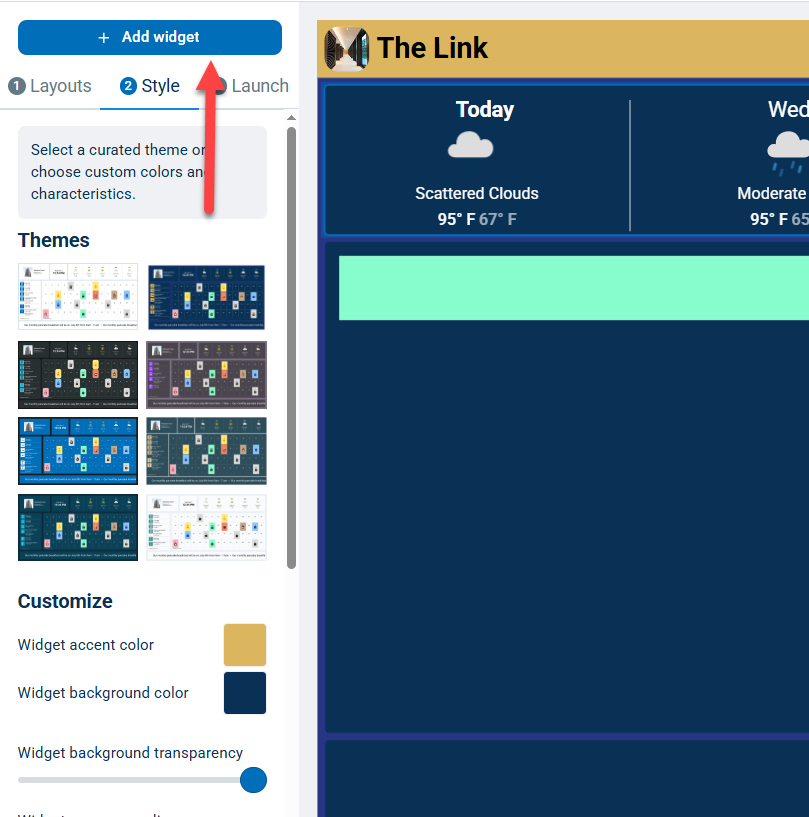
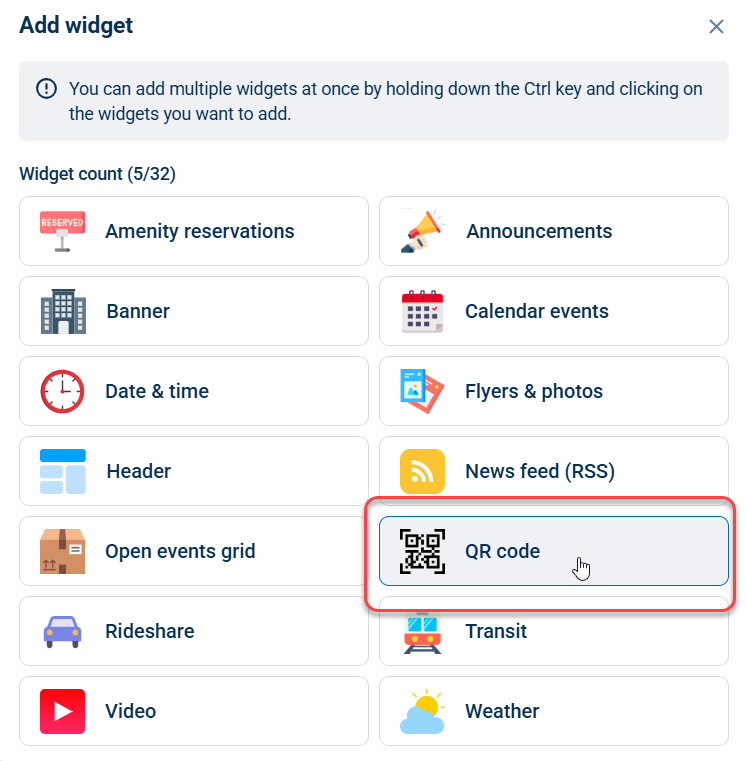
To add the TippingLink QR code widget to your Community Display, go to the Communicate tab, select Community Display, and click Customize. Next, click the +Add widget button and select QR code.
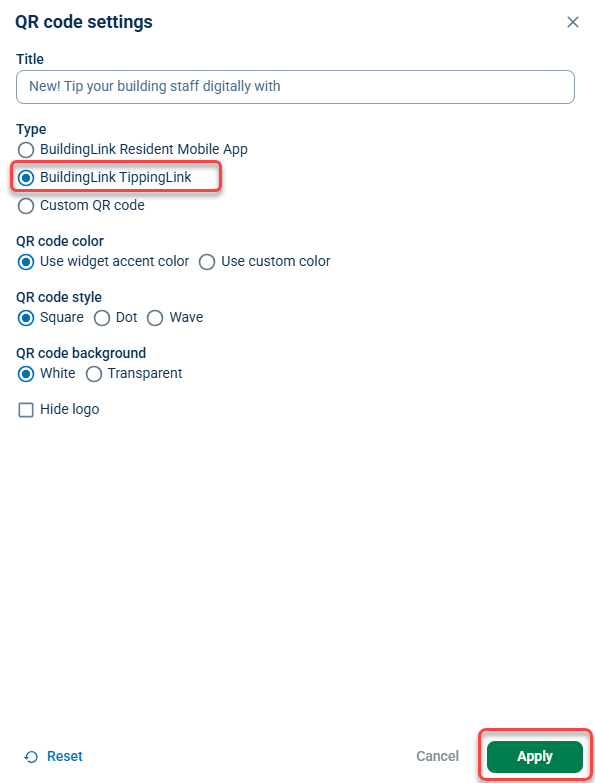
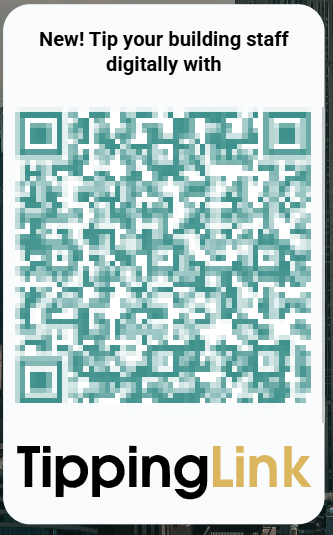
The widget will then appear on your Community display preview. Click the Widget settings icon, choose BuildingLink TippingLink, and click Apply. Click and hold to drag the widget where you’d like to place it. To adjust the size of the widget, click and drag on the bottom-right corner.
TippingLink FAQ
I heard about the “no tax on tips” legislation. What does that mean?
We’re not accountants, and nothing here should be taken as tax or accounting advice—but here’s what we can share.
TippingLink transactions are private between residents and employees. With cash tips or tips using TippingLink, residents and employees are responsible for understanding and following any tax reporting obligations that may apply to them.
Recent federal legislation includes exciting provisions related to “no tax on tips”! Detailed regulation for the 2025 federal budget, Public Law 119-21, is currently being finalized by the IRS.
Please see the IRS Fact Sheet for more info: https://www.irs.gov/newsroom/one-big-beautiful-bill-act-tax-deductions-for-working-americans-and-seniors
If laws or regulations change in the future, we may be required to share information with certain parties to remain in compliance.
Does BuildingLink keep any of the staff tips?
No. Residents can set how much they want to tip each employee, and that employee will receive the full amount of that tip. There are convenience fees for residents on top of that.
Can non-BuildingLink customers use this product?
Yes, it is a very easy setup.
What happens if a staff member receives tips but refuses to claim their TippingLink profile?
A first step would be to set the staff user’s TippingLink profile to Inactive to prevent them from receiving additional tips. They can then contact TippingLinksupport@BuildingLink.com. We will work with the staff member to manually verify their identity and determine a payout method that works for them. The fastest way for them to get access to their money is to claim their TippingLink profile and complete the registration process.
Can non-tech savvy use this product?
Yes, it is a very simple user interface and can be accessed from a computer or a smartphone.
Will staff have to wait to get their tips?
Resident tips appear instantly for staff in TippingLink.Transfers into TippingLink and out to staff bank accounts can each take up to 1-3 business days to process. "Push to card" funds typically land within minutes, rather than the 1–3 business days of a standard bank transfer.
What is the “push to card” payout method?
Push to card sends your tip earnings directly to an eligible debit card instead of moving them to a bank account via ACH. Funds typically land within minutes rather than the 1–3 business days a standard bank transfer.
What does push to card cost?
Push to card carries a higher transaction fee than ACH because it routes through the card networks. The exact fee is shown to staff before they confirm the withdrawal, so they can compare options and decide.
Are tips confidential?
Staff will know who sent them a tip and for how much. Other property staff and property management will not have visibility into anyone else’s personal tips. Individual tips are kept confidential between a resident and the staff member they tip. If your property uses a tip pool to collect tips and disburse them to staff members, management may have visibility into who contributed, tip amounts, and disbursement to staff members.
Is this only for NYC?
No – TippingLink is available for use across the USA.
Do residents have to log in to BuildingLink to use TippingLink?
No, residents do not need to log in to BuildingLink to use TippingLink,they can access the tipping page directly and provide their information.
How does TippingLink keep my personal information safe and secure?
TippingLink is built on trusted, industry-leading financial technology partners to ensure your data and payments are protected. All sensitive information is encrypted and securely transmitted using PCI-compliant and SOC 2–certified systems. We never store your full payment information on our servers. Our identity verification and fraud prevention provider meet strict regulatory standards to keep your personal information safe at every step.
What reporting capabilities are available for staff members and management?
Staff members are able to review all tips that they have received from residents and filter tips by Unit #, Name, and Date. Management is not displayed any individual staff member’s tip information - who tipped who how much is kept private. If your property uses a tip pool to collect tips and disburse them to staff members, management may have visibility into who contributed, tip amounts, and disbursements to staff members.
What information is visible to Management?
Management cannot see any specific information about individual tipping to specific staff members. They are able to add and remove employees from the tipping platform, but individual tip transactions sent to specific staff members are kept private. If your property uses a tip pool to collect tips and disburse them to staff members, management may have visibility into who contributed, tip amounts, and disbursements to staff members.
Does TippingLink require any additional configuration?
To start using TippingLink, a Security Officer needs only to accept the Terms and Conditions and enable the feature. Once it is turned on, they choose which staff should be available for tipping. That’s it!
Can residents tip anonymously?
At present, residents are not able to tip anonymously. They must provide a full name and unit #.
What information is visible to staff?
Staff can see who tipped them, how much they tipped, and any "thank you" message or note attached to a tip. Staff can only see their own tips.
Can residents choose specific staff members to tip?
Yes - residents can select which staff members they want to tip and how much they want to tip each one.
Can residents write custom thank-you messages to staff?
Yes - residents can write personalized thank you messages to staff members along with their tips.
Can staff write custom thank-you messages to residents?
Yes - Staff can write personalized thank-you messages to residents after receiving their tips. Residents will receive these notes via email, but their personal email addresses are not shared with staff; the notes are sent through the TippingLink application.
What is a tip pool in TippingLink?
A tip pool is a single shared fund that residents tip instead of tipping individual staff. Residents see one “tip the team” option for the property (ex. The Waterstreet Towers Holiday Fund). The pool is then distributed to the team using the disbursement plan your property has set up. Information about contributions to the tip pool may be shared with the property on request..
Who can enable tip pooling and submit a disbursement plan?
The property’s Security Officer (the highest property-staff authority level) sets up tip pooling and submits the disbursement plan in TippingLink. Other property staff and residents don’t have access to these settings.
What disbursement methods can my property choose from?
Two options. TippingLink disbursement lets you set a percentage allocation per staff member (totals must equal 100%); each person receives their share directly into their TippingLink account and withdraws on their own. Single payout sends the entire pool to one recipient email — typically a property bank account — and the property distributes the funds through payroll.