Note: This article is for the newly redesigned module. This updated module is in the process of being rolled out and may only be available to some users.
Overview
The Board Options module displays any residents who have been designated as Board Members for your property. In order for a Board Member to view items with Board viewing permissions, they must be marked as a “Board Member.” This module will also display any library documents or calendar events with board member-specific viewing permissions.
Note: Click on the images to enlarge them.
Table of Contents
- Viewing Board Options
- Board Member Access Settings
- Adding or Removing a Board Member
- Board Topics Bulletin Board Category
- Selecting Board Members in Message Link
Viewing Board Options
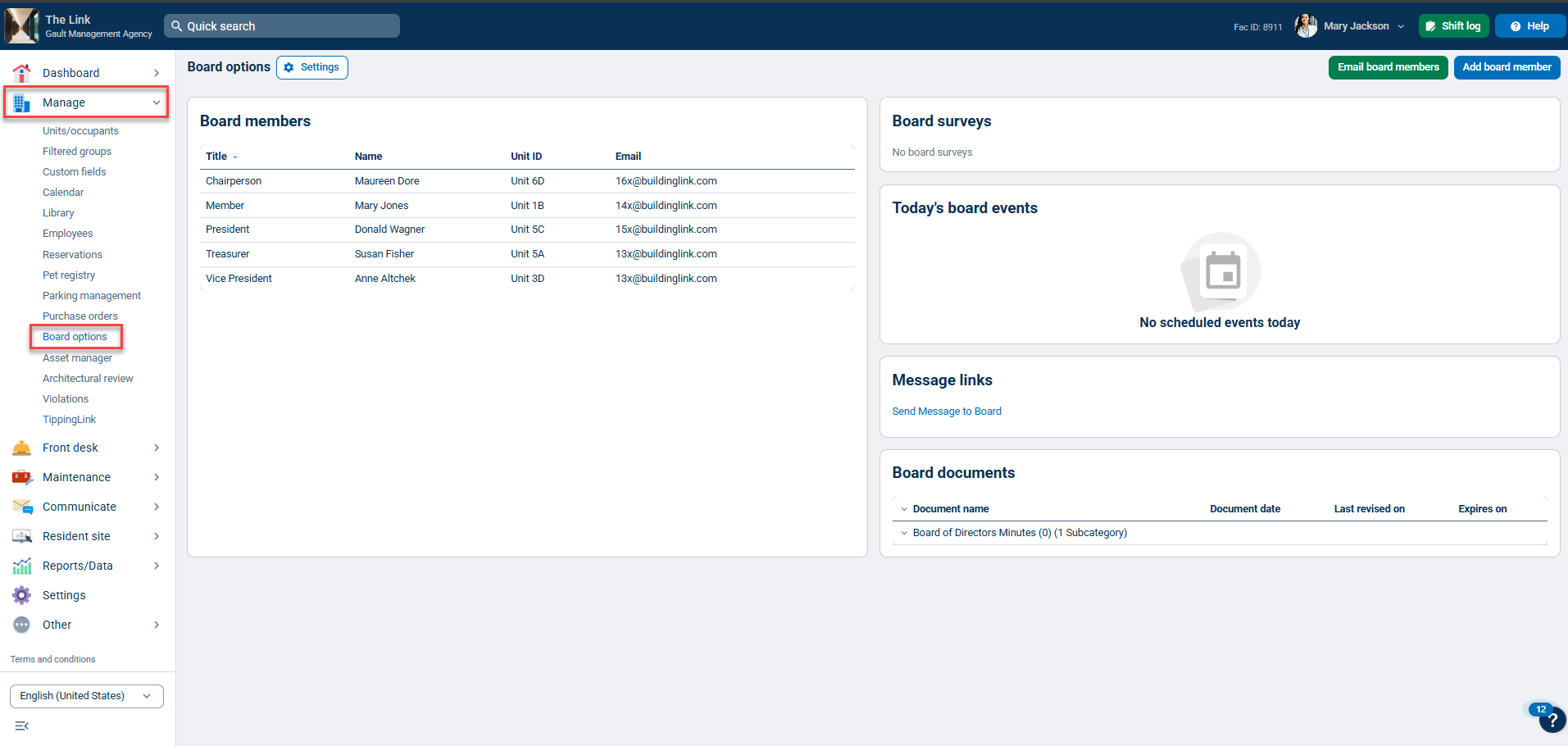
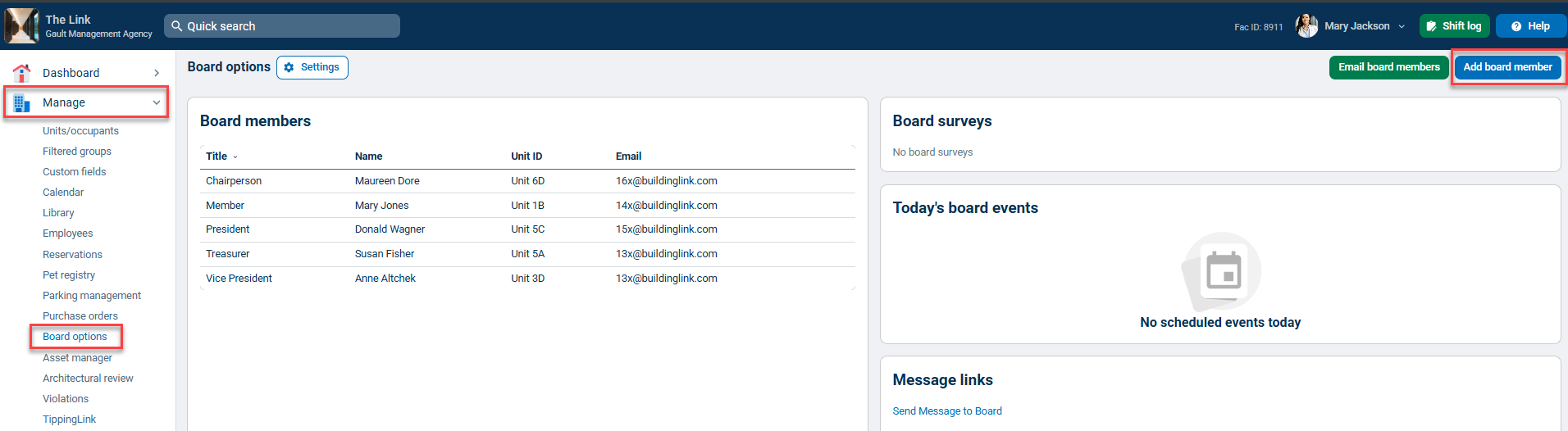
To view all Board Options, click on the Manage tab and select Board options.
You should see a list of all current board members at the top of the screen. Any Management or Security Officer level user can add or remove a Board Member from this list.
You’ll also be able to view any Surveys, Library Documents or Calendar Entries that have been given specific “Board” permissions. Checking your Board Options tab is a great way to confirm that you’ve assigned “Board” permissions to the correct documents.
“Message Links” will show any Board-Only Message Links. To view the settings for your current message links, or to add an “Email to Board” link, see Message Links.
Board Member Access Settings
Residents marked as “Board Members” will always be able to view Calendar entries or Library documents with “Board” permissions. However, you can also set additional global permissions for Board Members in the Board Options Settings section.
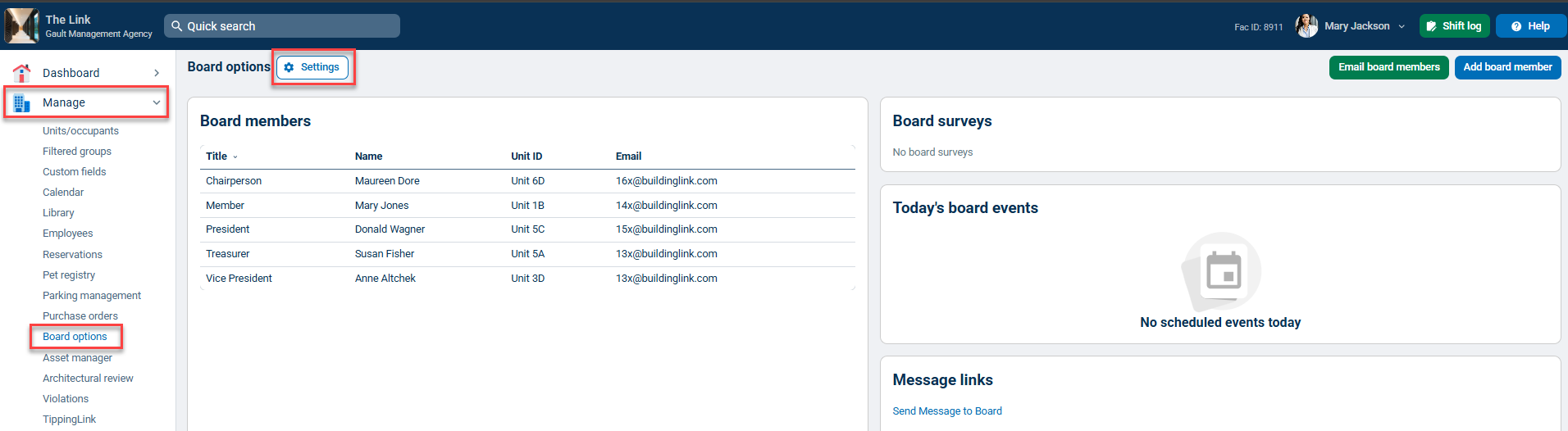
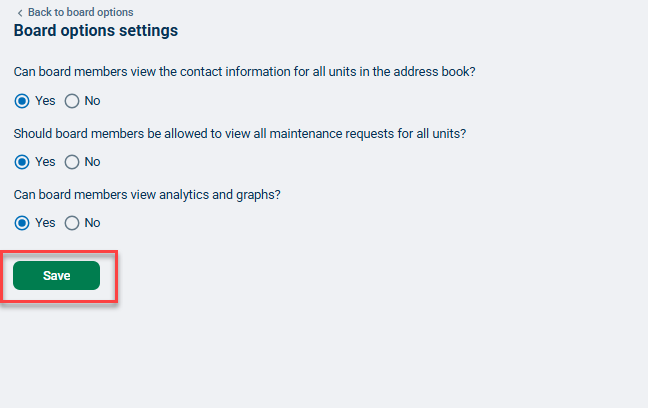
To view the settings for your Board, go to Manage, select Board options, and click the Settings button at the top of the page.
Here, you can decide if Board Members should be able to view the contact information for all residents in your property, view all maintenance requests for all units in the property, and/or view analytics and graphs. Remember to click Save when you're done.
Adding or Removing a Board Member
To set a resident as a Board Member, click on the Manage tab and select Board options, then click Add board member.
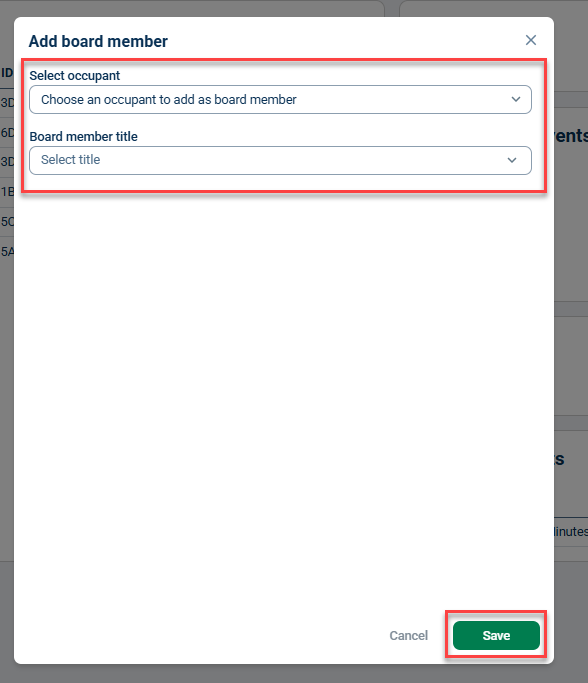
In the Select occupant dropdown, either select or type the board member name you want to add. Then select a Board member title to apply to the current occupant. Remember to click Save when you're done.
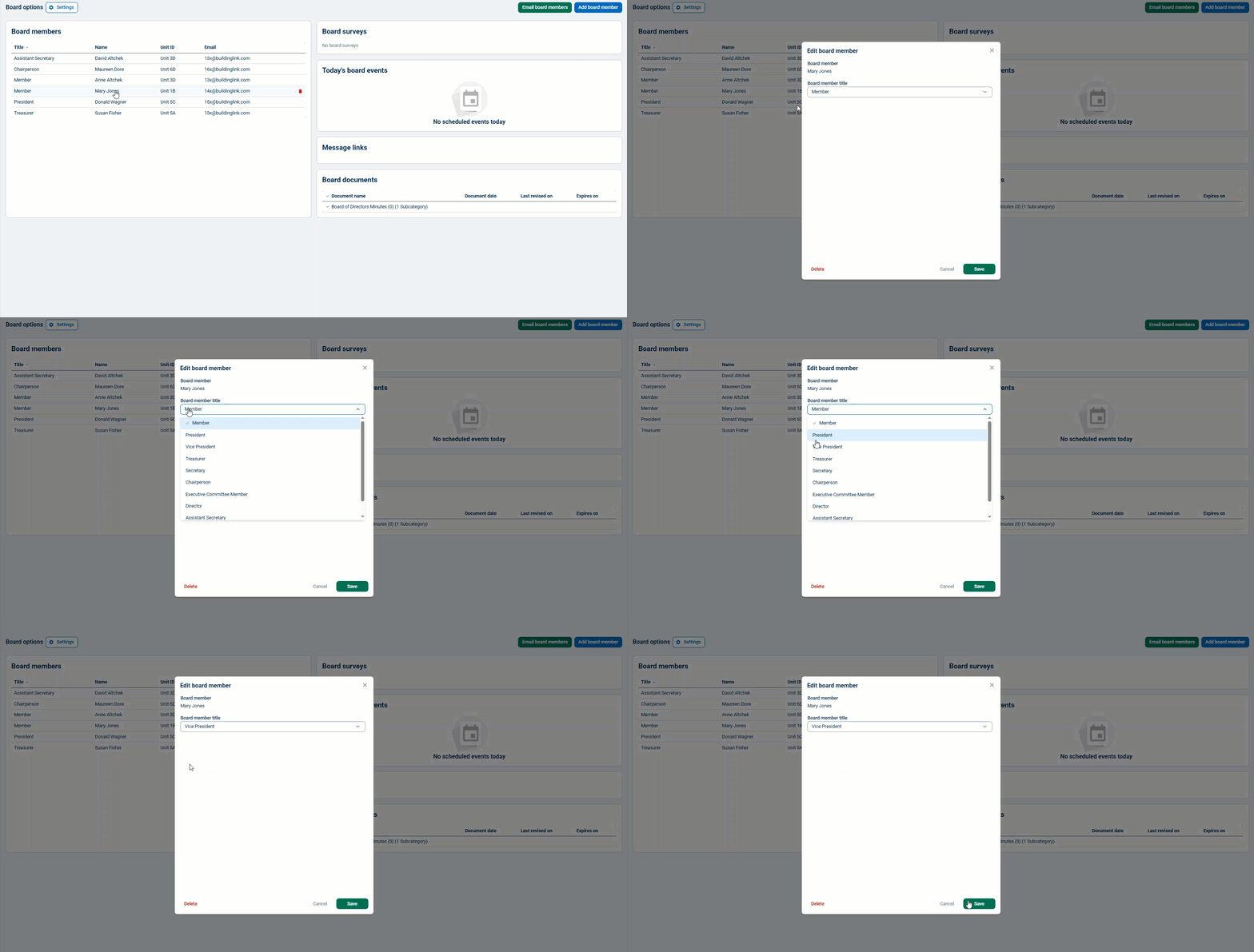
To change a board member's title, click on their row, select a new title from the dropdown, and click Save.
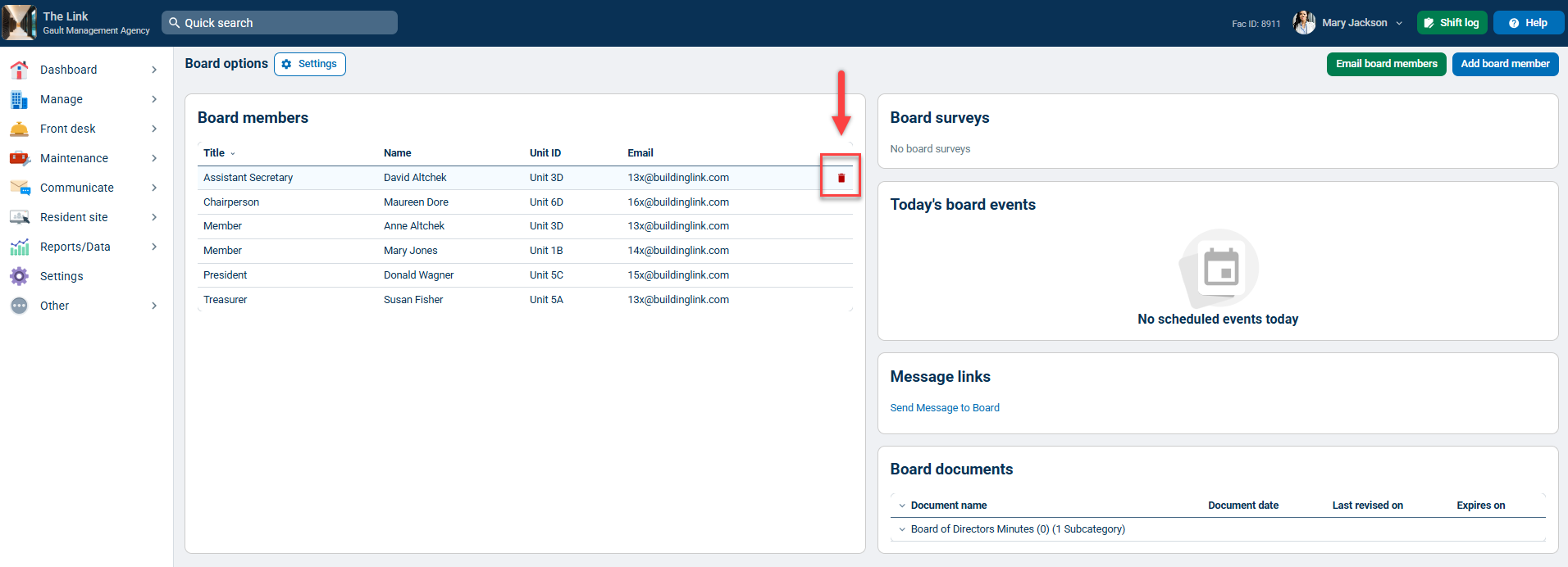
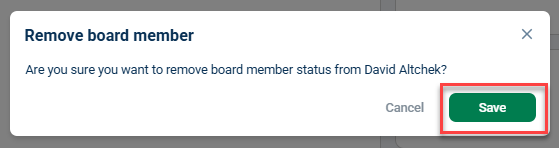
To remove a board member, hover over their row and click the red trash bin that appears on the far right. A Remove board member confirmation will appear. Click Save to remove.
Board Topics Bulletin Board Category
If your property has the Bulletin Board turned on for residents, you can activate the Board Topics category. The Board Topics category is visible only to the Board and can act as a message room for Board Members. Once it’s activated, Board Members can post discussion topics for other Board Members to view and comment. (These posts do not require approval and cannot be viewed by management unless management logs in as an actual Board Member.)
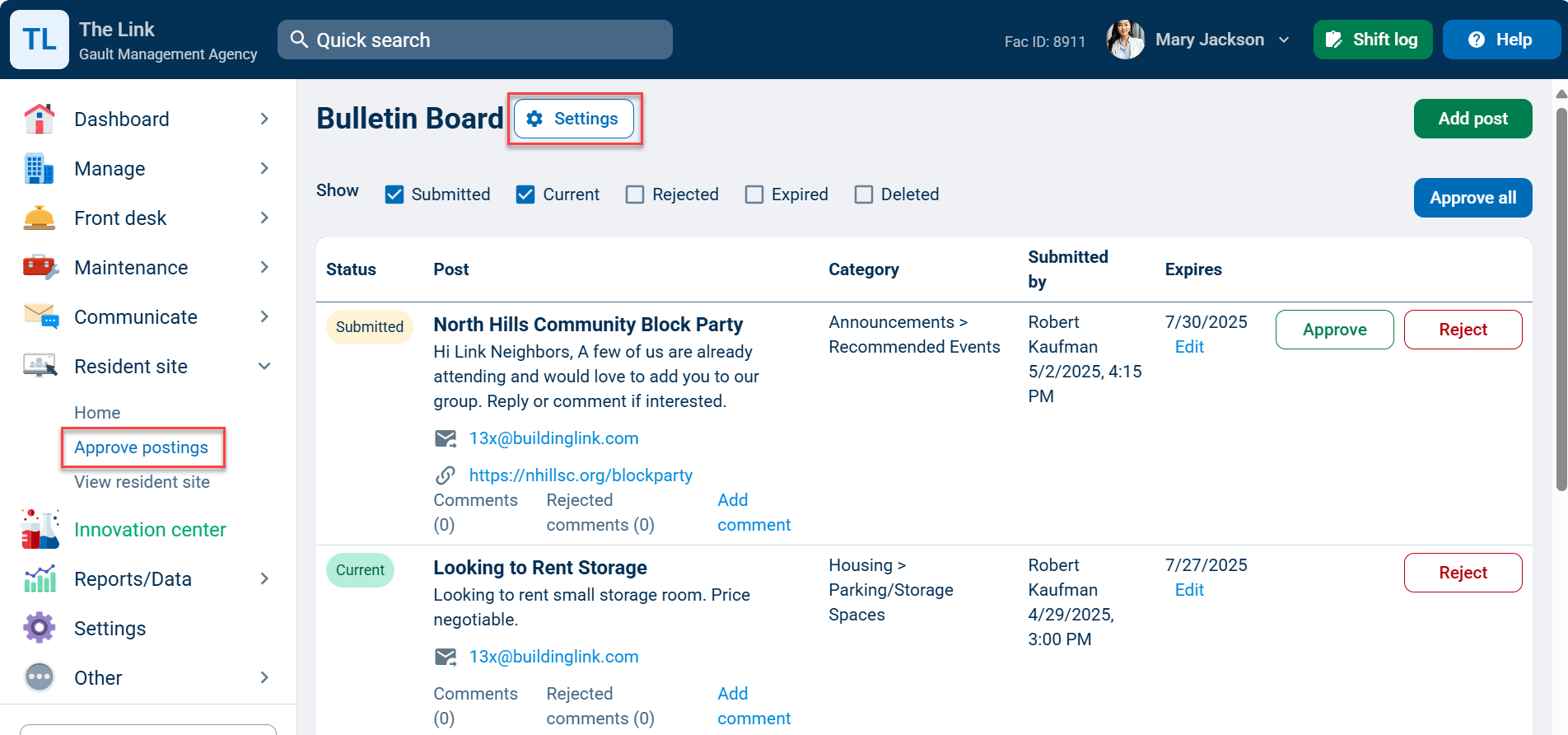
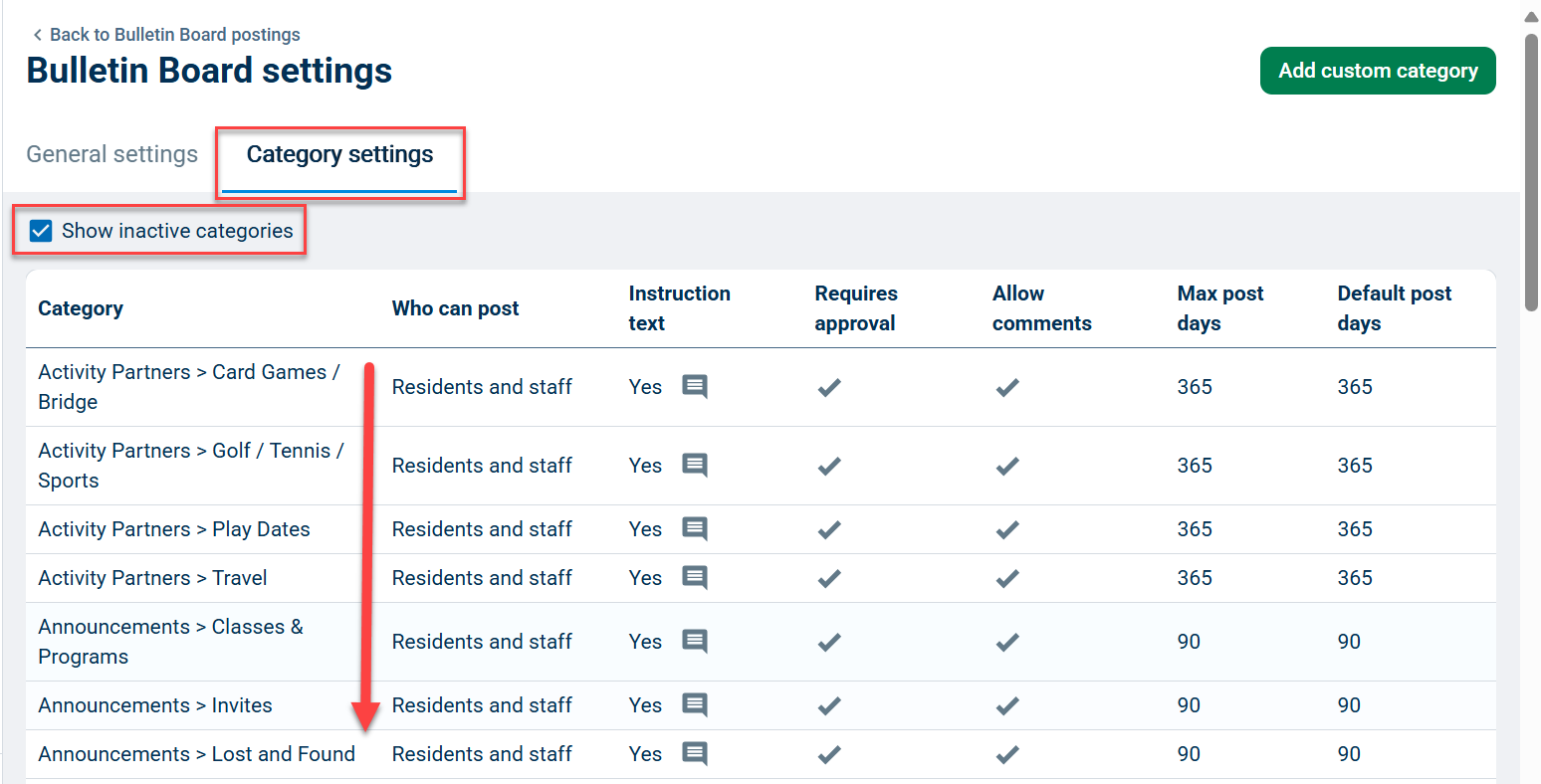
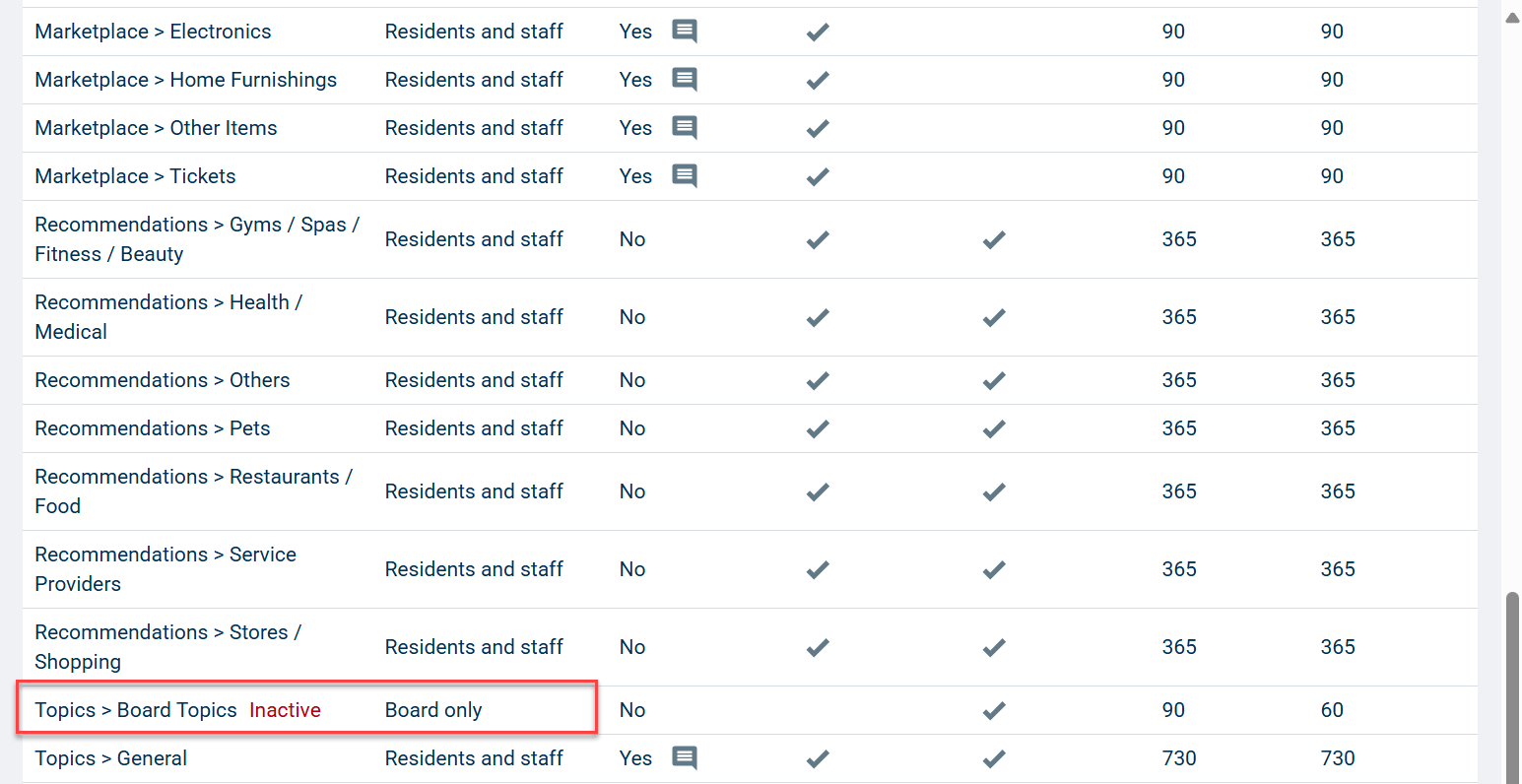
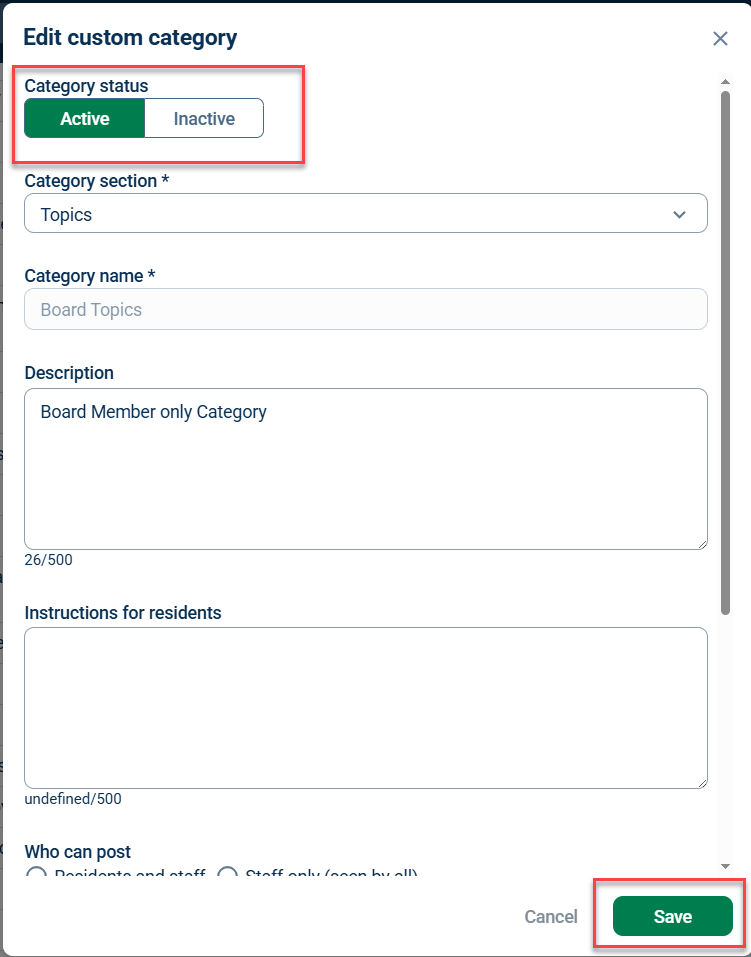
To activate the Board Topics Bulletin Board category, go to the Resident Site, select Approve Postings, and click the Settings button. Next, choose Category settings, click the Show inactive categories checkbox at the top of the screen, then scroll down and click on the Topics > Board Topics category. On the edit custom category page that now appears, set the status to Active, and then click Save.
Selecting Board Members in Message Link
Message Links enable you to create shortcuts or buttons that allow residents/staff to email specific groups of people.
To select board members in Message Link, click the Communicate tab and select Building directory, then click Add message link.
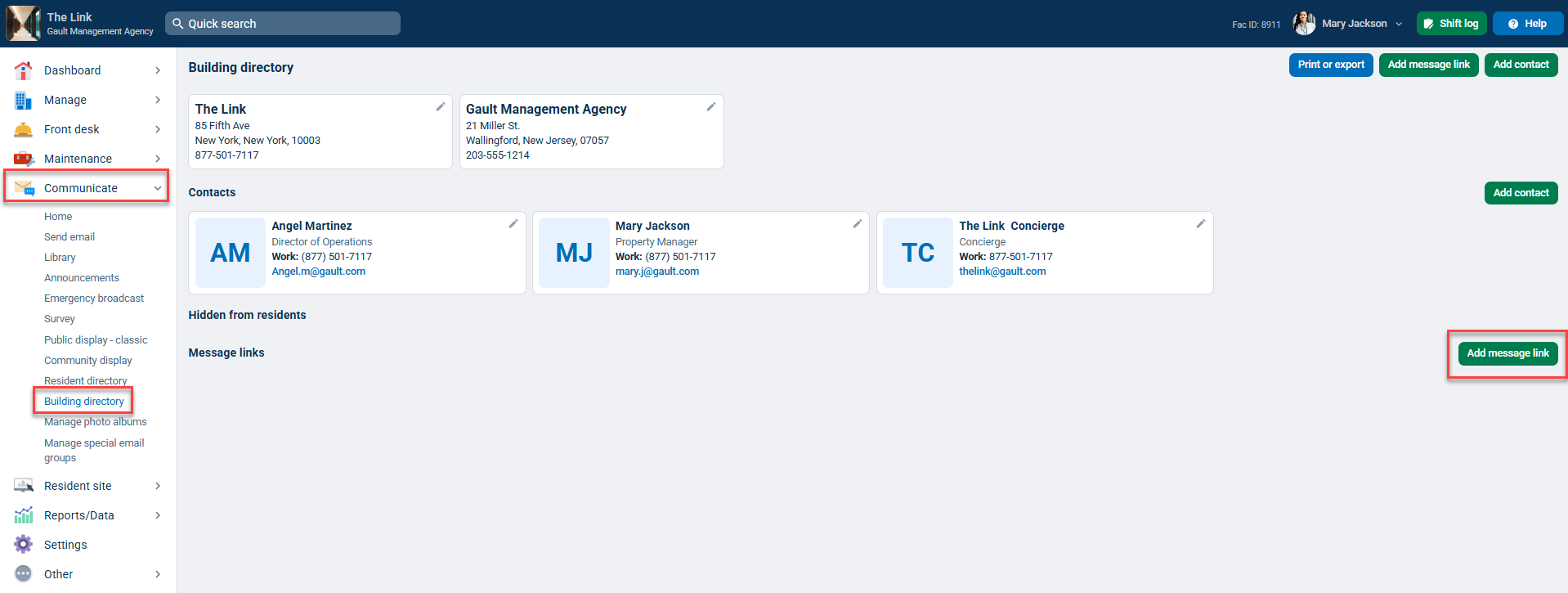
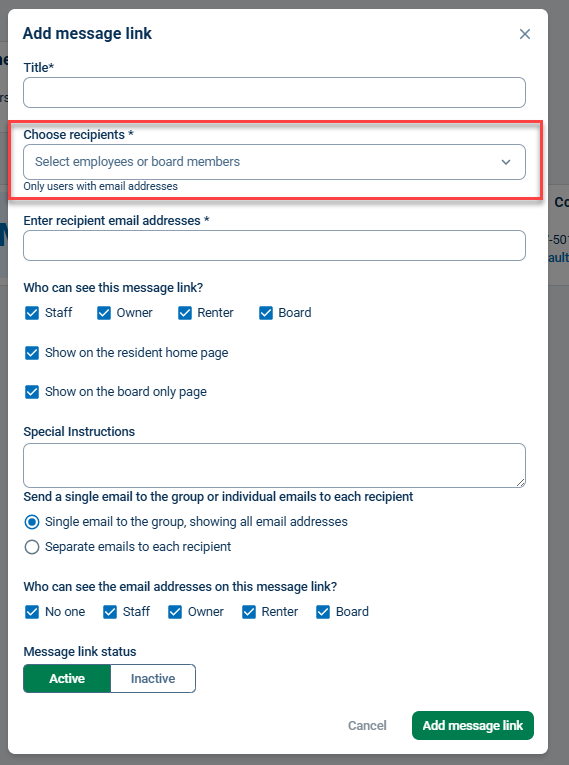
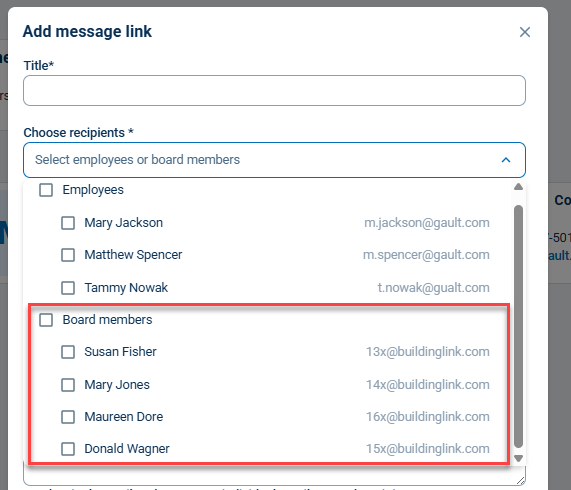
In the Add message link window, you will be able to select existing board members from the Choose recipients dropdown.
Note: When clicking the "Board members" icon, all listed board members will be selected. The list of available board members will be auto-updated when changes are made. If you want to select specific board members, click on the individual board member names.
If you have board members with external email addresses, they can be added in the Enter recipient email addresses field.
Remember to click Add message link when you are done.