Overview
The Library allows management-level users to store and share building-related documents (such as forms, notices, policies, or newsletters) with residents and staff. It’s both an organizational tool and a communication tool, you get to decide which documents you share and who you share them with.
Note: Click on the images to enlarge them.
Table of Contents
- Adding Library Categories and Subcategories
- Editing Library Categories and Subcategories
- Viewing Library Documents
- Adding a New Library Document
- Email Notifications and Unique Document Links
- Bulk Uploading Library Documents
- Editing, Expiring, or Deleting Library Documents
Adding Library Categories and Subcategories
Library categories and subcategories control the category options for the Library Module, helping your BuildingLink Library stay organized and easily searchable. (Only Management and Security Officer users can access Library Categories settings.)
For example, instead of leaving one Library Category for "Board Meeting Minutes," you could create subcategories to organize your minutes by month and year. Library Categories can also help you highlight a particular document by allowing residents to easily access it via a button on the resident homepage.
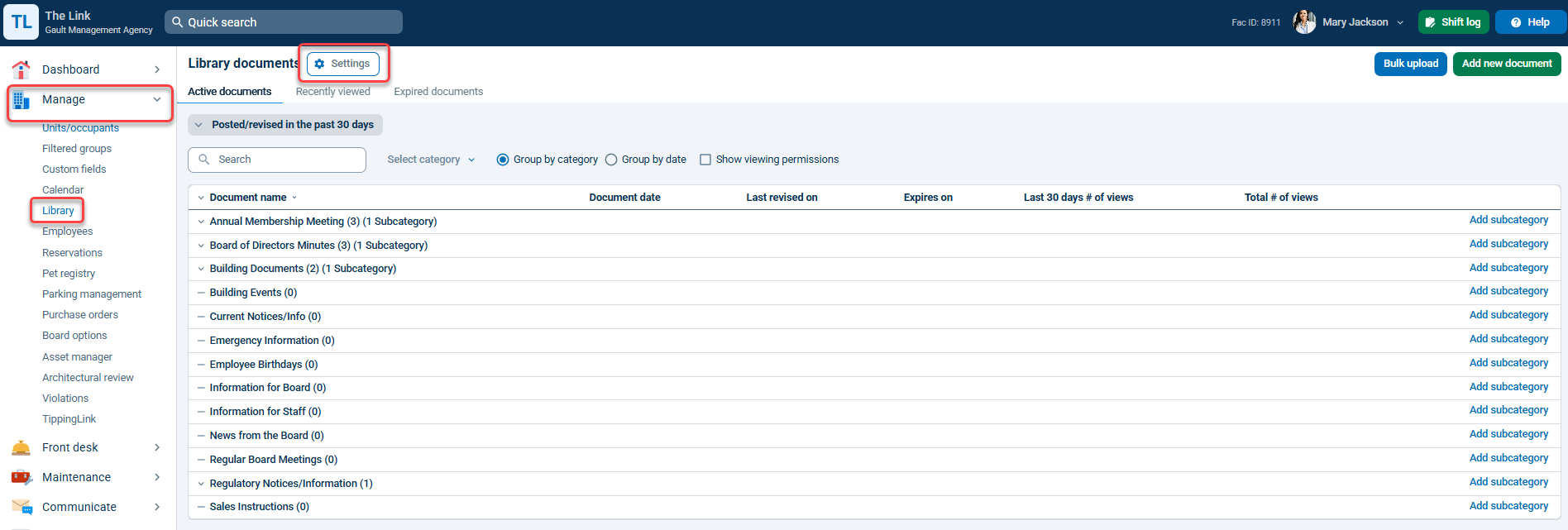
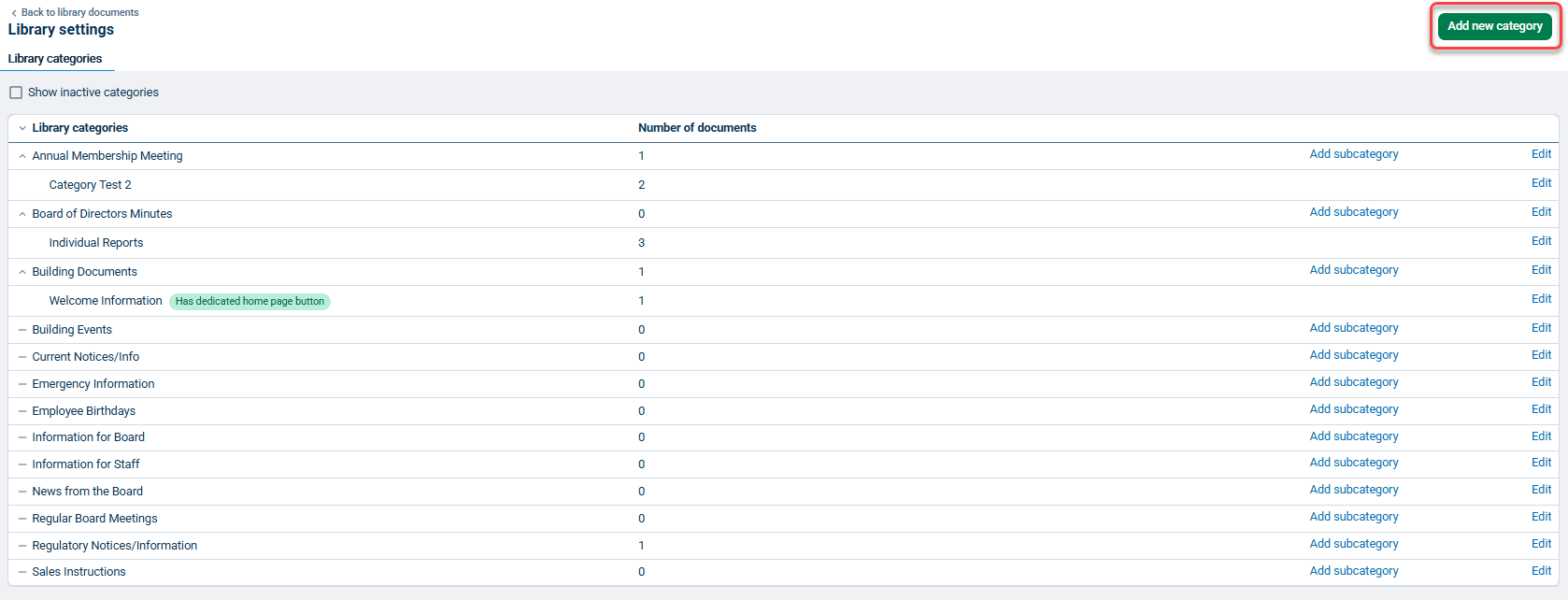
To add a new Library Category or subcategory, go to the Manage or Communicate tab, select Library, and click Settings. Alternatively, go to the Settings tab, scroll down, and select Library categories. In the following window, a list of all existing active Library Categories will be displayed. Click the green Add new category button in the top right corner to add a new category or subcategory.
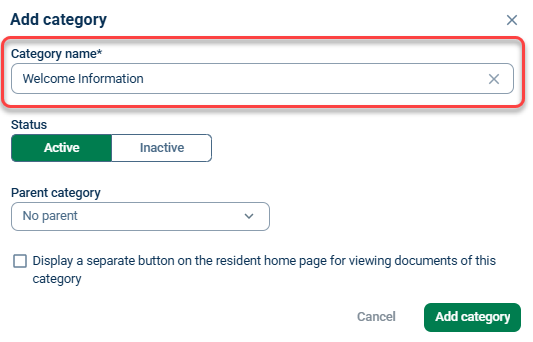
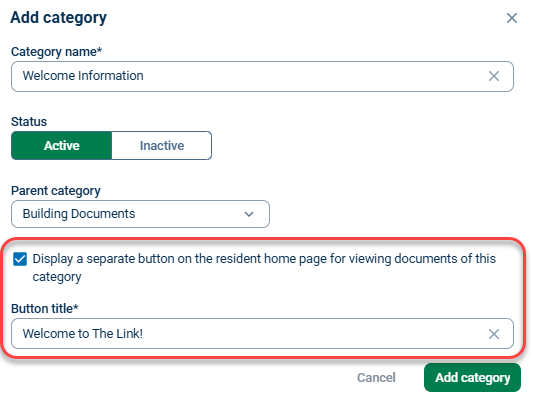
The settings options for the new Library Category will display in a pop-up window. To add a new category (heading category/not subcategory), type in the category name in the field under "Category name" and leave the following dropdown menu under "Parent category" on No parent.
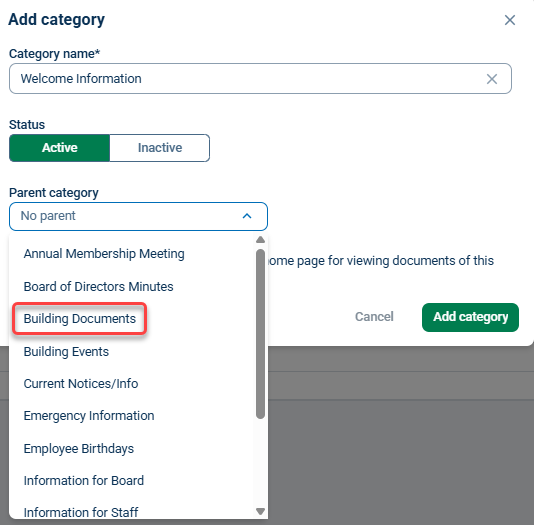
If you want to add a subcategory, type in the name of the subcategory in the field under "Category name" and select a Parent category from the following dropdown menu under "Parent category."
If you want to create a separate button on the resident homepage that links to documents in this category or subcategory, click the box where prompted, and then enter the text you would want displayed on the button. Click Add category to complete the creation of your new Library Category or subcategory.
Editing Library Categories and Subcategories
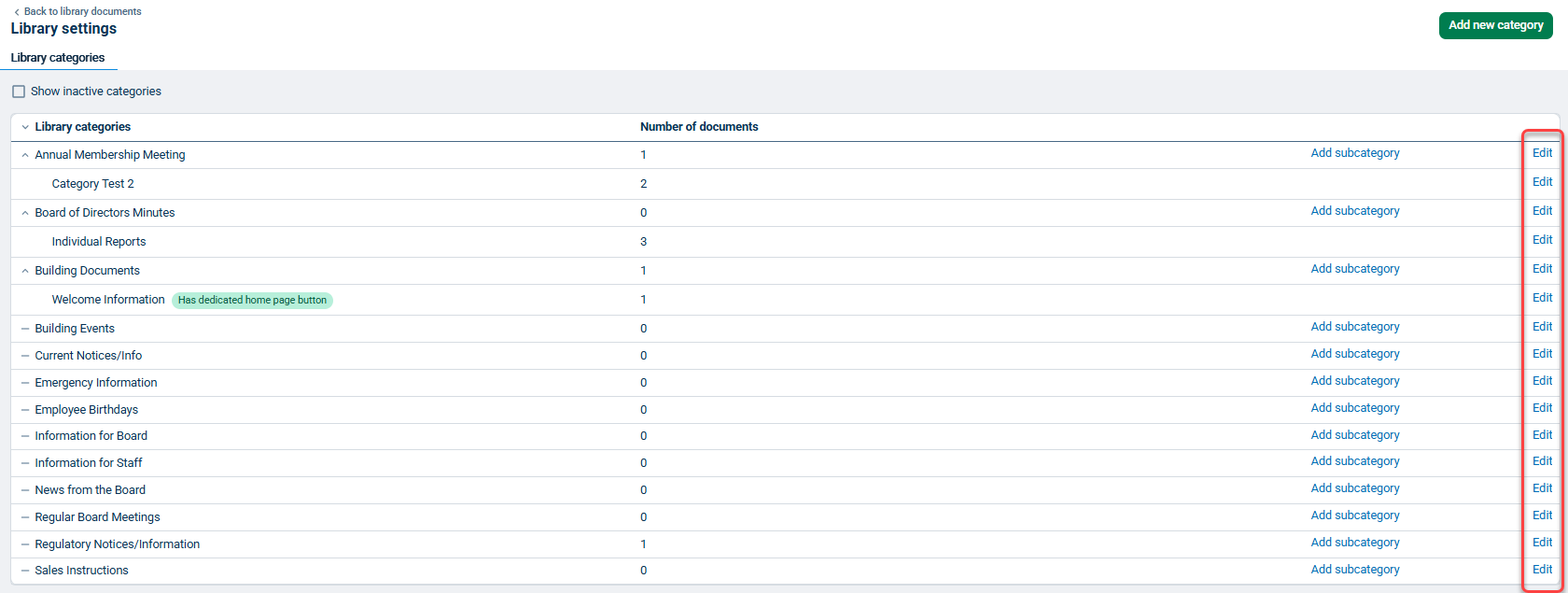
Go to the Manage or Communicate tab, select Library, and click Settings, or go to the Settings tab, scroll down, and select Library categories.
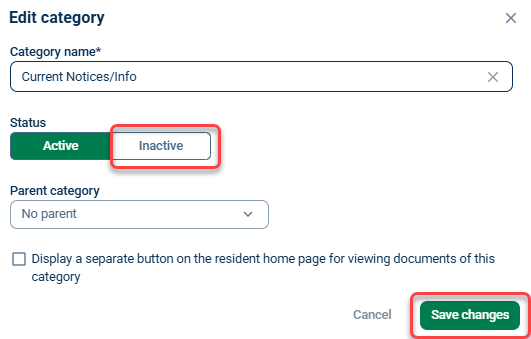
You will be redirected to a screen that displays all Library Categories. Click Edit next to the Library Category you want to view/change. The Edit category window will be displayed. To archive a category, change the Status to Inactive. After editing, click Save changes.
Note: Document folders can not be deleted; they can only be set to "Inactive". Individual documents within folders can be deleted. When a library category containing active documents is set to inactive, all documents within that category will be hidden from staff and residents until that category is reactivated.
Viewing Library Documents
Users with a Management or Security Officer BuildingLink Authority Level can view all Library documents, regardless of specific viewing permissions. However, viewing permissions control whether other BuildingLink users can access the document.
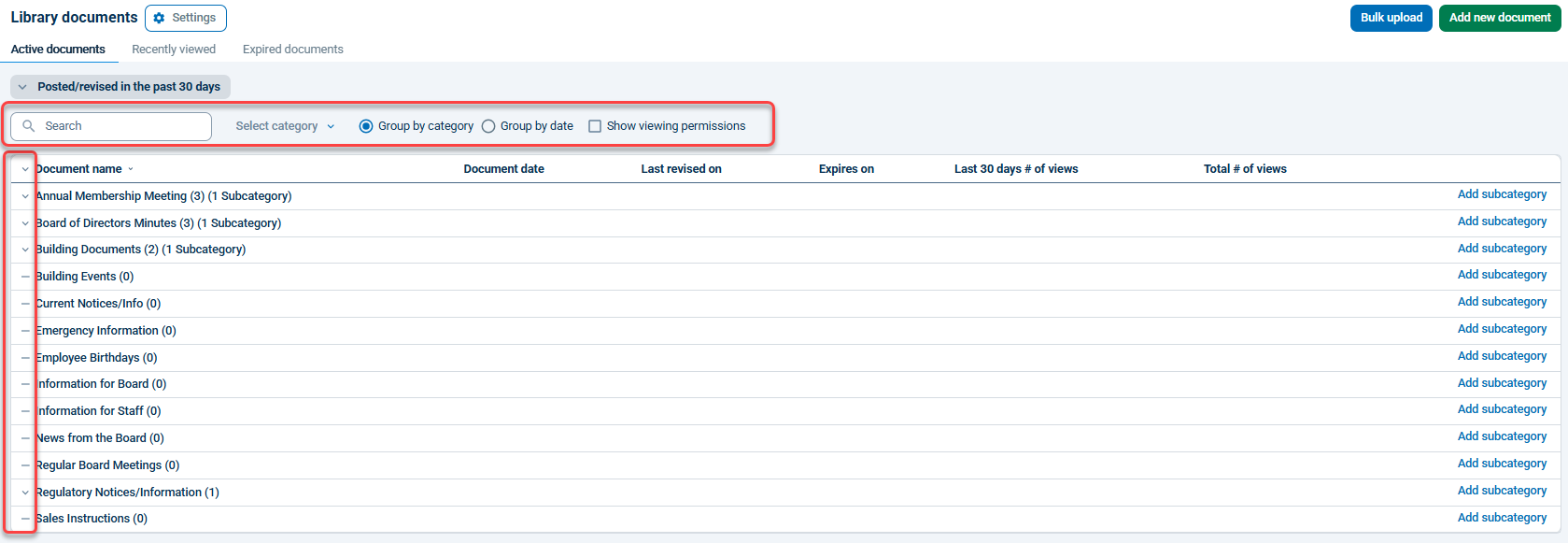
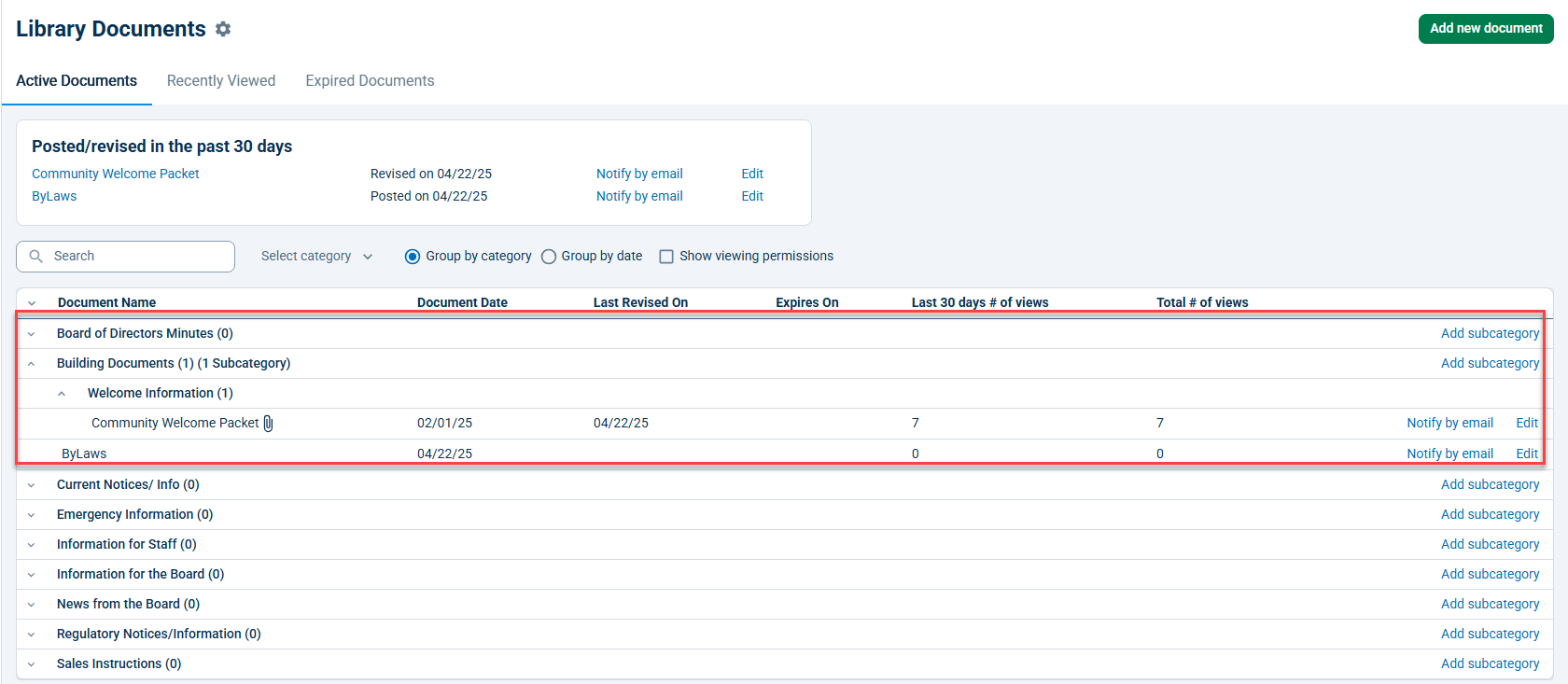
To access a particular document, click the Communicate or Manage tab and select Library. You will see a list of all document categories. Click on the arrow to the left of a specific category to view the documents and/or sub-categories below it. Click on the document you want to view. You may also narrow your search by using the search parameters at the top of your screen.
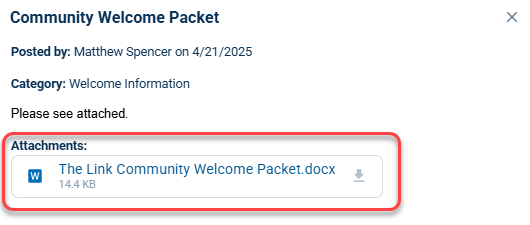
After clicking the document, a box will appear with any document text and a link to the document attachment (if applicable). To open the document, click on the download icon, and open it just like an email attachment. Keep in mind that your computer must be able to open documents of the type you are trying to open. For example, if the document is saved as a PDF, make sure you have Adobe Reader installed on your computer to view it.
Adding a New Library Document
To add a new Library document, go to the Manage or Communicate tab and select Library. Next, click the green Add new document button.
Note: Only users with Management or Security Officer permissions can add/edit Library documents.
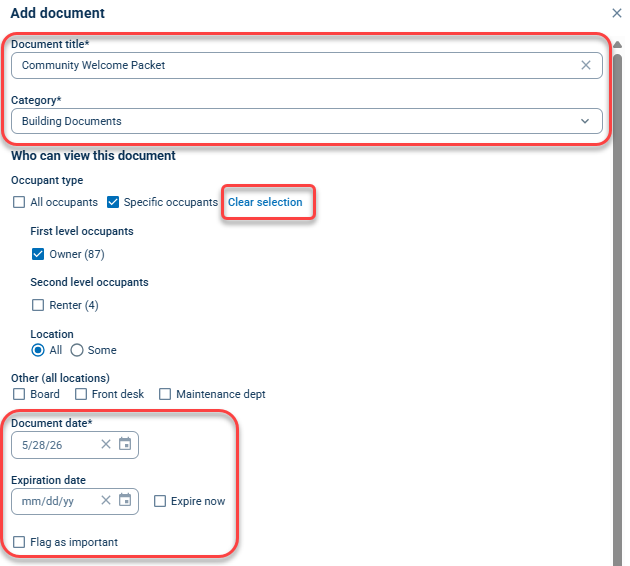
On the next page, you can add the title of your document and select a category. If you don’t see an appropriate category, you can always add a new one in the Library Categories section of your settings.
Once you’ve selected your category, you can establish viewing permissions in the "Who can view this Document section." If you don’t select any of the options, only users on a Management or Security Officer BuildingLink authority can view the document. To make your document viewable by a specific location, first check the box next to either All occupants or Specific occupants, and then select your desired location.
You can set a Document date and/or an Expiration date. The document date is a relevancy date, not a viewing date, and once they are saved, all documents are viewable to your selected audience. For important documents, like a policy change to your building rules, check the box next to Flag as important, so that residents will be more likely to notice that specific document in the Library.
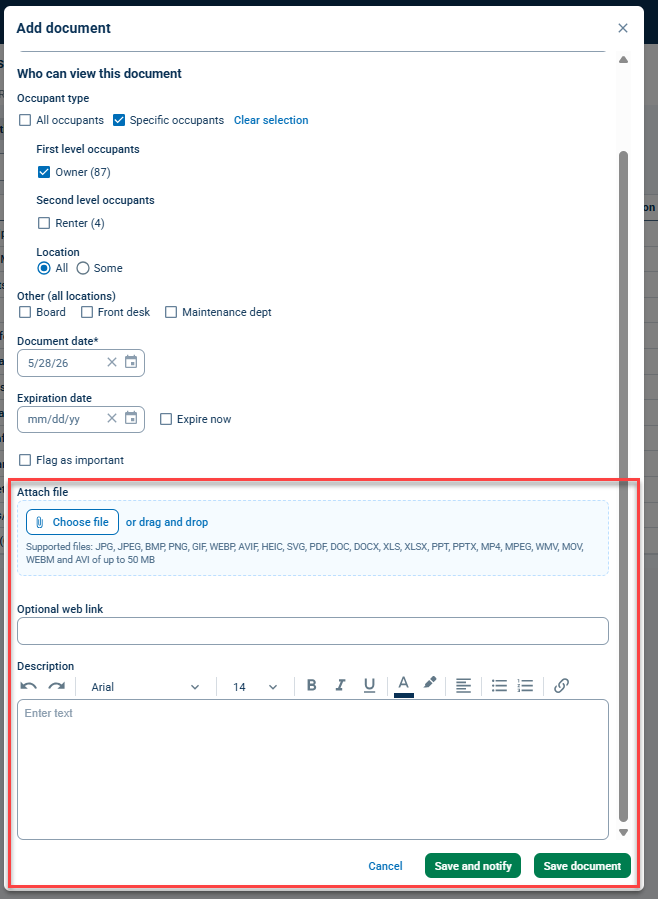
Next, either input your document as an attachment or input text directly into the Description text field. To attach a file, click the Choose file button and select a previously created document from your computer. Documents can be up to 50 MB in size. If your document is larger than 50MB please view our tips on compressing/shrinking documents and images.
Note: To open an attached file, your intended audience must have the appropriate program for the file type installed on their computers. (For example, if you upload an Excel spreadsheet, your residents must have Excel installed on their own computers in order to access the document). Natively supported browser file types will not require an installed app.
For links to external websites, you can just include the link in the Optional web link field. You can use the Description text field to add a description of your attachment or any other information you want to communicate. You can use one or a combination of all three methods to share documents here.
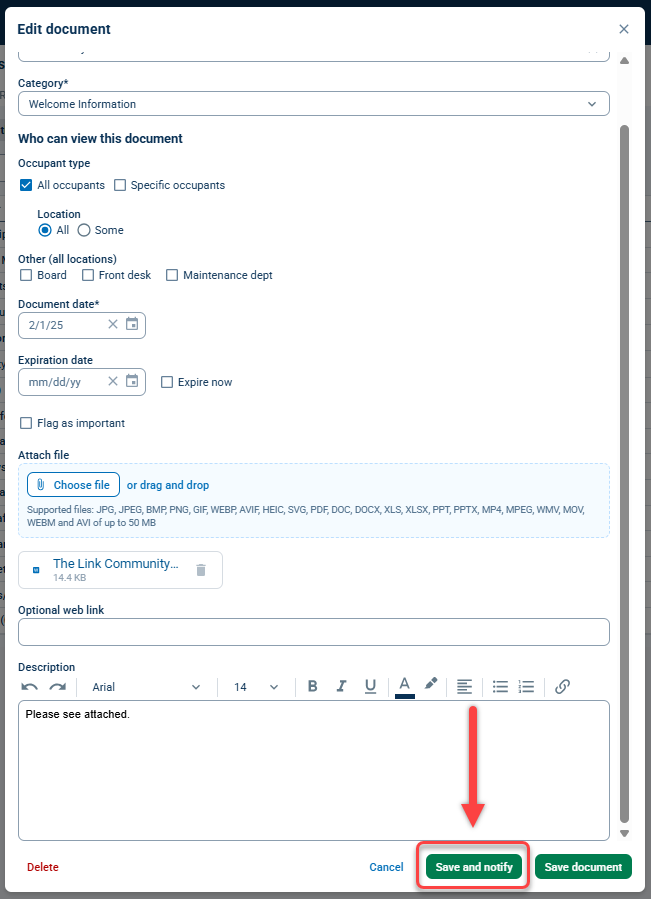
After you’ve finished inputting all document information, you have two options: Save and notify, or Save document. The Save document button saves the document to the Library, so your intended audience can access it. The Save and notify button saves the document and provides options to send an email to residents and staff that a new document has been uploaded. For more information on Library document email notifications and unique document links, continue reading below.
Email Notifications and Unique Document Links
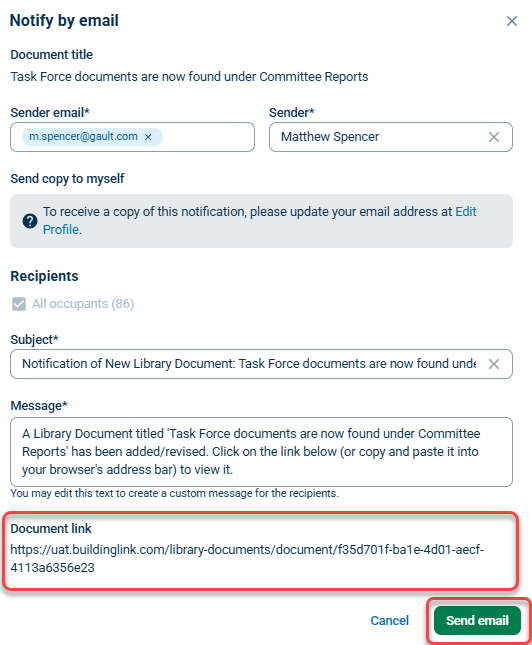
When you select Save and notify while adding a new Library document, you will be able to send a notification to your residents, letting them know a document has been added to the Library and providing them with the document’s unique link. (Note: To learn more about sending manual emails through BuildingLink, click here.)
After you click the Save and notify button, a window will appear, showing a default notification message. You can customize this email before sending by editing the message’s subject and text. Once you are satisfied with your email, click the Send email button at the bottom left corner of the box.
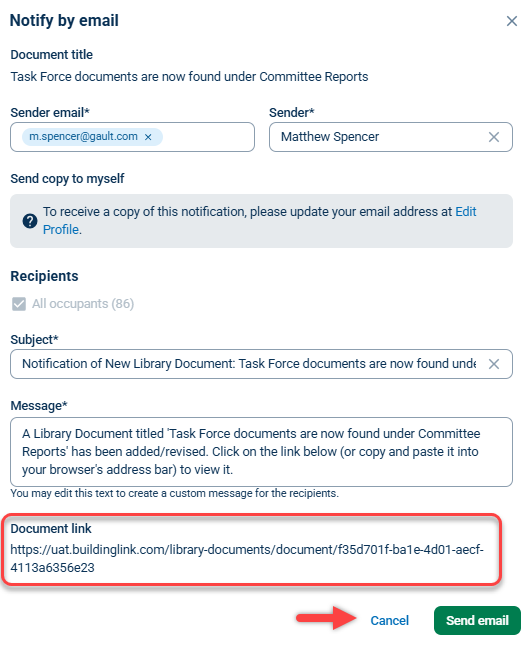
If you want to get a document’s unique link but do not need to send an email notification, copy the link from the Notify by email page and then click Cancel instead of Send email.
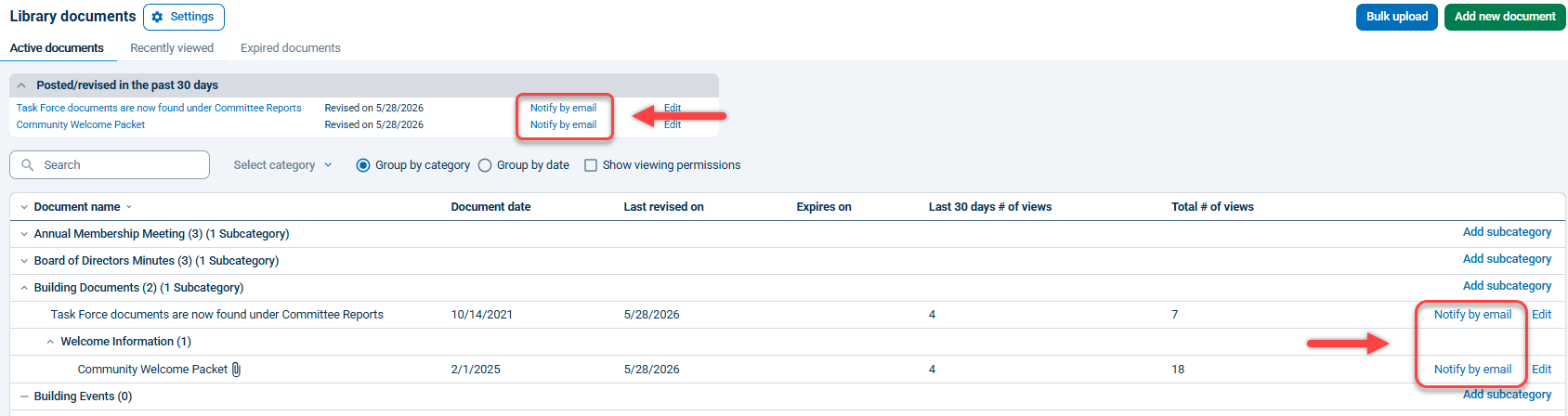
You can also get a document's unique link after it has been added by clicking the Communicate or Manage tab and selecting Library. Click on the arrow to the left of a specific category to view the documents and/or sub-categories below it, and then click on the Notify by email link on that document's row.
You can use a document’s unique link to direct residents directly to that document from other pages, for example, you might include the link to an Amenity Reservation Policy form in your Amenity Reservation Instructions.
Bulk Uploading Library Documents
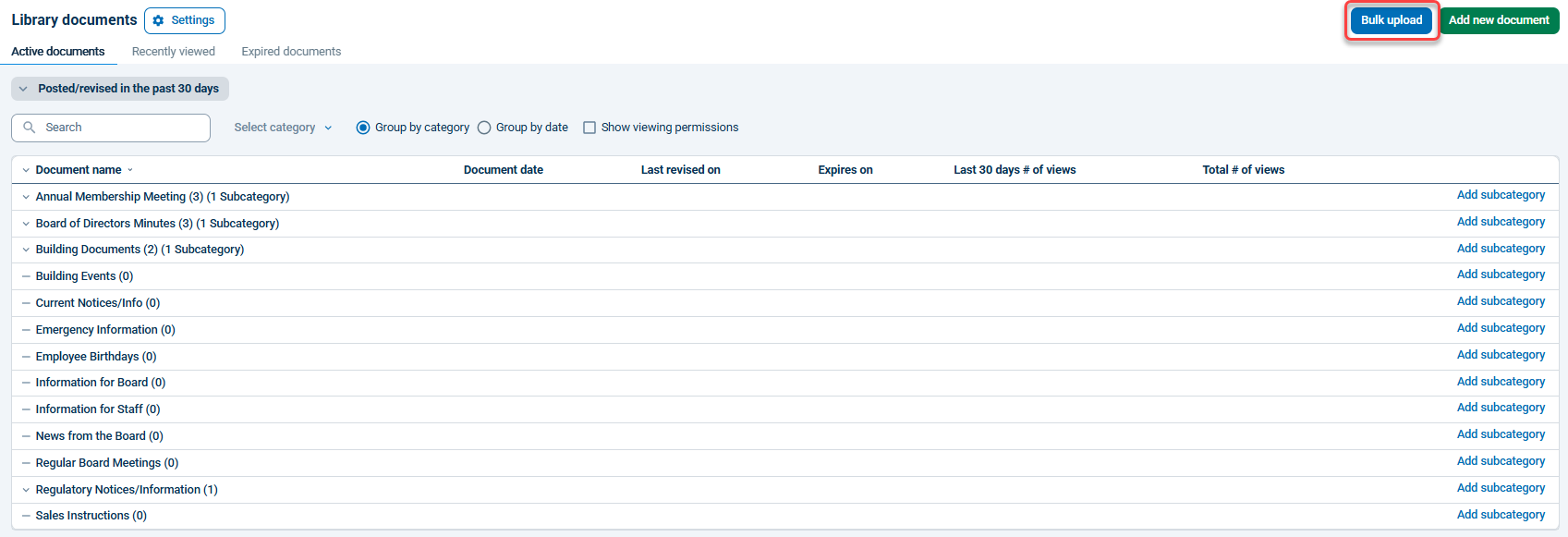
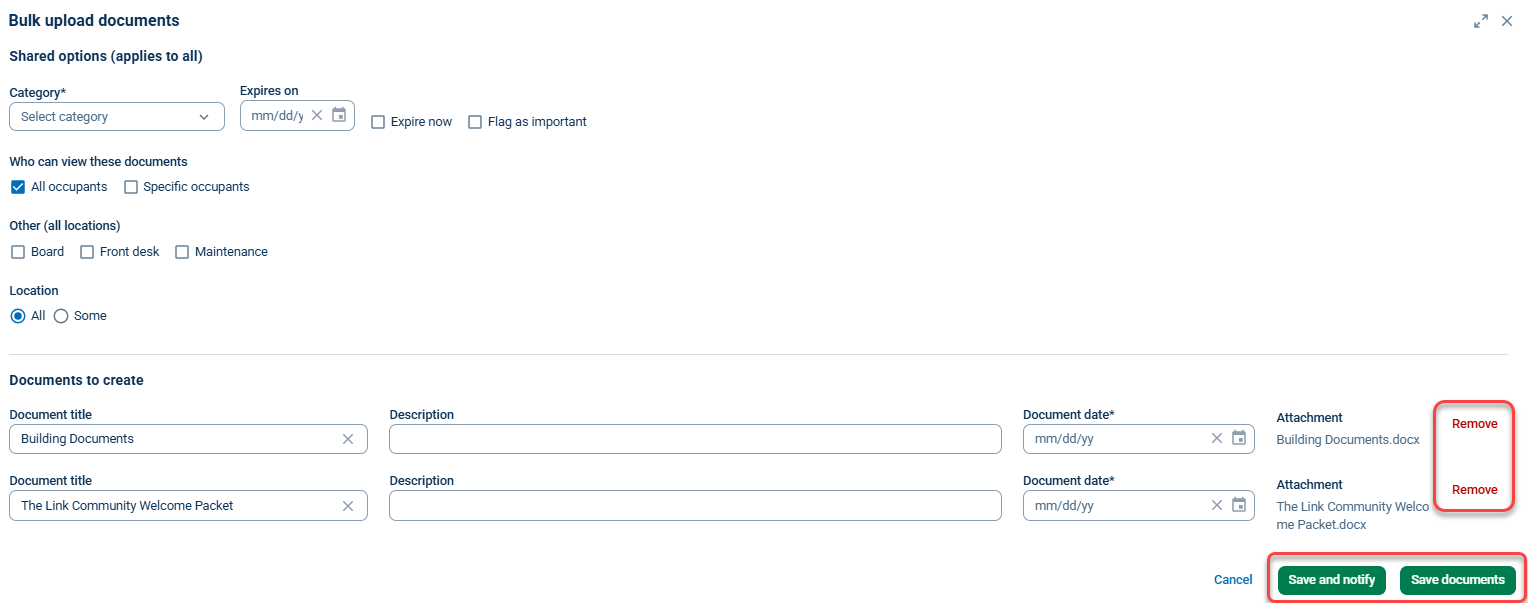
You can bulk upload up to 25 files at a time. To bulk upload Library Documents, click Bulk upload, then select the documents you want to upload in the new window. Once you've selected and added your files, you will be redirected to the Bulk upload documents window.
Here, you will be able to edit which shared options will apply to your documents.
If you want to remove any files from the list, click Remove.
Once you've completed editing your files, click Save documents to close the window or Save and notify to notify residents.
Note: Shared options will apply to all of your listed documents. If you have any documents that require different options, unselect All occupants under Who can view these documents, then click Save documents. You can then edit the individual settings on your uploaded documents.
Editing, Expiring, or Deleting Library Documents
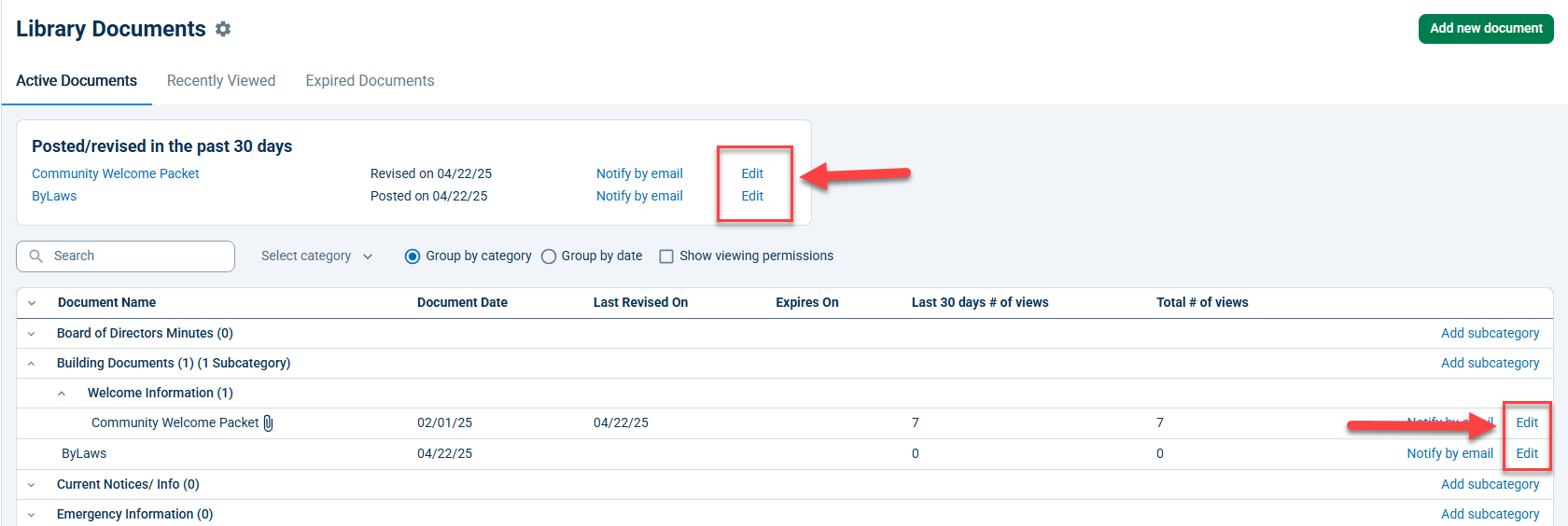
To edit or expire a document, click on the Communicate or Manage tab and select Library. Next, find the document you want to edit or delete and select the Edit link to the right of the document. Clicking this button will enable you to edit any document details or permissions.
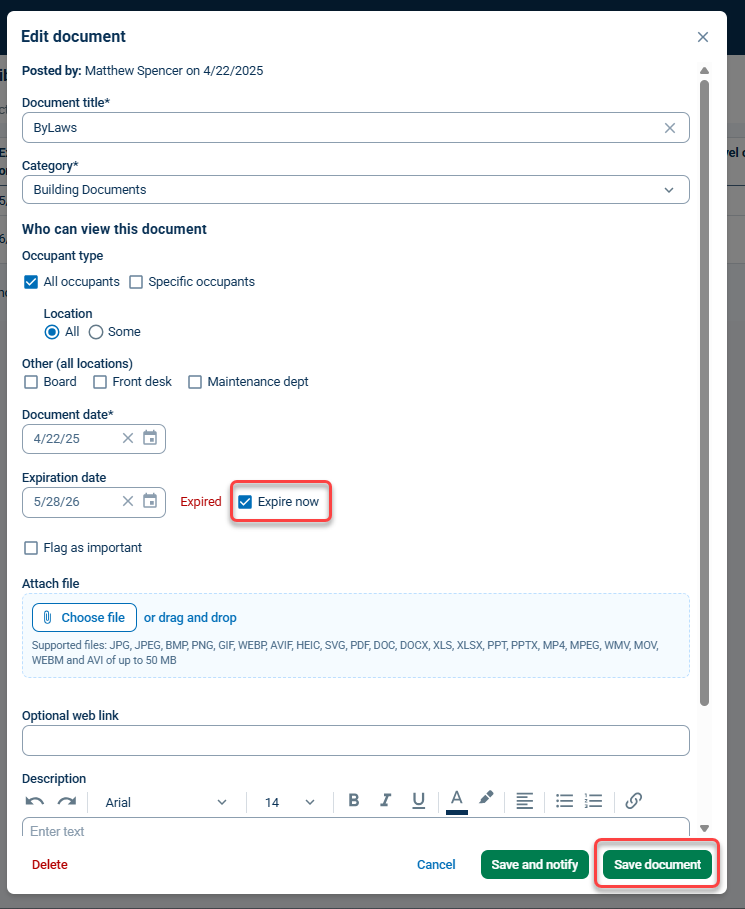
To expire the document, click the checkbox next to Expire now, then click the green Save document button at the bottom right. Expiring a document will remove the document from active viewing and archive it in the Expired documents section of the Library. Expired documents can also be reactived by changing the expiration date on the document.
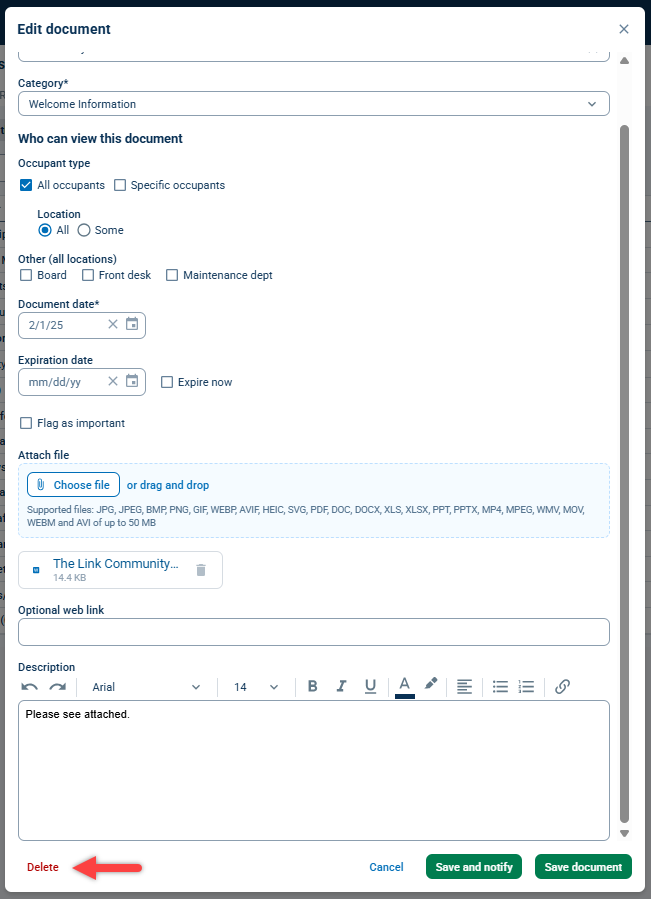
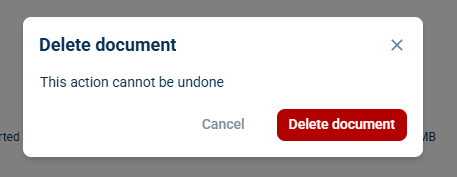
Deleting a document will remove it from BuildingLink. To delete a document, click the red Delete button in the bottom right corner, then click the red Delete document button in the confirmation message box.