Note: This article is for the newly redesigned module. This updated module is in the process of being rolled out and may only be available to some users.
Overview
Mobile App Customization settings allow Security Officer level users and/or staff with special permissions to customize the mobile app experience for their residents and staff.
Here you can show or hide any default BuildingLink module in the apps and create your own custom modules, allowing you to surface only what's relevant for your community.
Note: Click on the images to enlarge them.
Table of Contents
Resident App
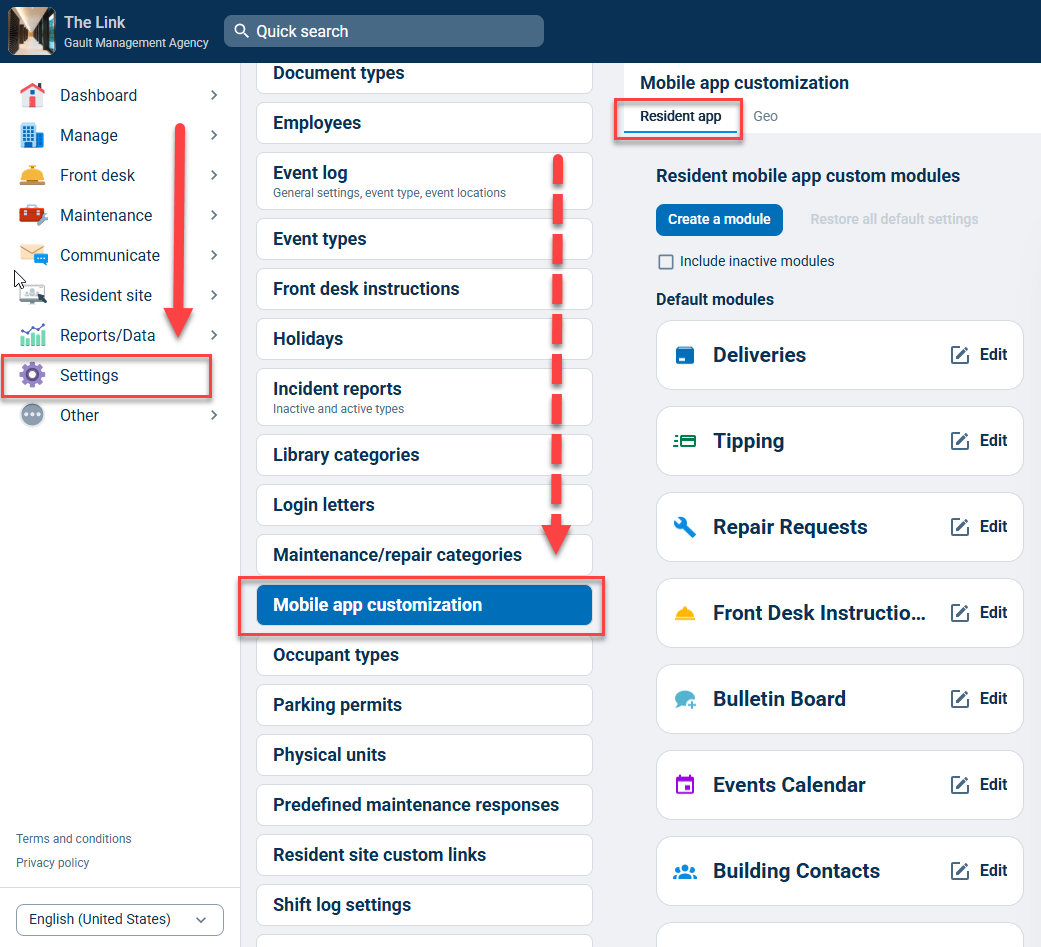
To customize the Resident App experience by updating the features in the Resident App, from your Dashboard go to Settings and select Mobile App Customization. Here you will automatically be defaulted to the Resident app tab.
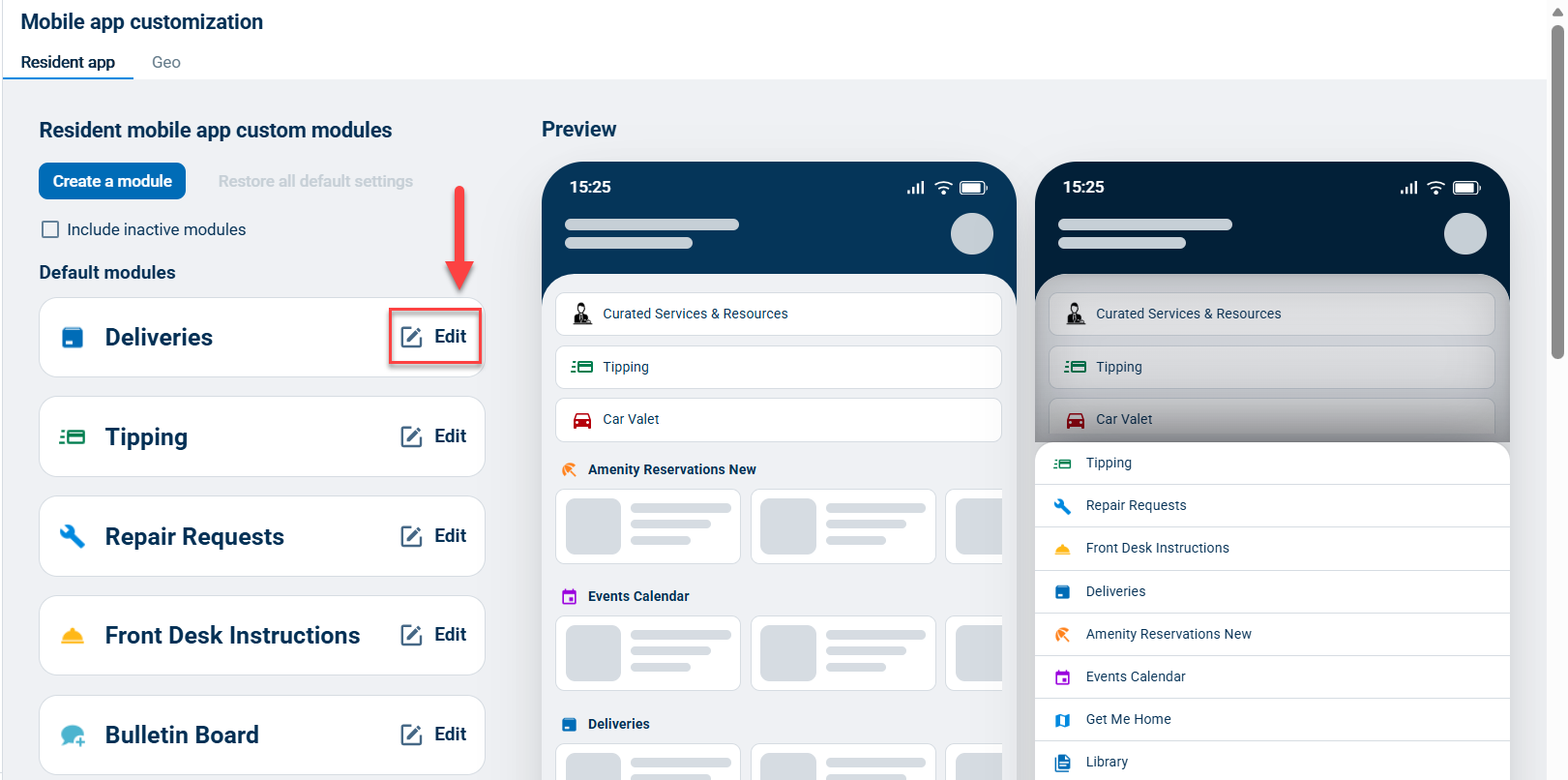
With the Resident App, icons and their locations are standardized and assigned automatically by module type — you cannot upload custom icons for these Default Modules, but you can change the module name. You can see your changes in the Preview section on the right side of the screen.
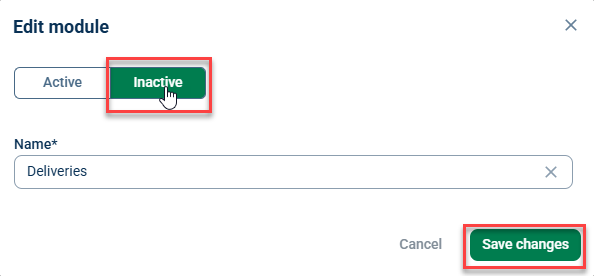
To change the name of a Default Module, click the Edit button next to each module. On the next screen, you can write in your custom name text. If you want to hide the module, select Inactive and click Save when you're done.
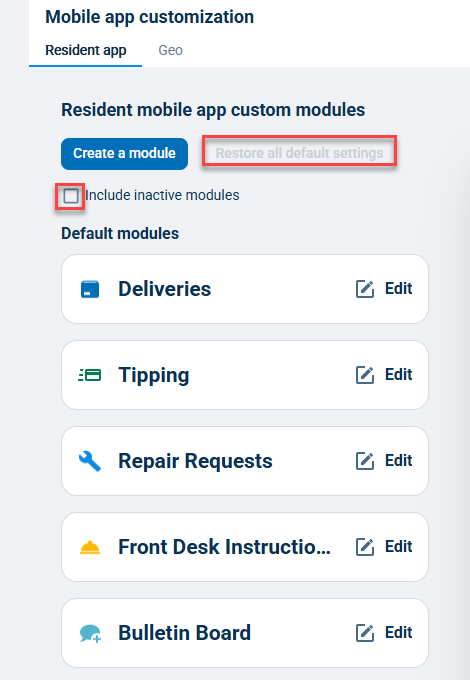
To see deactivated modules, check the box next to "Include inactive modules". Clicking Restore all default settings will undo all changes made to the default module names, and any custom modules created by your property will be removed.
Custom Modules let properties surface important contacts (phone, SMS, email) or link to third-party sites (URL) exactly where residents need them.
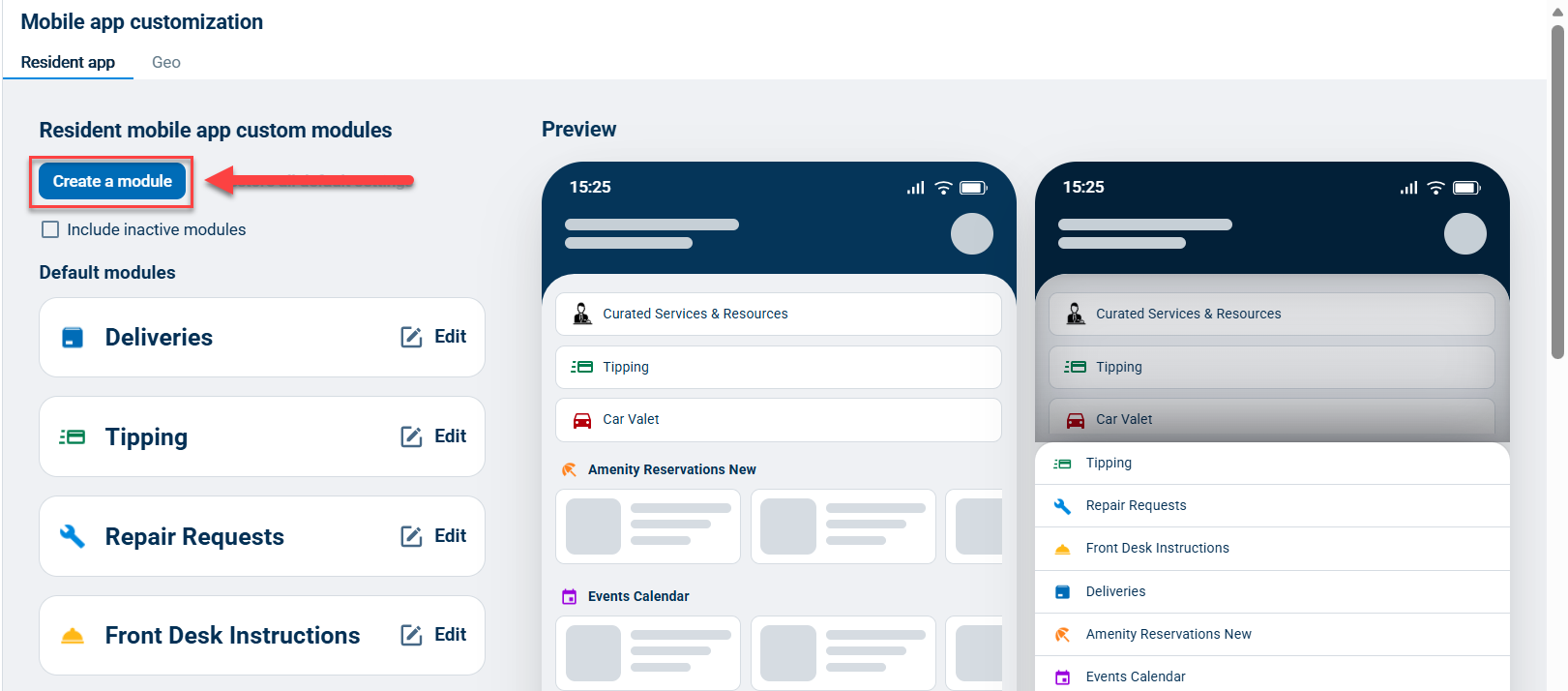
Custom Modules can be added to the Resident App by clicking Create a module.
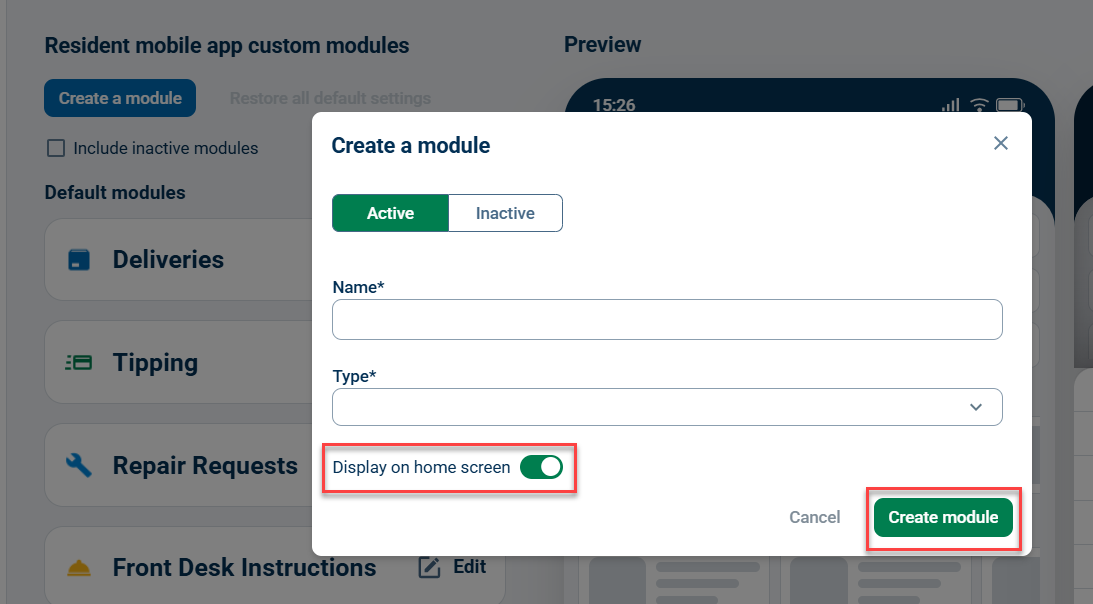
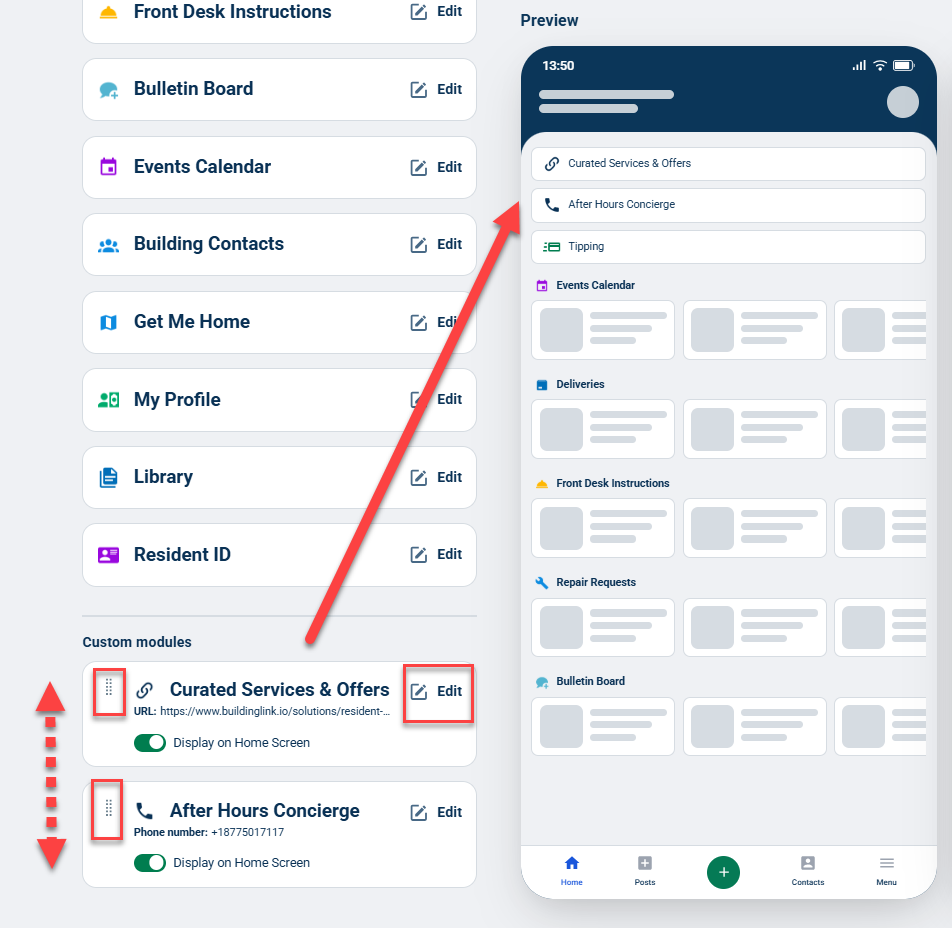
Customize the name and type of the module and choose whether to display it on the home screen, then click Create module. They will appear at the top of the home screen and can be sorted within that section by holding the drag dots and dropping each module into the desired order.
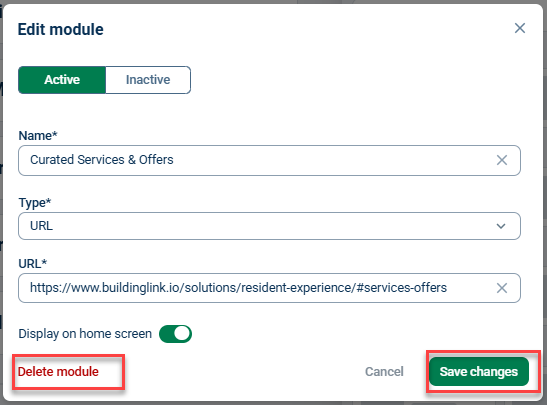
You can edit your Custom Modules by following the same steps to edit a Default Module, and you will also have the option to delete them.
Supported custom module types include:
Type | Use Case |
|---|---|
Phone | Tap-to-call button for an important contact (e.g., front desk, emergency line) |
SMS | Tap-to-text button for a contact |
Tap-to-email button for a contact | |
URL | Link to a third-party site (e.g., property website, payment portal) |
GEO
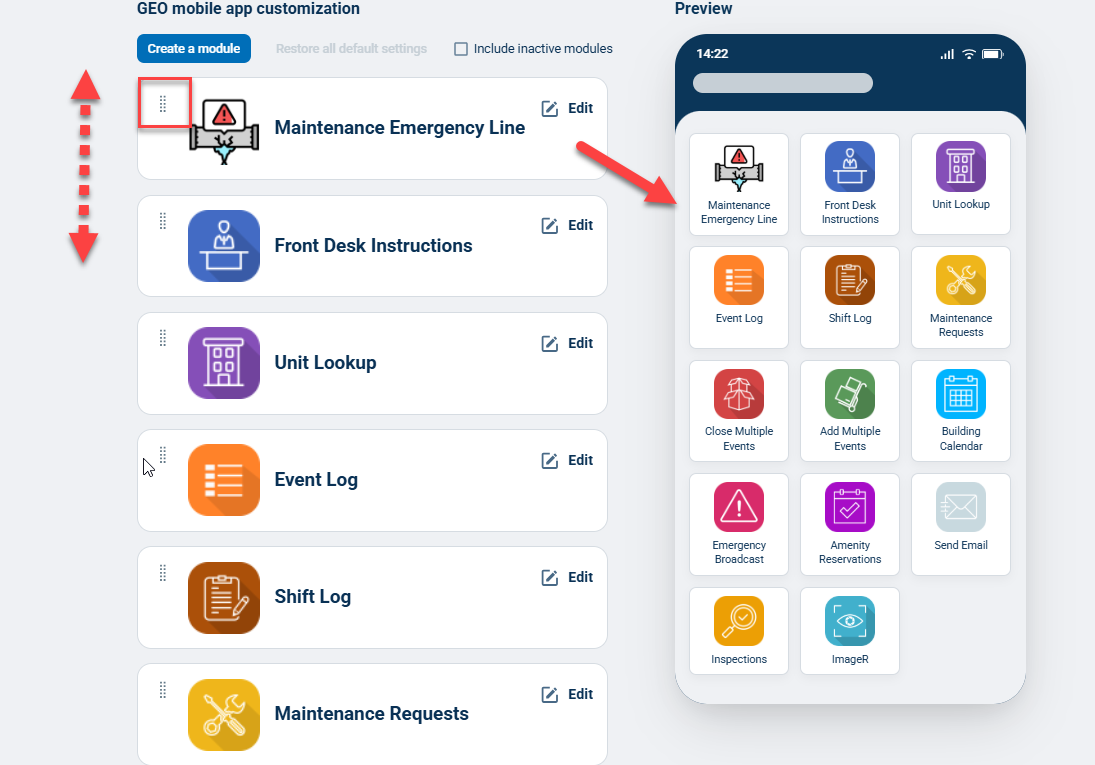
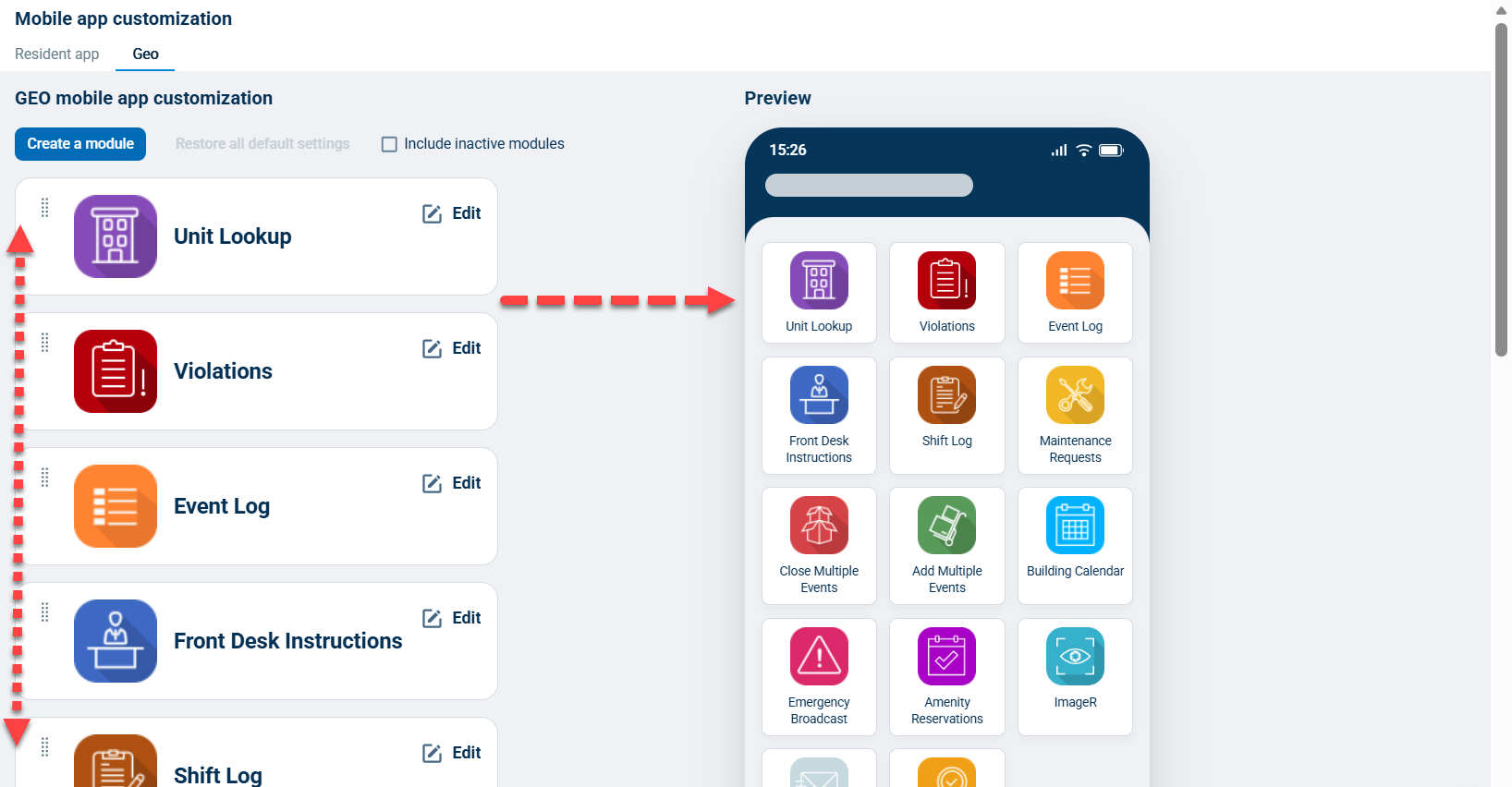
Customize the GEO App experience by updating the features in the GEO tab. With the GEO App, you can upload custom icons for the Default Modules. You can see your changes in the Preview section on the right side of the screen.
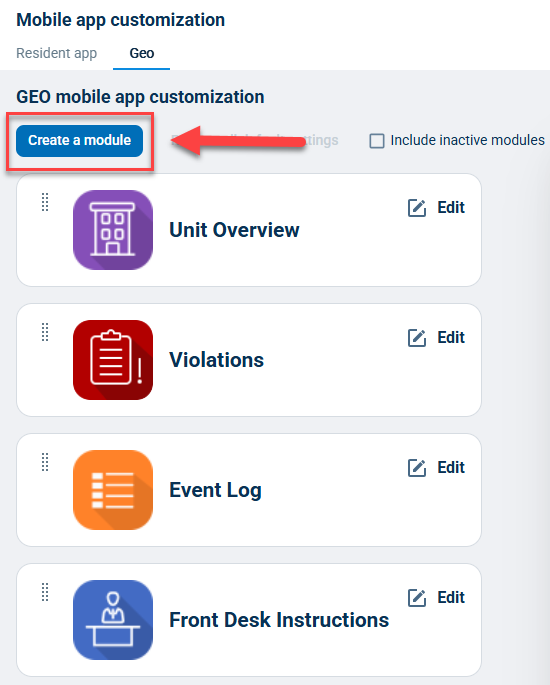
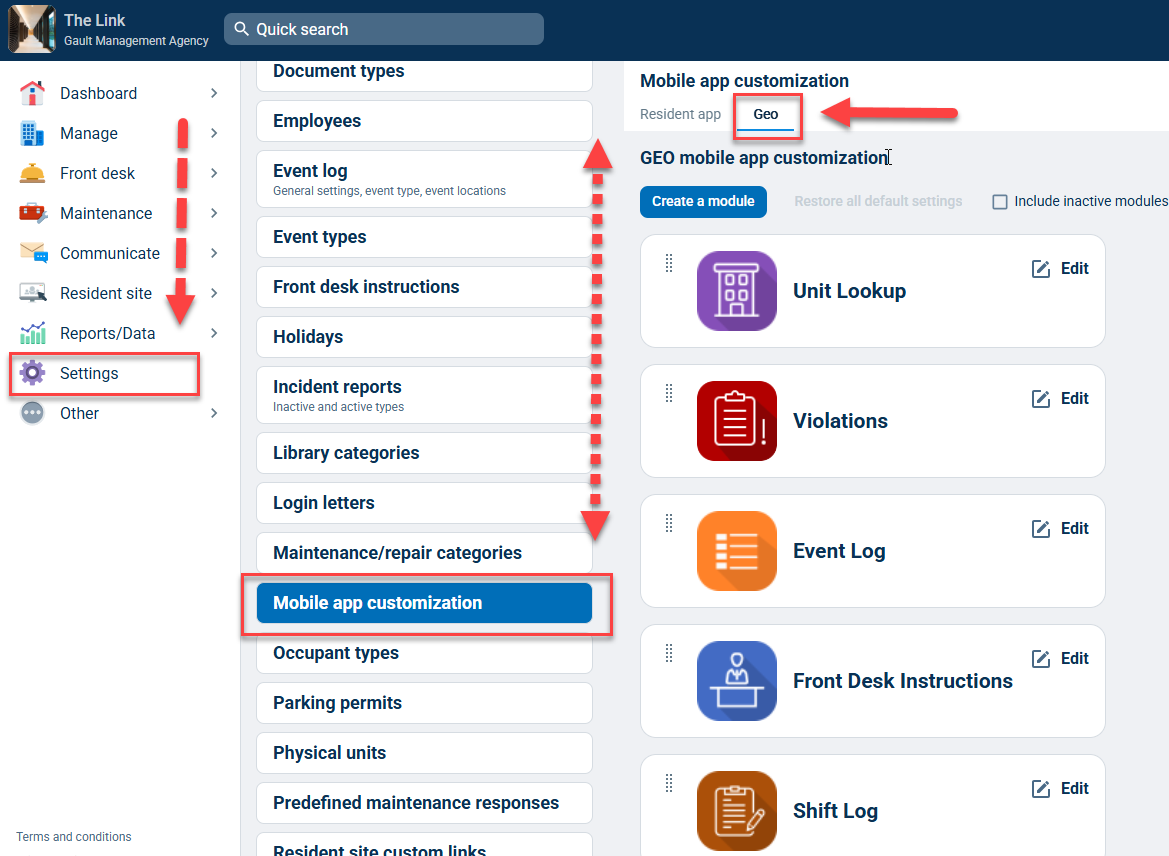
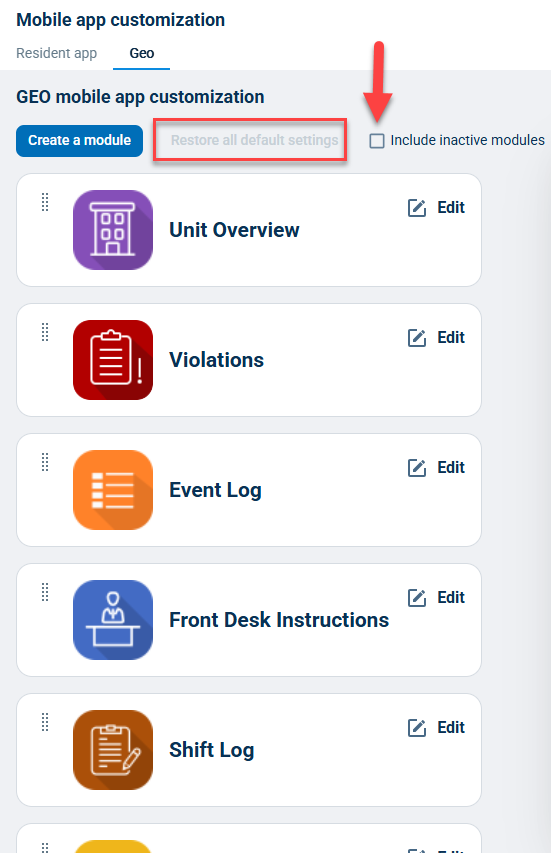
From your Dashboard, go to Settings, select Mobile App Customization, and click the Geo tab.
Modules can be reordered by holding the drag dots and dropping each module to the desired order.
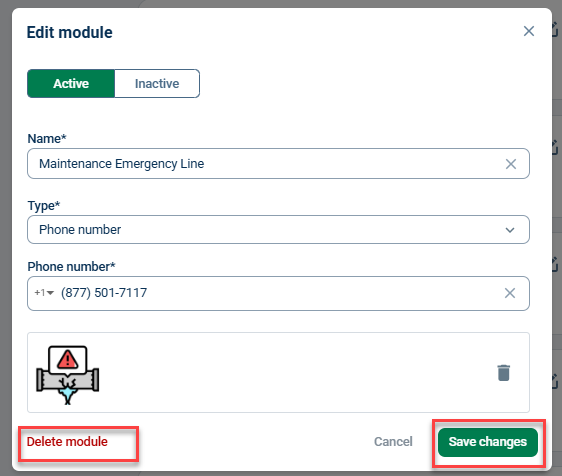
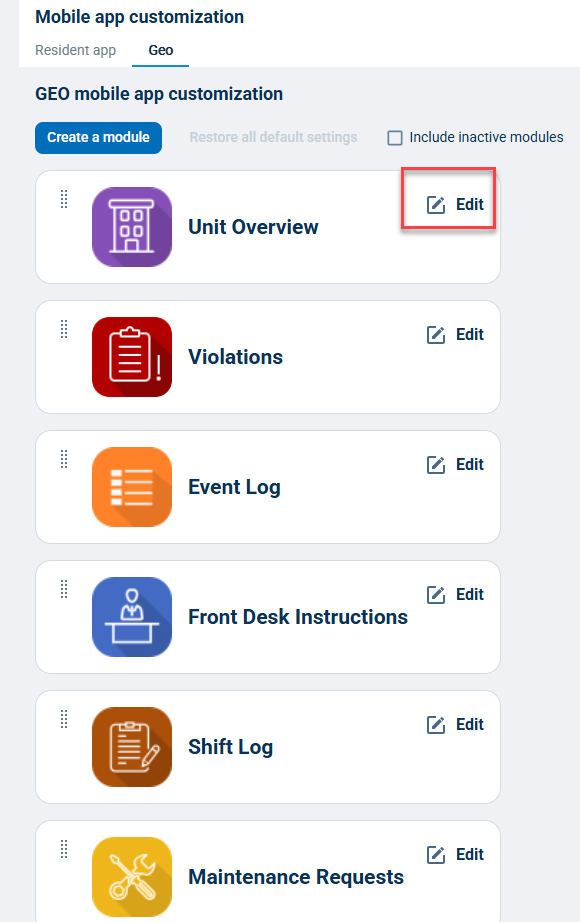
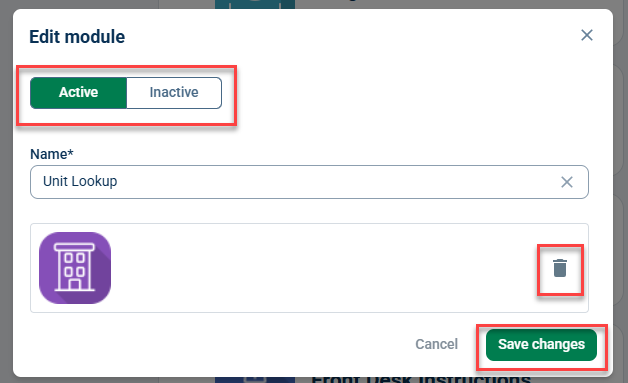
Click the Edit button next to a module to edit its name and icon image. On the next screen, you can write in your name text. Click the trash can icon to remove the default icon and upload your own. If you want to hide the module, select Inactive. Click Save when you're done.
To see deactivated modules, check the box next to "Include inactive modules". Clicking Restore all default settings will undo all changes made to the default module names and/or icons, and any custom modules created by your property will be removed.
Custom modules let properties surface important contacts (phone, SMS, email) or link to third-party sites (URL) exactly where residents need them.
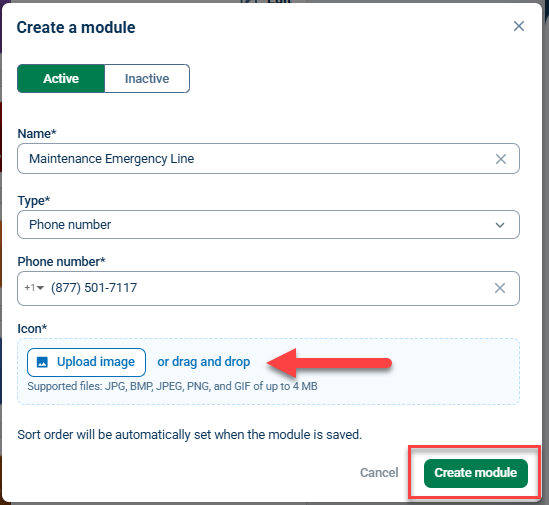
Click Create a module to add a new module button for the GEO app. Add a Name and choose a Type, and Upload image, then click Create module to customize the new module button
Custom modules can be sorted by holding the drag dots and dropping each module to the desired order. You can edit your Custom Modules by following the same steps to edit a Default Module, and you will also have the option to delete them.
Supported custom module types include:
Type | Use Case |
|---|---|
Phone | Tap-to-call button for an important contact (e.g., front desk, emergency line) |
SMS | Tap-to-text button for a contact |
Tap-to-email button for a contact | |
URL | Link to a third-party site (e.g., property website, payment portal) |