Note: This article is for the newly redesigned module. This updated module is in the process of being rolled out and may only be available to some users.
Overview
The Authorized Computers functionality lets Managers and Security Officers restrict specific employees or employee types (i.e., Front Desk users) to accessing BuildingLink only from specific computers designated as Authorized. Managers and Security Officers have the authority to decide which computers are authorized for restricted users.
Note: Click on the images to enlarge them.
Table of Contents
- Authorized Computers Settings
- Restricting or Allowing Specific Users
- Managing Computer Authorization
- Easily Identifying Computers
- View/Edit Existing Login Rules
Authorized Computers Settings
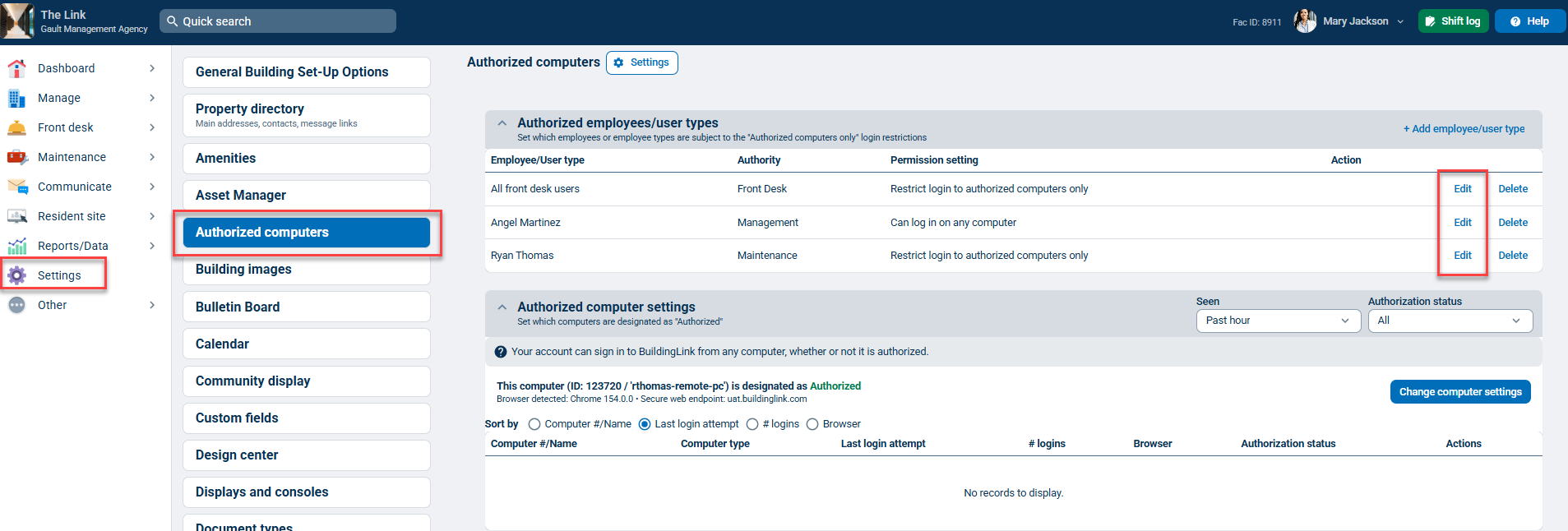
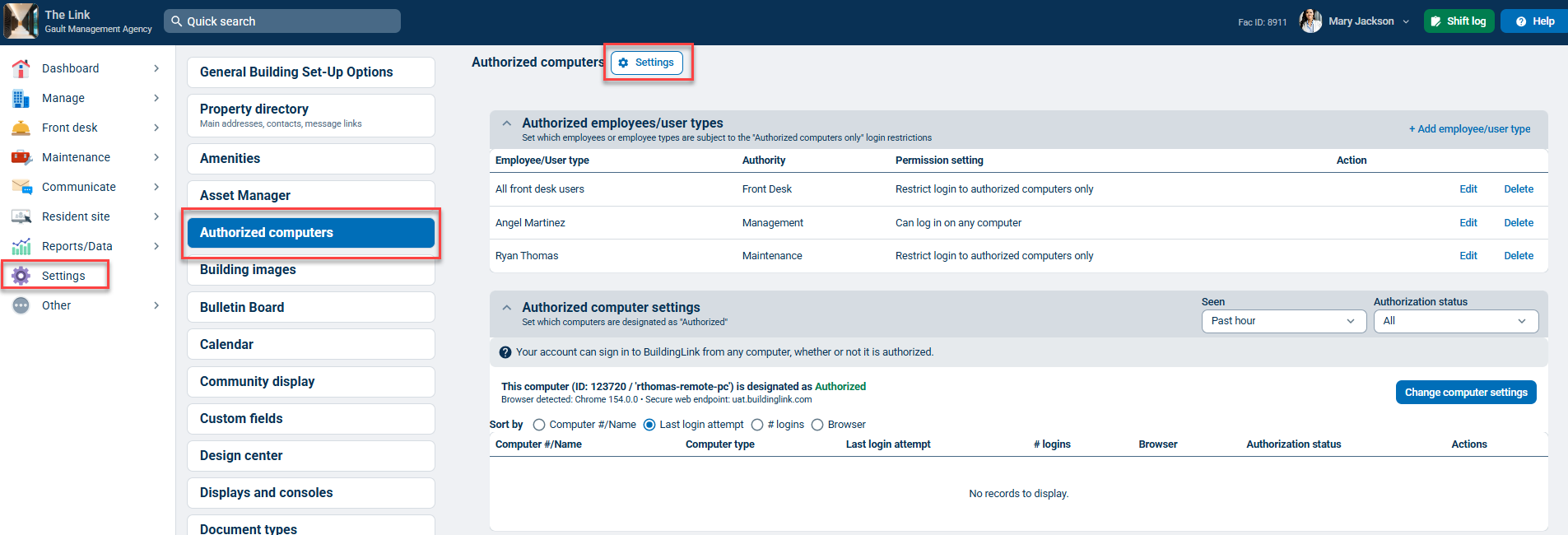
To view and edit general permissions and security settings for Authorized computers, click Settings, select Authorized computers, and click the Settings button.
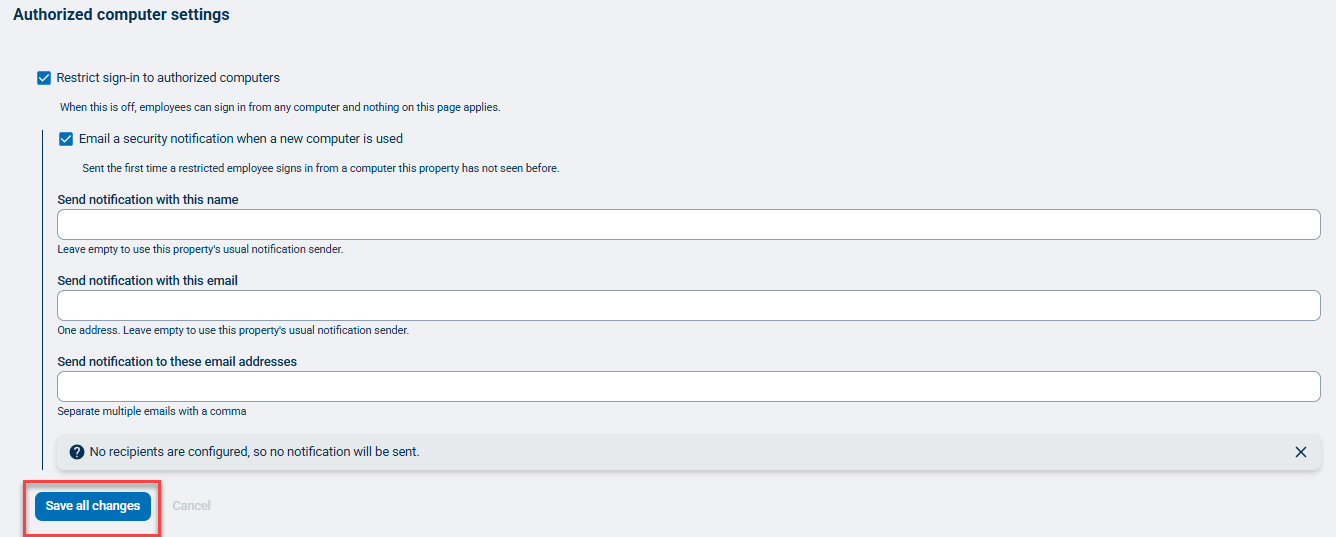
You can restrict sign-ins to authorized computers by enabling Restrict sign-in to authorized computers and set up security notification preferences by enabling Email a security notification when a new computer is used. Click Save all changes to commit changes.
Note: Send notification fields are available only if Email a security notification when a new computer is used is enabled.
Restricting or Allowing Specific Users
By default, ALL employees can log into any computer, and employee permissions override user types. You don't need to set up permission settings for individual employees unless you're trying to override a user type permission.
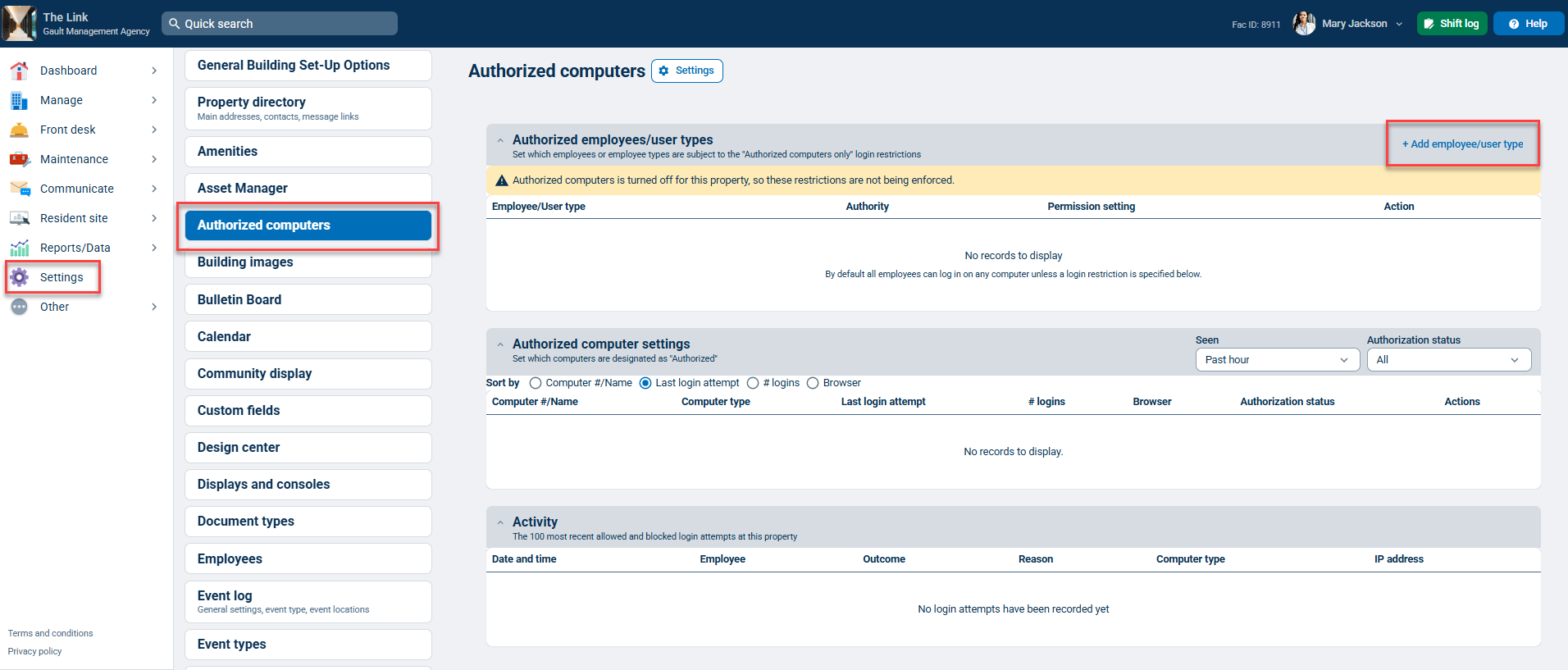
To view user permissions and login restrictions, click Settings and select Authorized computers.
The Authorized computers module will show which employees or user types are subject to login restrictions. To add a new permission, click + Add employee/user type.
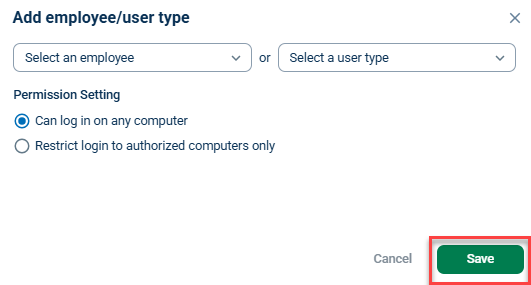
Next, select the employee or user type you want to restrict or allow from the respective dropdown menu. After selecting the specific employee or user type you want to restrict or allow, choose the appropriate Permission Setting. Click Save to commit changes.
Note: Security Officers can never be restricted and are excluded from the restrictable-user list.
Managing Computer Authorization
After setting permissions for employees or user types, you must authorize the computers that will allow restricted employees access to BuildingLink.
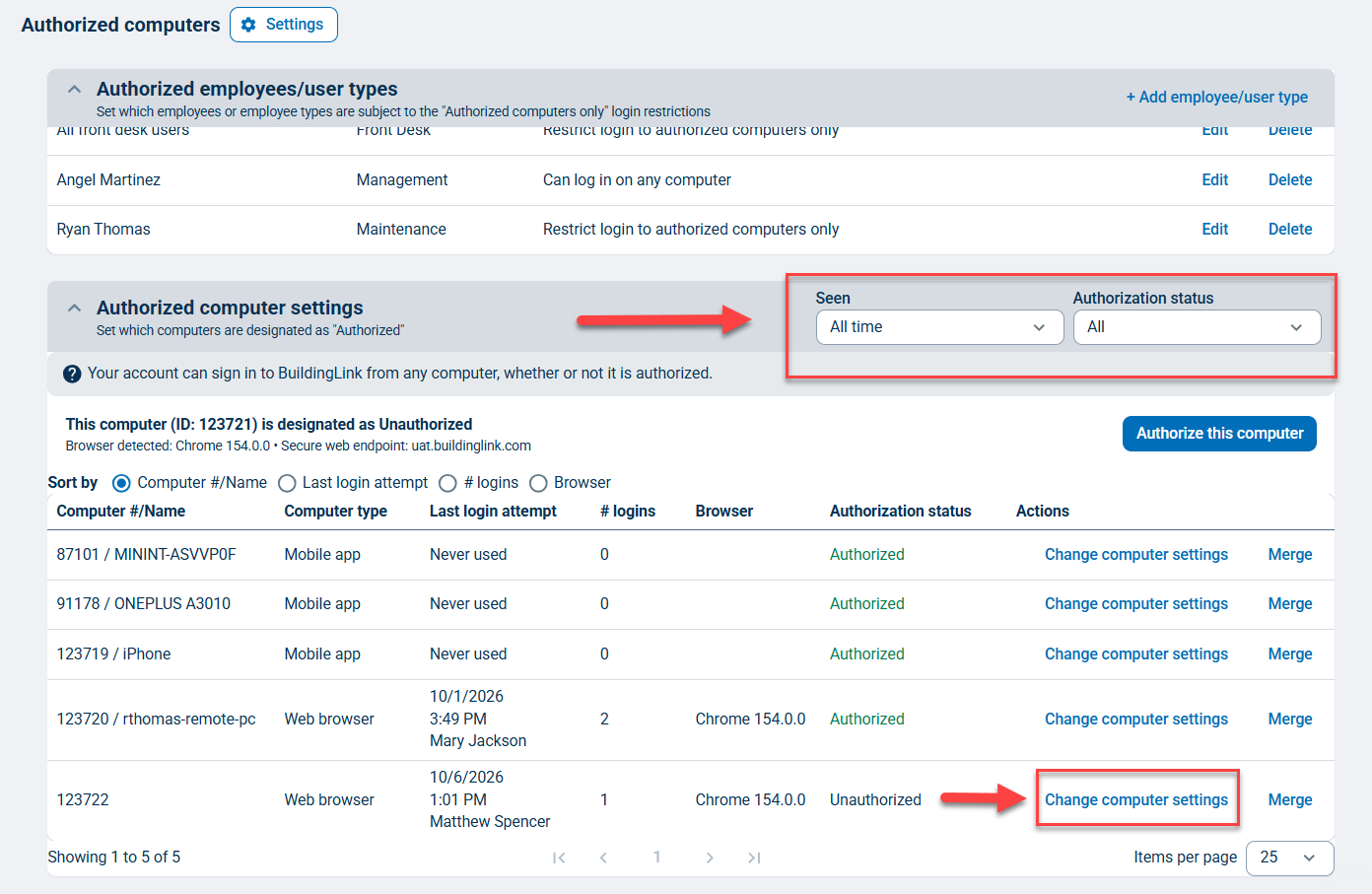
If you are logged into BuildingLink on the computer you want to authorize, click Settings, select Authorized computers, and then click Authorize this computer.
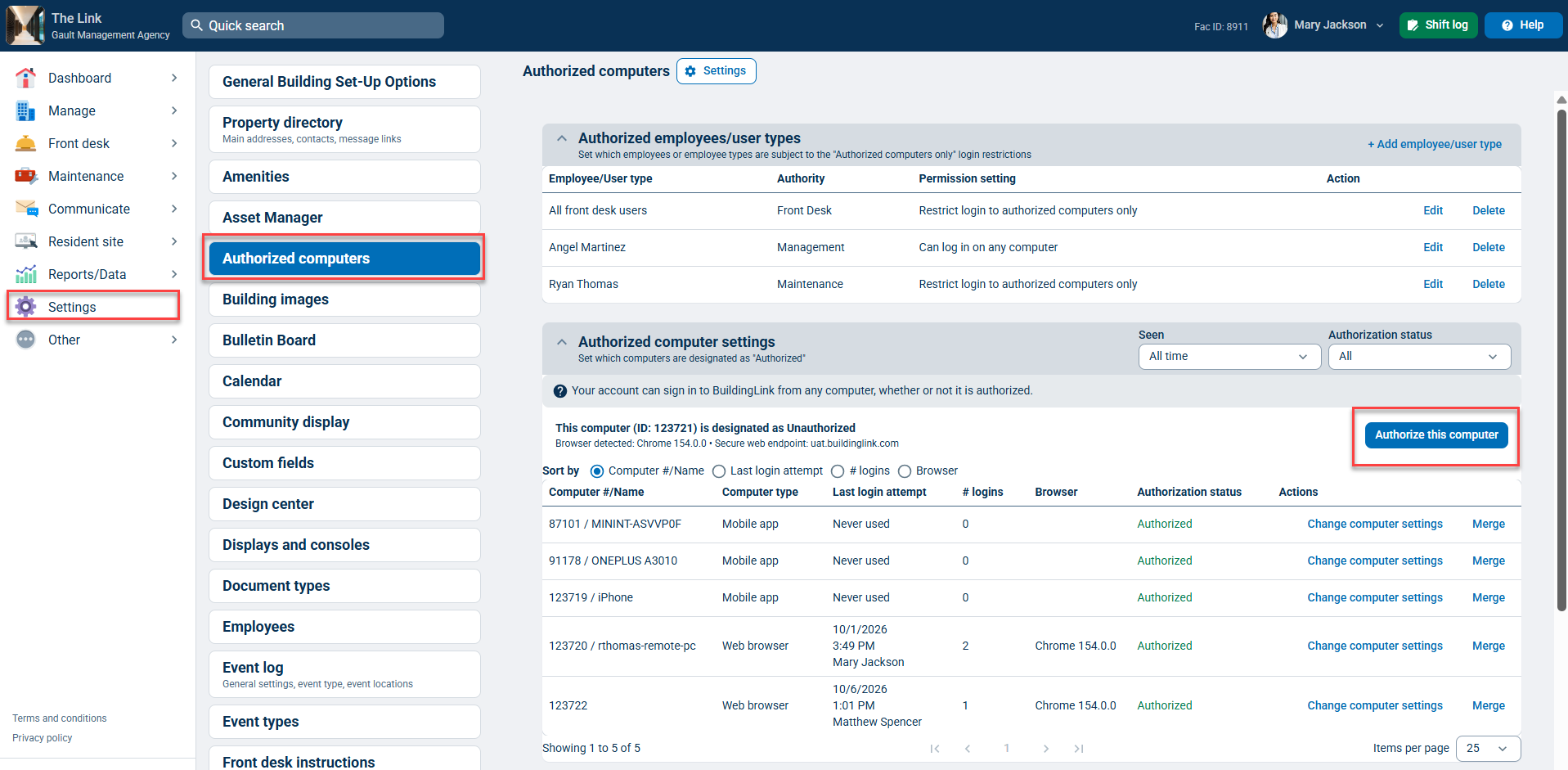
You can also authorize computers remotely from this same section by using the Seen and Authorization status filters to pull a list of computers and their current authorization.
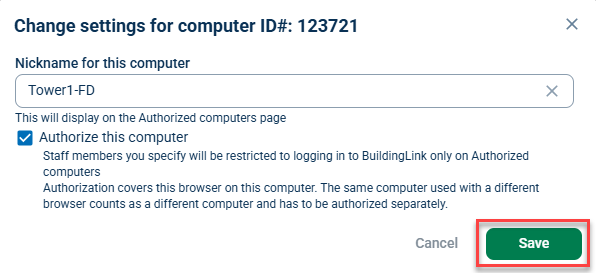
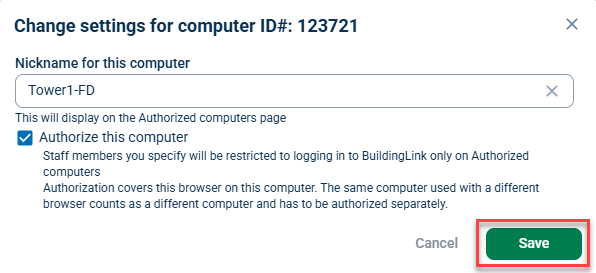
Click Change computer settings on the row of the computer you want to authorize. A Change settings for computer ID# window will appear. You can change the existing nickname for this computer, select Authorize this computer, and click Save to commit changes.
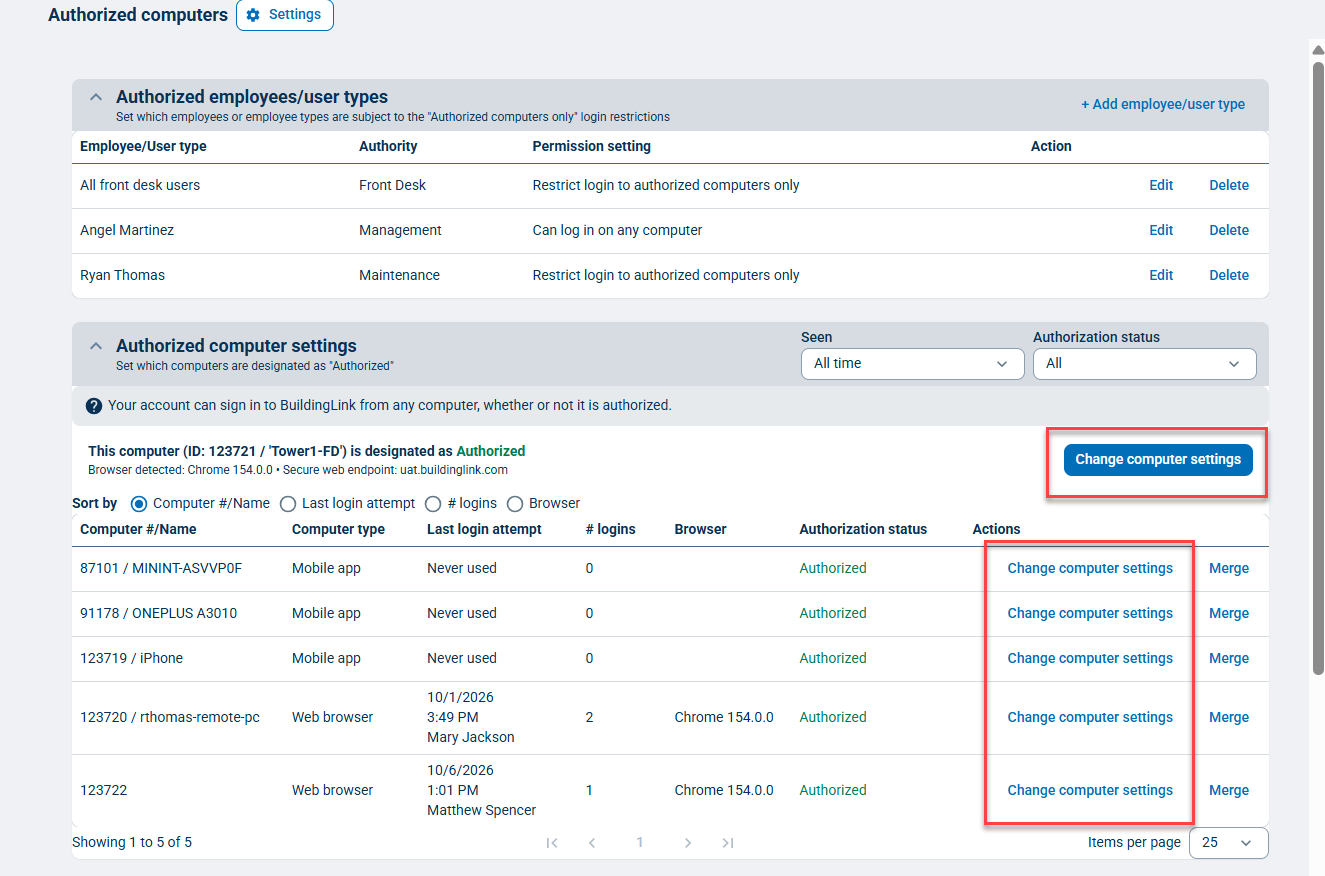
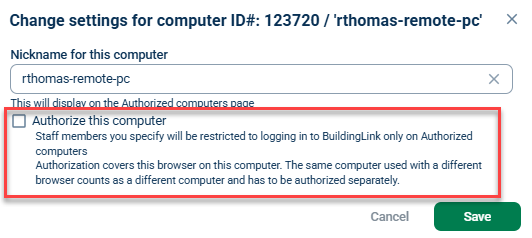
Similarly, to deauthorize a computer, click Change computer settings. In the Change settings for computer ID# window, deselect Authorize this computer and click Save.
Easily Identifying Computers
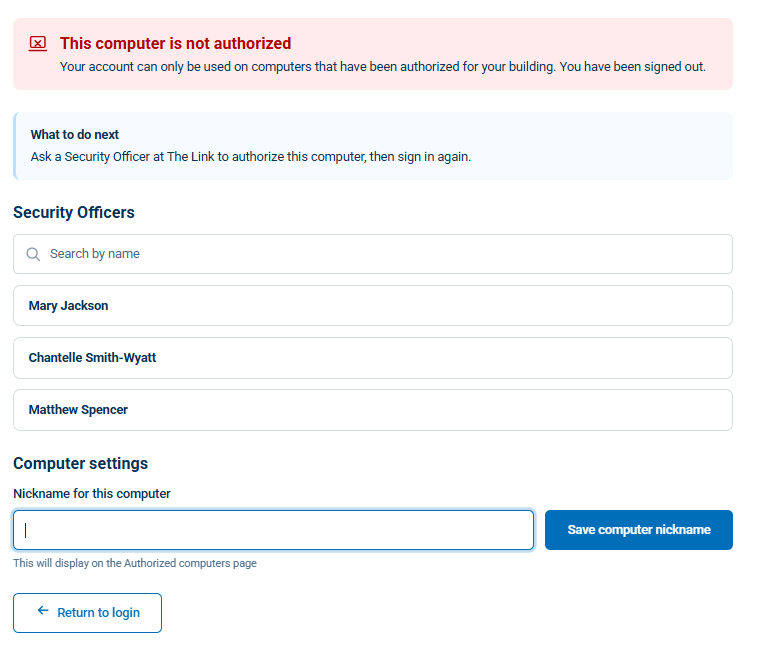
If an employee can't log in to a specific computer, the error message "This computer is not authorized" will be displayed. Employees can then reach out to a Management or Security Officer user with their Computer ID# to have their authorization request reviewed for approval.
View/Edit Existing Login Rules
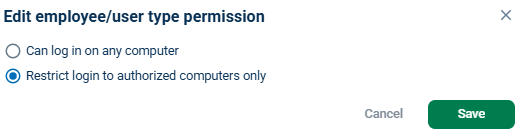
To view or edit the login permissions for your building, click on Settings, select Authorized computers, and select Edit for the employee or user type record you want to change.
An Edit employee/user type permission window will appear. Select the setting that you want to update, then click Save.