

Note: This article is for the newly redesigned module. This updated module is in the process of being rolled out and may only be available to some users.
Overview |
Note: Click on the images to enlarge them.
Table of Contents
- Emergency Broadcast Permissions
- Sending an Emergency Broadcast (Voice)
- Sending an Emergency Broadcast (SMS)
- Viewing Broadcast Reports and Results
- Sending an Emergency Broadcast through the GEO app
Emergency Broadcast Permissions
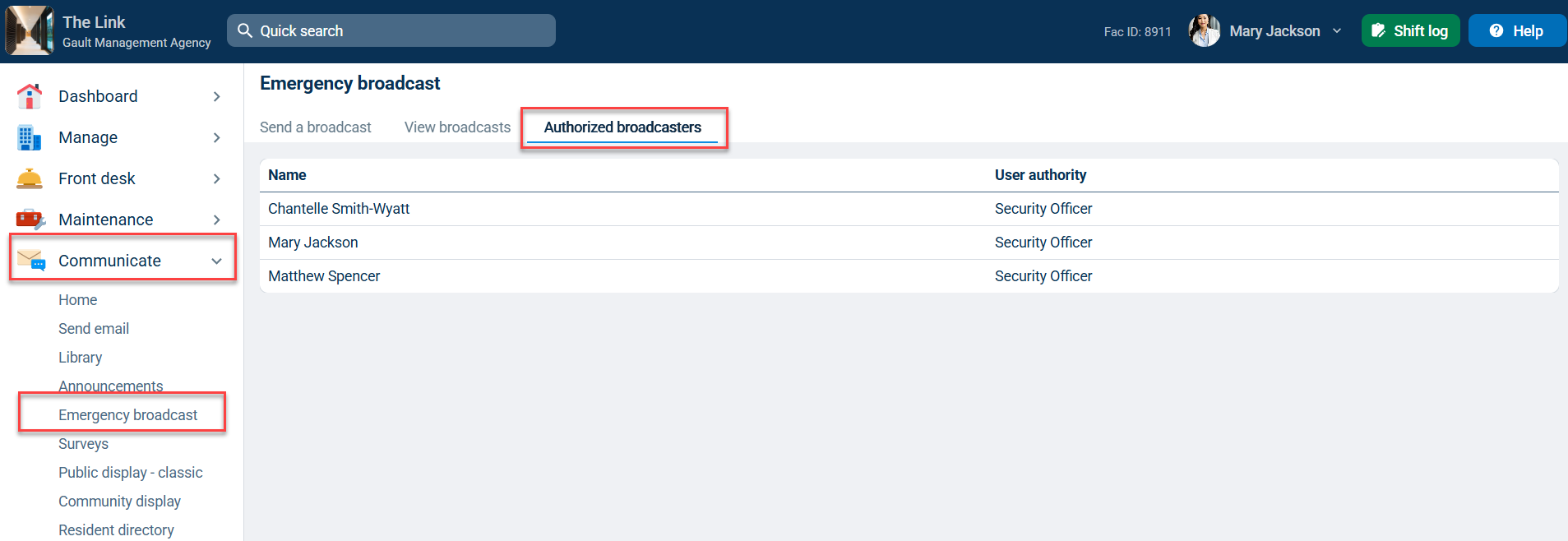
To access the Emergency Broadcast module, click the Communicate tab, then click the Emergency broadcast link.
By default, only BuildingLink users with Security Officer level authority can send an emergency broadcast, and only Manager and Security Officer level users can access View broadcast to see broadcast results.
Click on the Authorized broadcasters tab to see a list of authorized broadcasters for your property.
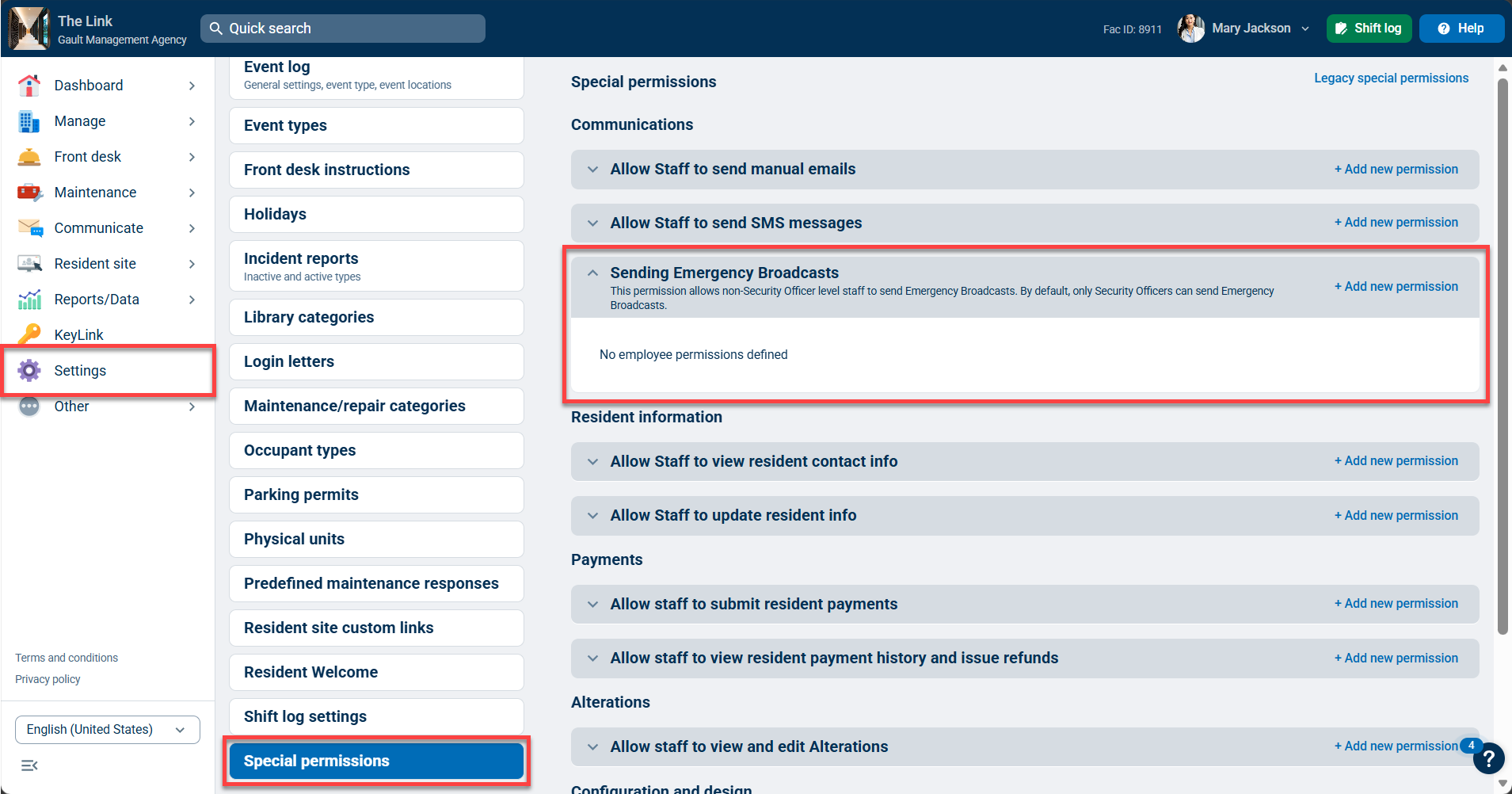
You can set up Special Permissions if you would like to enable other users or user types to send and/or view Emergency Broadcasts.
Sending an Emergency Broadcast (Voice)
To send an Emergency Broadcast, click on the Communicate tab and select Emergency broadcast.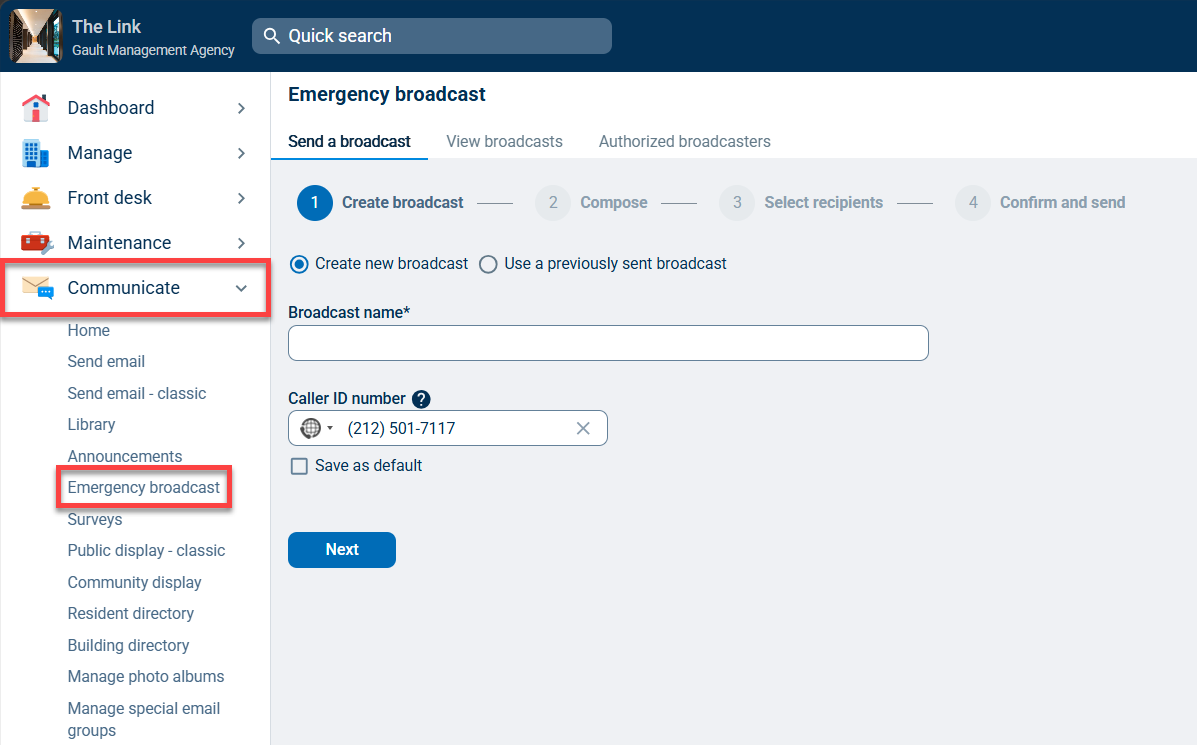
Create a New Broadcast
Select Create new broadcast.
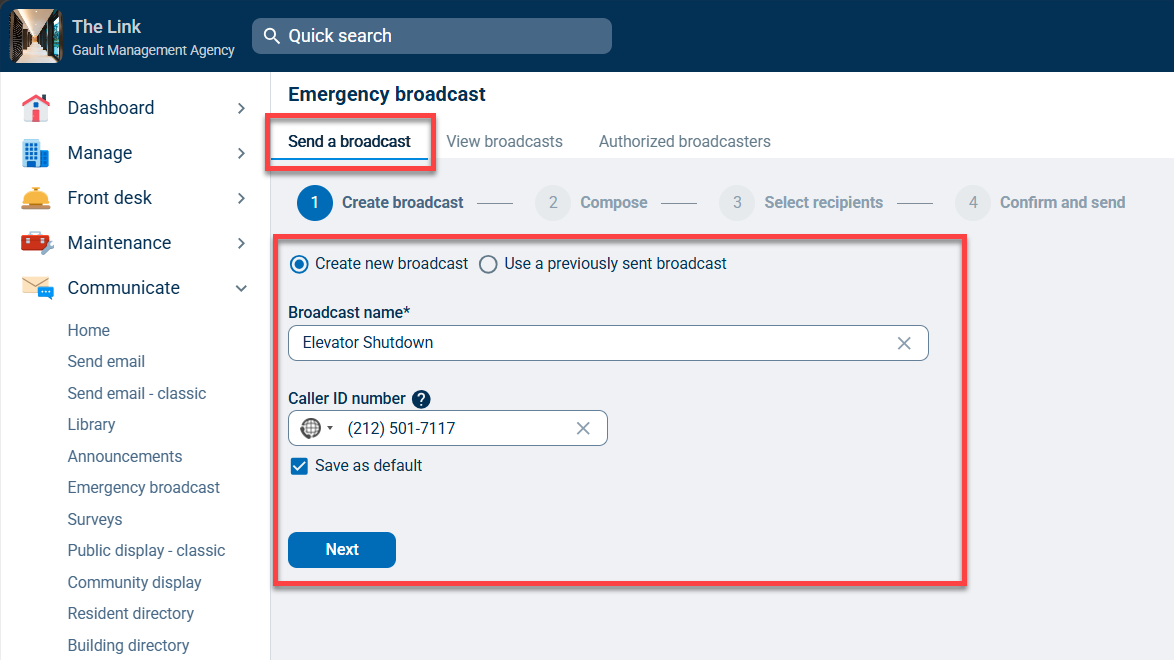
You'll be prompted to input a Broadcast name and a Caller ID number for the broadcast; this is the number that will appear on a resident's phone when they receive the call. While this is an optional field, it is strongly recommended, since residents will be more likely to answer the call if they recognize the number.
If you do not enter a Caller ID number, the call will appear to be coming from a temporary DoNotReply number. If you'd like to store a default caller ID number, check the box next to Save as default and the number will automatically populate when sending future broadcasts.
Next, enter a name for your broadcast and click Next.
Reuse a Previously Sent Broadcast
All previous Emergency Broadcasts sent out for your building will be automatically saved.
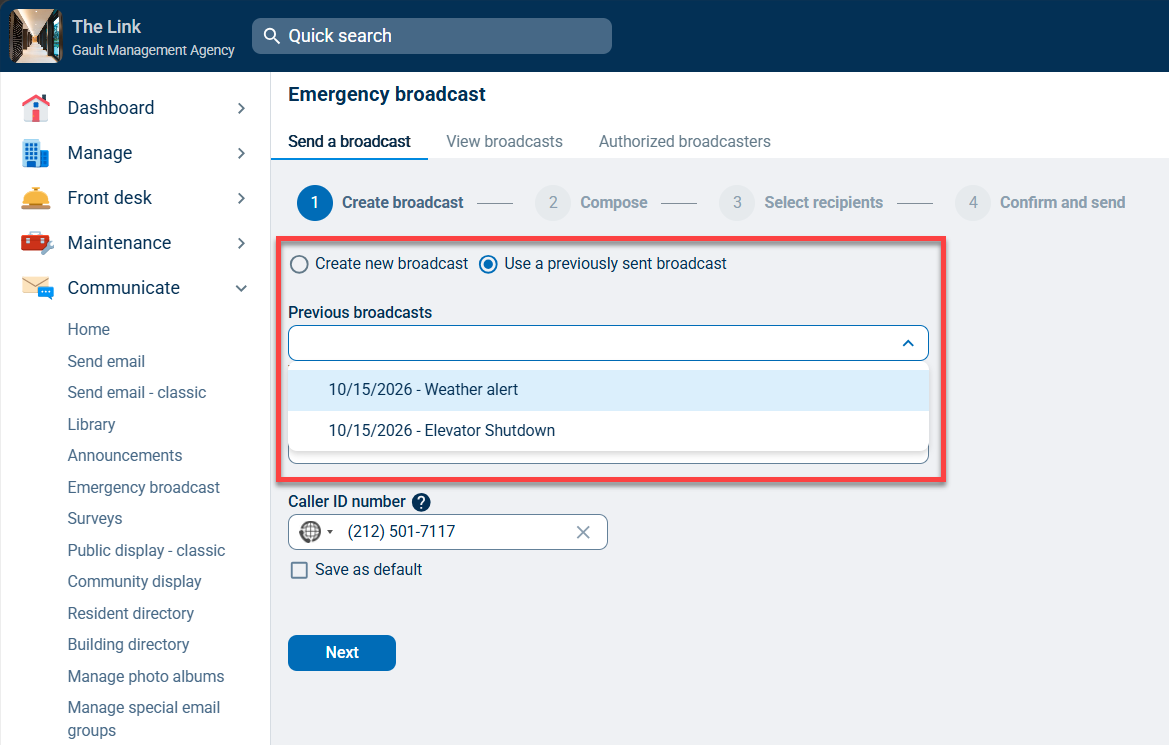
You can send one of these messages again by selecting the Use a previously sent broadcast option and selecting your desired message from the dropdown list.
You'll be able to edit or add to the existing message and change the recipient list later.
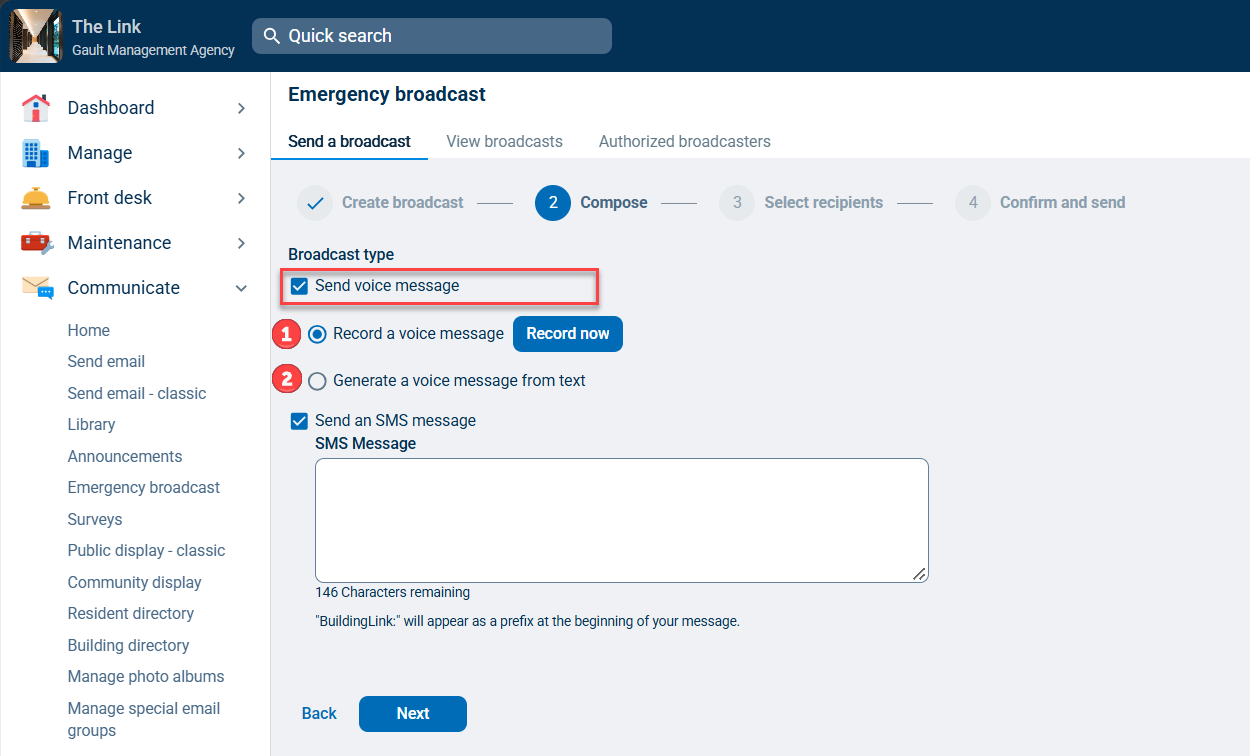
You have two options when creating a voice message. The Record a voice message option will allow you to record your voice speaking a message (great for sending broadcasts in another language).
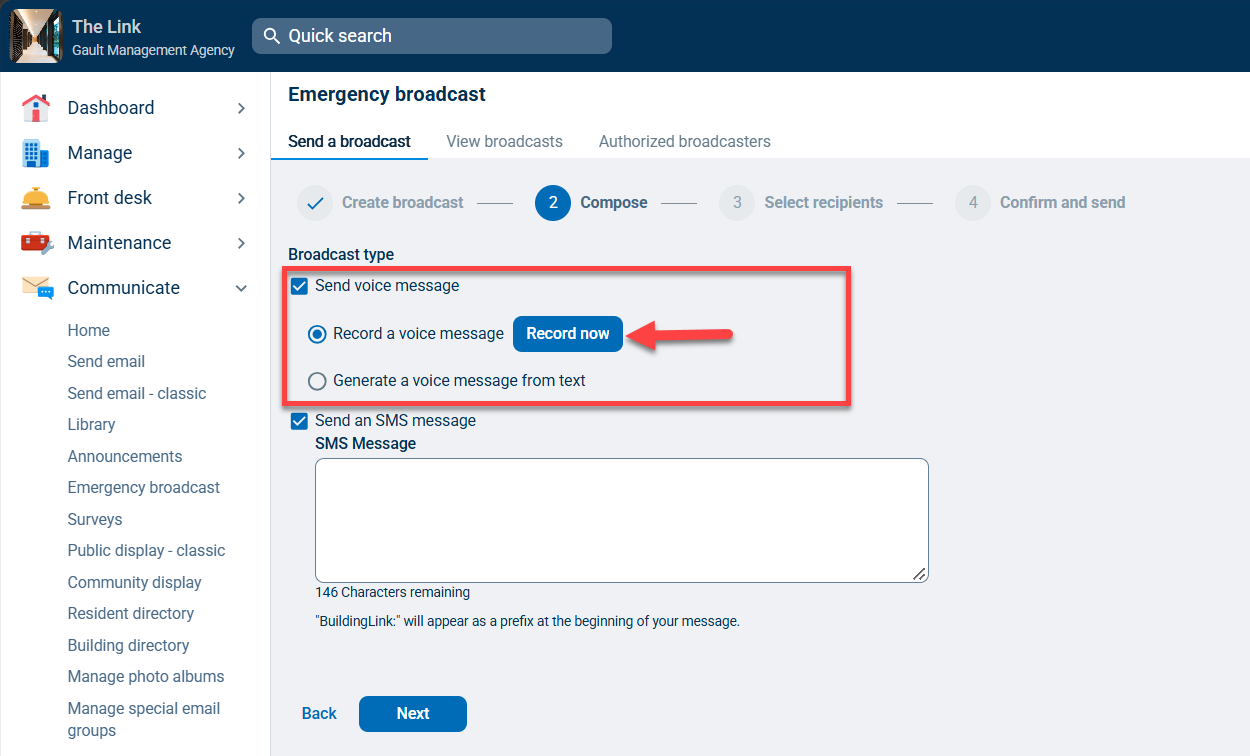
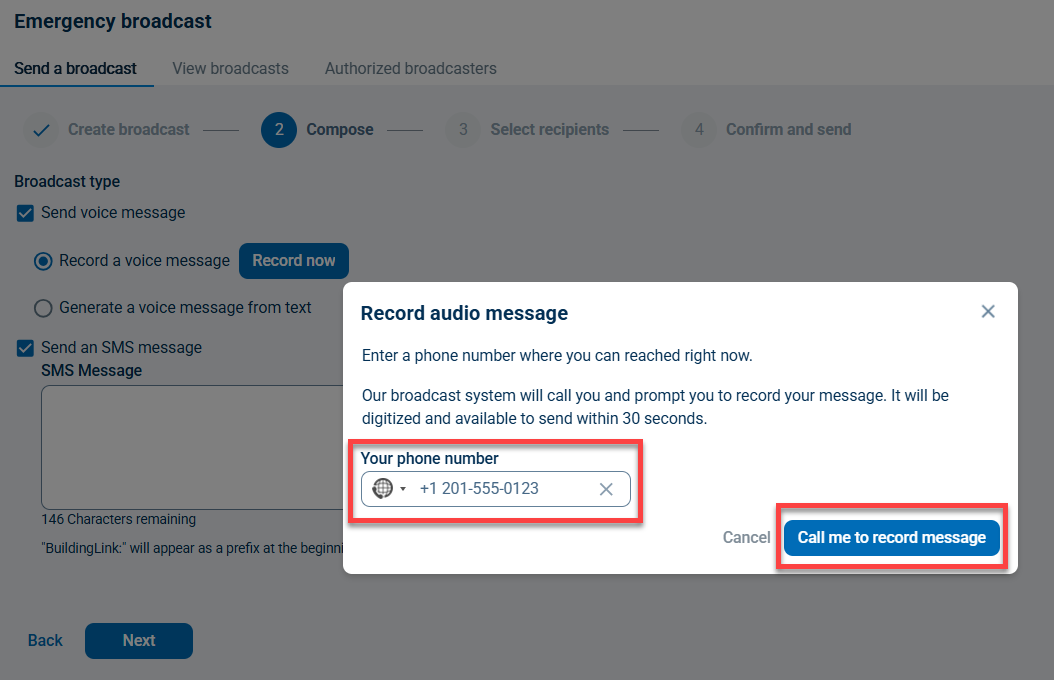
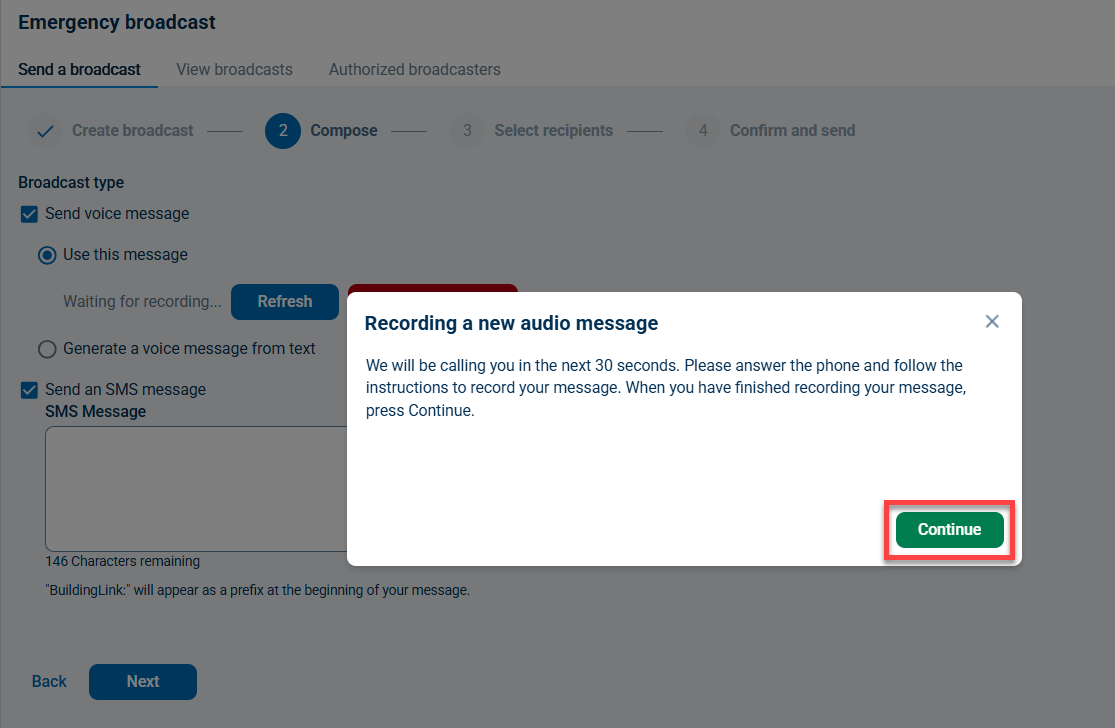
If choosing to Record a voice message, when you click the Record now button a window will pop up requesting a number to call you on to record the message. Simply enter your phone number then click the Call me to record message button and follow the prompts on the call.
When you are finished recording your message click Continue.
Recorded voice messages should populate within 30 seconds of you completing the recording on the phone.
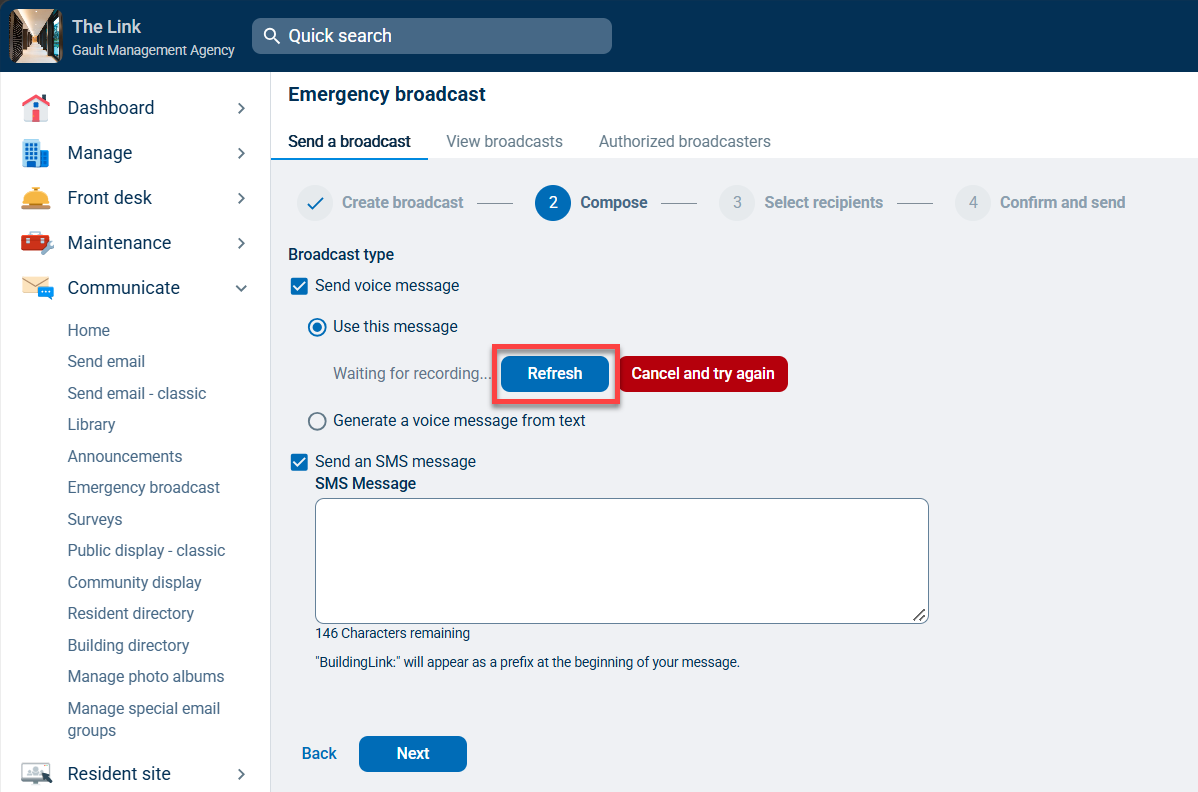
After you finish recording the voice message, click the Refresh button to confirm it has been uploaded to BuildingLink.
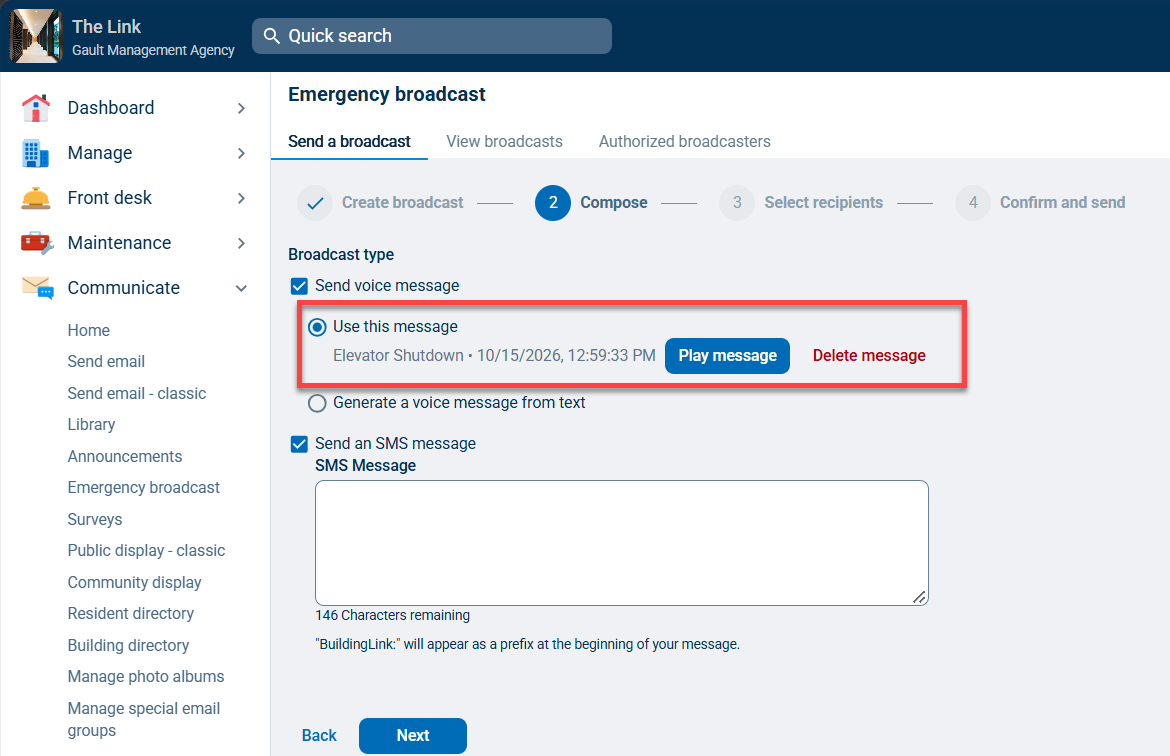
Click Play message to preview the audio recording of your voice message.
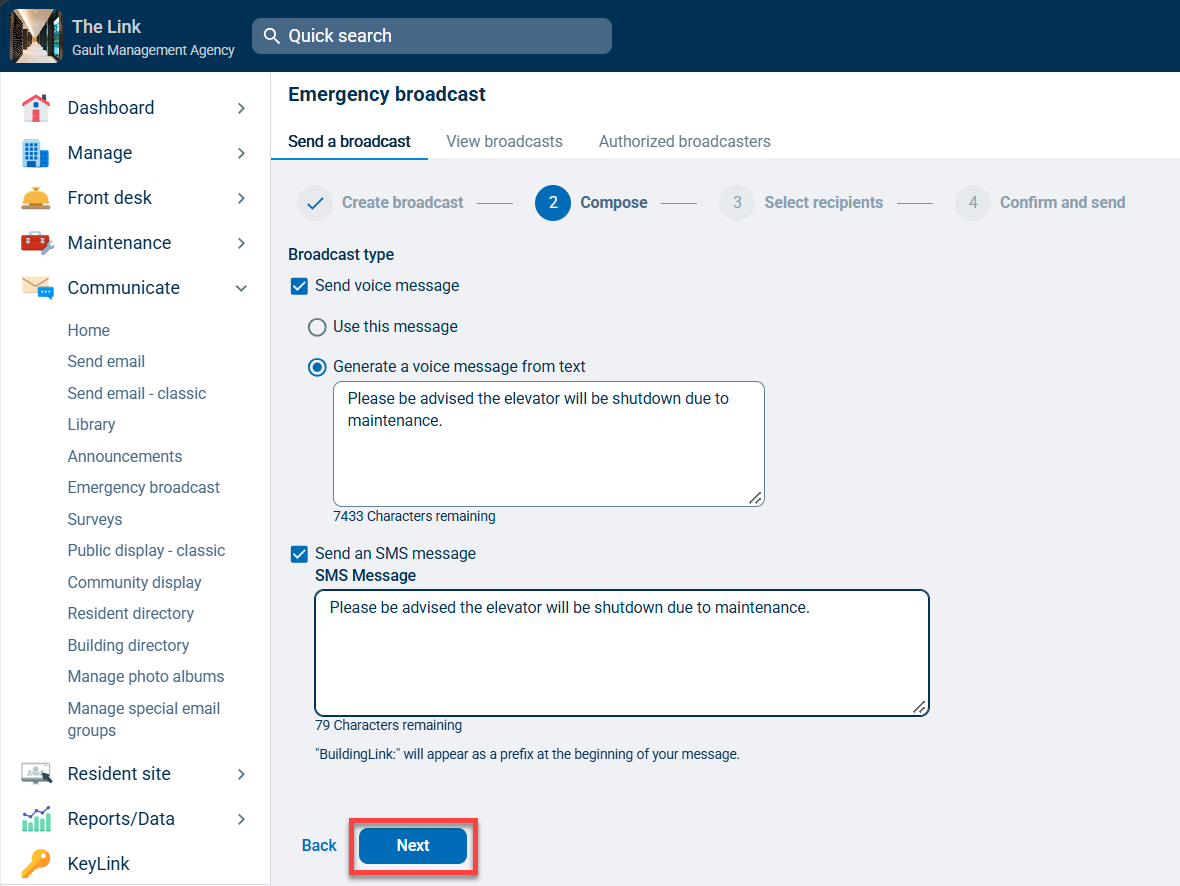
The Generate a voice message from text option will allow you to type in the text of the message you wish to broadcast and have it delivered in a call to residents by a clear, digital voice.
Once your message is complete, click the Next button.
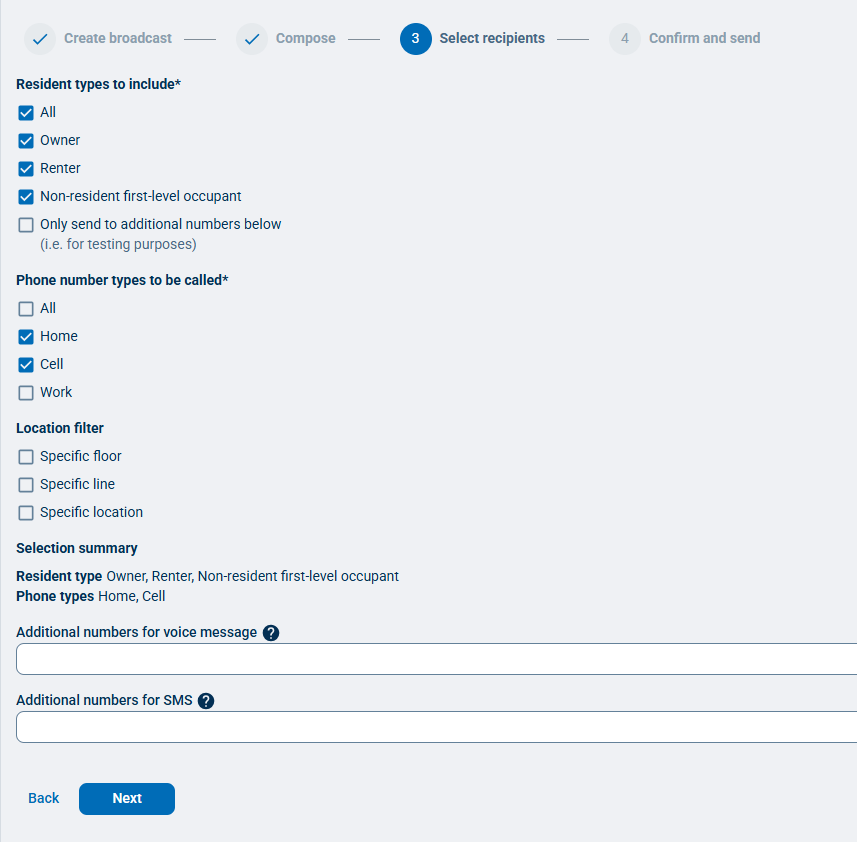
On the next tab, define your recipient list. You can send to all residents, specific resident types, and/or residents from specific floors, lines, and locations. You can also input any additional phone numbers you'd like the broadcast to reach.
You will also need to choose what type of phone numbers you want to send the broadcast to - residents' home, cell, or work numbers.
If you don't want the broadcast to reach any of your existing resident numbers, you can select the Only send to additional numbers below option.
Once your recipient list is complete, click the Next button.
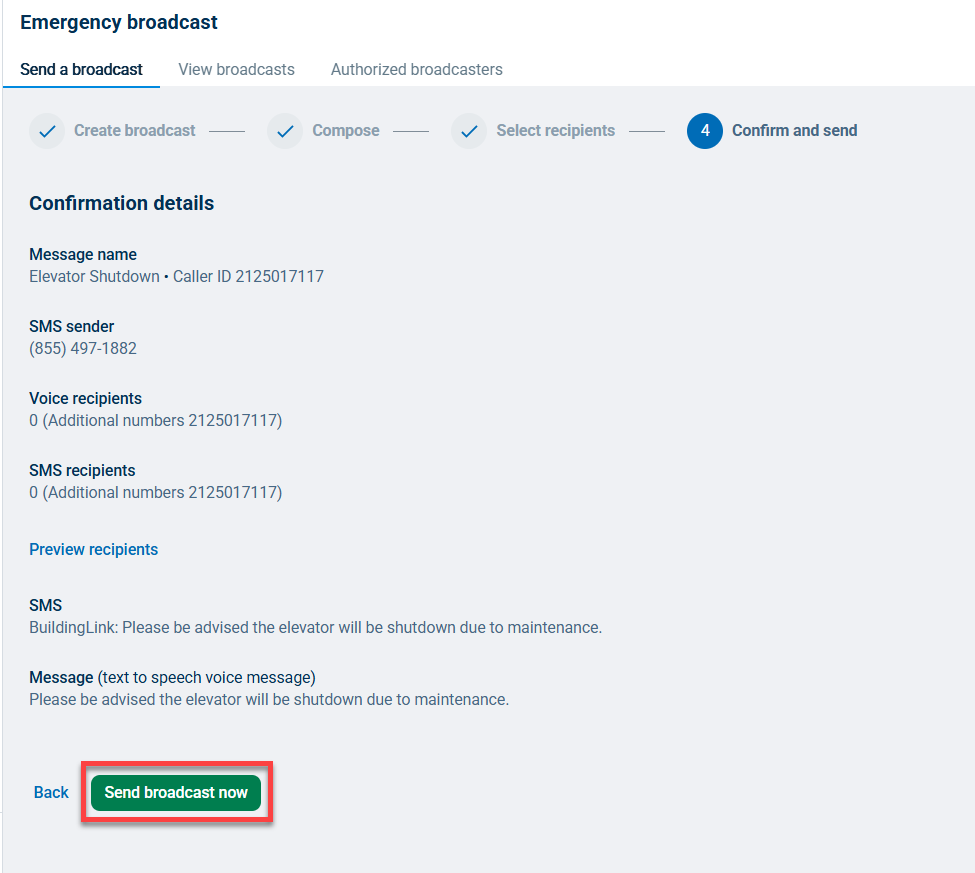
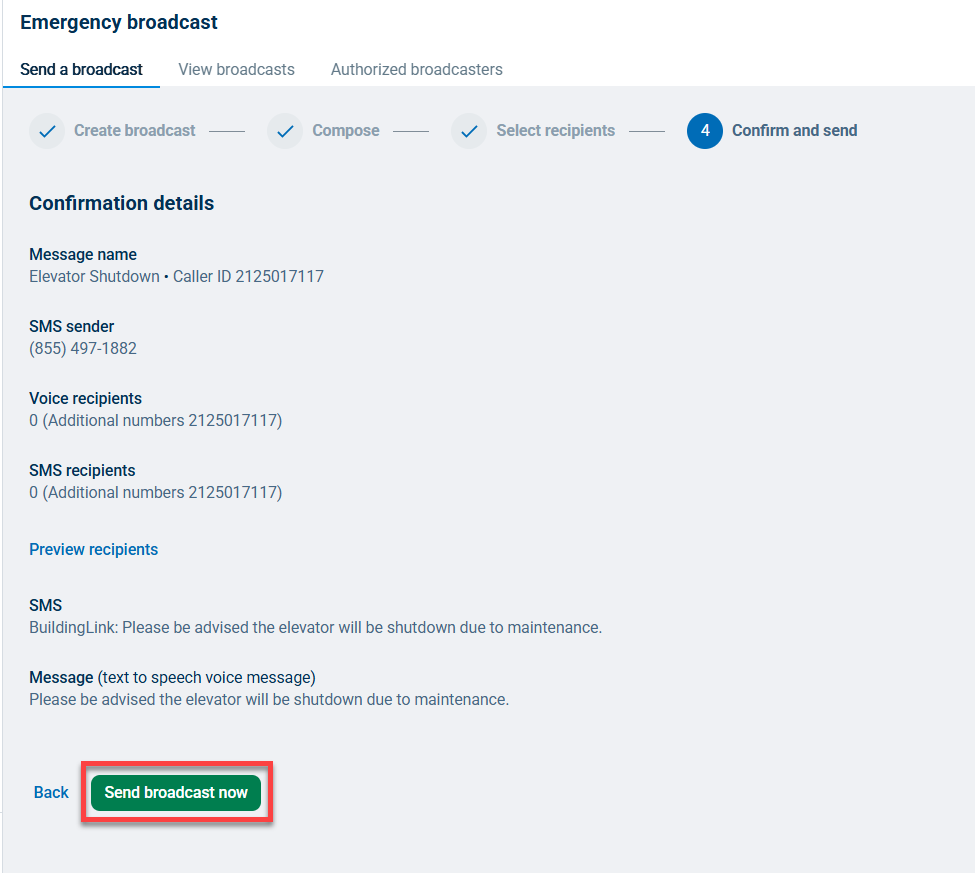
You'll be taken to a confirmation screen, which will display all the details of your message one last time and allows you to hear the audio message, so you may confirm its accuracy before clicking Send broadcast now.
Once you send your broadcast, the messages and calls will typically reach your recipients within 1-15 minutes.
Sending an Emergency Broadcast (SMS)
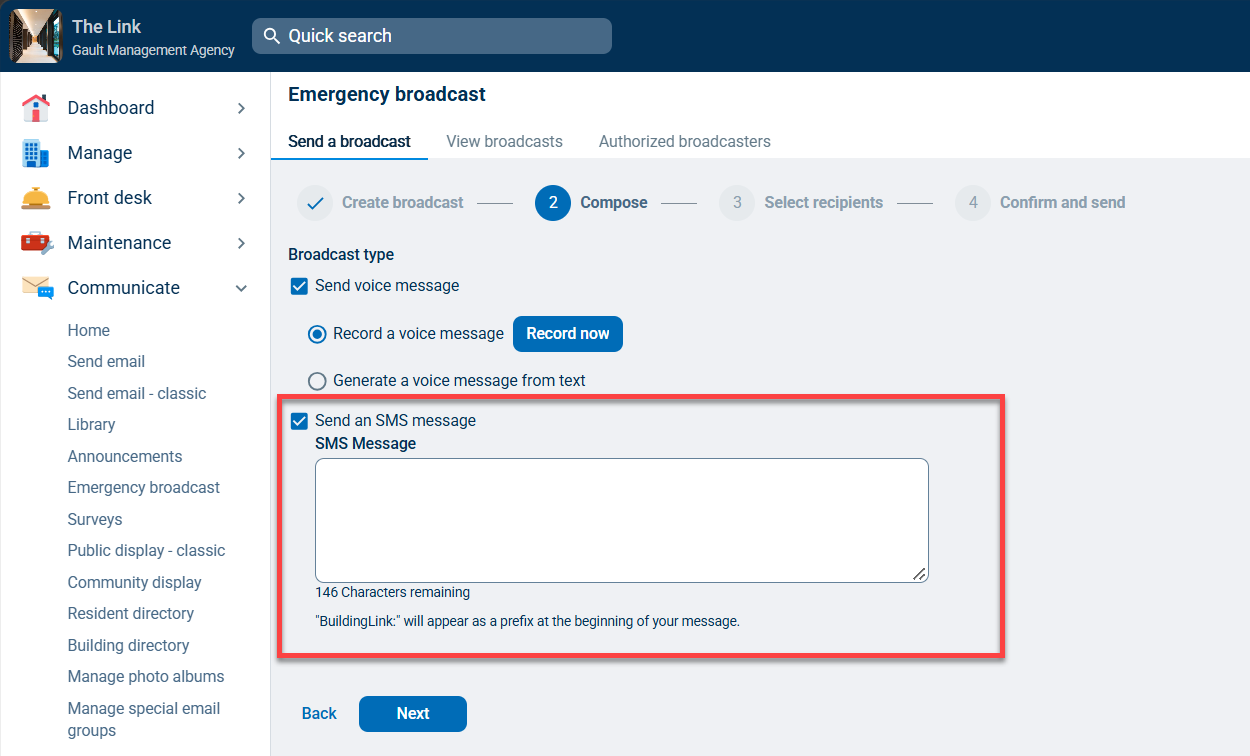
After creating a broadcast, check the box next to Send an SMS message and type in the text of your SMS Message in the text box below. When you are finished creating your message(s), click Next.
Although sending SMS messages may be common, some users may not have unlimited SMS messaging and could incur per-message charges from their carrier.
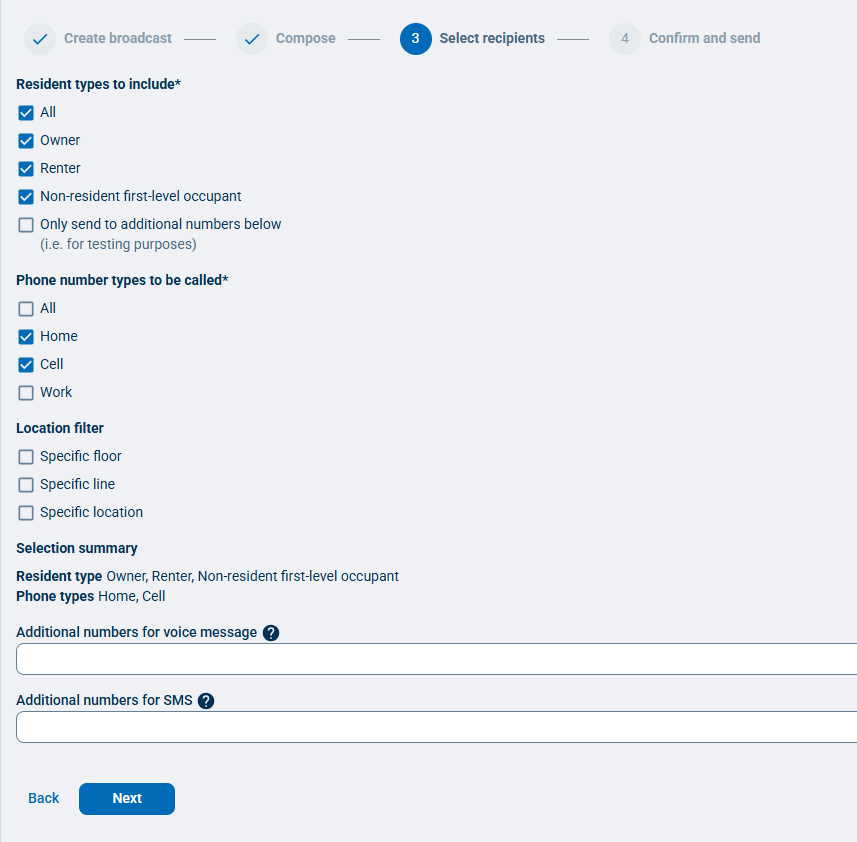
On the next tab, define your recipient list. You can send to all residents, specific resident types, and/or residents from specific floors, lines, and locations. You can also input any additional phone numbers you'd like the broadcast to reach.
You will also need to choose what type of phone numbers you want to send the broadcast to - residents' home, cell, or work numbers.
If you don't want the broadcast to reach any of your existing resident numbers, you can select the Only send to additional numbers below option.
Once your recipient list is complete, click the Next button.
You'll be taken to a confirmation screen, which will display all the details of your message one last time and allows you to hear the audio message, so you may confirm its accuracy before clicking Send broadcast now.
Once you send your broadcast, the messages and calls will typically reach your recipients within 1-15 minutes.
Viewing Broadcast Reports and Results
BuildingLink automatically keeps a history of all your sent Broadcasts and allows you to see specific and detailed Broadcast results/reports.
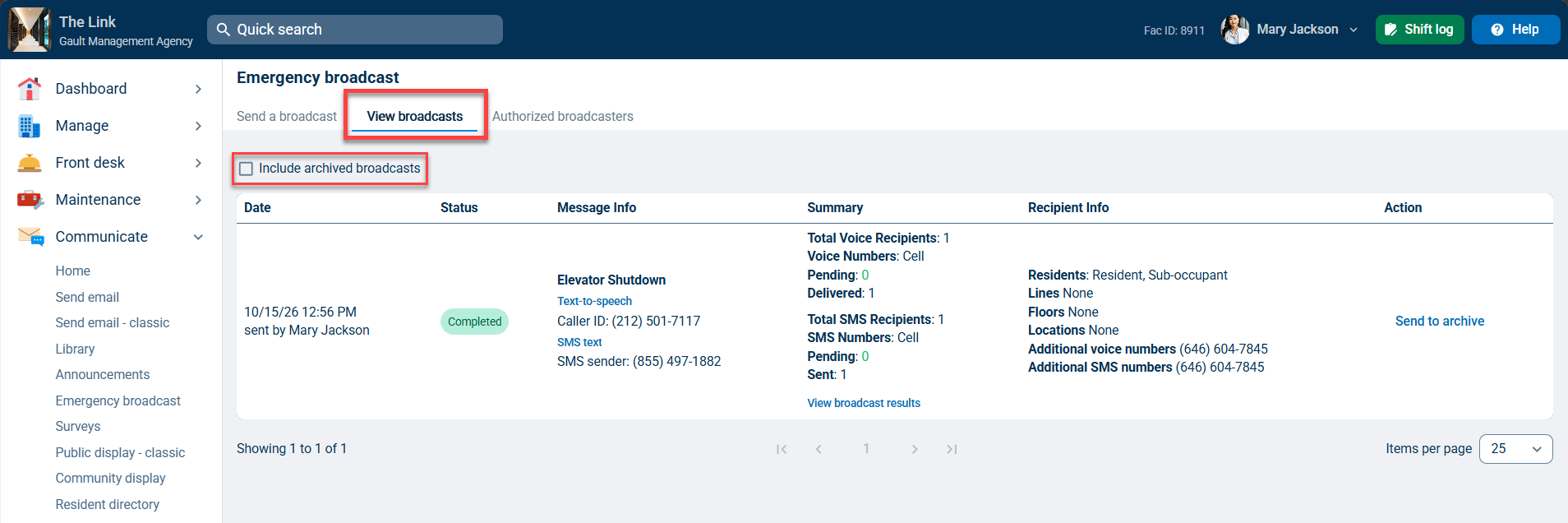
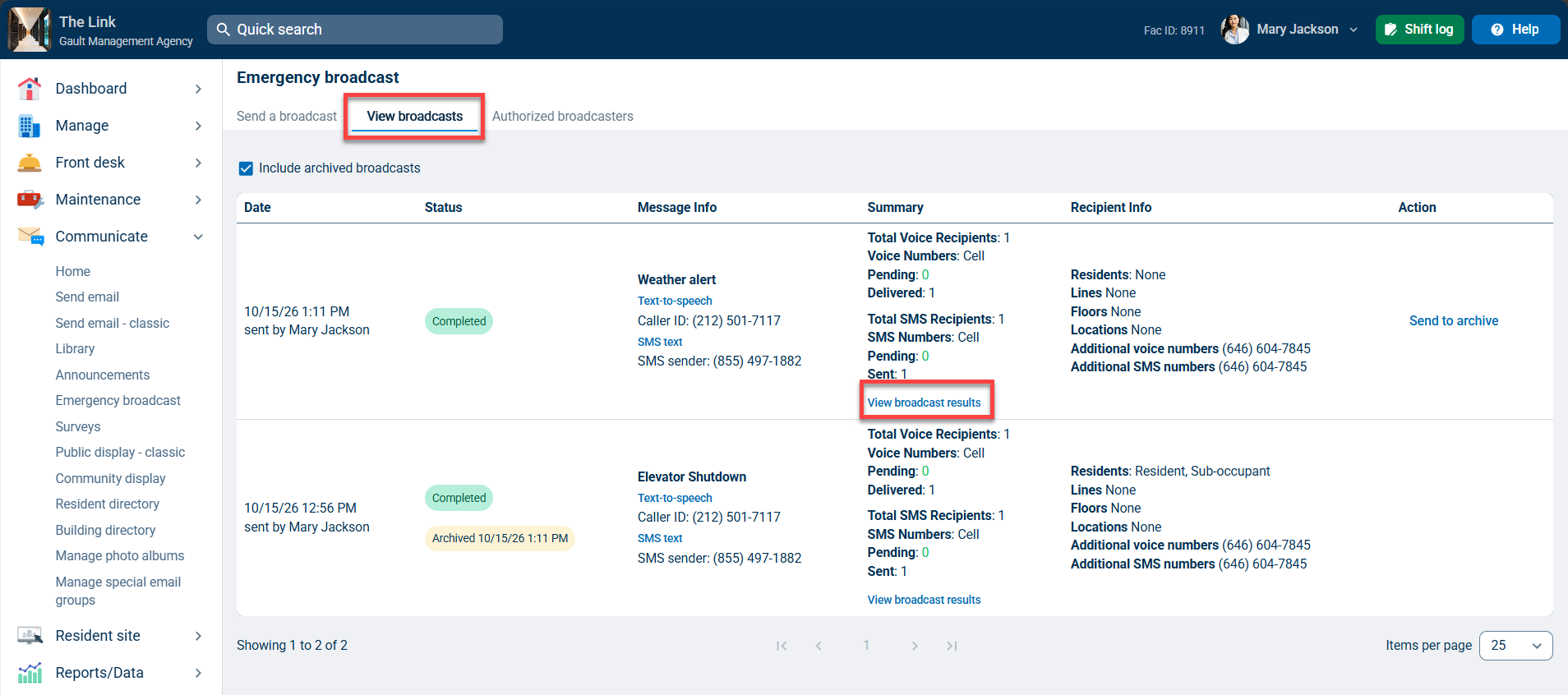
To access these reports, click on the Communicate tab and select Emergency broadcast, and navigate to the View broadcasts tab. There you'll see a list of your recently sent broadcasts. If the broadcast you're searching for is not visible, check the box next to Include archived broadcasts.
You'll see a summary of each broadcast. To see a more detailed view, you can click View broadcast results next to the broadcast whose results you want.
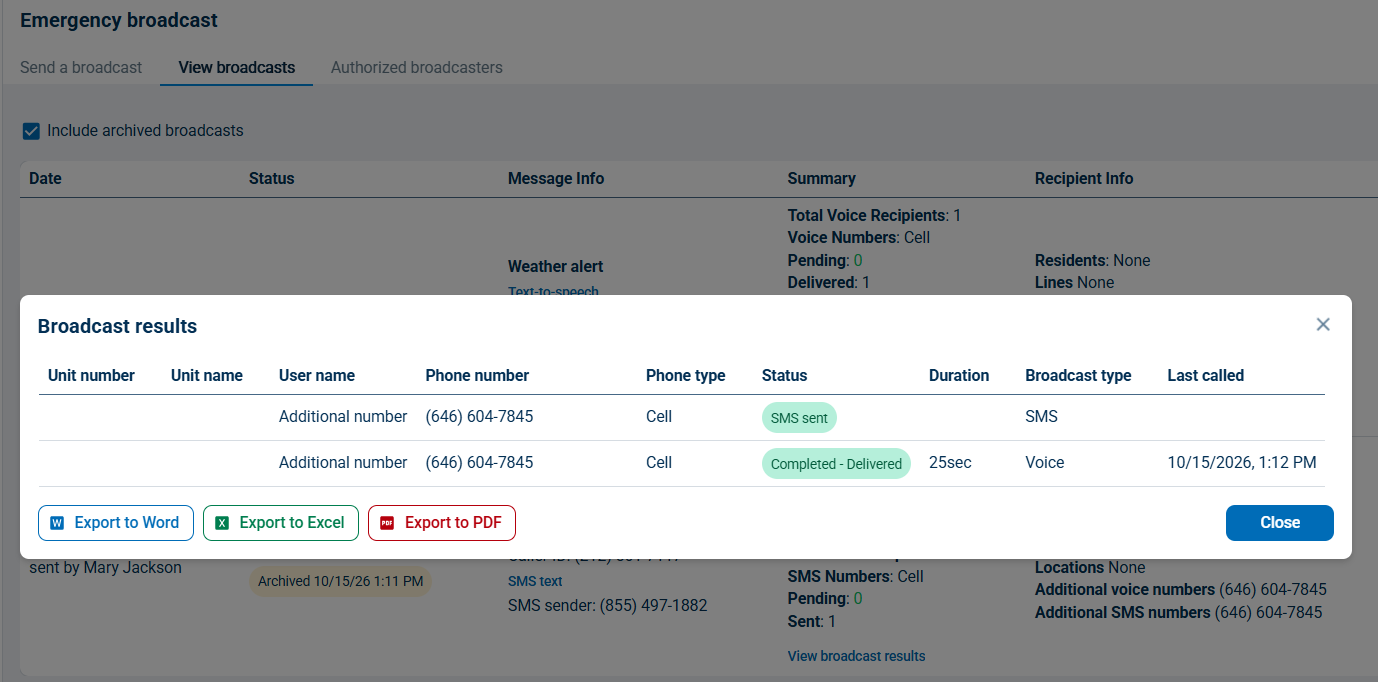
Clicking View broadcast results will display a complete list of every call or SMS that was sent out and show you whether it was completed successfully or is still in progress.
For voice broadcasts, the results screen will also show if the call was completed. This will allow you to see which residents may still need to be alerted to the emergency and give you a permanent record of who was reached. You can also export this report to Word, Excel, or PDF.
Sending an Emergency Broadcast through the GEO app
In addition to accomplishing day-to-day front desk and maintenance operations, authorized broadcasters can also send Emergency Broadcasts through the GEO app.