Note: This article is for the newly redesigned module. This updated module is in the process of being rolled out and may only be available to some users.
Overview
The Login Letters module allows Security Officer-level users to send bulk login information via email to all occupants in a property. You can use the default text or create your own, and you can choose to send it to occupants in specific locations rather than the whole property.
This article explains how to email bulk login letters and customize your login letter text. If you want to know how to send or print login letters for only the occupants of a specific unit, see How to Send Resident Login Credentials.)
Note: Click on the images to enlarge them.
Table of Contents
Accessing Login Letters
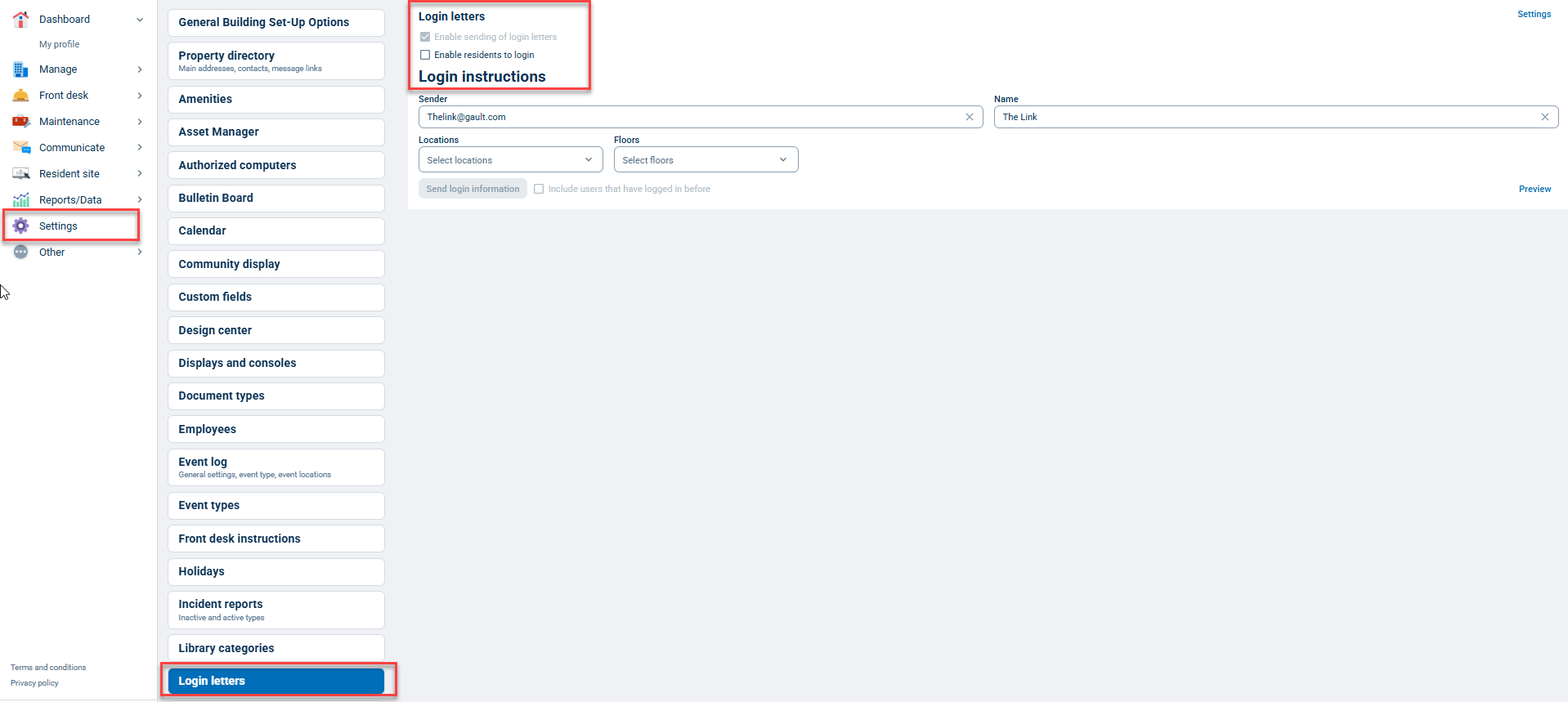
Security Officer-level users can access Login Letters by going to the Settings tab, scrolling down the list, and selecting Login letters.
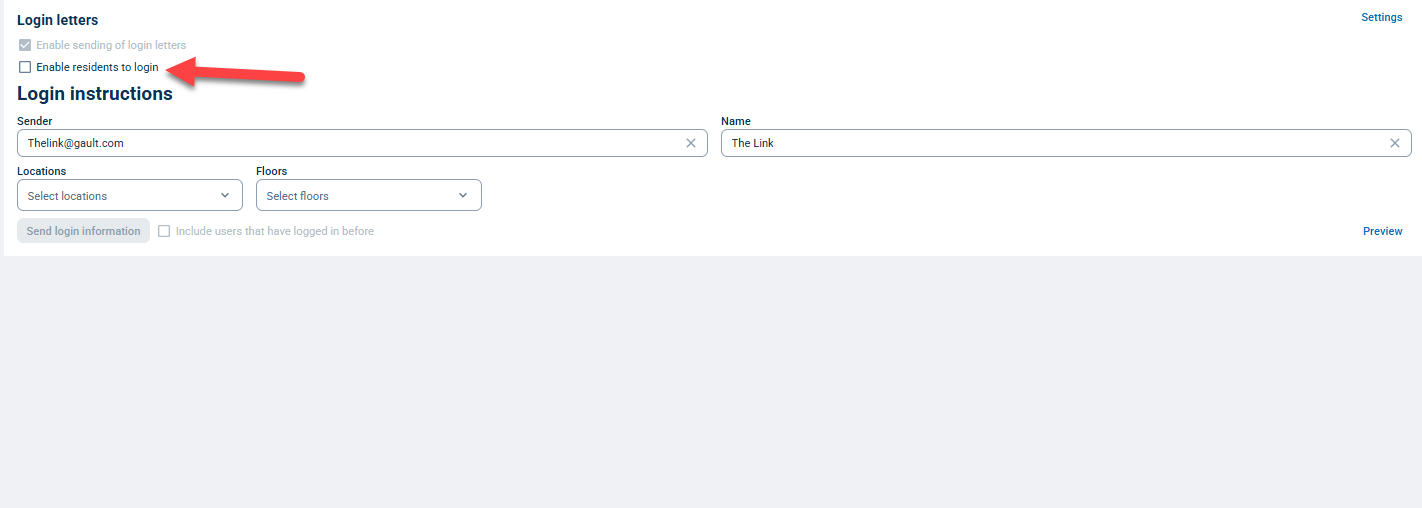
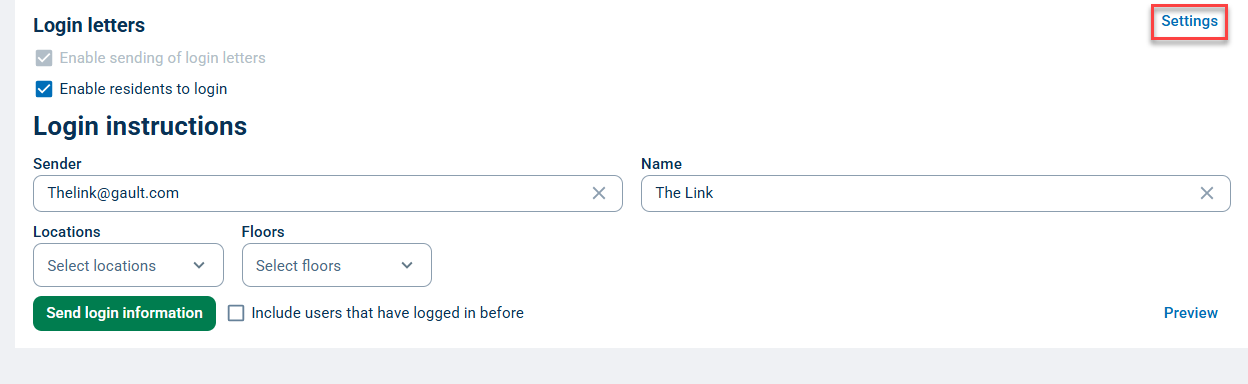
By default, the checkbox next to Enable residents to log in will be unchecked. You will also see that the checkbox next to Enable sending of login letters is checked and grayed out by default.
Note: If you see that the Enable sending of login letters checkbox is not checked, please contact BuildinLink Support to have it enabled, as both options must be checked for the module to work.
Sending Login Letters
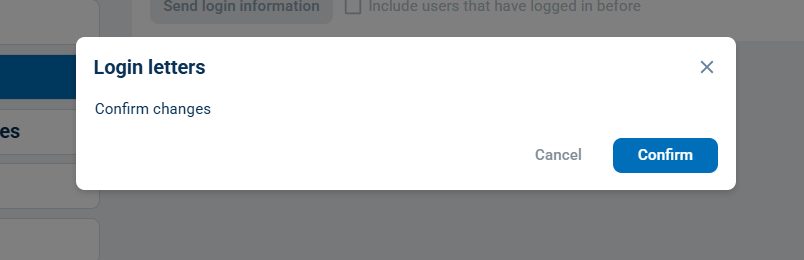
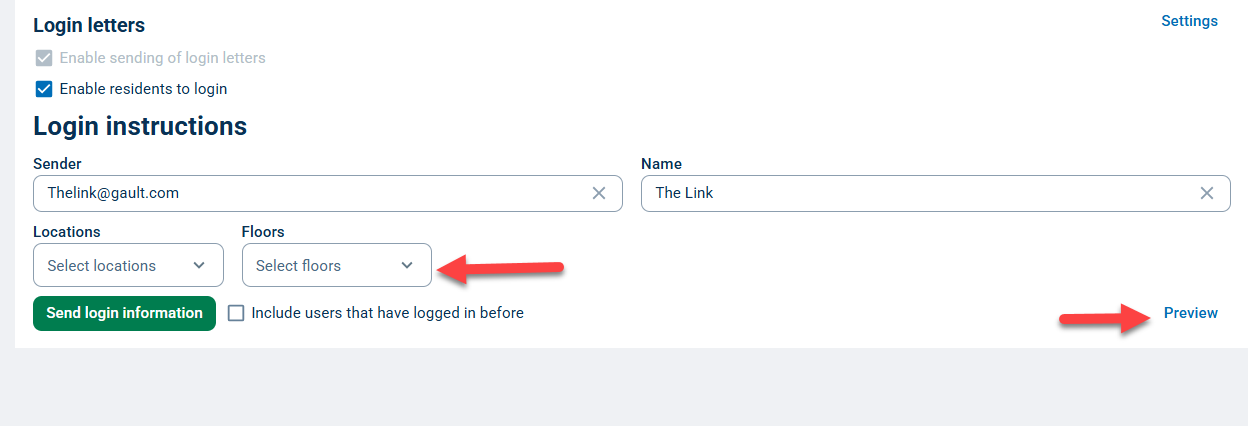
To send Login Letters, first check the box next to Enable residents to log in, then click Confirm in the pop-up window that appears. Next, you can change the default Sender email or Name (pulled from email settings) by clicking the x in those sections.
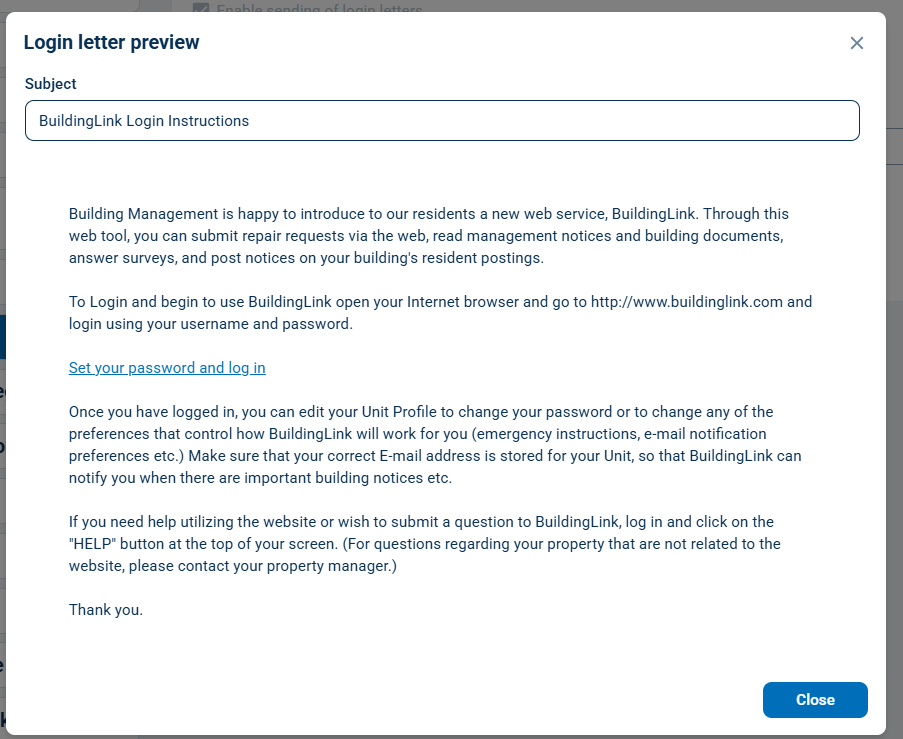
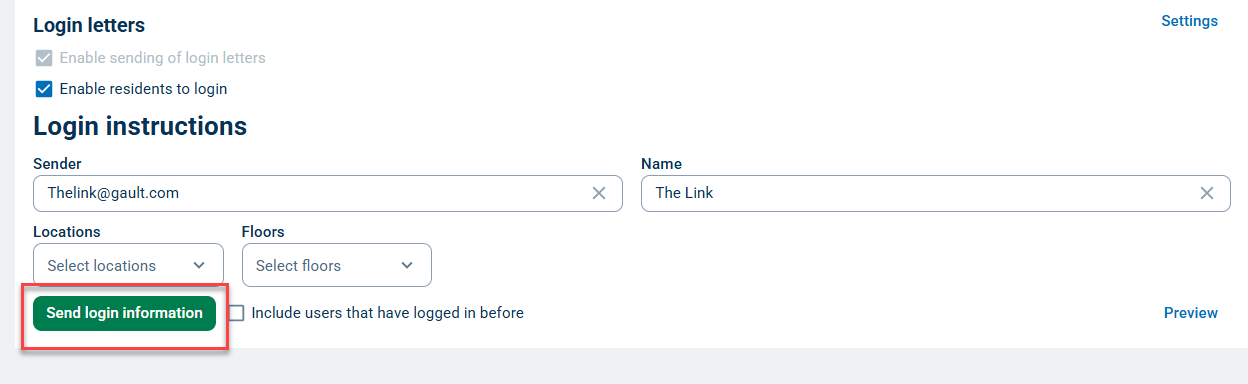
You can also select your recipients, if needed. By default, the system sends to all residents, but you can choose to send to residents in specific locations (e.g., Tower 1, Tower 2) or on specific floors. Finally, click Preview to see what the email will look like to your residents, and click Send login information to send.
Customizing Login Letters
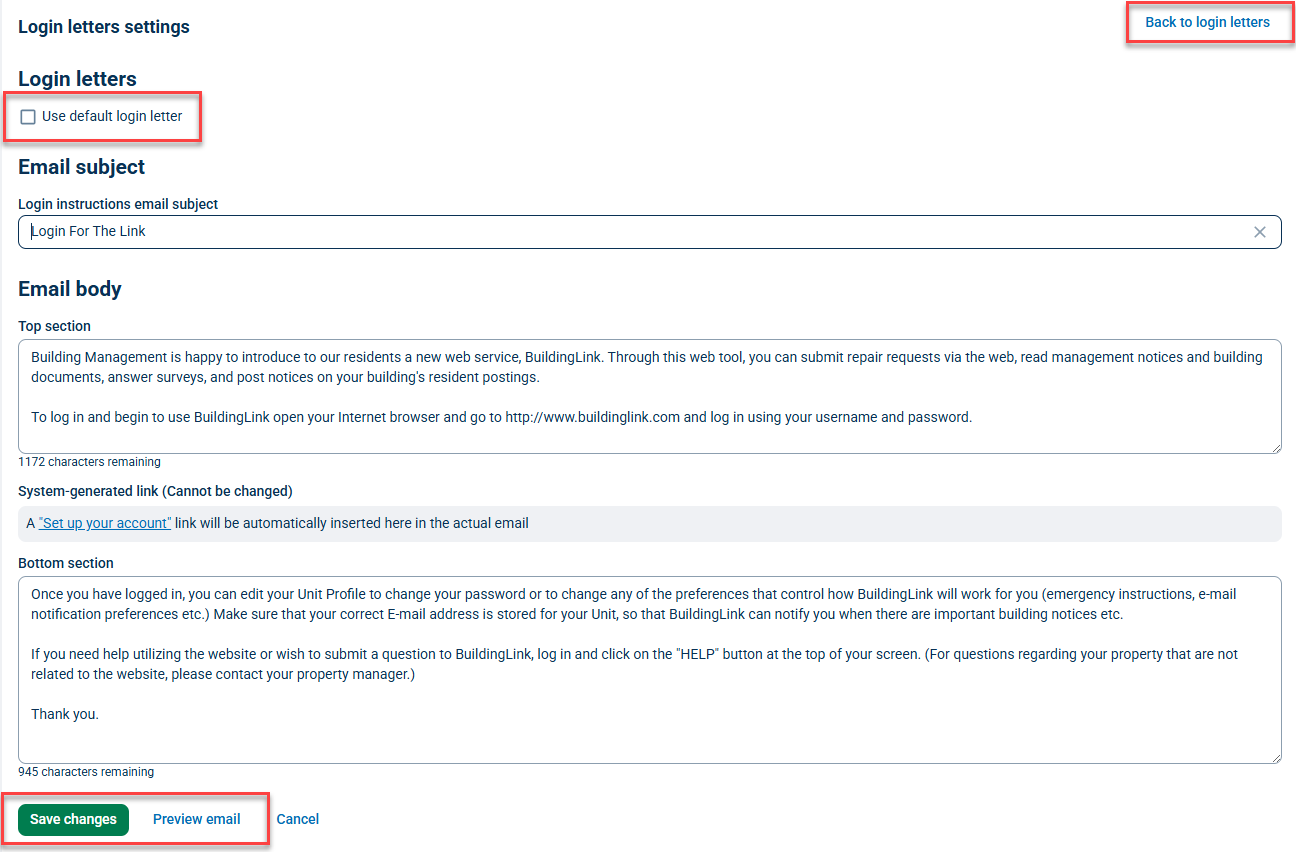
To customize the text of your login letter, click Settings at the top right of the Login Letters page. On the next page, you can click into the Email subject, top, and bottom sections and change the text in each.
Click Preview email to see how your changes will look to your residents. When you're done editing, click Save changes. Click the box next to Use default login letter to use the default login letter text instead of your customized text. Click Back to login letters in the top right to return to the main login letters page to send your login letters.
Viewing Sent Login Letters
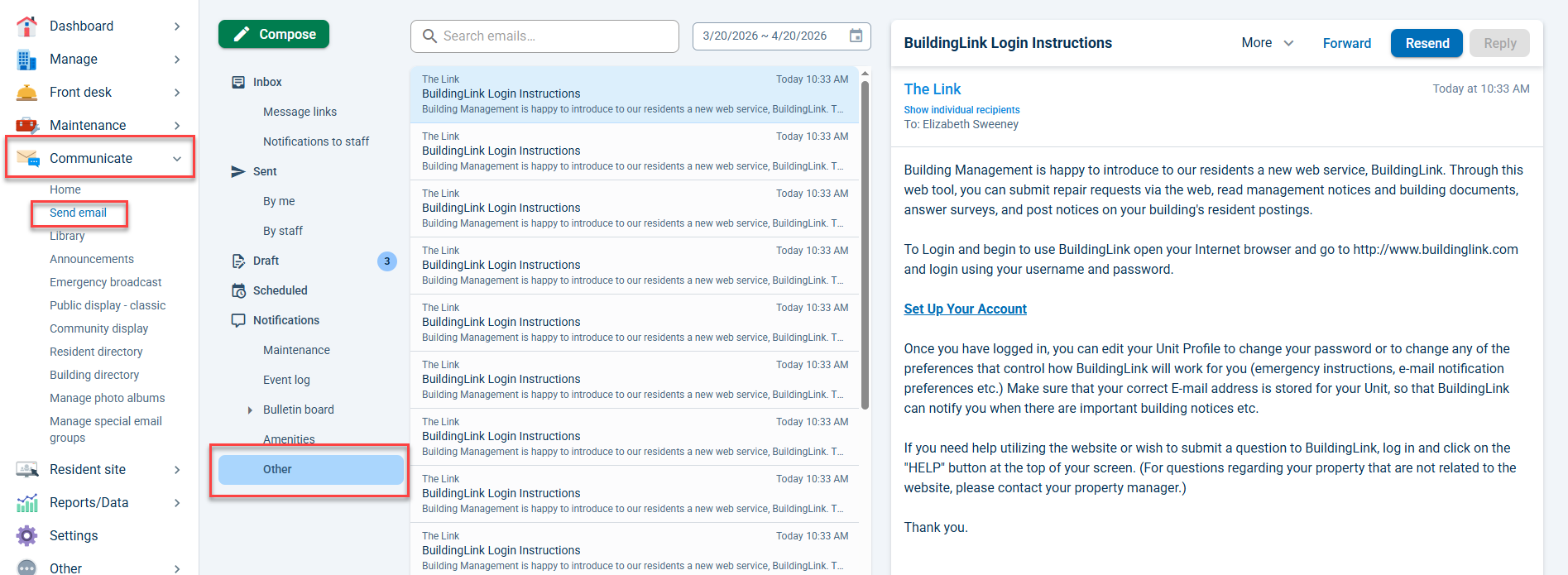
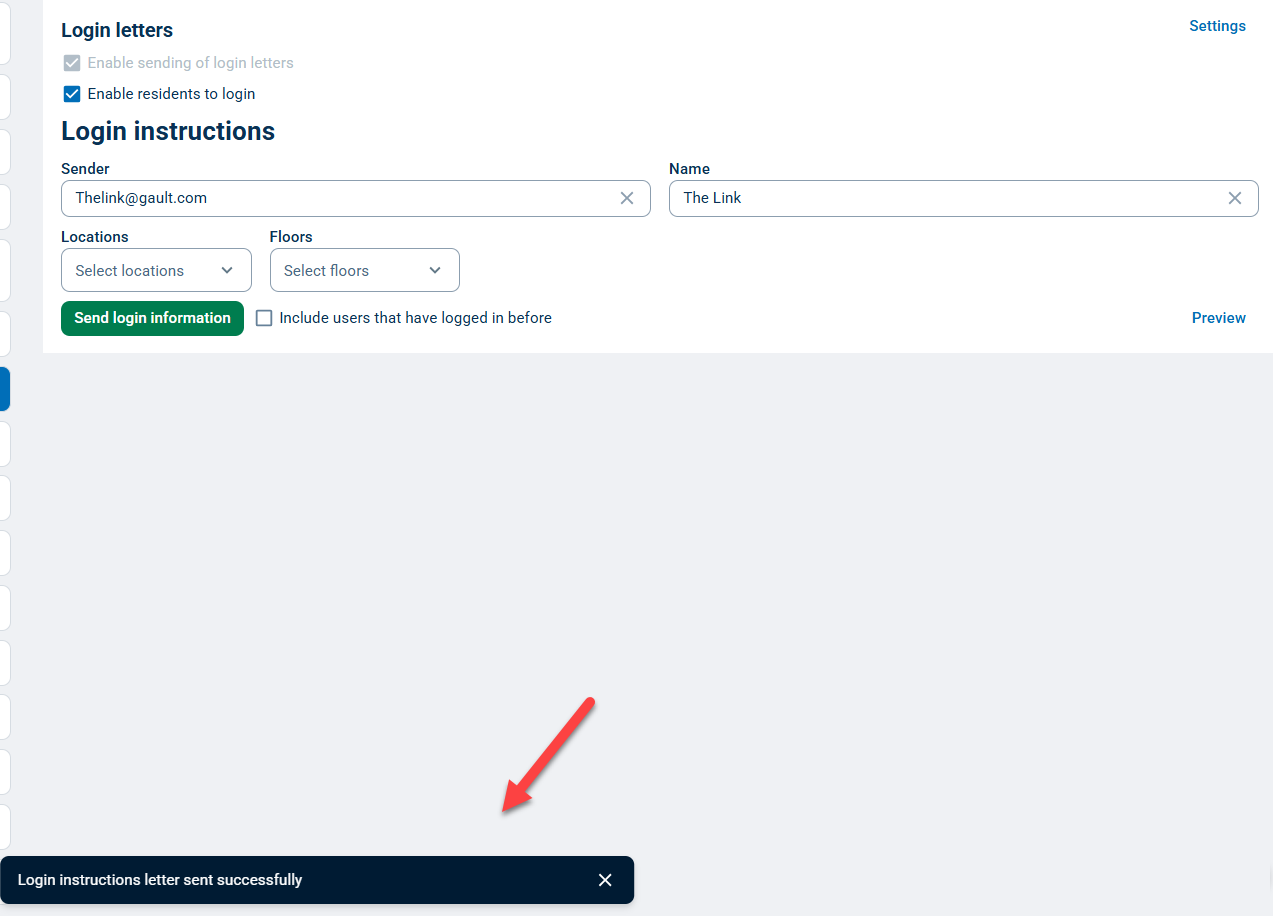
When you send login letters, you will receive on-screen confirmation. You can also view all the sent login letters by going to the Communicate tab, selecting Send Email, and clicking Other. (Click here to learn more about viewing sent emails.)