Note: This article is for the newly re-designed module. This updated module is in the process of being rolled out and may only be available to some users.
Overview
The Amenity Reservation module allows you to add and customize the items/rooms/services residents can reserve at your property, along with the restrictions that apply in Amenity Settings.
Only Management and Security Officer users have access to Amenity Reservations settings.
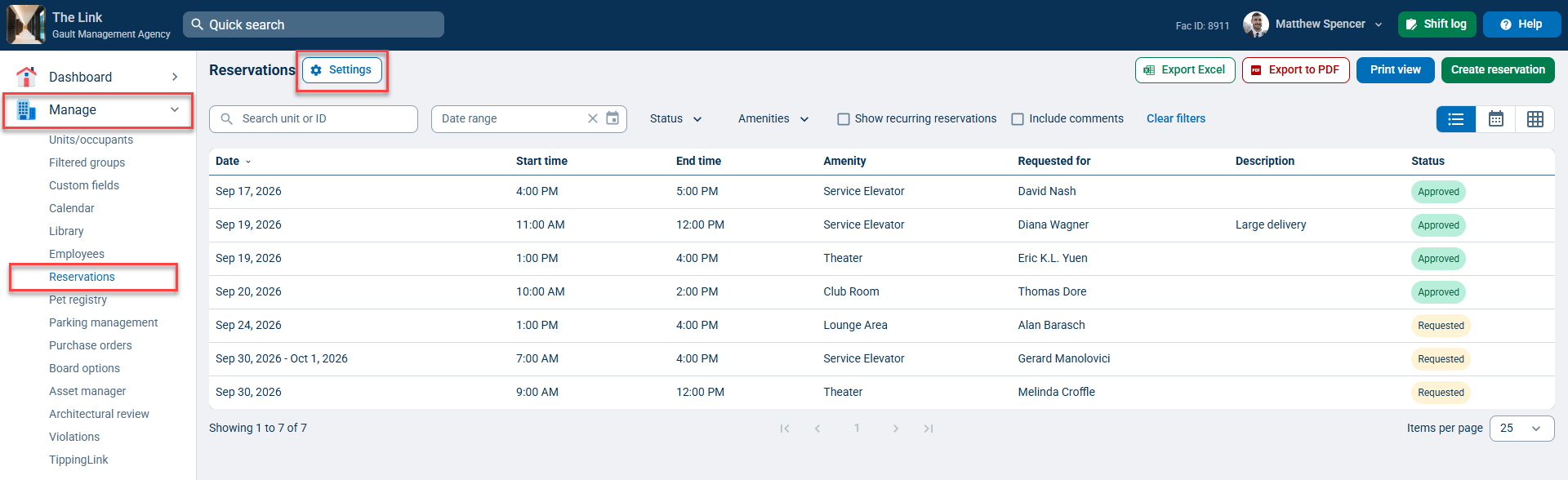
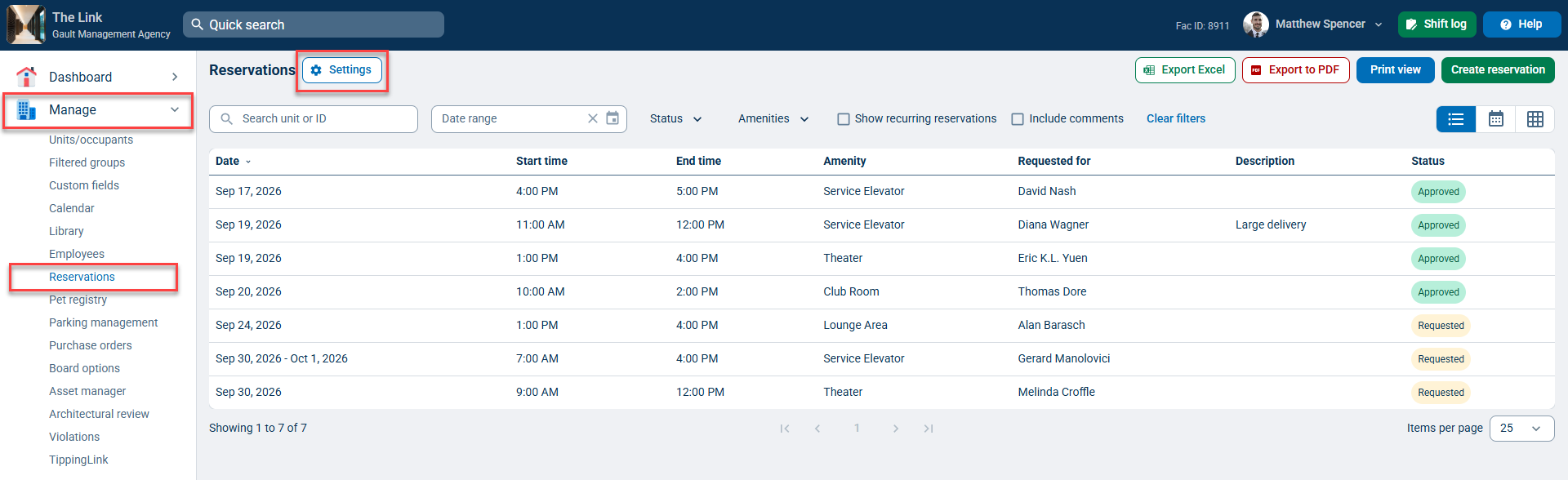
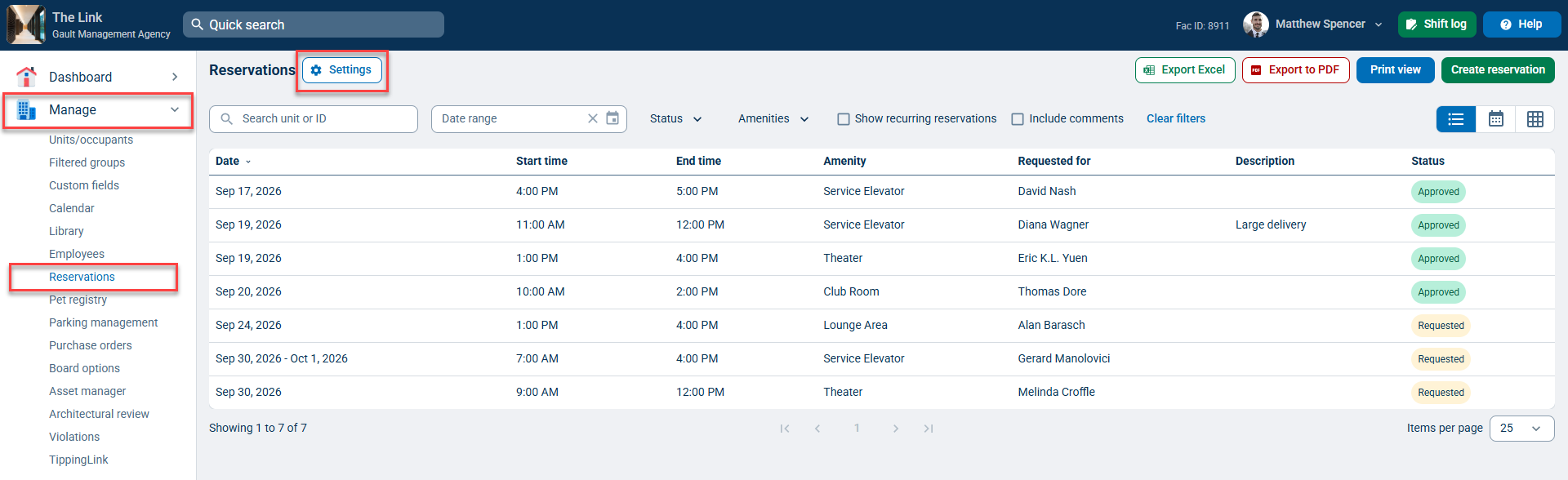
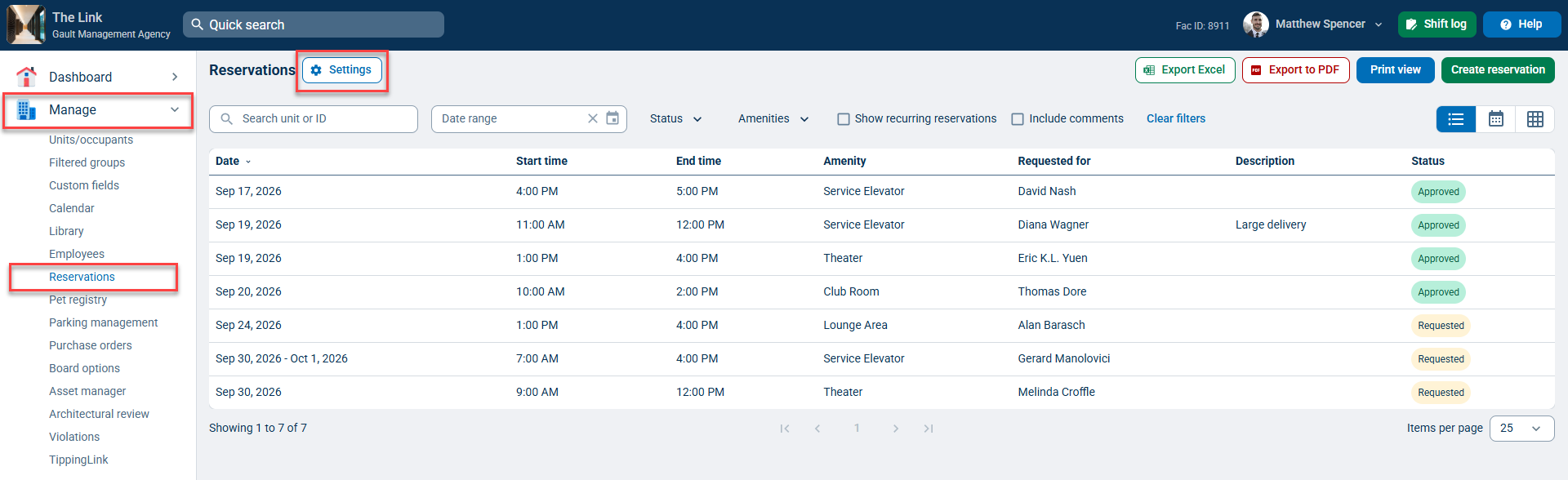
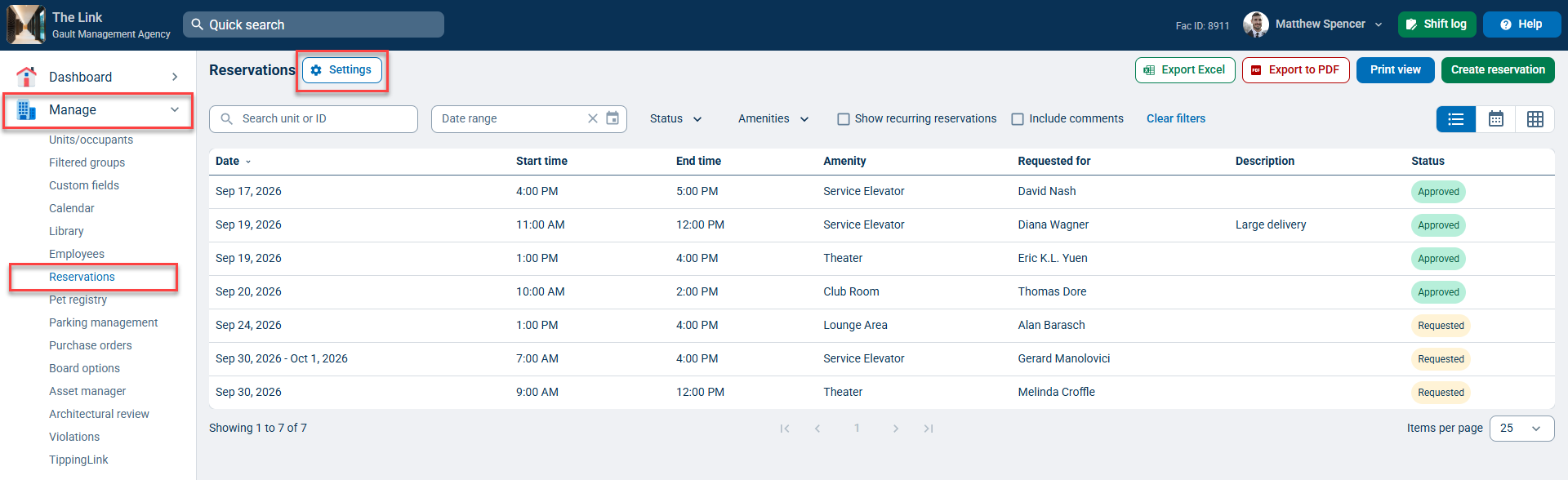
You can access the Amenity Reservations module settings by going to the Manage tab, selecting Reservations, and clicking Settings, or by going to the Settings tab and selecting Amenities.
This article will show you the options for adding and customizing amenities at your property.
For information on using the reservations module and the approval process, please see our Managing Reservations help article.
Note: Click on the images to enlarge them.
Table of Contents
- General Settings
- Common Amenity Types
- Adding a New Amenity
- Editing or Removing an Amenity
- Amenity Groups
- Special Permissions
General Settings
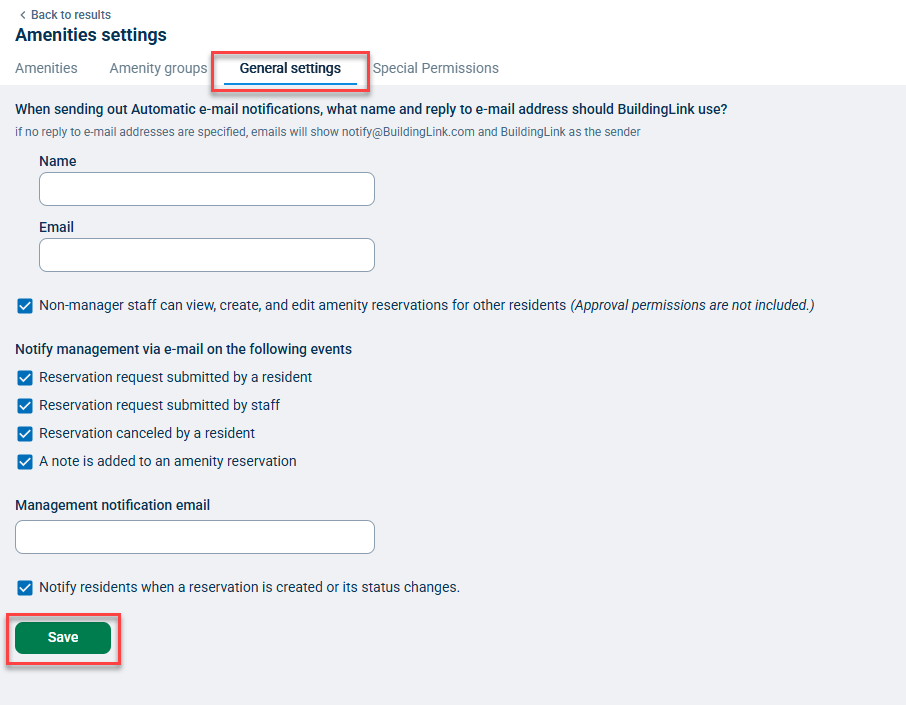
To set the default notification options for the Amenity Reservations module, go to the Manage tab, select Reservations, then Settings, and click General settings.
Enter the name and reply-to email address for automatic notifications (recommended for a more personal experience). If you don't add a reply-to email address, emails will show notify@BuildingLink.com and BuildingLink as the sender.
Next, check the box next to Non-manager staff can view, create, and edit amenity reservations for other residents. If you do not check this box, only Management or Security Officer level BuildingLink users will be able to submit reservation requests on behalf of a resident.
Note: As long as your Reservations module is not set to Internal Only, residents can submit reservation requests from their own computers or Resident App. If your Reservations module is set to Internal Only, residents cannot request amenity reservations or view the amenity calendar. To set your Reservations module to Internal Only, or allow residents to submit their own Reservation requests, please contact support@buildinglink.com.
Now, select when to notify management about reservation requests and specify who should receive those emails. Keep in mind that you are setting a general default address and can also set a different notification email for each amenity if needed.
Finally, check the box next to Notify residents when a reservation is created or its status changes. If you check this box, residents will receive automatic notifications whenever their amenity reservations are approved or declined. Residents will not receive automatic notifications when reservations are canceled.
Remember to click Save.
Common Amenity Types
Many properties use the Amenities section to keep track of any item or service that can be reserved at the property. Some common uses include:
- Move Ins/Outs (Service Elevator)
- Large Deliveries (Service Elevator)
- Club Room or Lounge
- Roof Terrace (or other common area)
- Barbecue
- Tennis Courts, Basketball Courts (or other recreational area)
- Guest Suites
- Pool or Gym area
- Cabana
- Theater Room
- Community Room
- Chairs/Tables
- Guest Parking Spaces
Adding a New Amenity
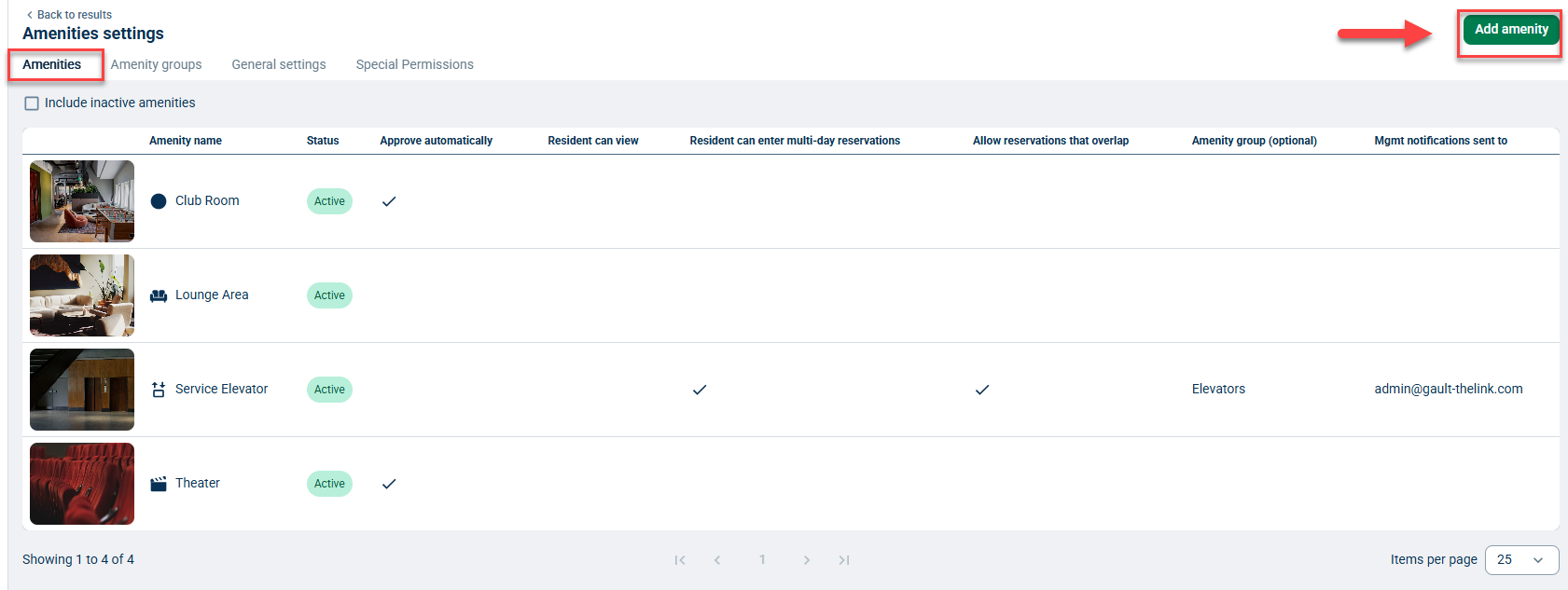
Any Manager or Security Officer can add a new amenity in BuildingLink by going to the Manage tab, selecting Reservations, and clicking Settings. Next, on the Amenities page, click Add amenity at the top right.
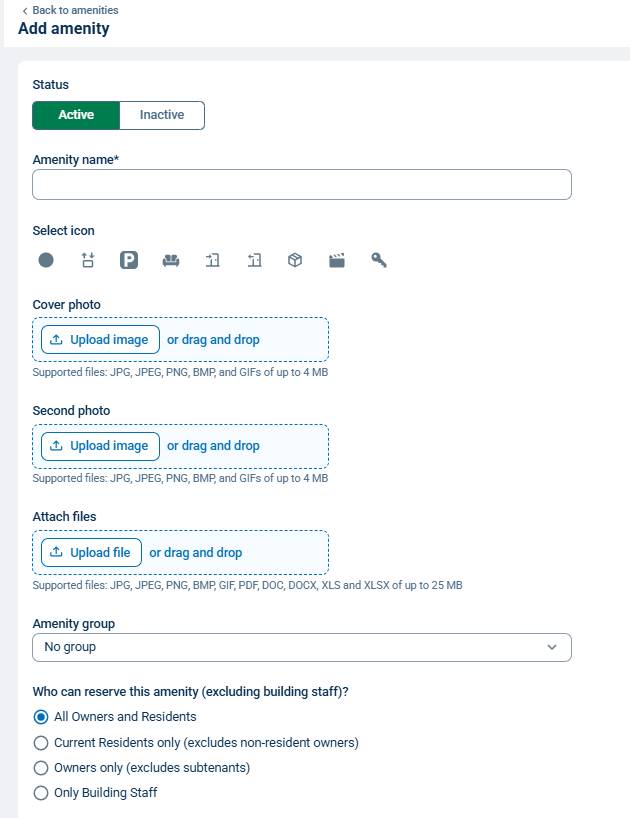
A form will appear, allowing you to set up your amenity name, icon, attachments, requirements, and other criteria. Included below is the list of form fields and their common use cases:
General settings
- Status: Controls whether an amenity is Active or Inactive.
- Amenity name: Sets the displayable name for the amenity
- Select icon: Sets the display icon for the amenity.
- Cover photo: Sets the display image for the amenity.
- Second photo: Adds additional photos to the amenity. Utilize this option to display multiple views of your amenity spaces.
- Attach files: Adds supplemental files for the amenity, such as amenity-specific documents and policies (i.e.,Certificate of Occupancy, Certificate of Insurance, amenity reservation fees, etc.). Besides the 25MB size limit, there are no attachment limits.
- Amenity group: Sets whether the amenity should be aggregated into an existing Amenity Group.
- Who can reserve this amenity (excluding building staff)?: Sets resident reservation permissions for the amenity.
- Special Permissions: Only Managers, Security Officers, or staff given a Special Permission can approve reservations. For more about the approval process, see our Reservations help section.
- Only Building Staff: Disables all resident reservation permissions for this amenity, and you can choose whether to allow residents to view these reservations.
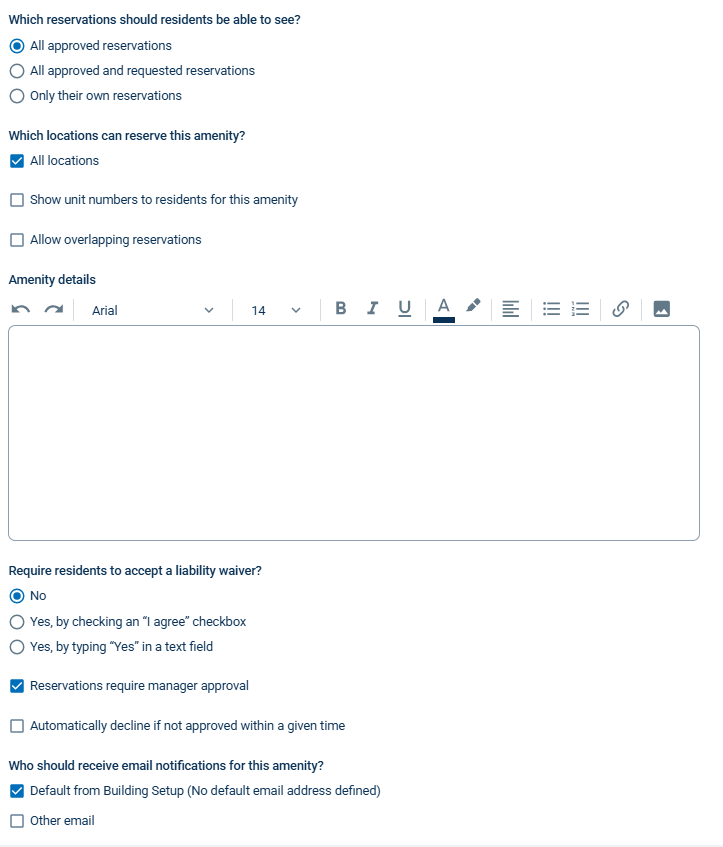
- Which reservations should residents be able to see?: Sets viewing permissions for the amenity.
- Suggested Setting: We recommend allowing residents to see all approved and requested reservations, so they'll know which time slots are available.
- Which locations can reserve this amenity?: Sets location-specific reservation permissions for the amenity.
- Show unit numbers to residents for this amenity: Enables reservations to display resident unit numbers.
- Default Unit Number Display: By default, unit numbers are hidden, so residents will not know who has requested the reservation. Residents will only see whether an amenity is available during a selected time slot. You can, however, choose to display the unit number if preferred.
- Allow overlapping reservations: Enables scheduling overlaps for this amenity.
- Amenity details: A text box that lets you attach additional descriptions, links, and images to the amenity.
- Require residents to accept a liability waiver?: Sets liability waiver controls for the amenity.
- Reservations require manager approval: Sets manager approval as a requirement for amenity reservations.
- Automatically decline if not approved within a given time: If "Reservations require manager approval " is enabled, this option will be available. Enables reservations to be auto-declined after a specified number of days have passed.
- Who should receive email notifications for this amenity?: Sets email notification controls for the amenity.
- Specifying Other Emails: If you need to send email notifications about this amenity to an email other than the default amenity email saved in general settings, click Other email. For example, your Maintenance Manager might approve Move Ins/Outs whereas your Leasing Office might approve all other reservation types.
- Specifying Other Emails: If you need to send email notifications about this amenity to an email other than the default amenity email saved in general settings, click Other email. For example, your Maintenance Manager might approve Move Ins/Outs whereas your Leasing Office might approve all other reservation types.
Availability
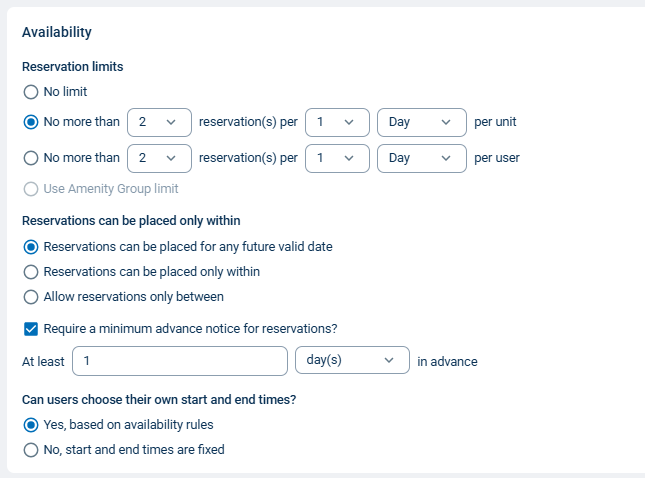
- Reservation limits: Sets daily, weekly, monthly, and annual reservation limits for the amenity.
- Reservations can be placed only within: Sets reservation placement constraints for the amenity.
- Require a minimum advance notice for residents?: Sets a minimum advance notice period within intervals of hour(s), day(s), week(s), and month(s).
- Can users choose their own start and end times?: Controls user start/end time capabilities for the amenity.
Availability schedule
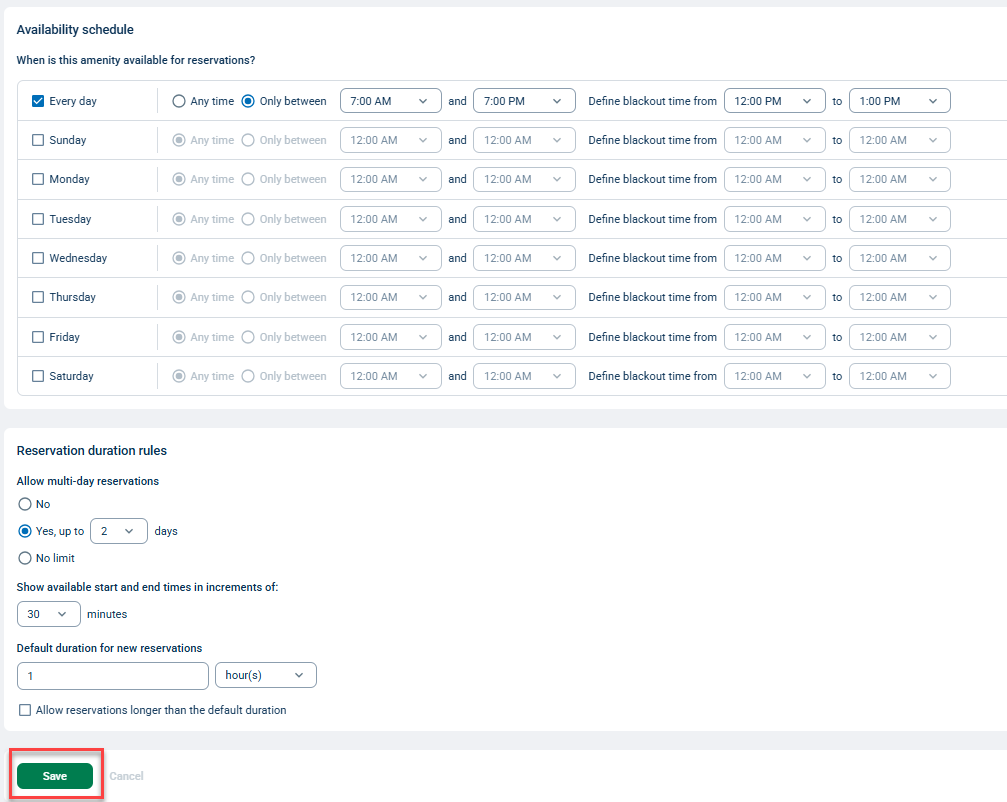
- When is this amenity available for reservations?: Sets the scheduling availability for the amenity by day of the week.
- Allow multi-day reservations: Controls whether the amenity can be reserved for multiple days in one reservation.
- Show available start and end times in increments of: Sets minute-based increments for amenity start/end times.
- Default Start/End Increments: Default duration does not limit the amenity to a maximum or minimum number of hours; it only sets a default time period. If the default time period is 4 hours, when a resident enters a start time of noon, the end time will default to 4 pm.
- Default duration for new reservations: Sets the default duration for amenity reservations.
- Allow reservations longer than the default duration: Lets users place reservations longer than the default duration and sets the maximum amount of time a reservation can last. If the default time period is 4 hours and this is set to 2 hours, then the maximum time a resident can reserve this amenity for is 6 hours.
After you've completed this form, click Save to commit any changes.
Editing or Removing an Amenity
To edit the settings for a specific amenity, go to the Manage tab, select Reservations, and click Settings. Next, on the Amenities page, click the amenity record you want to change.
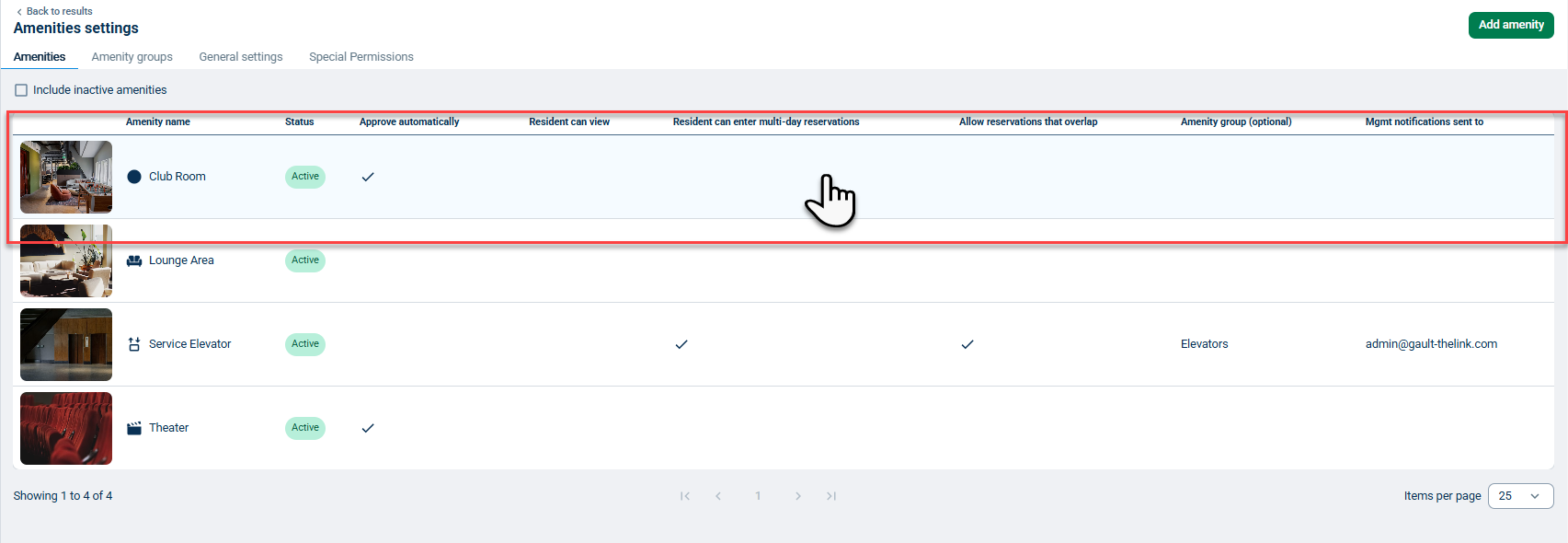
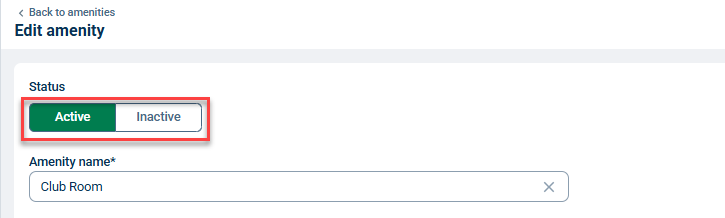
To remove an amenity, click on the amenity record and set the status to Inactive. Click Save to commit changes. After updating the amenity form, click Save to commit changes.
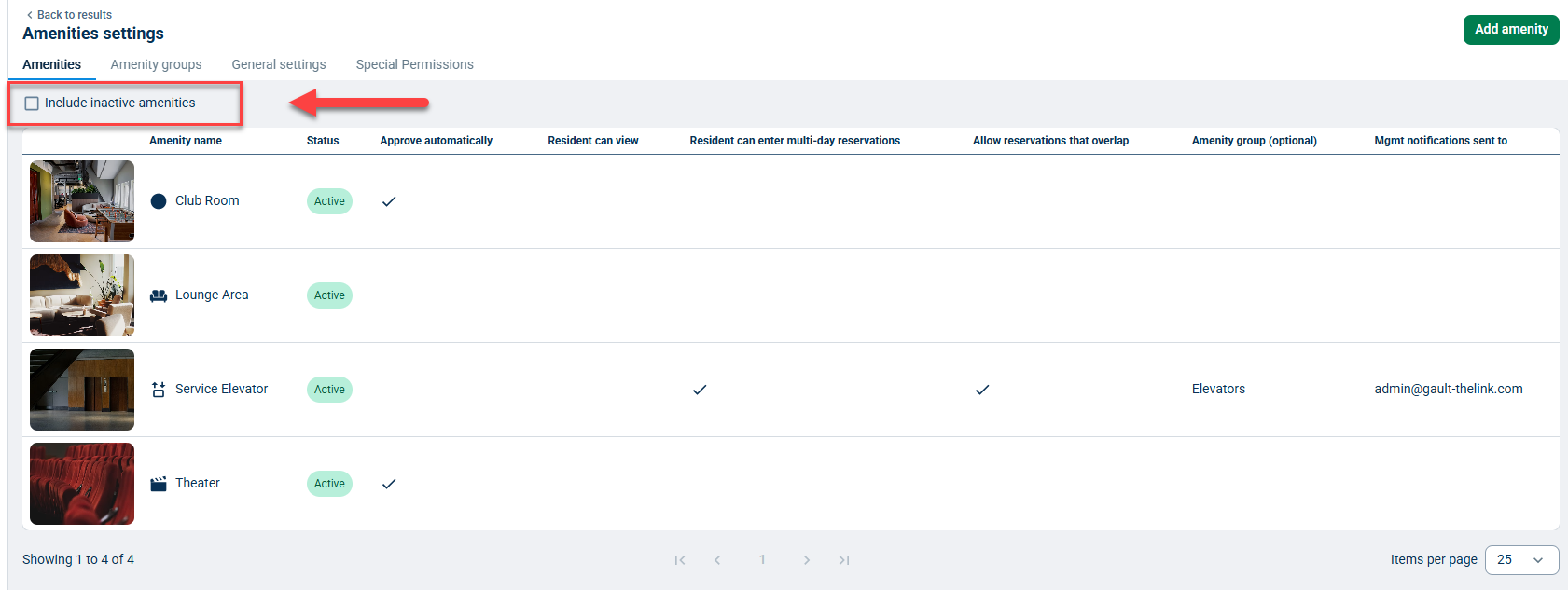
You can view inactive amenities on the Amenities page by clicking the checkbox next to Include inactive amenities.
Amenity Groups
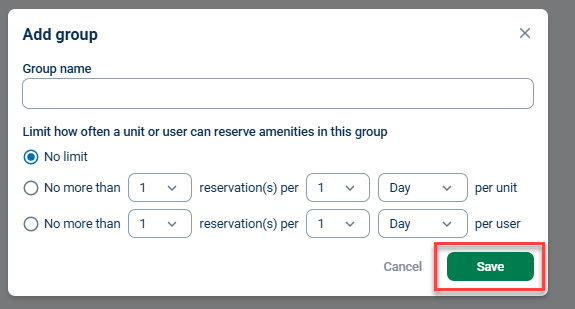
The Amenity Groups functionality lets you group certain types of amenities together and apply the same frequency limits to each amenity in that group.
To add a new Amenity Group, go to the Manage tab, select Reservations, and click Settings. Next, select Amenity groups and click Add group. Next, enter the group name and frequency limits. Click Save to commit changes.

Special Permissions
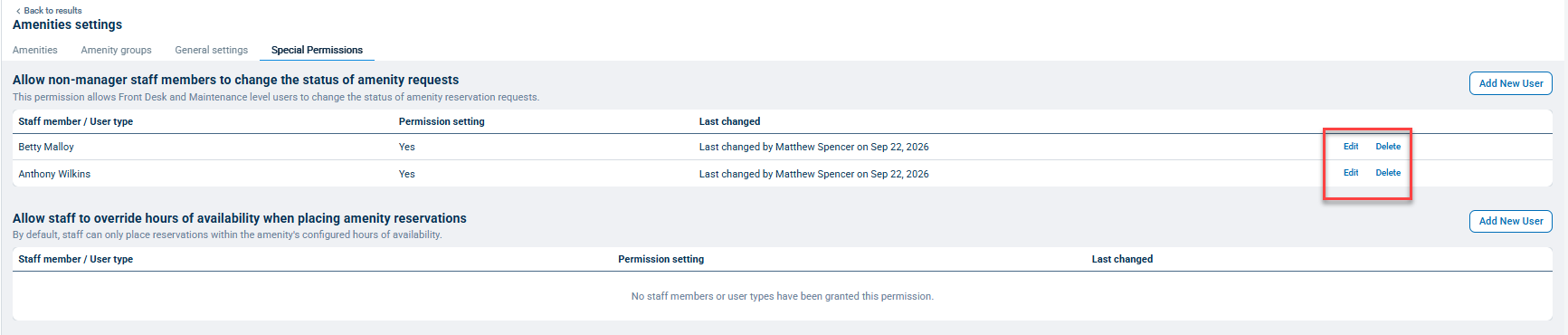
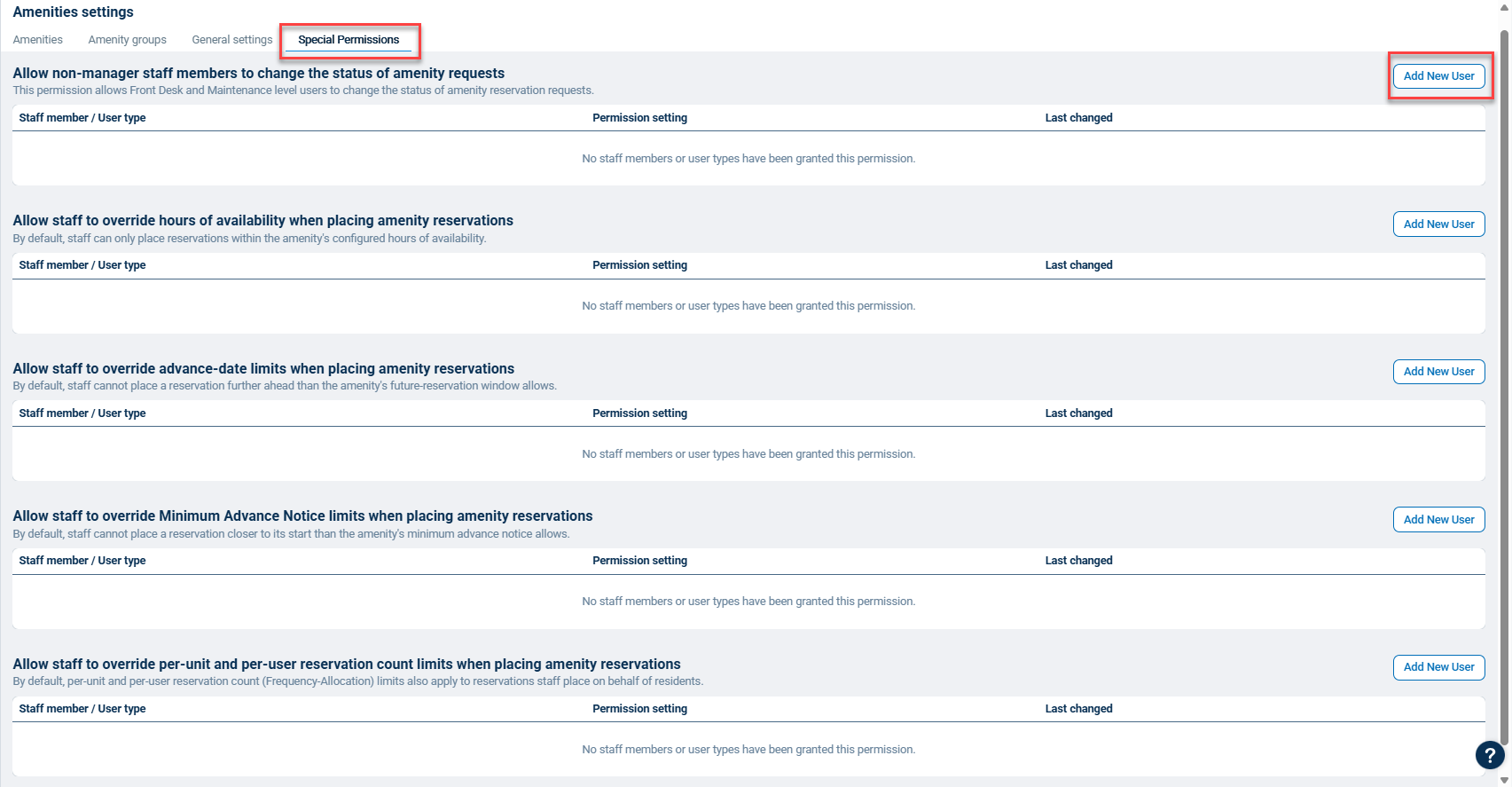
Amenity Special Permissions module lets you override the default permissions for specific employees or user types and specific amenity limitations.
To add a Special Permission, go to the Manage tab, select Reservations, and click Settings. Next, select Special Permissions to view the list of available options:
- Allow non-manager staff members to change the status of amenity requests: By default, Front Desk and Maintenance level users cannot change the status of amenity reservation requests.
- Allow staff to override hours of availability when placing amenity reservations: By default, staff can only place reservations within the amenity's configured hours of availability.
- Allow staff to override advance-date limits when placing amenity reservations: By default, staff cannot place a reservation further ahead than the amenity's future-reservation window allows.
- Allow staff to override Minimum Advance Notice limits when placing amenity reservations: By default, staff cannot place a reservation closer to its start than the amenity's minimum advance notice allows.
- Allow staff to override per-unit and per-user reservation count limits when placing amenity reservations:
By default, per-unit and per-user reservation count (Frequency-Allocation) limits also apply to reservations staff place on behalf of residents.
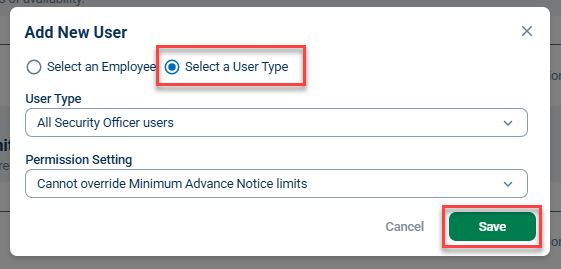
Click Add New User next to the permission you want to update.
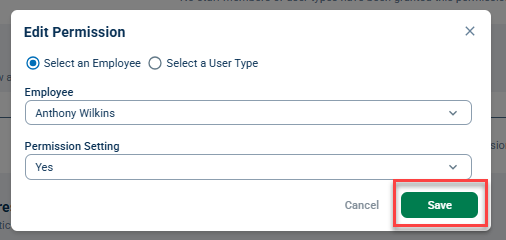
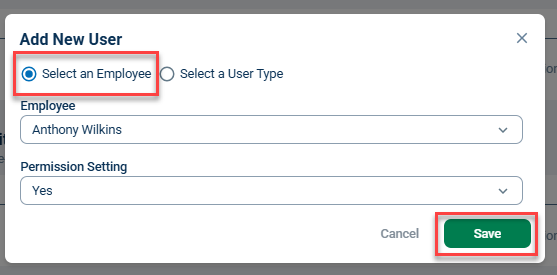
Next, you will be prompted to select either an employee or a user type (authority level), then select a Permission Setting and click Save.
Keep clicking Add New User for each specific employee or user authority level you want to add, and continue as instructed above.
To edit an existing special permission, click Edit next to the permission you wish to change; the permission settings will then display and become editable. Click Save to save the changes.
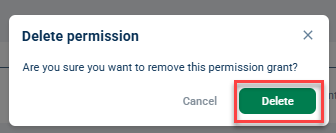
To remove the permission entirely, click Delete. A confirmation window will display; click Delete permission to confirm