Note: This article is for the newly redesigned module. This updated module is in the process of being rolled out and may only be available to some users.
Overview
Insurance allows residents to view and submit insurance policies to management for their records. This feature may also send reminder emails as policies move through Upcoming, Compliant, Expiring Soon, and Expired statuses. Depending on your property settings, this module may or may not be enabled.
Note: Click on the images to enlarge them.
Table of Contents
Viewing Insurance
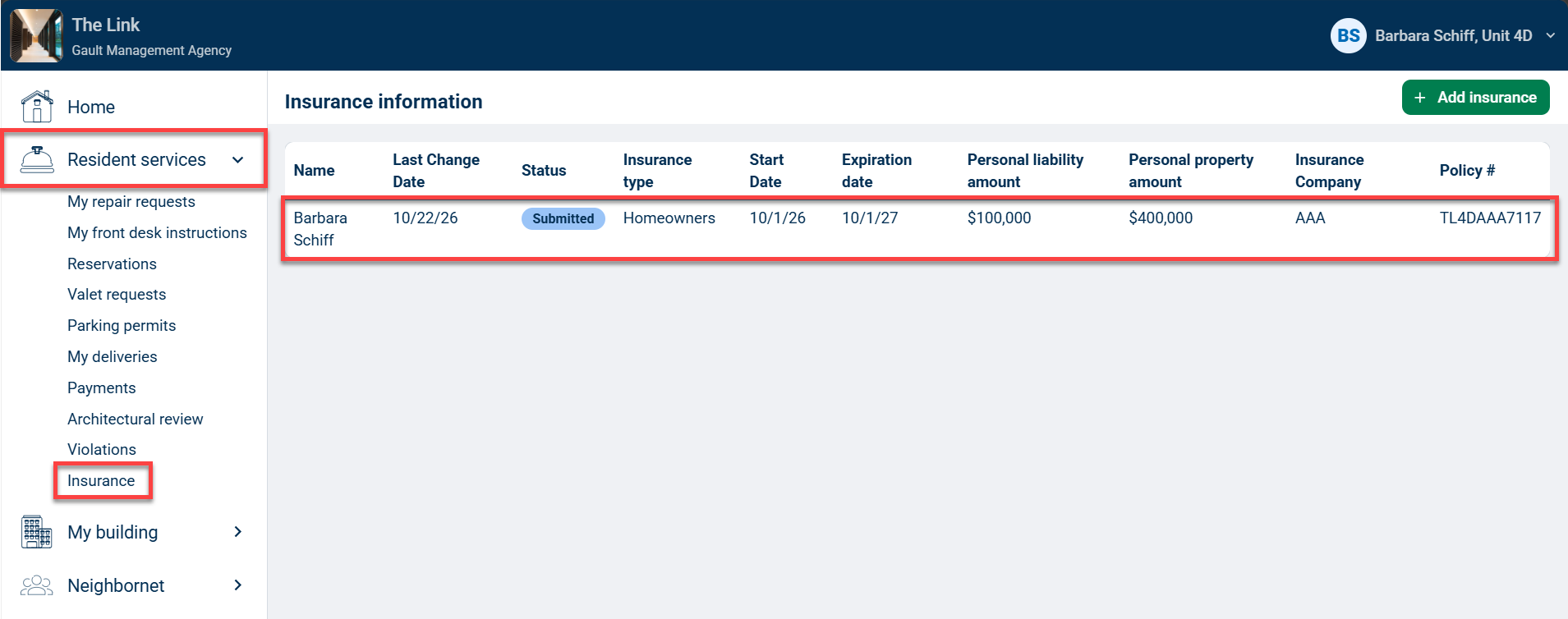
If your building has enabled the Resident Insurance feature, then you can view your insurance policies by opening the Resident services tab on your navigation menu and clicking Insurance.
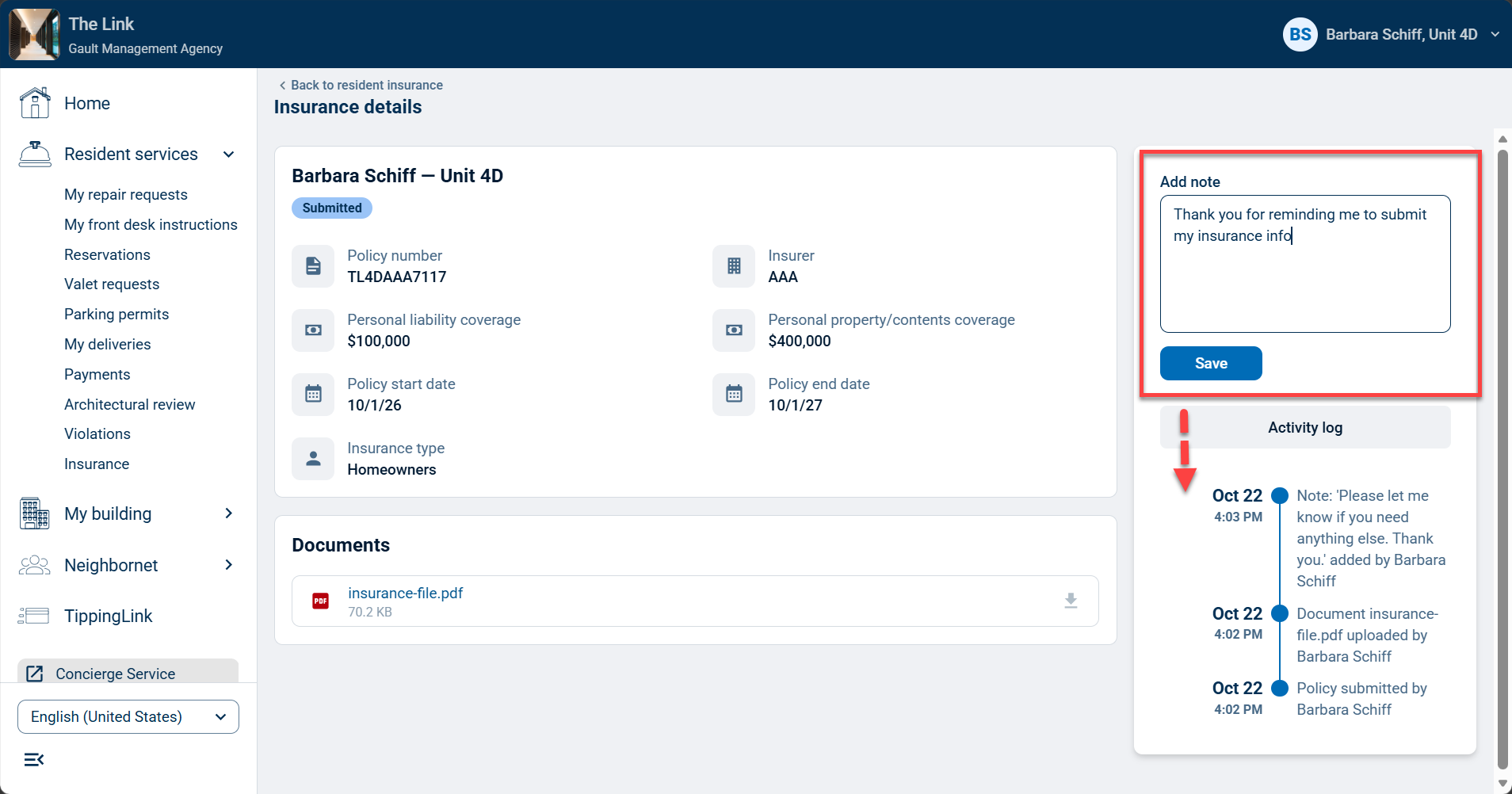
Click on your insurance policy from the list to view its details. Insurance details include an Activity log to the right, with the ability to save notes and view a timeline of actions related to the insurance policy.
Adding Insurance
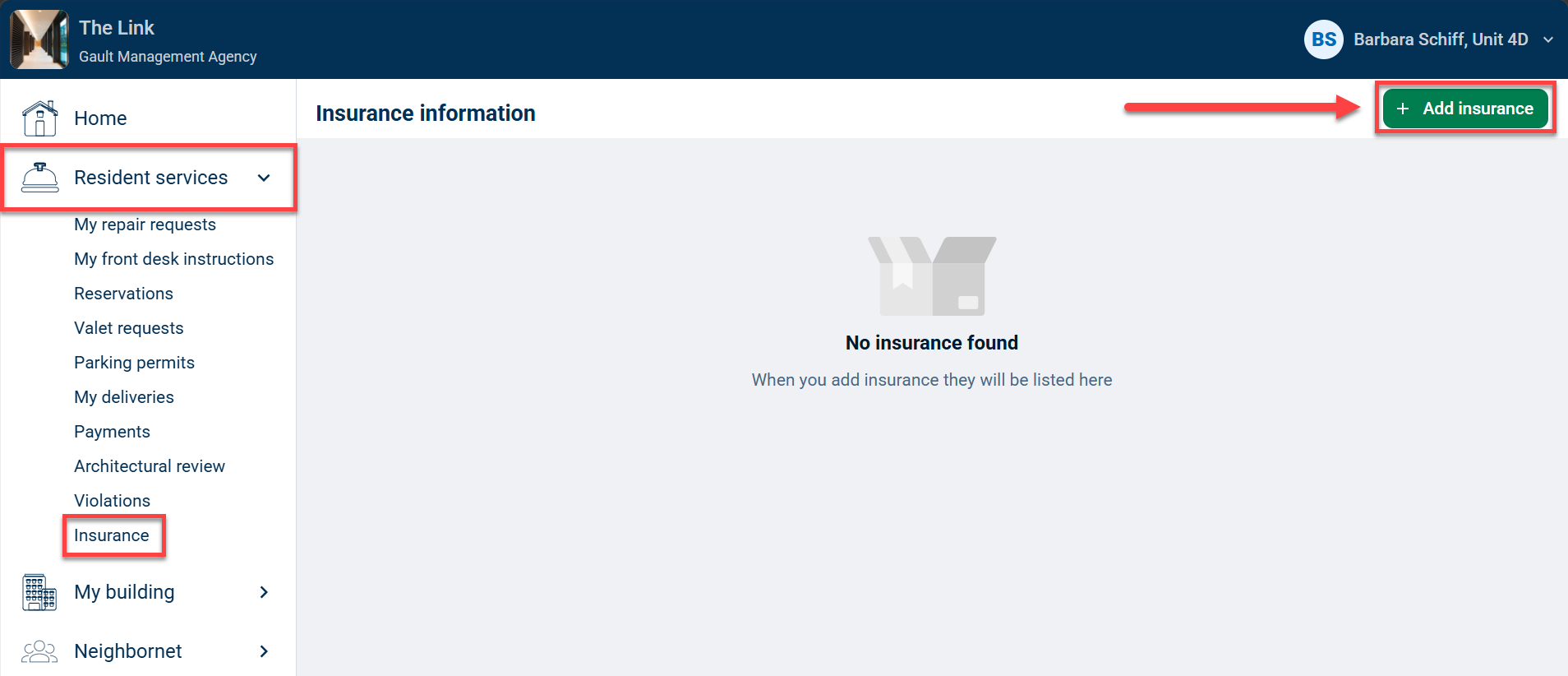
To add your insurance policy, open the Resident services tab on your navigation menu and click Insurance.
Click Add Insurance.
Fill out the form with your insurance details. First, select the insurance type from the dropdown menu at the top of the form.
Next, complete the other fields by including Personal liability coverage amount, Personal property/contents coverage amount, Policy start date, Policy end date, Insurer, and Policy number.
You can upload your Certificate of insurance file directly by clicking Select file and attaching from your device.
Finally, confirm the accuracy of the information, and click Submit.
Management will review your submission and may approve or reject the policy.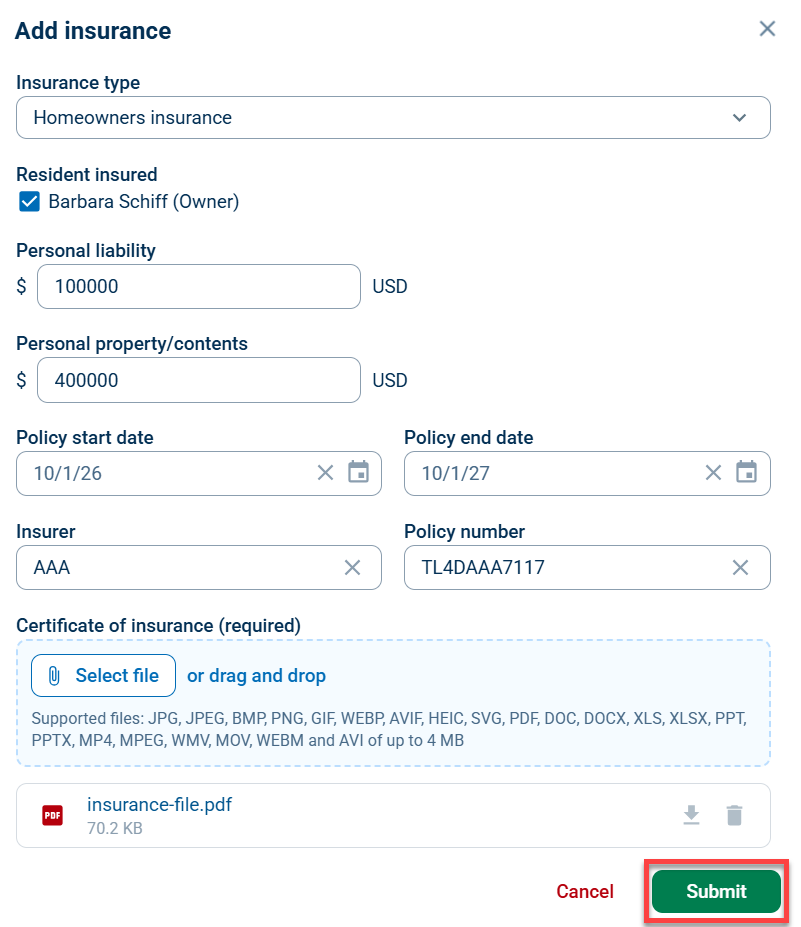
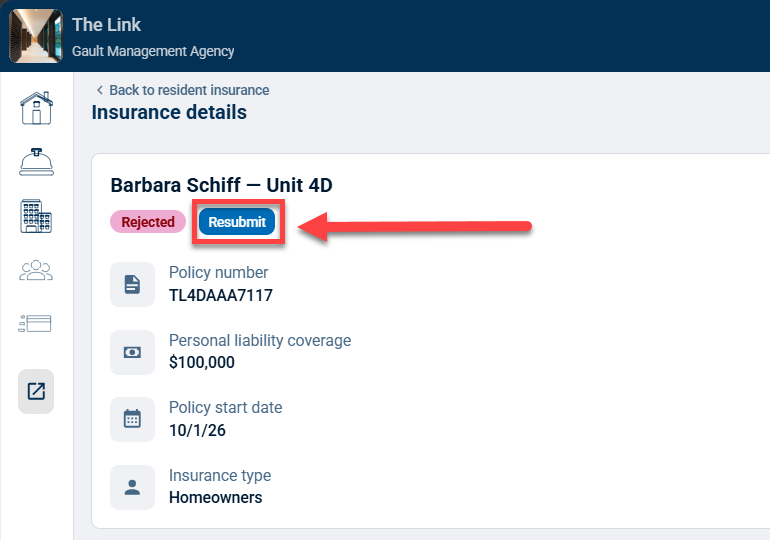
If your policy is Rejected, you can click the Resubmit button when viewing the insurance details to submit an updated insurance policy for review.