Note: This article is for the newly re-designed module. This updated module is in the process of being rolled out and may only be available to some users.
Overview
The occupant mailing labels feature allows management and security officer users to generate and print mailing labels for occupants in the BuildingLink database (E.g., offsite owners, seasonal staff).
Note: Click on the images to enlarge them.
From your Dashboard, go to the Other tab, select ID cards and labels, then select the Mailing labels tab.
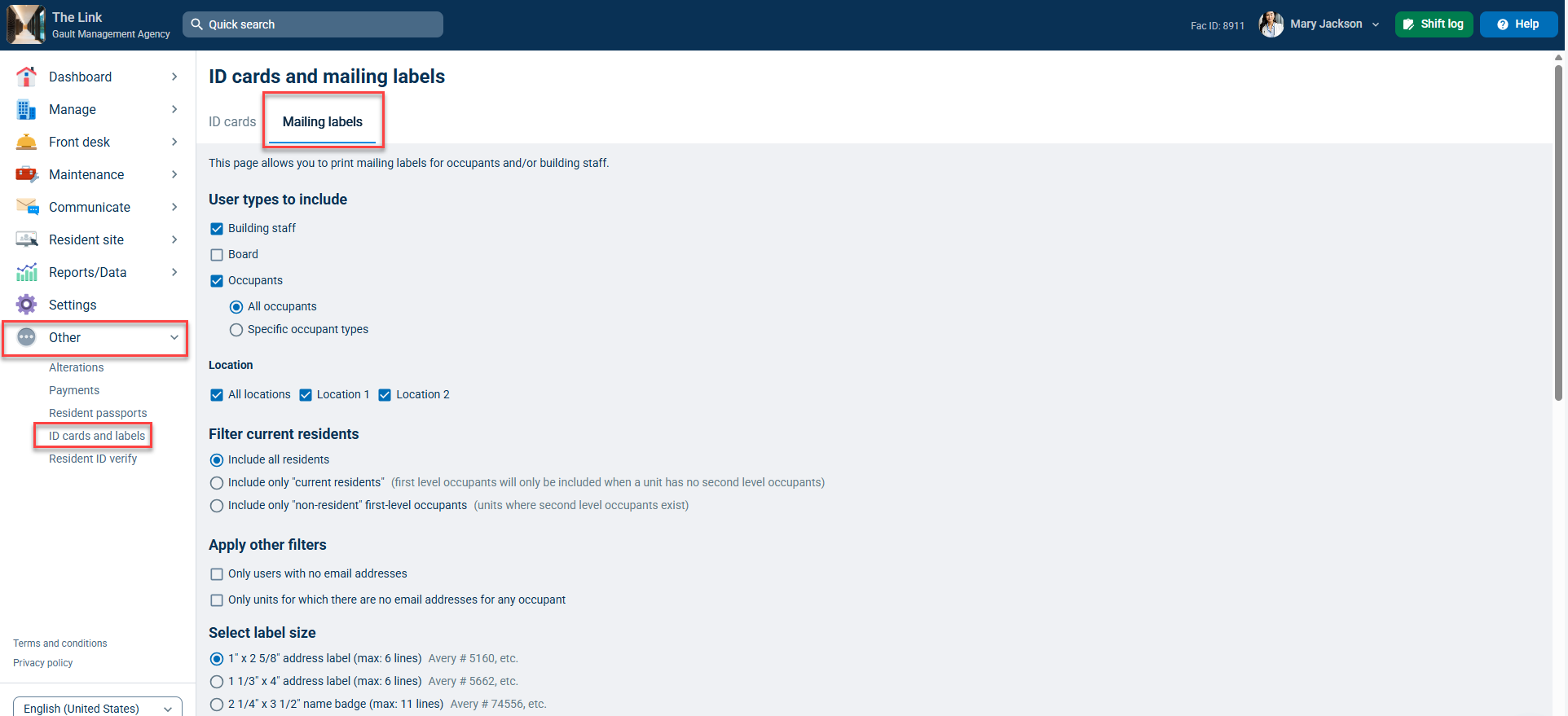
Next, fill out the following form options:
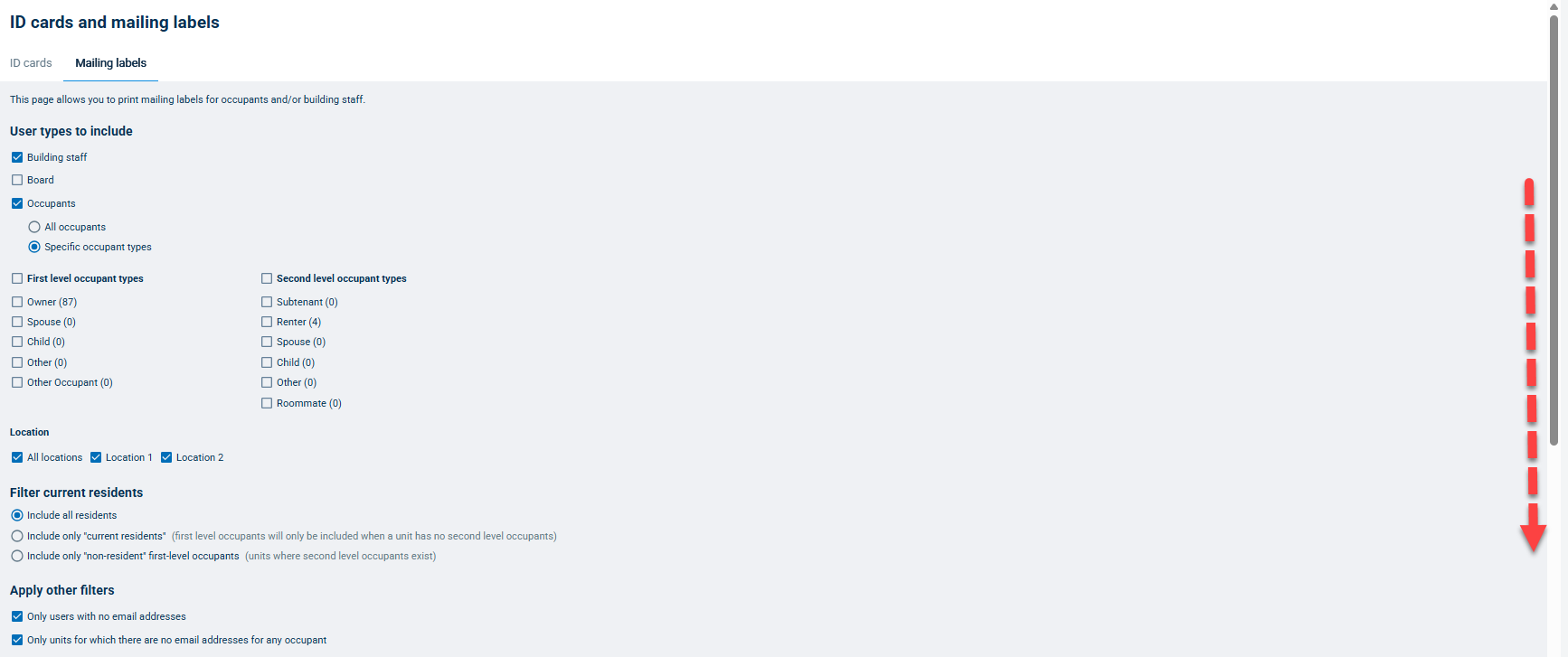
- User types to include: lets you choose the users you want to print mailing labels for. You can also choose specific occupant types and locations if you've defined them.
- Filter current residents: lets you narrow your selection further by printing only for current residents (e.g., first-level occupants with second-level occupants will be excluded, since the system assumes they are offsite) or for only offsite occupants.
- Apply other filters: lets you narrow your selection further by printing only for occupants without emails in the system, and only for units with no email addresses for any occupants.
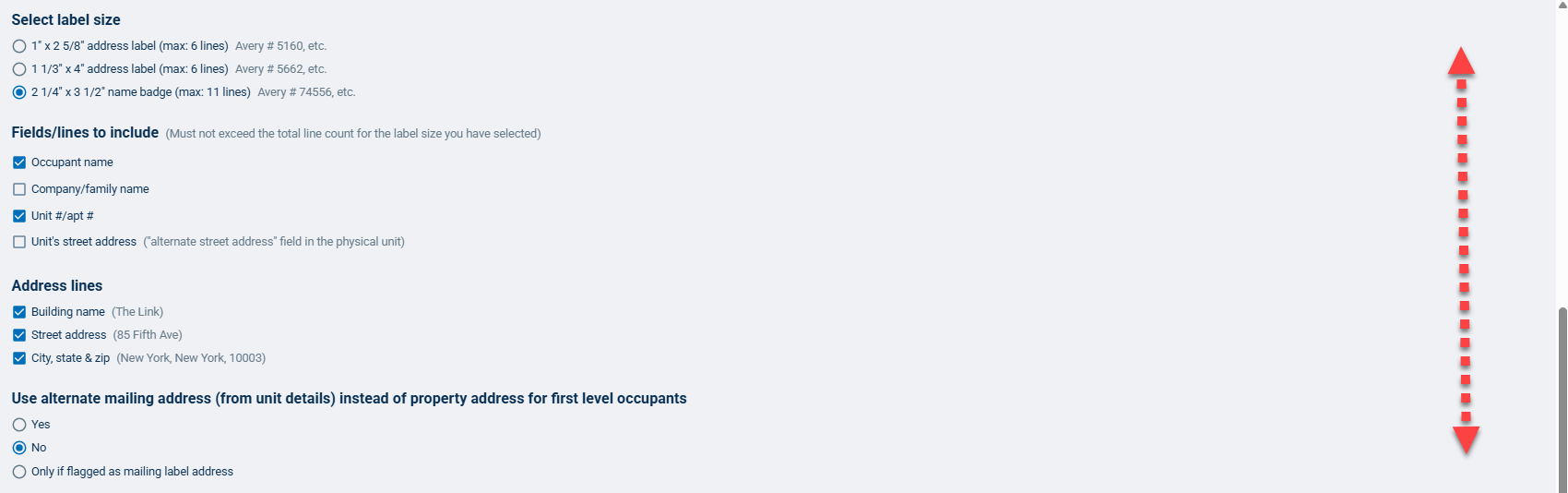
- Select label size: Lets you select a label size and corresponding recommended paper.
- Fields/lines to include: Lets you choose the fields you'd like to include on the mailing label, including Occupant name, Company/family name, Unit #/apt #, Unit's street address ("alternate street address" field in the physical unit).
- Address lines: lets you select how many address lines you want on your labels
- Use alternate mailing address (from unit details) instead of property address for first level occupants: Lets you use the alternate mailing address if one is defined, or only use the alternate mailing address if it is flagged, meaning if the "Use this address when printing mailing labels" checkbox next to the alternate address field is selected.
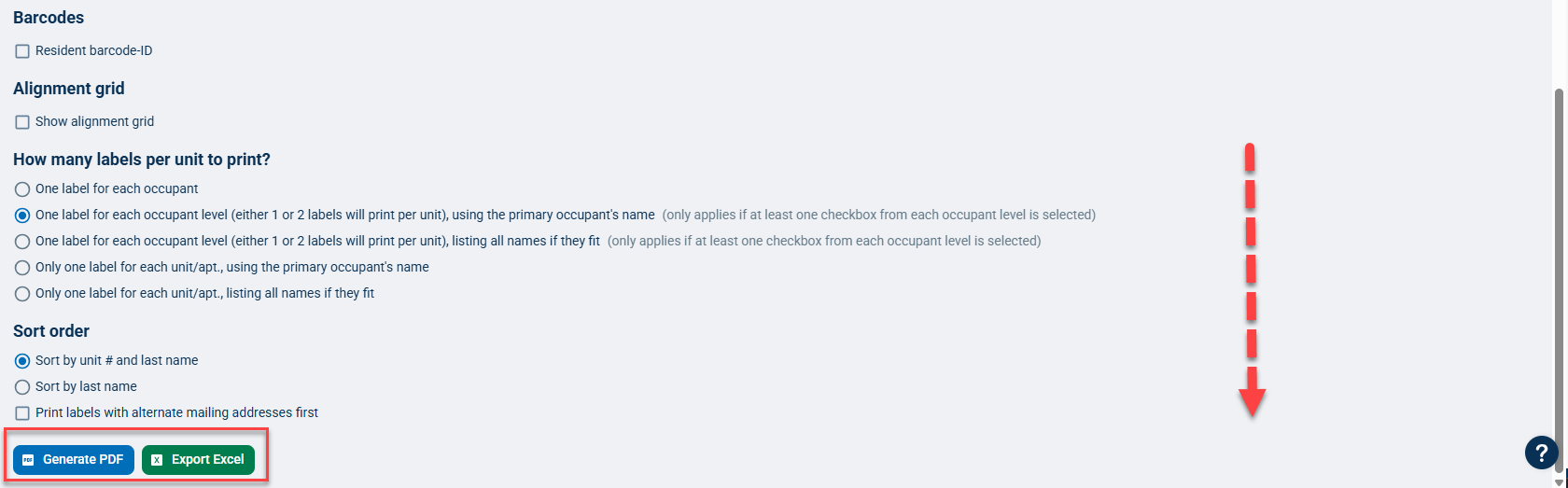
- Barcodes: Lets you add the Resident barcode-ID to the mailing label (PDF only), with an option to add a red background for color printing to prevent photocopying of barcode.
- Alignment grid: Lets you include label alignment grid lines when you generate a PDF.
- How many labels per unit to print?: Lets you choose how many labels to print per unit with various options based on occupant type.
- Sort order: Lets you choose the print order of your labels.
When you finish customizing your mailing labels, click Generate PDF to print your labels or you can export them to Excel.