Overview |
Note: Click on the images to enlarge them.
Table of contents
- MFA FAQs
- Setting Up MFA Email
- Setting Up MFA Authenticator
- Managing MFA (Staff)
- Managing MFA (Residents)
MFA FAQs
What is multi-factor authentication?
Multi-factor authentication (MFA) is a security feature that requires you to verify your identity using more than one method, such as your password plus a one-time code sent by email or generated by an authenticator app.
What are the benefits of using MFA?
MFA significantly reduces the risk of unauthorized access by adding an extra layer of protection beyond your password.
How does MFA work?
After you enter your password, you are prompted to confirm your identity with a one-time code delivered by email or an authenticator app before you can sign in.
What is an authenticator app, and how do I use one?
An authenticator app is a mobile app that generates a secure, time-based one-time code for signing in. After setting it up by scanning a QR code, you simply open the app and enter the current code when prompted during login. You can use any authenticator app for MFA with BuildingLink, such as Google Authenticator or Microsoft Authenticator.
How do I get this enabled for my property?
If MFA is not already enabled for your property, please have a security officer-level user email support@buildinglink.com to enable it.
Setting Up MFA Email
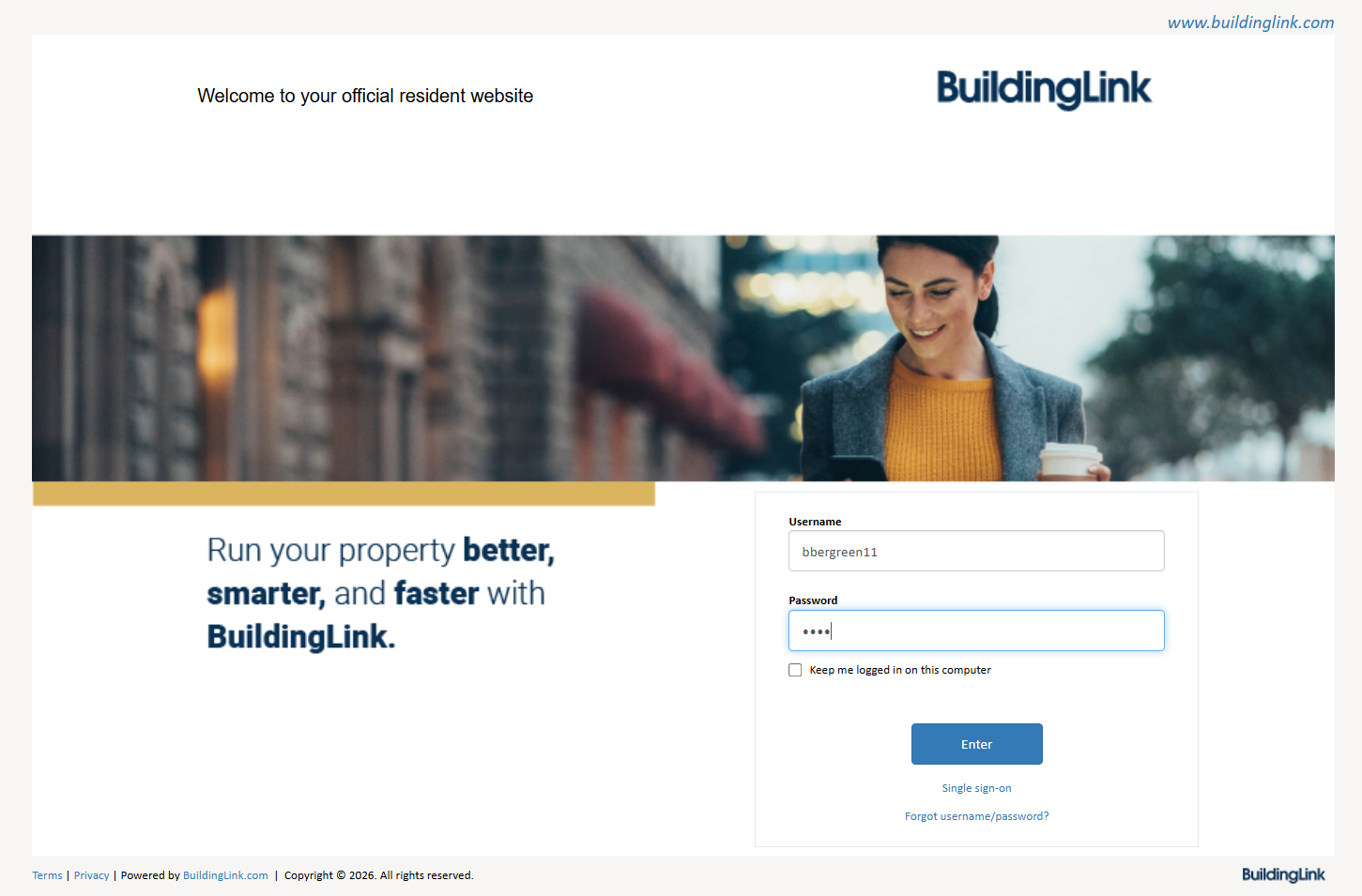
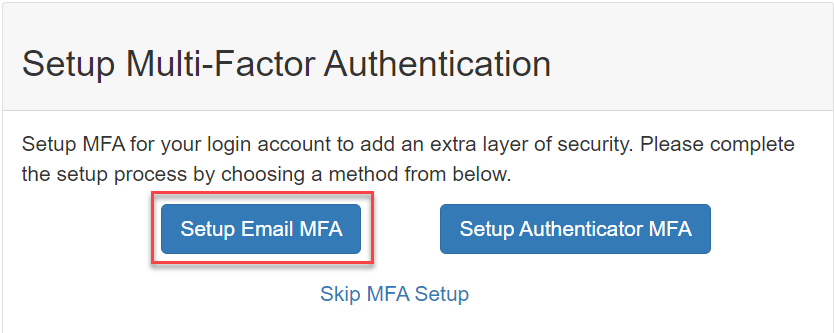
Go to your BuildingLink Login page and enter your BuildingLink login information. On the next screen, select Setup Email MFA. (Note: if your user type is or your property requires you to set up MFA, you will not see a Skip MFA Setup link.)
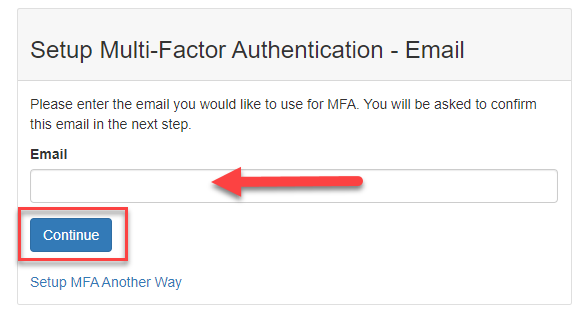
Enter the email you would like to use for MFA and click Continue. Please check your spam folder if you don't see the verification code email in your inbox before resending the code. You can also try using incognito mode in a computer browser or a private window on a mobile for this process if you still don't receive the code.
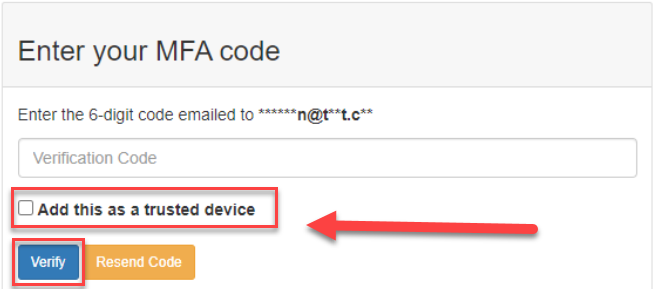
On the following page, enter the verification code sent to your email, check the box next to Add this as a trusted device (will last for 30 days) and click Verify to be taken to your BuildingLink site.
Setting Up MFA Authenticator
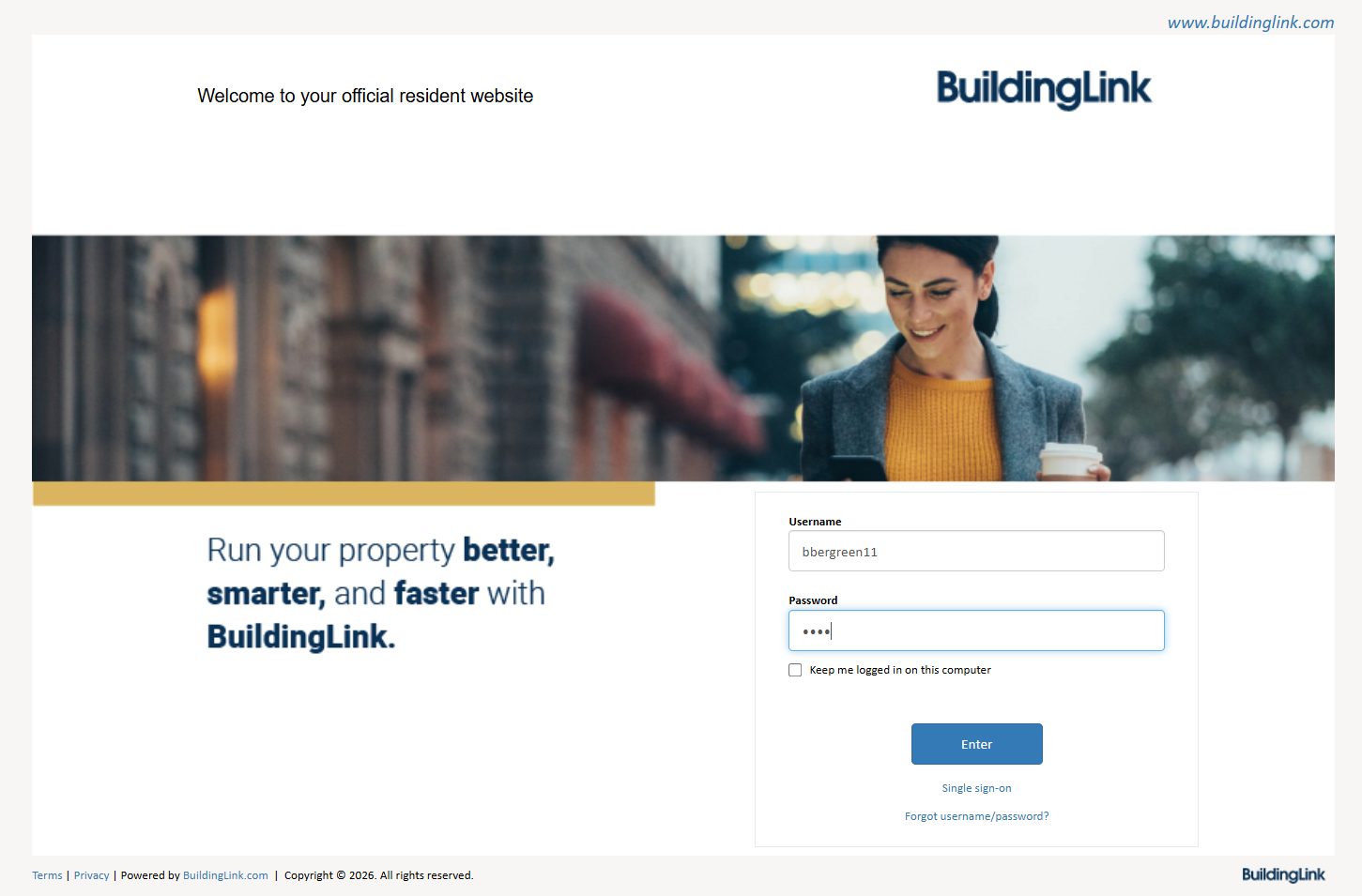
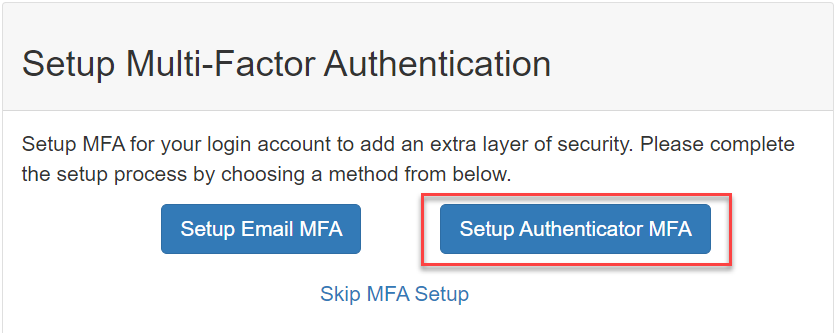
Go to your BuildingLink Login and enter your BuildingLink login information. On the next screen, select Setup Authenticator MFA. (Note: if your user type is or your property requires you to set up MFA, you will not see a Skip MFA Setup link.
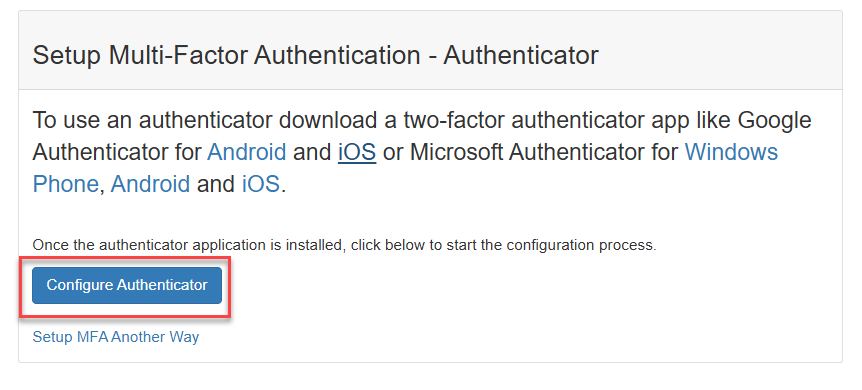
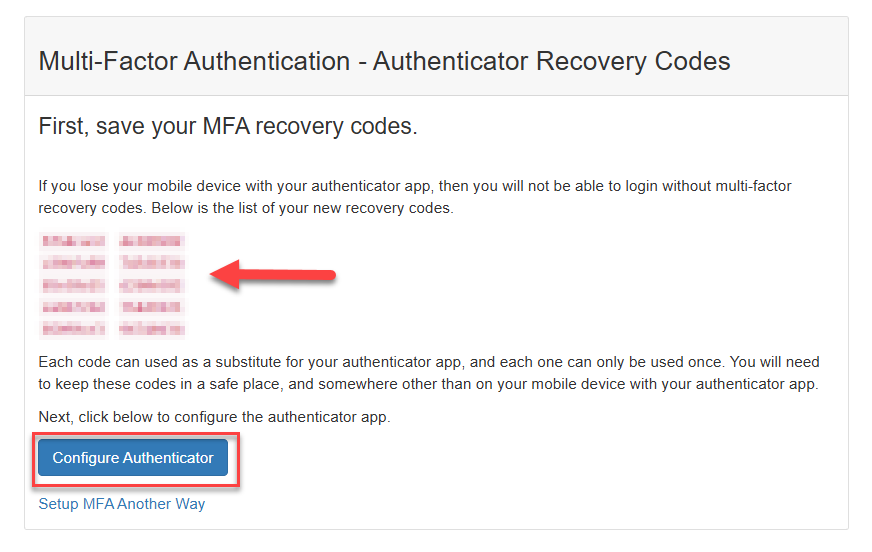
On the next page, follow the instructions to download an authenticator app if needed and click Configure Authenticator. Next, save your MFA recovery codes as directed, then click Configure Authenticator.
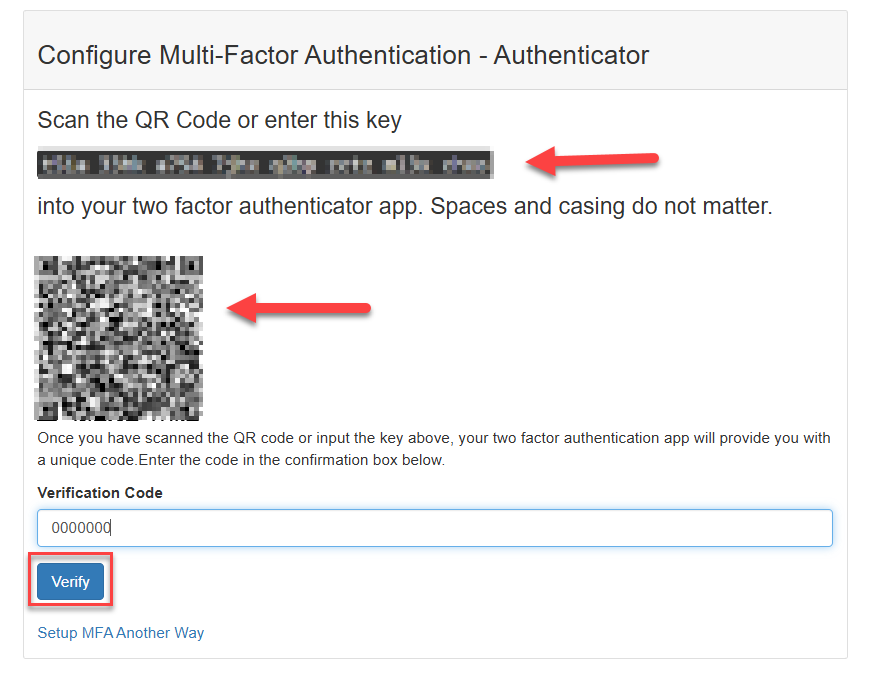
Finally, enter the provided key or scan the QR code with your authenticator app, enter the verification code, and click Verify to be taken to your BuildingLink site.
Managing MFA (Staff)
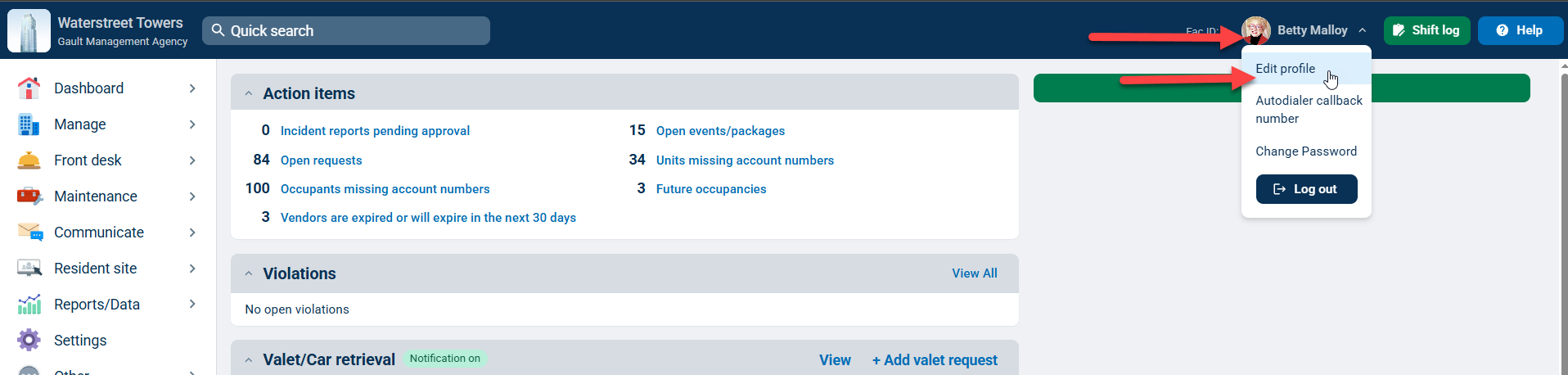
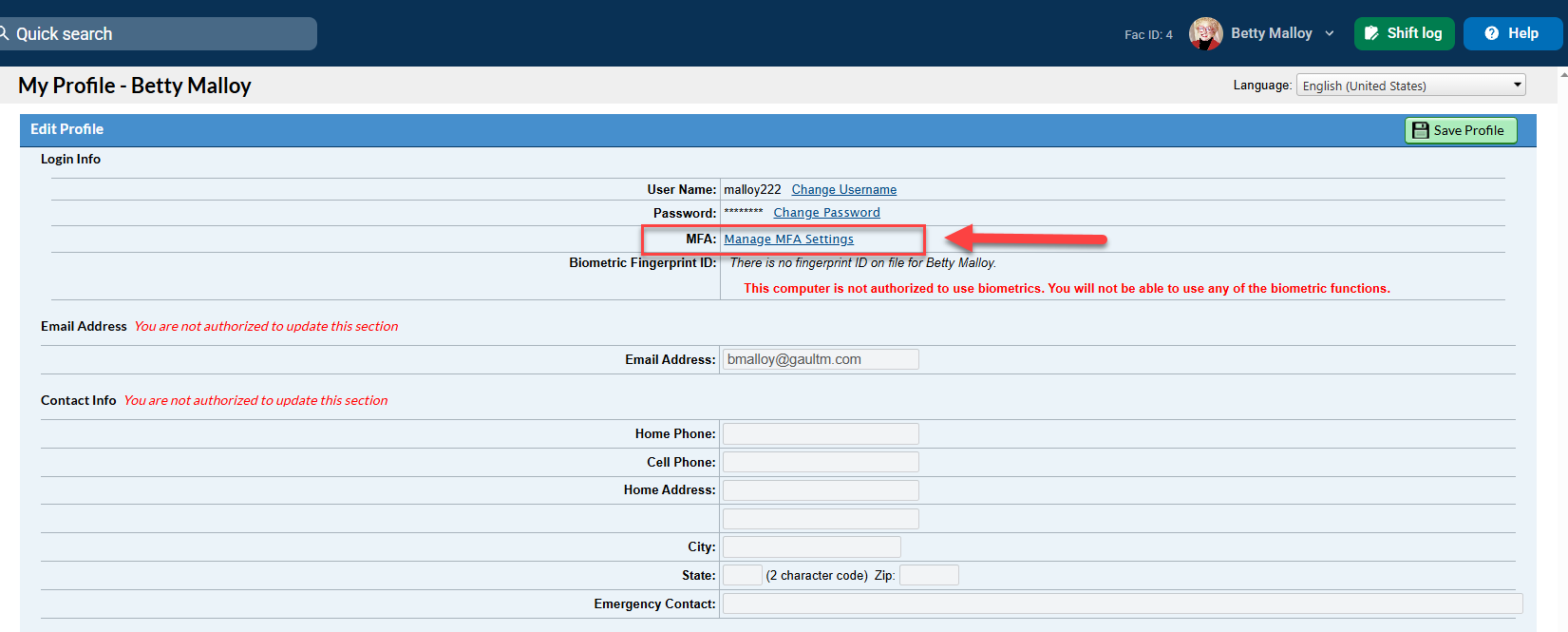
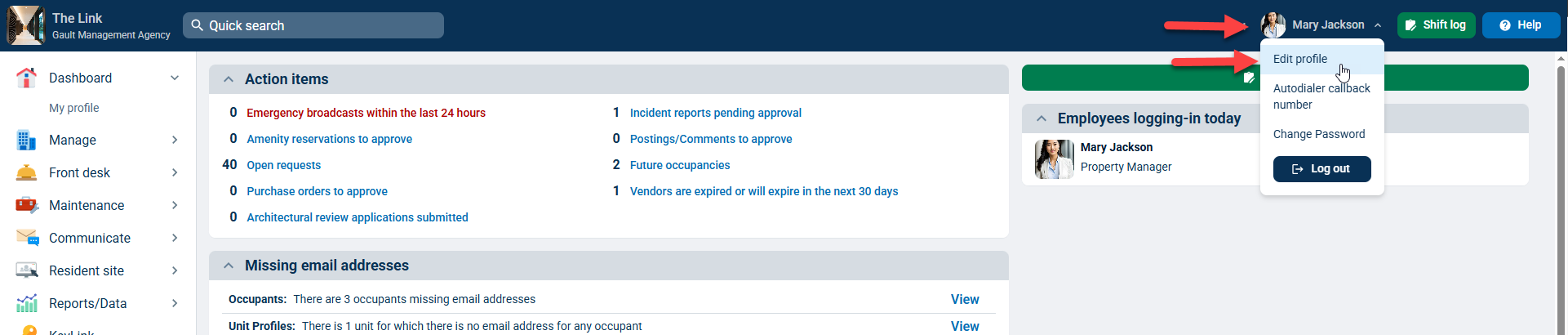
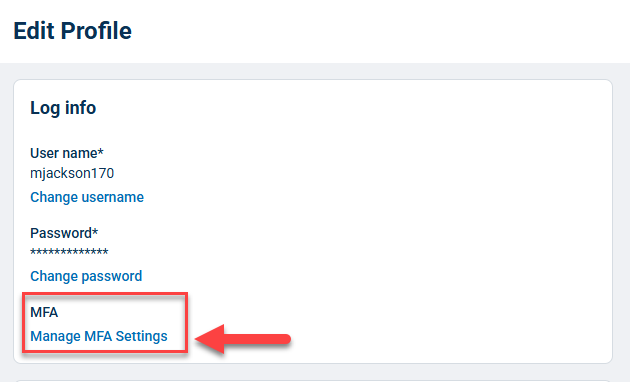
To change your MFA Settings, log in to your BuildingLink account, click your name, select Edit profile, and click Manage MFA Settings.
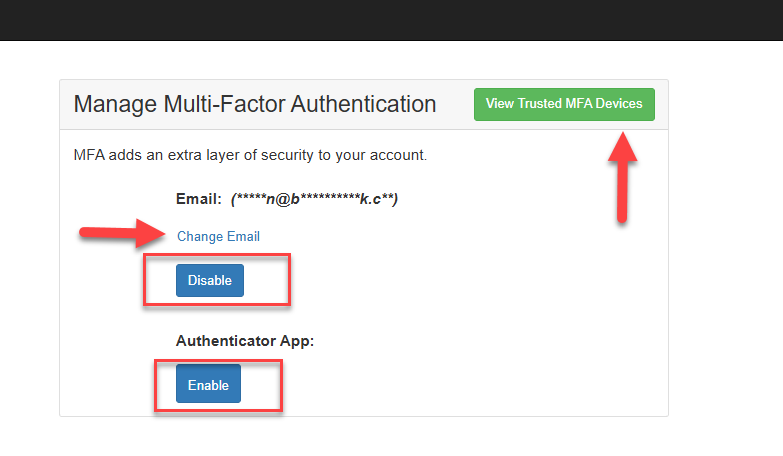
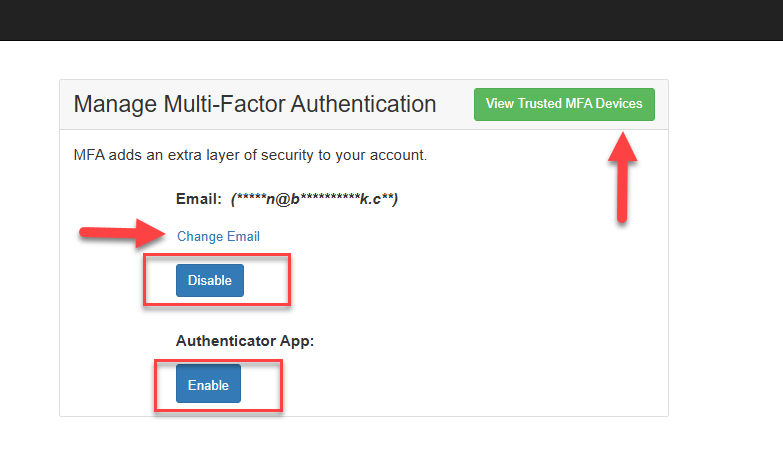
On the next page, you will see several options:
- Click Change Email to use a different email address for MFA.
- Click Disable to stop using an MFA method.
- Click Enable to start using an MFA method.
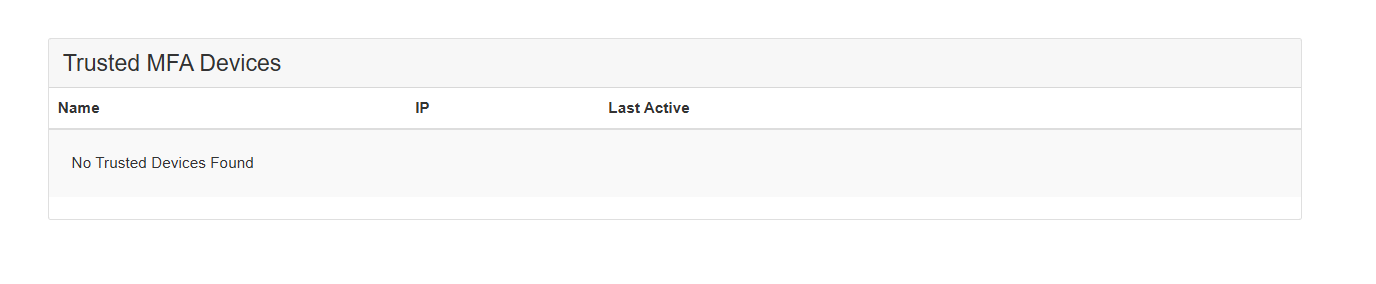
- Click View Trusted MFA Devices to see a list of your saved devices and when they were last active.
Classic
Fleet
To change your MFA Settings, log in to your BuildingLink account, click your name, select Edit profile, and click Manage MFA Settings.
On the next page, you will see several options:
- Click Change Email to use a different email address for MFA.
- Click Disable to stop using an MFA method.
- Click Enable to start using an MFA method.
- Click View Trusted MFA Devices to see a list of your saved devices and when they were last active.
Managing MFA (Residents)
Classic
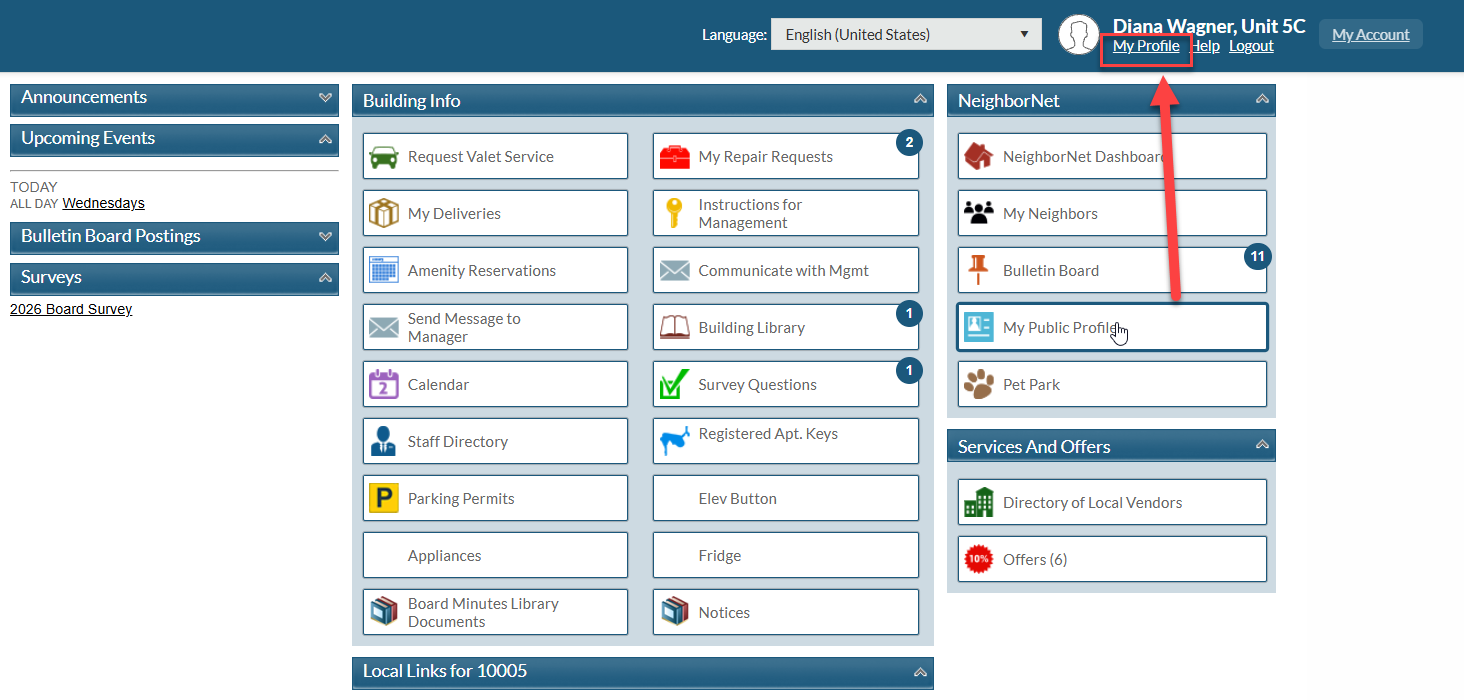
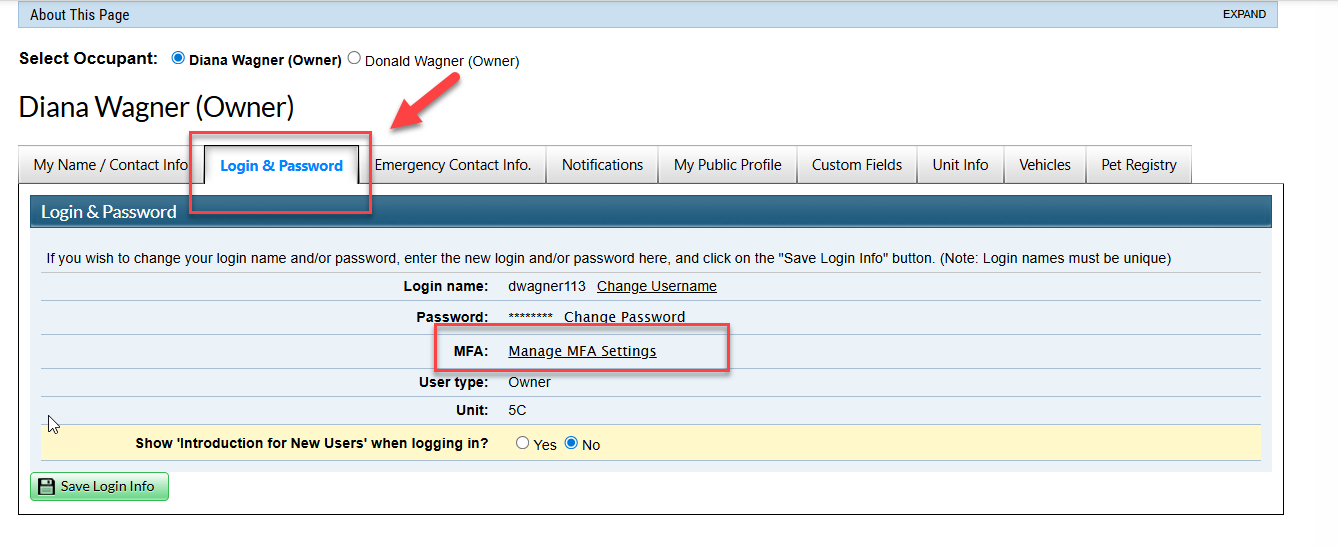
To change your MFA Settings, log in to your BuildingLink account, click My Profile, select the Login & Password tab, and click Manage MFA Settings.
On the next page, you will see several options:
- Click Change Email to use a different email address for MFA.
- Click Disable to stop using an MFA method.
- Click Enable to start using an MFA method.
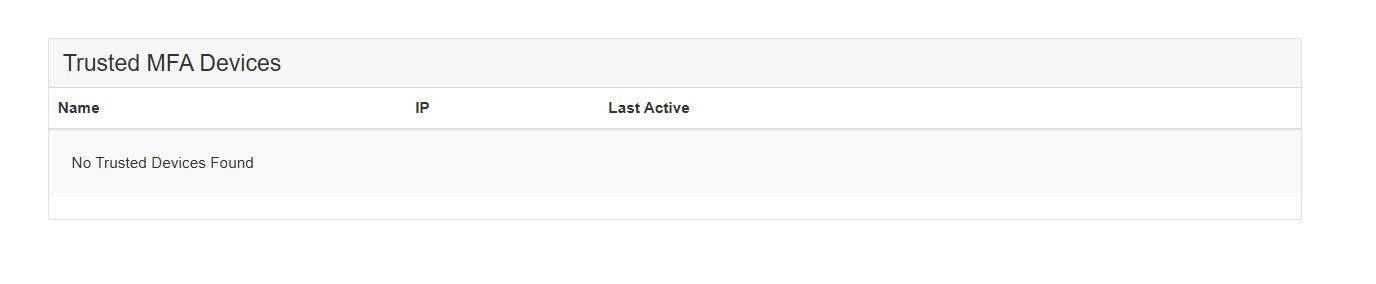
- Click View Trusted MFA Devices to see a list of your saved devices and when they were last active.
Fleet
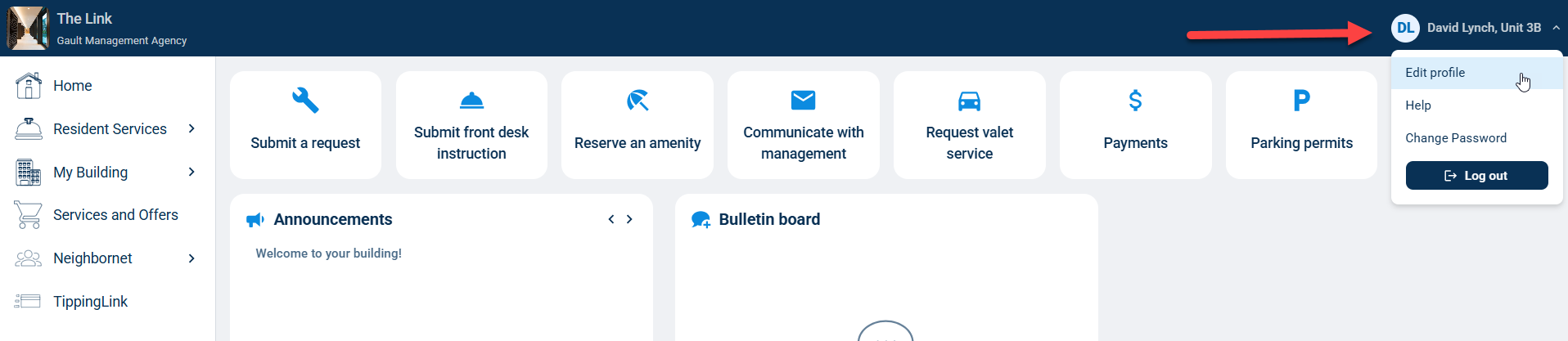
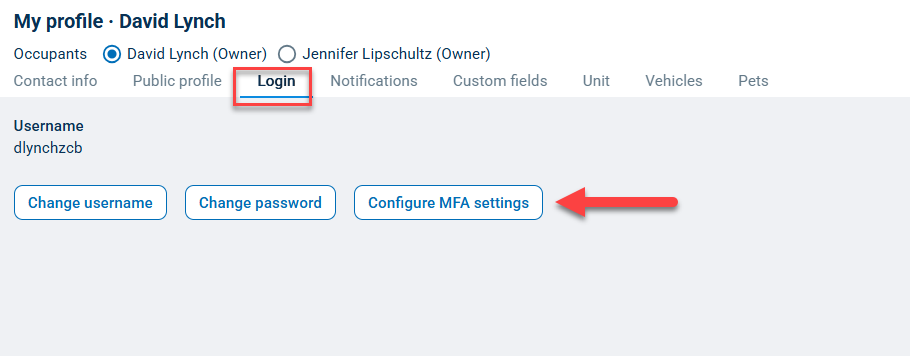
To change your MFA Settings, log in to your BuildingLink account, click on your name, select Edit profile, select Login, and click Manage MFA Settings.
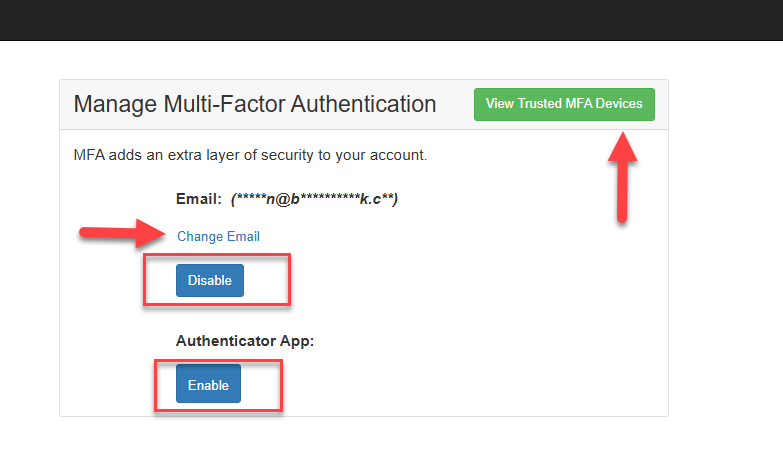
On the next page, you will see several options:
- Click Change Email to use a different email address for MFA.
- Click Disable to stop using an MFA method.
- Click Enable to start using an MFA method.
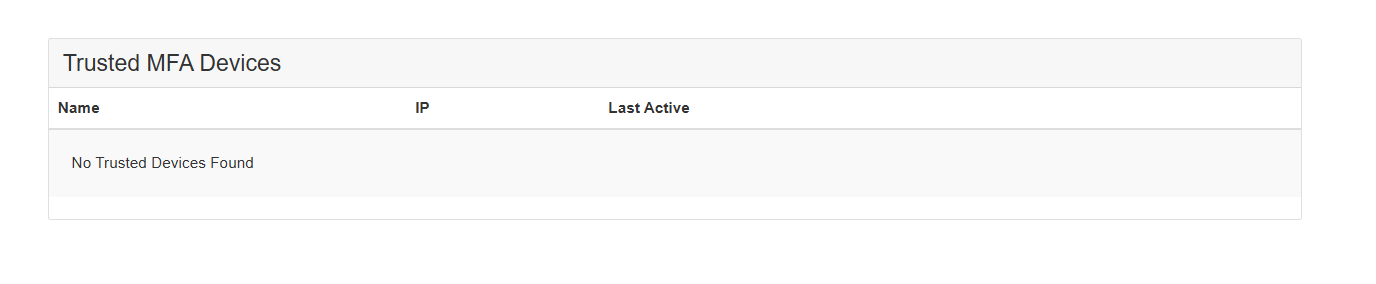
- Click View Trusted MFA Devices to see a list of your saved devices and when they were last active.