

Overview
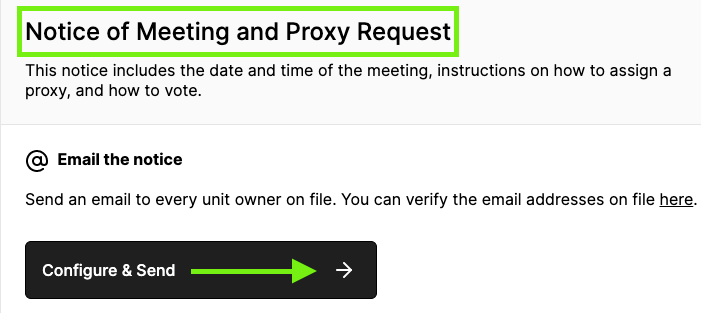
The first notice to go out is the Notice of Meeting and Proxy Request. This includes the date and time of the meeting, and instructions on how to assign a proxy (and directive ballot). This initial notice can be sent in any of the following ways.
Note: Click on the images to enlarge them.
Table of Contents
Option 1: Email the Notice
1. Click “Configure & Send.”
2. Select to whom you want to send the notice. You can send to all units, or if you need to send to individual units, click into the box and begin typing the unit #. The correct unit will then populate the drop-down for you to click on. Repeat this until you've selected all units to whom you'd like to send the notice.
3. You have the option to change the subject line of the meeting notice as well, though it will be populated by default.

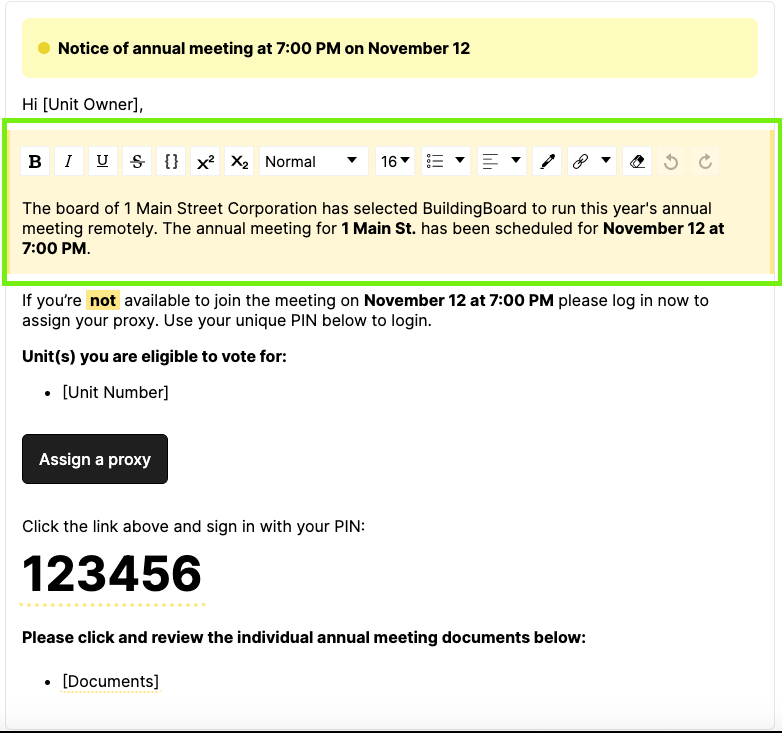
We’ve provided a recommended email body in the yellow-highlighted section; you can change it. The body outside of the highlighted section is automatically generated and cannot be changed.
4. Make any updates that you'd like to in the indicated section below:
5. If you'd like to preview the email, you can send it to yourself by clicking "Send Preview," entering your email address, and clicking "Send." When you're ready to send the notice to unit owners, click "Send Email."

Option 2: Print the Notice
1. To print and send the notice yourself, click "Configure & Print".
2. Select if you'd like to generate notices for individual units by typing in and selecting unit numbers in the drop-down field, or leave as is to generate notices for all units.

3. Under the yellow-highlighted section of "Body," you are able to customize the message if you'd like.
4. Click "Generate" and then "Download," which will automatically download a printable PDF of the notices you created.

