

Note: This article is for the newly re-designed module. This updated module is in the process of being rolled out and may only be available to some users.
OverviewThe Resident Directory is an internal address book of all your resident contact information. Here, you can view and search resident contact information, as well as edit resident phone numbers and email addresses, depending on your authority level. You can also print the Resident Directory for your staff. |
Note: Click on the images to enlarge them.
Table of Contents
Accessing the Resident Directory
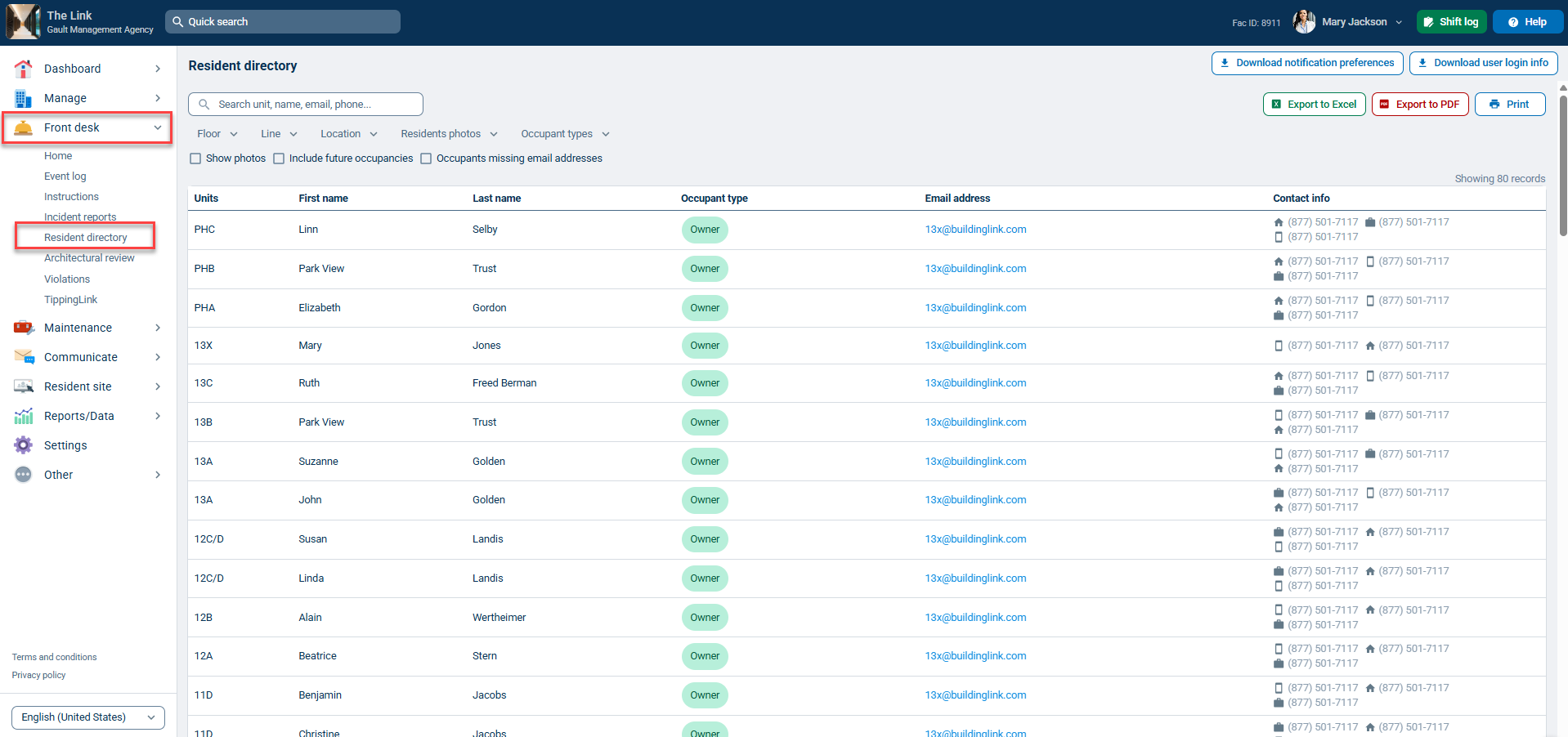
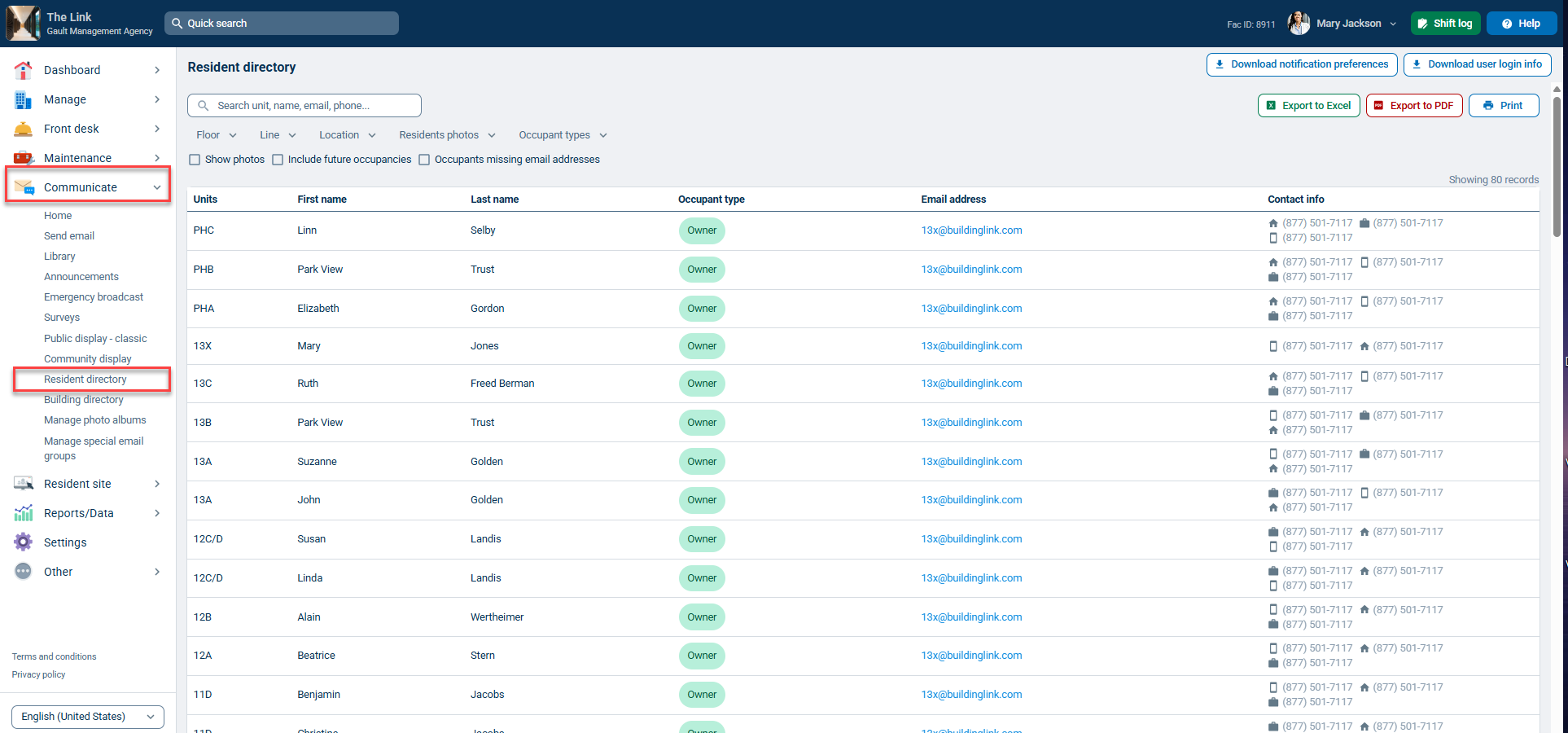
The Resident Directory can be accessed via the Front desk or Communicate Tabs.
Via Front Desk Tab
Via Communicate Tab
Searching the Resident Directory
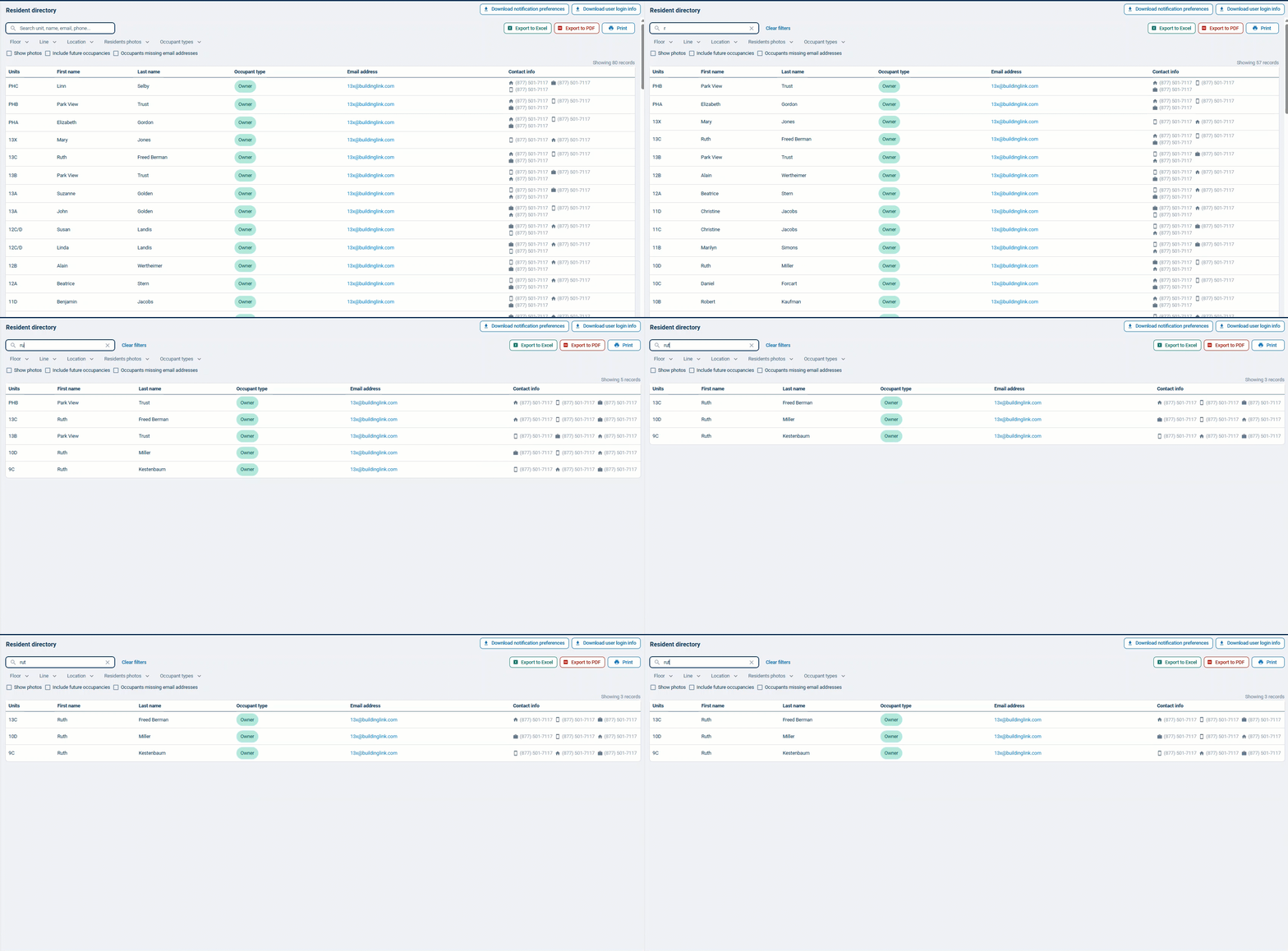
By default, the Resident Directory shows results for all your residents. Type any part of the resident's unit, name, email or phone number in the Search box and the result will automatically begin filtering.
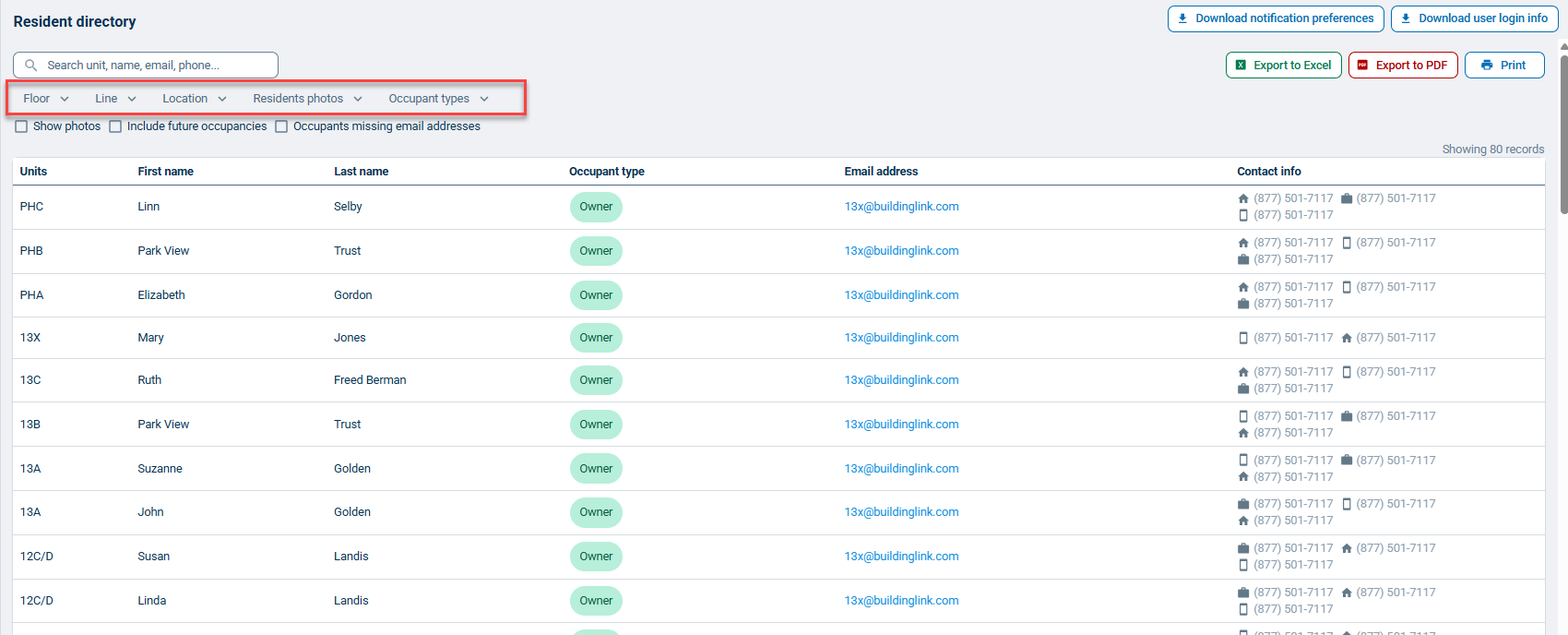
You can also filter resident information by Floors, Lines (or stacks in some regions), Unit Locations (if applicable), Occupant Type, and Resident Photos(with or without). Multiple filters may be applied simultaneously.
Export and Print Options
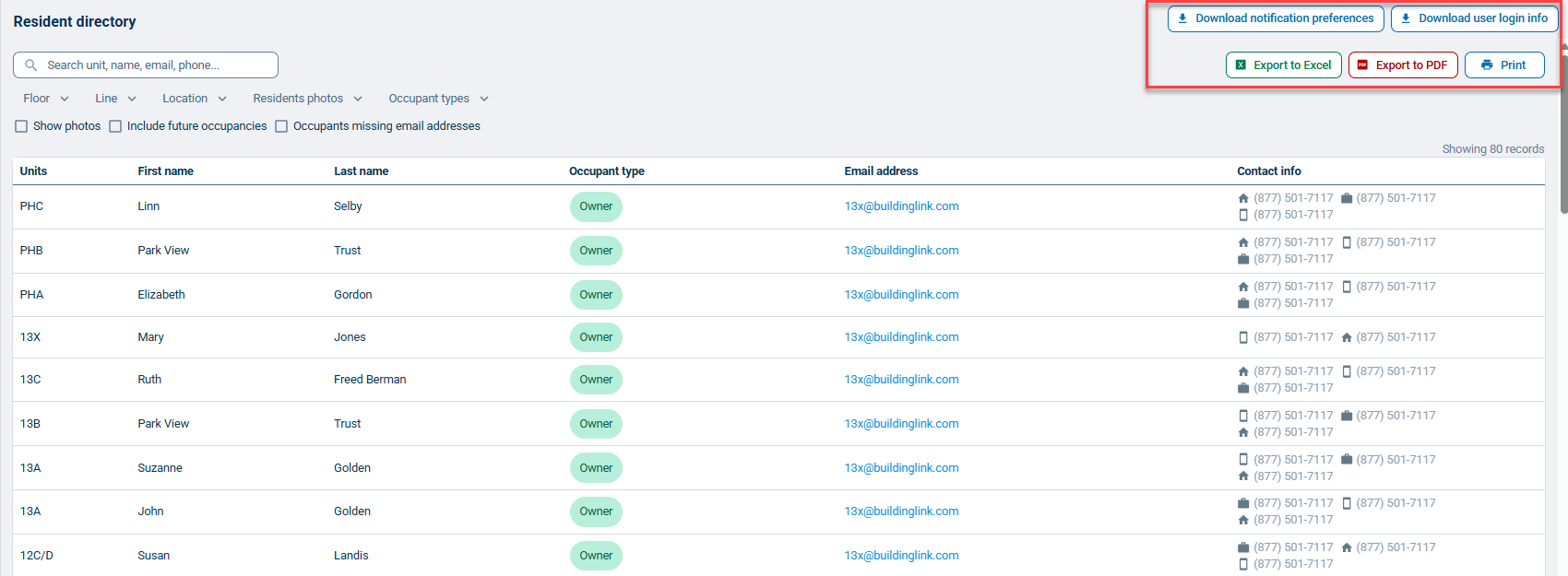
Resident Directory search results can be exported to Excel or PDF and printed by clicking those buttons. You can also click the Download user notification preferences and Download user login info buttons to export those reports to Excel.
More Resident Directory Options
By default, the Resident Directory is visible to all employees. Employees with the highest Authority Level (Security Officer) may restrict the visibility of the resident contact information to certain employees by using the Allow Staff to view resident contact information Special Permission.
If your property has the Autodialer feature enabled, employee users may click on a phone number in the Resident Directory search results to place a call.
To have the Resident Directory activated or deactivated for your property contact support@buildinglink.com.