OverviewBy far, the easiest way to access and use BuildingLink is via the BuildingLink Resident app. The app is a free download for both Apple and Android devices. See below for the links to download the free app. Below, you will also learn about some of the more popular features of the BuildingLink Resident app. (Note: Not all features will be available to all residents, as some of these features may not be available at your specific property.) As always, should you have any questions or problems, you can reach out to BuildingLink support at 1-877-501-7117 x 0 or email us at support@buildinglink.com. |
Note: Click on the images to enlarge them.
Table of Contents
- Links for Mobile Device App Download
- Set Up and Home Screen Overview
- How to Change Your Password
- How to Access Your Resident ID
Links for Mobile Device App Download
- Click here for: Apple devices
- Click here for: Android devices
Set Up and Home Screen Overview
You will log into the app with your BuildingLink username and password. If you do not know your username/password, you can contact your building management, or you can reach out to us at support@buildinglink.com.
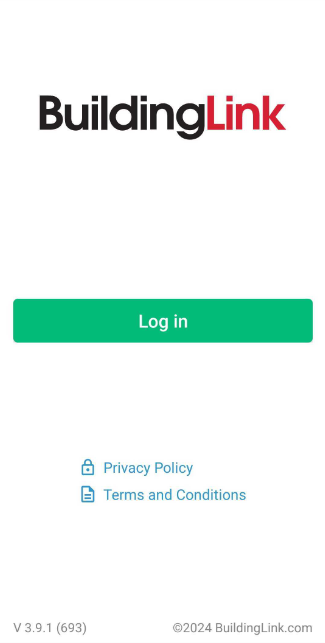
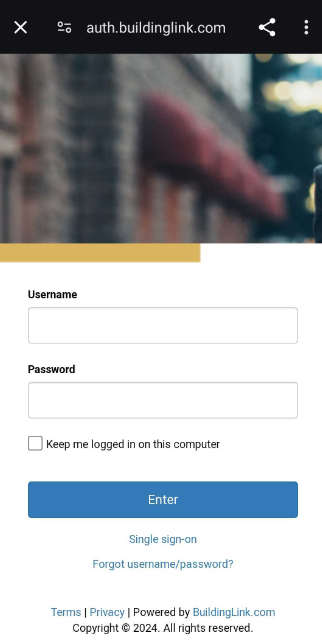
Once you log in successfully, the system will prompt you on whether or not you wish to receive “push notifications”.

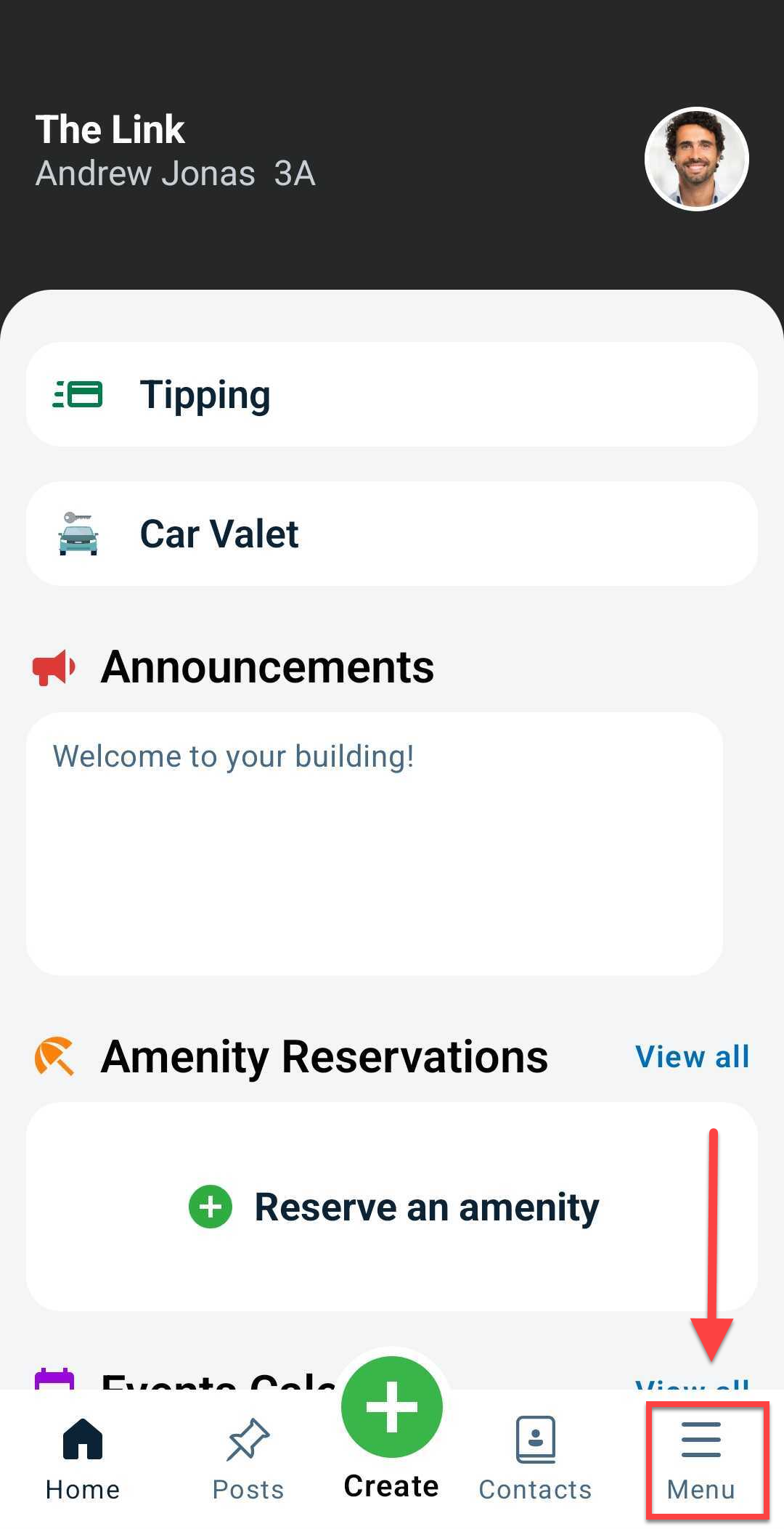
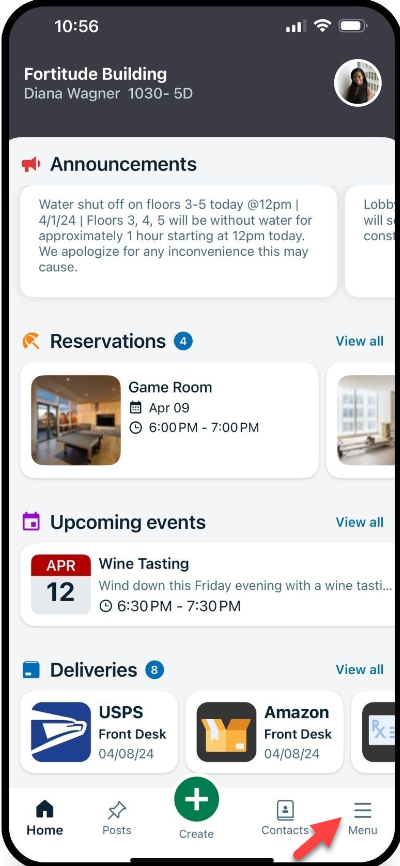
After selecting your push notification preference, you will get to the Resident app home screen. There, you will see your building information/unit # in the top left, as well as any building
Announcements, Amenity Reservations, upcoming Calendar Events, or other sections for your specific building. (Again, these options are not available for all residents at all buildings.)
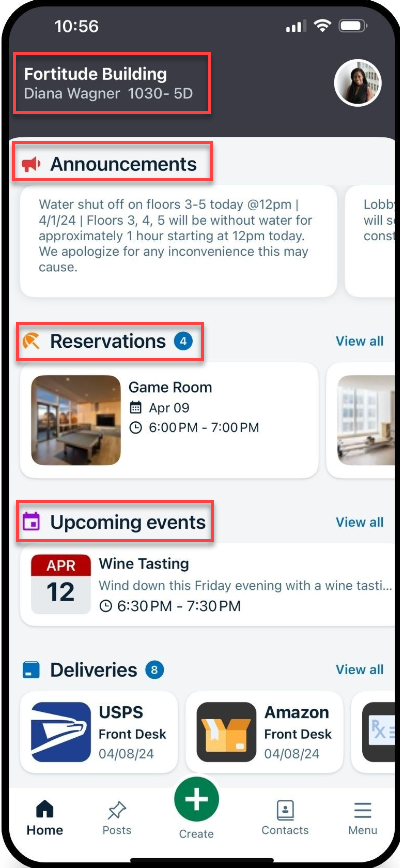
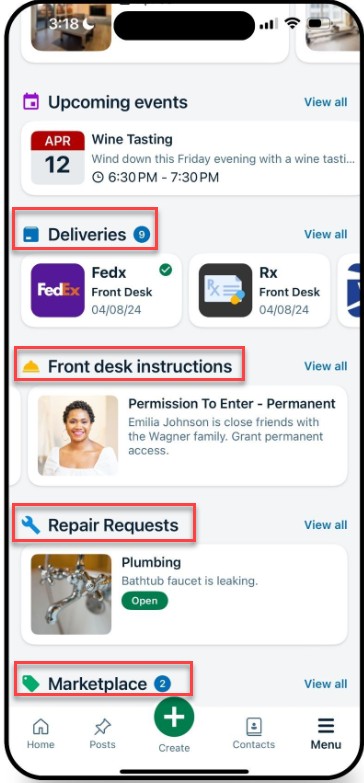
Tapping an Announcement, Calendar Event, Package Notification, Reservation,or Repair Request from the home screen will expand it so you can view the full details.

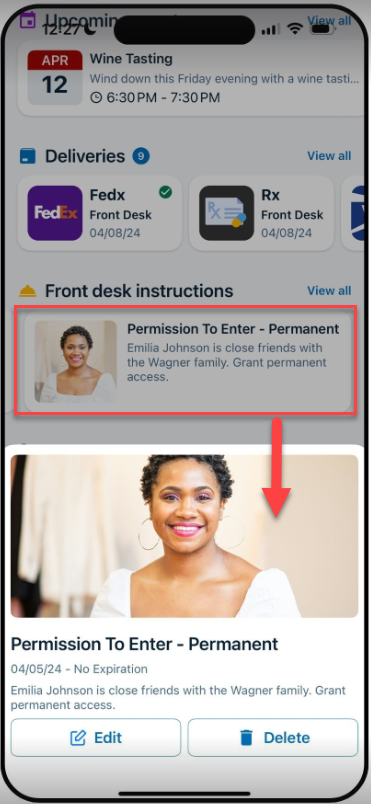
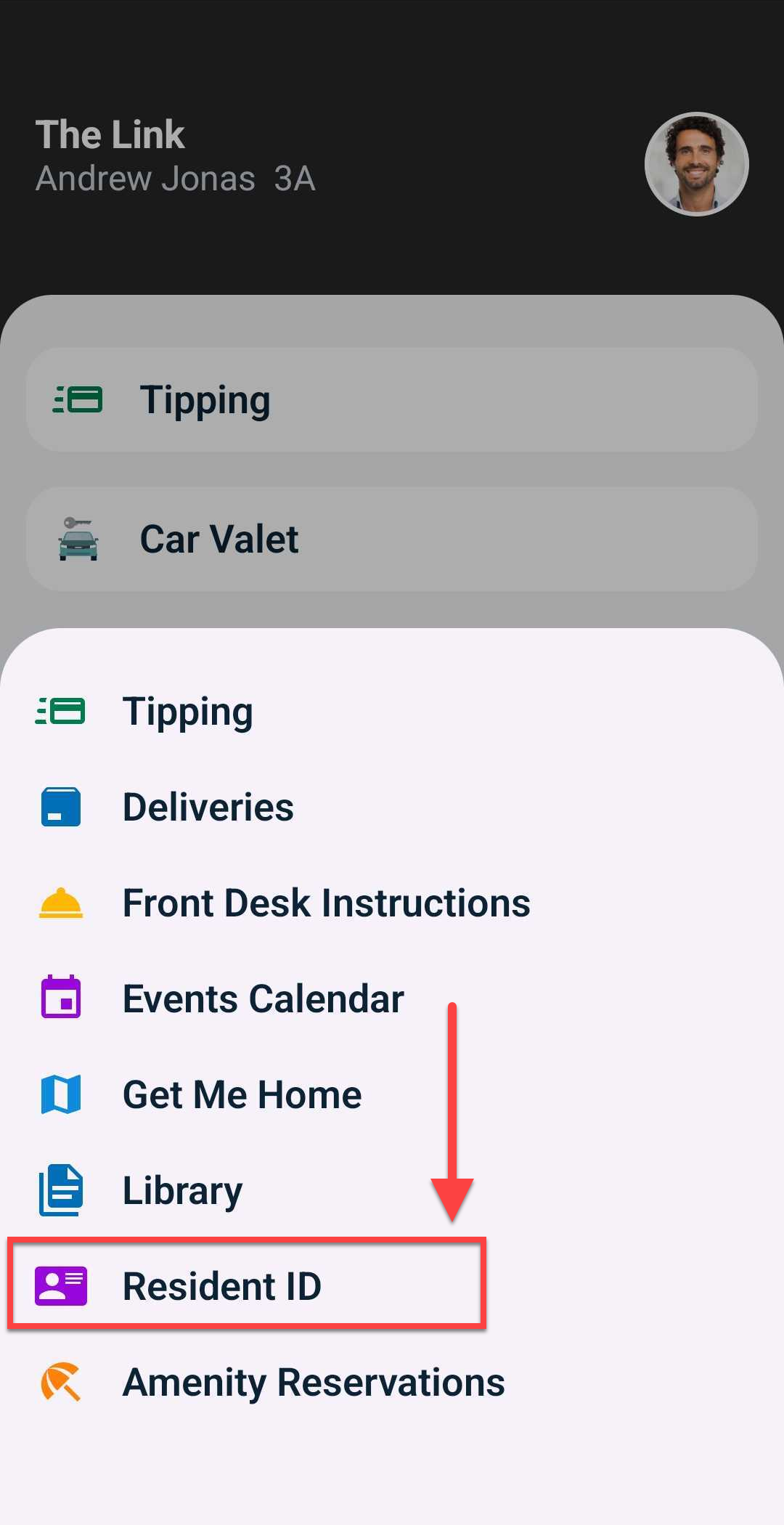
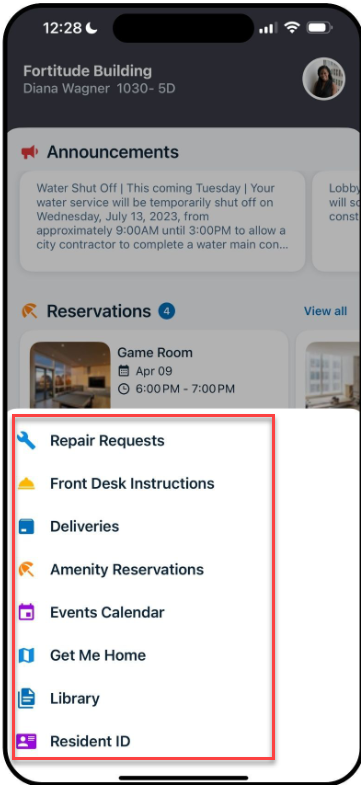
Tapping Menu at the bottom right of the resident app navigation bar has shortcuts to sections not on the app home screen, such as the building Library, Resident ID, or any Services, Offers or Vendors for your property.
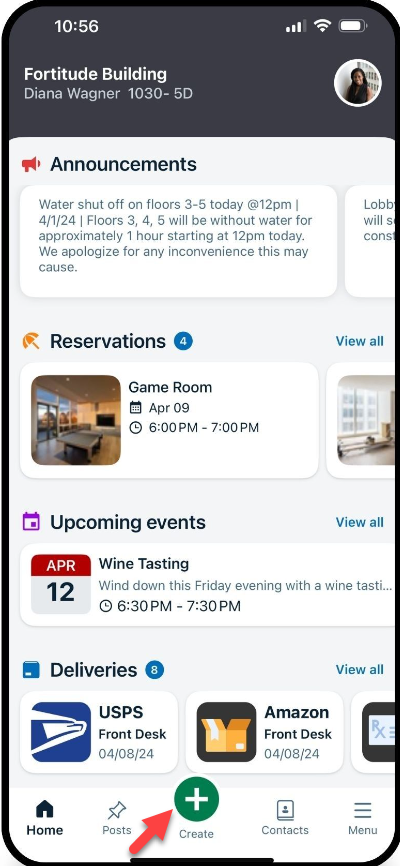
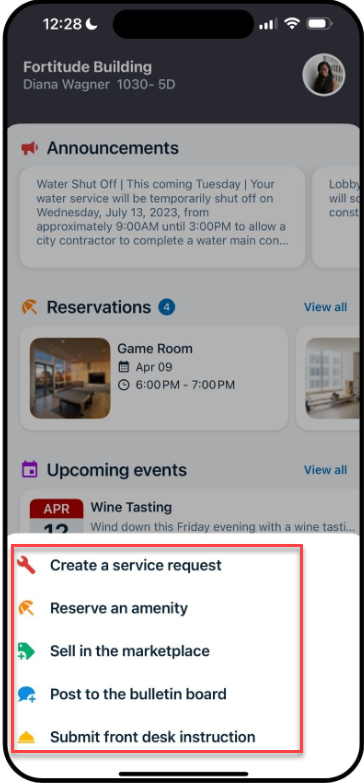
Tapping Create - the plus symbol in the center of the app Navigation bar - opens a shortcut menu for such tasks as Create a Service / Repair Request; Reserve an Amenity; or Submit a Front Desk Instruction.
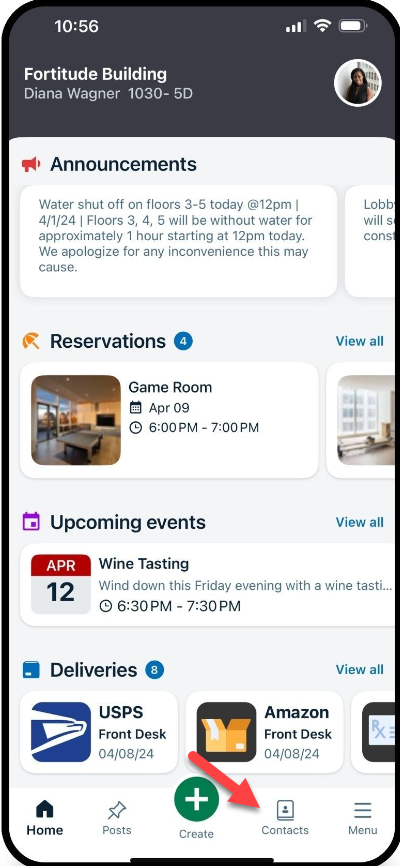
The Contacts button will show you any important contacts for your specific property.

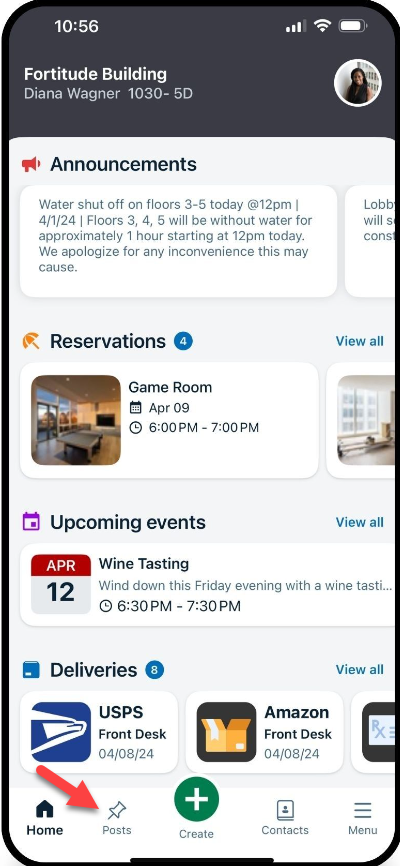
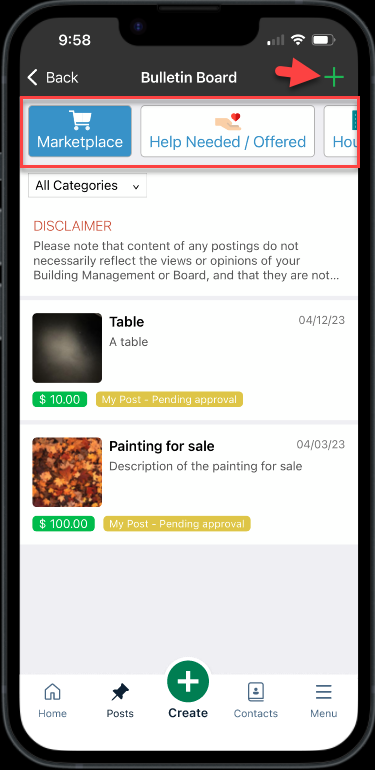
Tapping Posts in the app navigation bar opens the Bulletin Board. you can scroll through Bulletin Board categories at the top, select a post to view the details, or create a post by tapping the green plus symbol in the top right corner.
How to Change Your Password
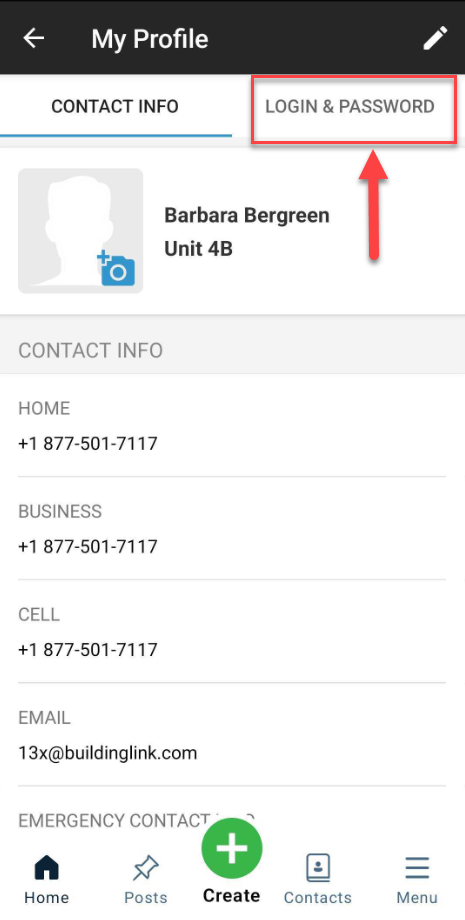
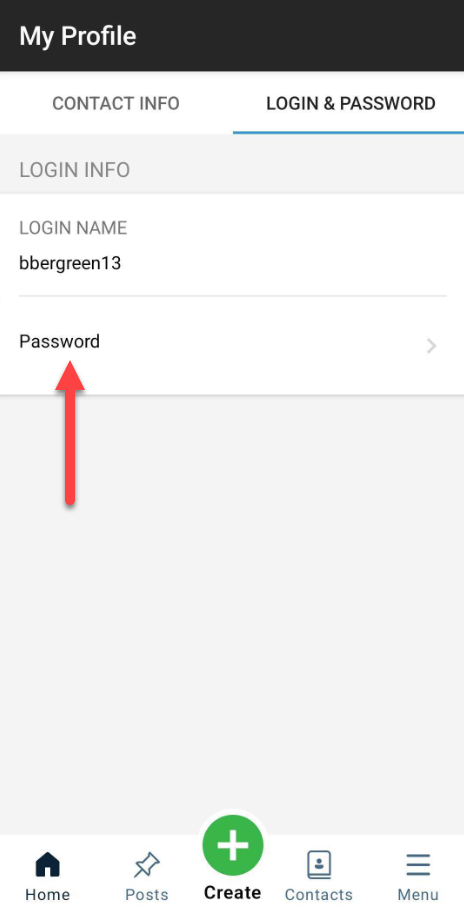
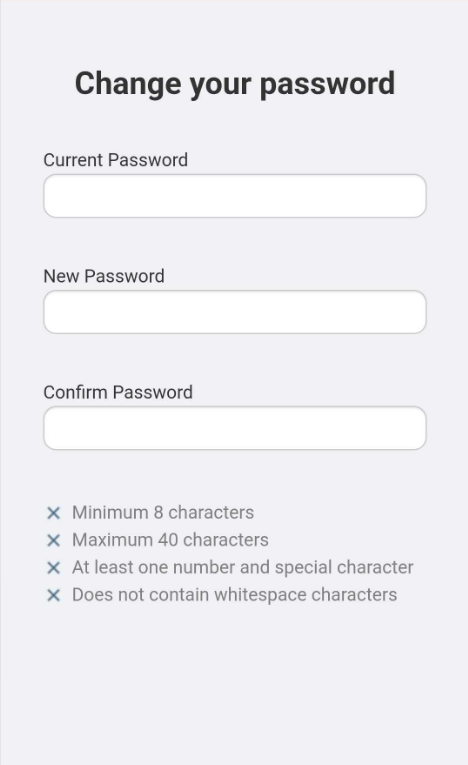
You can change your password by tapping on the My Profile icon. You will then select Login & Password. Then, tap on Password. In order to change your password, you will be prompted to include the following:
- Current Password
- New Password
- Confirm New Password
* Don't forget to save your changes

How to Access Your Resident ID
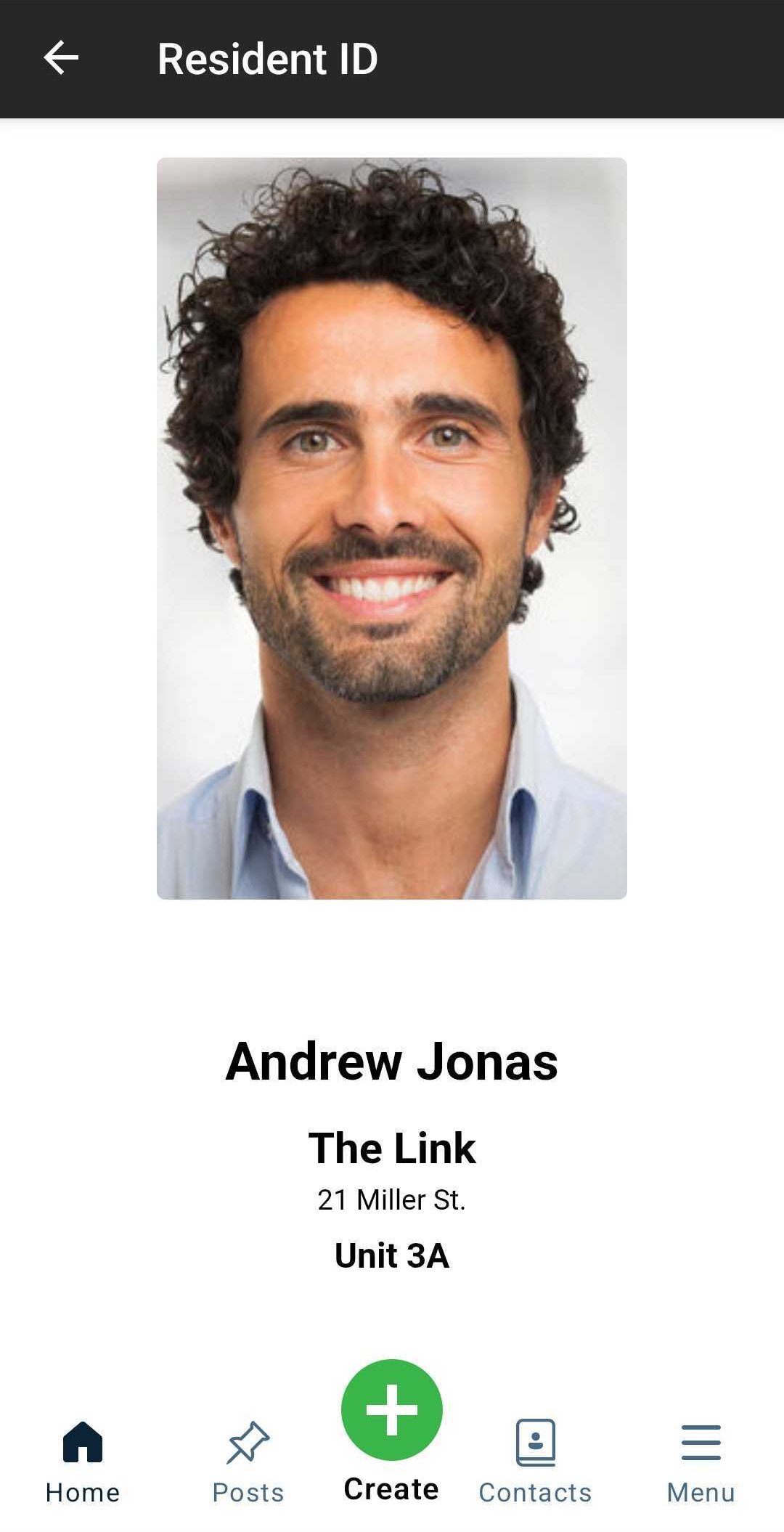
Your Resident ID can be used to identify yourself as a resident of your property.
To access your Resident ID from the home screen, tap the “Menu” button at the bottom right. On the list, tap Resident ID.
Note: Your profile photo may be different from the photo on your Resident ID. If you need to add or update the photo showing on your Resident ID, please contact your property staff for assistance.